
Seeing the WiFi symbol on your device and a \"Connected\" status can be misleading—especially when you open a browser and nothing loads. This frustrating scenario—connected to WiFi but no internet access—is more common than you think. It affects homes, offices, and public spaces alike. The good news is that most cases stem from simple, fixable issues. Understanding the root causes and applying targeted solutions can get you back online in under 10 minutes.
Why You’re Connected But Can’t Access the Internet
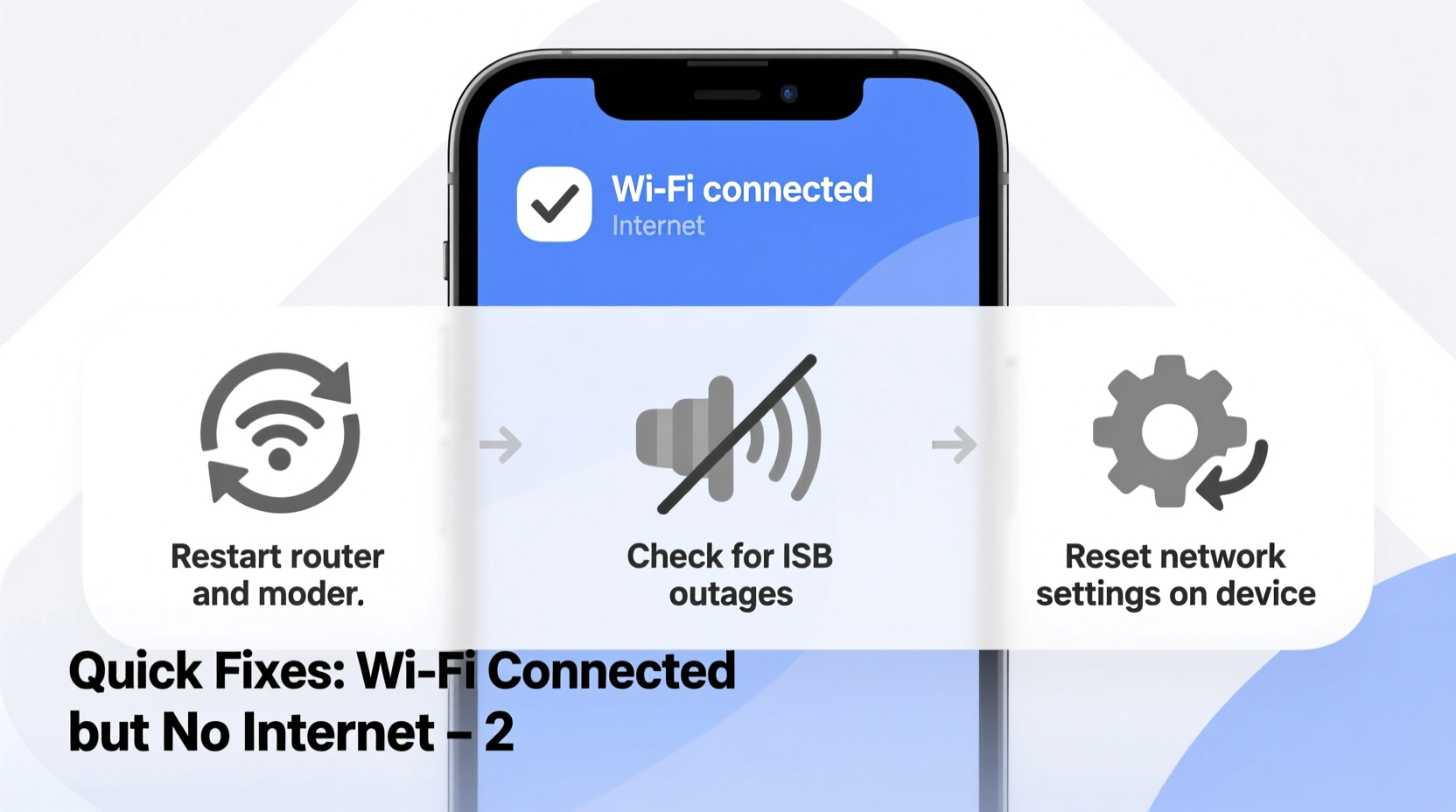
When your device shows it’s connected to WiFi but web pages won’t load, the problem usually lies beyond your device. The connection between your router and the broader internet may be disrupted, or internal network settings could be misconfigured. Common culprits include ISP outages, router glitches, IP conflicts, DNS failures, or firewall restrictions. Each of these issues interrupts data flow even though local network communication remains intact.
The key distinction: “WiFi connected” means your device has joined the local network created by your router. “No internet” means that the router itself cannot reach external servers through your Internet Service Provider (ISP). Diagnosing where the breakdown occurs is essential for an efficient fix.
Step-by-Step Troubleshooting Guide
Follow this logical sequence to isolate and resolve the issue efficiently. Begin with the simplest actions before moving to advanced configurations.
- Restart Your Router and Modem: Unplug both devices, wait 30 seconds, then plug the modem back in first. Wait until its lights stabilize, then power on the router. This clears cache, resets connections, and often restores service.
- Test with Another Device: Check if smartphones, tablets, or laptops also lack internet. If all devices fail, the issue is network-wide, not device-specific.
- Bypass WiFi – Use Ethernet: Connect a computer directly to the router via an Ethernet cable. If internet works, the issue is likely wireless interference or WiFi configuration.
- Check for ISP Outage: Visit your ISP’s status page or call support. Many providers have real-time outage maps.
- Inspect Router Lights: Look at the DSL, Cable, or WAN light. If it’s blinking red or off, the router isn’t communicating with the ISP.
Advanced Checks if Basic Steps Fail
- Log into your router’s admin panel (usually via 192.168.1.1 or 192.168.0.1) and verify the WAN/Internet status.
- Renew your IP address: On Windows, run
ipconfig /releasefollowed byipconfig /renewin Command Prompt. - Flush DNS: Run
ipconfig /flushdnsto clear corrupted entries. - Change DNS servers to Google (8.8.8.8 and 8.8.4.4) or Cloudflare (1.1.1.1).
Common Causes and Their Fixes
Understanding what’s behind the disconnection helps prevent recurrence. Below are frequent scenarios and how to handle them.
| Cause | Symptoms | Solution |
|---|---|---|
| ISP Service Interruption | All devices offline; router WAN light abnormal | Contact ISP; check outage map |
| Router Firmware Glitch | Intermittent drops; admin interface sluggish | Update firmware via router settings |
| DHCP/IP Conflict | One device works, others don’t despite connection | Reboot router or assign static IP |
| DNS Failure | Sites won’t load; ping to IP addresses works | Switch to public DNS like 8.8.8.8 |
| MAC Filtering or Parental Controls | Device connects but can’t browse | Check router security settings |
Real-World Example: Office Network Breakdown
A small marketing agency in Austin experienced daily internet dropouts despite stable WiFi signals. Employees could connect to the network, but browsers timed out. IT staff initially blamed individual laptops, but testing revealed all devices were affected.
After checking the router, they noticed the WAN light was amber instead of solid green. A call to the ISP confirmed a line fault in the neighborhood. However, the team also discovered outdated firmware on the router, which exacerbated recovery delays after brief outages. They updated the firmware, set up automatic reboots, and switched to a dual-WAN failover setup. Since then, downtime has dropped by 95%, and false \"connected but no internet\" alerts ceased.
“Many ‘no internet’ issues aren’t about the WiFi signal—it’s about the upstream link. Always verify the router’s connection to the ISP first.” — Raj Mehta, Network Infrastructure Consultant
Quick Fix Checklist
Keep this checklist handy for immediate response:
- ✅ Restart modem and router
- ✅ Test internet on multiple devices
- ✅ Check for ISP outage
- ✅ Connect via Ethernet to isolate WiFi issues
- ✅ Verify router’s WAN/Internet light status
- ✅ Flush DNS and renew IP address
- ✅ Change to public DNS (e.g., 8.8.8.8)
- ✅ Log into router and check for firmware updates
- ✅ Disable MAC filtering or firewall rules temporarily for testing
- ✅ Reset router to factory settings as last resort
Frequently Asked Questions
Why does my phone show WiFi but no internet?
This typically means your device is connected to the router, but the router isn’t receiving data from the ISP. It could be due to an outage, incorrect DNS, or a temporary glitch. Try forgetting the network and reconnecting, or test with another device to confirm.
Can a virus cause WiFi connection without internet?
While rare, malware that modifies proxy settings or hijacks DNS can create this symptom. Run a full system scan using trusted antivirus software and check network settings for unauthorized changes.
Does airplane mode affect WiFi even when turned back on?
Occasionally, toggling airplane mode can disrupt network stack behavior. If WiFi acts strangely afterward, restart the device or reset network settings to clear any residual conflicts.
Preventive Measures for Long-Term Stability
Don’t wait for problems to recur. Proactive maintenance reduces downtime significantly. Schedule monthly router reboots during low-usage hours. Enable automatic firmware updates if available. Monitor your connection with tools like ping or uptime trackers. Consider upgrading to a mesh system or enterprise-grade router if you rely heavily on stable connectivity.
Also, label your modem and router with the ISP’s support number and your account information. During outages, having this ready speeds up resolution.
Conclusion
Being connected to WiFi without internet access is a solvable problem—not a dead end. Most causes are technical hiccups rather than hardware failures. With a methodical approach, you can diagnose and fix the issue quickly, often without professional help. The key is understanding the difference between local network connectivity and external internet access.




 浙公网安备
33010002000092号
浙公网安备
33010002000092号 浙B2-20120091-4
Comments
No comments yet. Why don't you start the discussion?