
When purchasing a new PC or upgrading your current system, one of the first decisions you’ll face is choosing between Windows 10 Home and Windows 10 Pro. The price difference—typically around $99 to $120 for an upgrade from Home to Pro—might seem modest, but it raises a critical question: does the added functionality justify the cost?
For casual users, the answer may be no. But for professionals, small business owners, or tech-savvy individuals managing multiple devices or networks, Pro might offer essential tools that improve productivity, security, and control. This article breaks down the key differences, evaluates real-world scenarios, and helps you decide whether the Pro version delivers tangible value beyond its price tag.
Core Differences Between Windows 10 Home and Pro
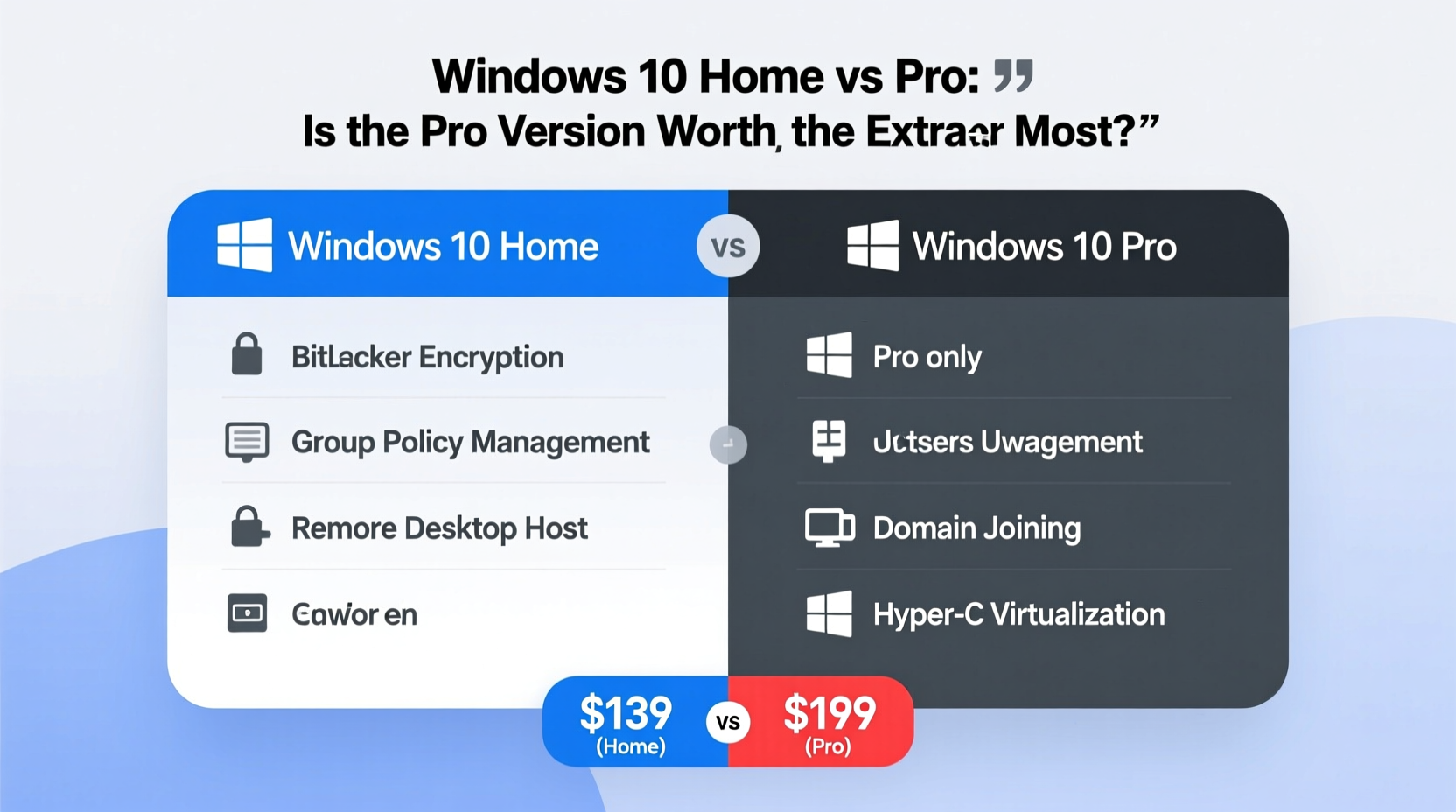
At their foundation, both versions share the same user interface, core applications (like Microsoft Edge, Cortana, and the Microsoft Store), and general performance capabilities. However, the divergence lies in advanced management, networking, and security features built into Pro.
The primary distinctions include:
- Domain Join: Pro allows joining a corporate domain, enabling centralized management via Active Directory.
- BitLocker Encryption: Full-disk encryption for data protection, absent in Home.
- Remote Desktop: Built-in host capability lets you access your PC remotely without third-party software.
- Group Policy Management: Enables granular control over system settings across multiple machines.
- Hyper-V: Microsoft’s virtualization platform for running multiple operating systems simultaneously.
- Assigned Access: Restricts a device to a single app—useful for kiosks or public terminals.
- Windows Update for Business: Offers more control over update timing and deployment.
While these features may sound technical, they serve specific practical purposes depending on how you use your computer.
Security & Data Protection: Where Pro Excels
Data security is no longer exclusive to enterprise environments. With rising cyber threats, even personal laptops can benefit from robust protection.
One of the most compelling advantages of Windows 10 Pro is **BitLocker Drive Encryption**. This feature secures your entire drive with AES encryption, ensuring that if your laptop is lost or stolen, the data remains inaccessible without the recovery key or password.
“BitLocker transforms a standard laptop into a secure endpoint. For anyone handling sensitive documents—freelancers, consultants, or remote workers—it's not just useful; it’s essential.” — David Lin, Cybersecurity Analyst at TechShield Solutions
Windows 10 Home lacks native full-disk encryption. While Microsoft offers Device Encryption on some newer devices with modern standby, it’s inconsistent and often unavailable on older hardware or non-OEM systems. Pro guarantees BitLocker availability across all compatible platforms.
Business & Productivity Features: Who Actually Needs Them?
For home users streaming movies, browsing social media, or doing light office work, most Pro features go unused. But certain workflows benefit significantly from Pro-exclusive tools.
Remote Work and IT Management
Remote Desktop Host allows you to connect securely to your work PC from another device. In Windows 10 Home, you can only *connect to* other PCs—you cannot *host* a remote session without third-party apps like TeamViewer or Chrome Remote Desktop.
This limitation matters for freelancers accessing their main workstation from a tablet or secondary device, or small business owners managing files remotely.
Virtualization with Hyper-V
Developers, testers, or IT professionals often need to run Linux, legacy software, or sandboxed environments. Hyper-V enables creating virtual machines directly within Windows—no additional software required.
While alternatives like VirtualBox exist, Hyper-V integrates natively with Windows, supports better performance, and is trusted in enterprise development pipelines.
Centralized Control with Group Policy
Group Policy Editor (gpedit.msc) gives administrators precise control over system behavior—disabling USB ports, restricting app installations, enforcing password policies, and more. It’s invaluable when managing multiple computers in a small office or educational setting.
Home users rarely need this level of control, but for anyone overseeing a fleet of devices, even informally, this tool saves hours of manual configuration.
Feature Comparison Table
| Feature | Windows 10 Home | Windows 10 Pro |
|---|---|---|
| Domain Join | ❌ No | ✅ Yes |
| BitLocker Encryption | ❌ No (limited Device Encryption on select devices) | ✅ Yes |
| Remote Desktop Host | ❌ No | ✅ Yes |
| Hyper-V | ❌ No | ✅ Yes |
| Group Policy Editor | ❌ No | ✅ Yes |
| Windows Update for Business | ❌ No | ✅ Yes |
| Assigned Access | ❌ No | ✅ Yes |
Real-World Example: Small Business Owner
Sarah runs a freelance accounting firm from her home office. She uses her laptop for tax preparation, stores sensitive client data, and occasionally accesses her machine while visiting clients.
Initially using Windows 10 Home, she found herself relying on third-party tools for remote access and worrying about data exposure if her laptop were stolen. After upgrading to Windows 10 Pro, she enabled BitLocker to encrypt her drive and set up Remote Desktop so she could securely pull files during off-site meetings.
The $119 upgrade paid for itself in reduced software subscriptions and increased confidence in her data security. For Sarah, Pro wasn’t a luxury—it was a necessity aligned with professional standards.
Upgrade Checklist: Should You Move to Windows 10 Pro?
Before purchasing the upgrade, ask yourself the following:
- Do you handle sensitive or confidential data regularly?
- Do you need to access your PC remotely from another location?
- Are you part of a company network that requires domain joining?
- Do you develop software or test applications in isolated environments?
- Do you manage multiple computers and want consistent policy enforcement?
- Are you willing to pay ~$120 for enhanced security and administrative tools?
If three or more apply, Windows 10 Pro is likely worth the investment.
Frequently Asked Questions
Can I upgrade from Windows 10 Home to Pro later?
Yes. You can purchase and install the Pro Pack through Settings > Update & Security > Activation. The process takes less than five minutes and doesn’t erase your files.
Is Windows 10 Pro faster than Home?
No. Performance is identical. Any perceived speed difference comes from background services related to enterprise features, which are typically inactive unless configured.
Does Windows 10 Pro receive updates earlier?
No. Both versions receive the same updates simultaneously. However, Pro includes Windows Update for Business, allowing deferral of updates by up to 30 days—ideal for avoiding disruptions during critical work periods.
Final Verdict: Is Windows 10 Pro Worth the Extra Cost?
For the average user—students, families, casual browsers—Windows 10 Home remains the smart choice. It covers everyday computing needs with simplicity and reliability.
But for professionals, remote workers, developers, or small business operators, Windows 10 Pro delivers meaningful advantages: stronger security with BitLocker, seamless remote access, powerful virtualization, and enterprise-grade management tools. These aren't gimmicks—they’re functional upgrades that solve real problems.
The $99–$120 price gap isn't trivial, but when weighed against potential data risks, inefficiencies from third-party tools, or time spent troubleshooting limitations, the Pro version often proves cost-effective in the long run.




 浙公网安备
33010002000092号
浙公网安备
33010002000092号 浙B2-20120091-4
Comments
No comments yet. Why don't you start the discussion?