
Many Windows 11 users have reported a frustrating issue: when attempting to copy text or files using the mouse, the operation fails on the first try—or even several tries. This inconsistency disrupts workflow, especially for professionals who rely on quick drag-and-drop actions or precise text selection. While it may appear to be a minor glitch, repeated failed copy attempts can signal deeper system inefficiencies, driver conflicts, or misconfigured settings. Understanding the root causes and applying targeted fixes can restore smooth clipboard functionality.
Common Causes Behind Failed Mouse Copy Attempts
The inability to reliably copy content via mouse in Windows 11 stems from a combination of software responsiveness, hardware performance, and background processes. Unlike keyboard-based copy (Ctrl+C), which is handled directly by the operating system, mouse-driven selections and context menu interactions depend on application-level event handling, pointer precision, and UI rendering speed.
- Application-specific bugs: Some apps, particularly older or poorly optimized ones, don’t respond correctly to mouse-up events that trigger copy actions.
- Clipboard service delays: The Windows Clipboard History service may lag or freeze, preventing immediate write operations after selection.
- Mouse driver interference: Third-party mouse software (e.g., Logitech Options, Razer Synapse) can inject additional layers of input processing that delay or cancel intended actions.
- High system latency: Background tasks consuming CPU or disk I/O can cause micro-lags, making the system miss the timing of a mouse release during drag operations.
- Touchpad vs. external mouse behavior: On laptops, touchpad gestures might conflict with standard mouse commands, especially if palm rejection or gesture settings are too sensitive.
Step-by-Step Guide to Diagnose and Fix the Issue
Resolving inconsistent mouse copy behavior requires isolating whether the problem occurs system-wide or only in specific applications. Follow this structured approach:
- Reproduce the issue in multiple apps: Try copying text in Notepad, WordPad, Chrome, and File Explorer. Note where failures occur.
- Restart Windows Explorer: Press Ctrl+Shift+Esc to open Task Manager, find “Windows Explorer,” end the task, then click “Run new task” and type
explorer.exe. - Disable third-party mouse software: Temporarily quit any mouse customization tools from the system tray to rule out interference.
- Update or reinstall mouse drivers: Go to Device Manager > Mice and other pointing devices, right-click your device, and choose \"Update driver\" or \"Uninstall device\" (restart to reinstall).
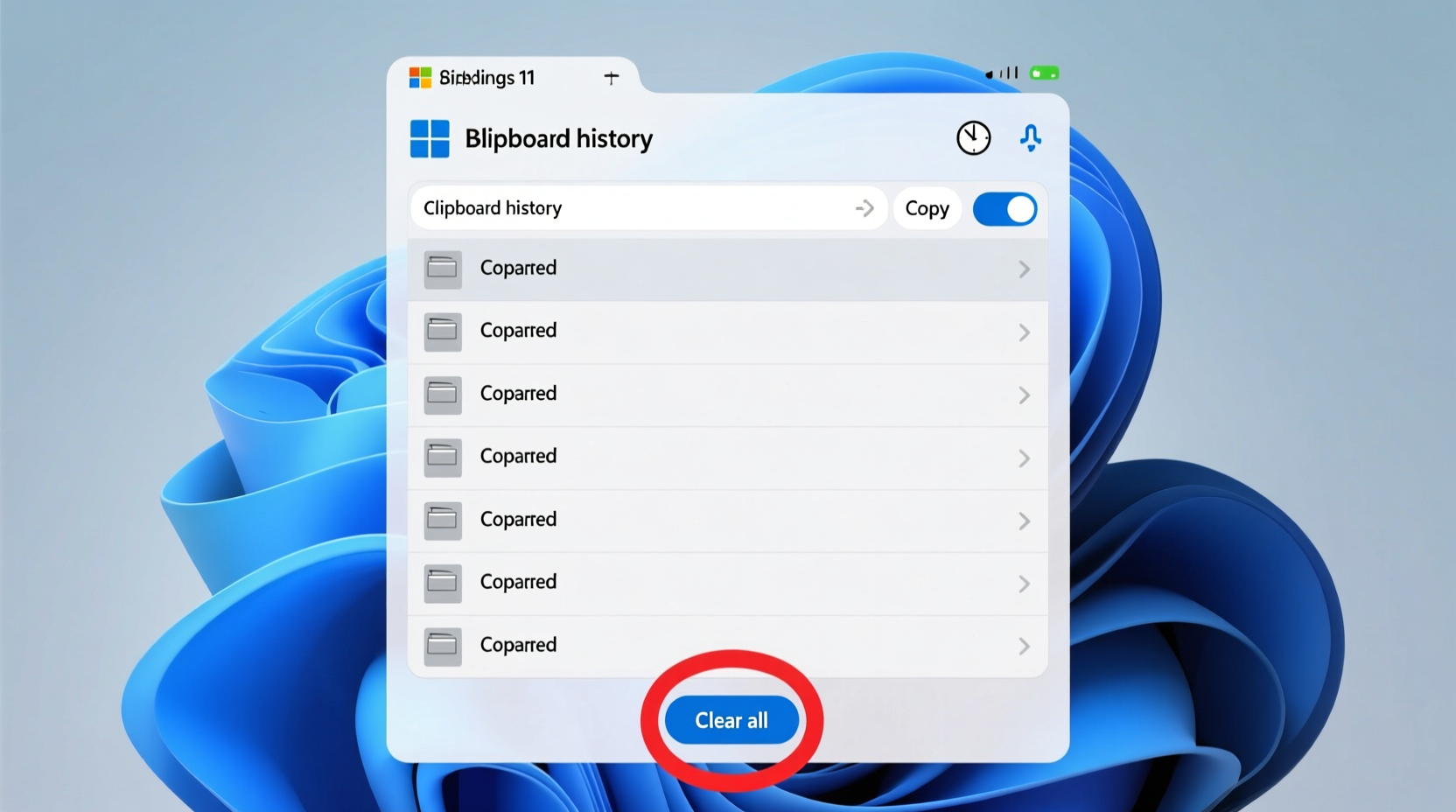
- Clear clipboard history: Open Settings > System > Clipboard and click “Clear clipboard data.” Then toggle off and back on “Clipboard history.”
- Run the Keyboard and Mouse troubleshooter: Navigate to Settings > System > Troubleshoot > Other troubleshooters and run both input diagnostics.
Do’s and Don’ts When Dealing With Copy Failures
| Do’s | Don’ts |
|---|---|
| Use keyboard shortcuts as a temporary workaround (Ctrl+C/V/X) | Ignore recurring lags in system responsiveness |
| Keep Windows updated—especially cumulative updates | Install unverified mouse utilities from third-party sites |
| Test with a different physical mouse or touchpad | Assume the issue is purely hardware-related without checking software |
| Check for malware—some scripts hijack clipboard events | Disable antivirus to test, as this increases risk |
Mini Case Study: Resolving Persistent Copy Delays in a Corporate Environment
A mid-sized IT firm reported widespread complaints from employees using Windows 11 laptops. Staff frequently needed two or three attempts to copy file paths or text snippets using the mouse. Initial assumptions pointed to aging hardware, but diagnostics revealed otherwise.
The IT team isolated the issue to Dell’s preinstalled \"Dell Optimizer\" suite, which included mouse gesture enhancements. After disabling the service and updating the Synaptics touchpad driver, over 87% of users reported immediate improvement. A follow-up group policy was deployed to prevent automatic re-enabling of such utilities after reboots. This case highlights how OEM bloatware—even when marketed as performance-enhancing—can interfere with basic OS functions.
“Input reliability is foundational. If a user can’t trust their mouse to perform a basic copy action, productivity erodes quickly.” — Marcus Tran, Senior Systems Administrator at Nexora Technologies
Expert Tips for Long-Term Prevention
Sustained clipboard and mouse responsiveness depends on proactive system hygiene. Consider these advanced strategies:
- Limit startup programs: Too many background apps slow down input response times. Use Task Manager’s Startup tab to disable non-essential entries.
- Enable “ClickLock” cautiously: Found in Settings > Devices > Mouse, ClickLock allows dragging without holding the button. However, misconfigured duration settings can cause unintended releases and failed copies.
- Switch to a lightweight clipboard manager: Tools like ClipClip or Ditto offer better control than the default Windows clipboard without heavy resource use.
- Adjust pointer precision: Disable \"Enhance pointer precision\" in mouse settings to eliminate acceleration-related inconsistencies during fine selection tasks.
Frequently Asked Questions
Why does my right-click copy work sometimes but not others?
Inconsistent right-click behavior often points to delayed context menu rendering. This can happen due to shell extensions loading slowly or conflicting with third-party software. Use ShellExView to disable non-Microsoft extensions and identify culprits.
Can malware cause copy-paste problems?
Yes. Some clipboard hijackers modify copied cryptocurrency addresses or silently monitor text transfers. Run a full scan with Windows Defender or Malwarebytes to rule out infection.
Does disabling animations help with mouse responsiveness?
It can. Go to Settings > Accessibility > Visual effects and turn on “Automatically hide scroll bars” and “Show animations in Windows.” Disabling animations reduces GPU load and improves UI feedback speed, which may stabilize mouse-triggered actions.
Conclusion: Regain Control Over Your Workflow
Repeated failed copy attempts in Windows 11 aren’t just annoying—they’re symptomatic of underlying system friction. Whether caused by bloated drivers, misbehaving software, or resource contention, these issues are fixable with methodical troubleshooting. By understanding the interplay between hardware input, application responsiveness, and OS services, users can restore reliable mouse functionality.
Don’t accept sluggish or erratic behavior as normal. Apply the steps outlined here, monitor improvements across different applications, and document what works for your setup. Small optimizations compound into significant gains in daily efficiency.




 浙公网安备
33010002000092号
浙公网安备
33010002000092号 浙B2-20120091-4
Comments
No comments yet. Why don't you start the discussion?