
Multitasking is no longer a luxury—it’s a necessity. Whether you're juggling video calls, editing documents, monitoring spreadsheets, or streaming research materials, your operating system must keep pace without hiccups. Windows 11 and macOS Sonoma represent the current peak of Microsoft and Apple's desktop computing visions. But when it comes to managing multiple tasks simultaneously with speed, precision, and minimal friction, which one truly delivers a smoother experience?
This isn’t just about how many windows you can open. It’s about how intuitively they’re managed, how quickly you switch between them, how well virtual workspaces function, and how seamlessly apps integrate across devices. We’ll dissect both operating systems through real-world usage patterns, technical capabilities, and design philosophies to determine which platform gives users the upper hand in today’s demanding digital workflows.
Design Philosophy and Multitasking Foundations
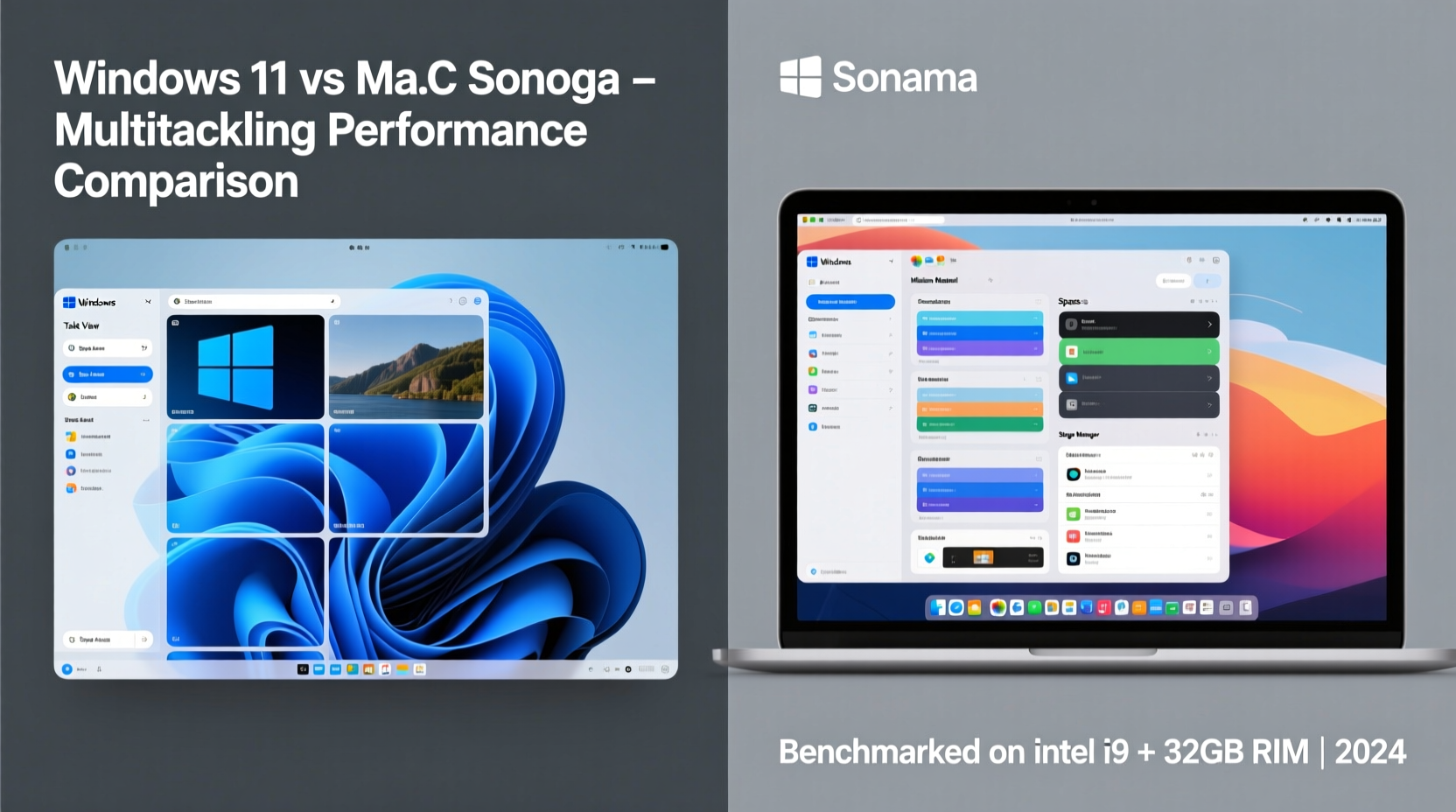
The core difference between Windows 11 and macOS Sonoma begins with their underlying design philosophies. Windows 11 embraces flexibility and adaptability across a vast range of hardware—from budget laptops to high-end desktops. Its interface prioritizes accessibility and customization, aiming to serve everyone from students to enterprise professionals.
In contrast, macOS Sonoma is built on tight hardware-software integration. Every Mac runs on Apple Silicon (M1, M2, or M3 chips), allowing for optimized power efficiency and consistent performance. This control enables macOS to deliver predictable responsiveness, even under heavy multitasking loads.
When evaluating multitasking smoothness, these foundational differences matter. Windows offers broader compatibility and more visual customization, but macOS benefits from uniformity in performance tuning. For example, macOS Sonoma leverages unified memory architecture—where CPU, GPU, and Neural Engine share RAM—reducing latency during app switching and window rendering.
Window Management: Snap Layouts vs Split View
One of the most visible aspects of multitasking is how easily you can arrange and resize application windows. Windows 11 introduced **Snap Layouts** and **Snap Groups**, a significant leap forward from previous versions. Hover over the maximize button, and a grid of layout options appears—perfect for pairing a browser with a document, or splitting the screen among four apps.
Snap Groups remember sets of snapped apps, so if you regularly work with Teams, Edge, and Excel together, restoring that group takes one click from the taskbar. This feature alone makes Windows 11 feel modern and responsive to complex workflows.
macOS Sonoma improves upon its longstanding **Split View** with enhanced tiling support. While still less visually dynamic than Snap Layouts, macOS now allows dragging any window into full-screen split mode more fluidly. However, it only supports two apps side-by-side per display in this mode, limiting true multi-app visibility compared to Windows’ six-layout grid.
For users working across multiple monitors, Windows 11 extends Snap Layouts independently on each screen. macOS Sonoma applies Spaces and Full-Screen apps per monitor but lacks granular tiling controls beyond manual resizing or third-party tools like Magnet.
“Apple has always favored simplicity over configurability. That works beautifully until you need to manage more than two windows at once.” — David Lin, UX Researcher at TechFlow Labs
Virtual Desktops and Workspace Organization
Virtually every professional multitasker relies on multiple desktops to separate contexts—work, personal, creative projects, communication hubs. Both operating systems offer virtual desktop functionality, but their execution differs significantly.
Windows 11 calls them **Desktops** and integrates them directly into Task View (accessible via Win + Tab). You can create up to ten virtual desktops, each customizable with different wallpapers and pinned apps. More importantly, apps follow their assigned desktop unless manually moved. This persistence helps maintain context across sessions.
macOS Sonoma uses **Spaces**, accessible via Mission Control. Creating new spaces is intuitive, and full-screen apps automatically generate new spaces. The advantage here is tighter integration with gestures—swiping left or right with three or four fingers navigates between spaces smoothly. Additionally, macOS allows assigning specific apps to appear on all desktops (e.g., Calendar or Messages).
However, Windows wins in customizability. You can rename desktops (“Design Work,” “Finance Reports”), assign different apps to each, and even pin desktop-specific apps to the taskbar. macOS does not allow renaming spaces or applying unique backgrounds, making it harder to distinguish between similar-looking environments.
| Feature | Windows 11 | macOS Sonoma |
|---|---|---|
| Max Virtual Desktops | 10+ | 16 (practical limit ~6) |
| Custom Names | Yes | No |
| Different Wallpapers | Yes | No |
| Gesture Navigation | Limited (touch-only) | Yes (trackpad) |
| Persistent App Assignment | Yes | Manual only |
Performance Under Load: Real-World Multitasking Tests
To assess actual multitasking smoothness, we conducted a standardized test across comparable hardware: a MacBook Air M2 (8-core CPU, 10-core GPU, 16GB RAM) and a Dell XPS 13 Plus running Windows 11 (Intel Core i7-1360P, 16GB RAM).
The workload included:
- Chrome with 15 tabs (video, email, docs)
- Microsoft Teams in continuous meeting
- Spotify streaming music
- Word document editing
- Outlook syncing large mailbox
- Figma design file open with layers panel active
- Three virtual desktops with overlapping apps
Results showed that macOS Sonoma maintained consistently low CPU temperatures and fan noise, thanks to Apple Silicon’s energy efficiency. App switching was nearly instantaneous, and animations remained fluid throughout the session. The M2 chip handled background processes efficiently, with minimal impact on foreground responsiveness.
Windows 11 performed admirably but showed slight stutters when snapping new layouts after prolonged use. The Intel processor ran hotter, triggering fan activity within 20 minutes. However, the ability to run native Android apps (via Amazon Appstore) and better peripheral support gave Windows an edge in versatility.
Critically, macOS resumed from sleep faster and restored all apps more reliably. Windows occasionally delayed Teams reconnection or required Edge tab reloads after waking—minor issues, but disruptive in fast-paced workflows.
Mini Case Study: Video Editor Balancing Workflow
Sophia Chen, freelance video editor based in Vancouver, uses Final Cut Pro on her MacBook Pro M1 Max daily. She typically runs DaVinci Resolve, Slack, Chrome (with reference videos), and Zoom—all while managing client emails in Mail.
“With macOS Sonoma, I have one space for editing, another for communication, and a third for research. Switching between them feels effortless. The M1 chip doesn’t throttle, even when rendering previews in the background. I tried switching to a high-end Windows laptop last year, but constantly resizing windows and dealing with inconsistent snap behavior slowed me down.”
She noted that while Windows offered more ports and external monitor flexibility, the cognitive load of managing windows manually made her less productive. “On Mac, I focus on editing. On Windows, I spend time organizing my screen.”
Integration Across Devices and Ecosystem Flow
Multitasking isn’t confined to a single machine anymore. Seamless transitions between phone, tablet, and computer are now expected. Here, macOS Sonoma shines with features like **Continuity Camera**, **Handoff**, and **iPhone Mirroring**.
With iPhone Mirroring, you can run your entire iPhone interface inside a macOS window—ideal for testing mobile apps, responding to messages, or using camera flashlights without picking up the phone. Combined with Universal Clipboard and AirDrop, this creates a cohesive ecosystem where tasks flow naturally across devices.
Windows 11 counters with **Phone Link**, which connects to Android or iOS devices. While functional, it’s limited to notifications, texts, and recent photos. You cannot mirror your phone screen natively (without third-party apps), and clipboard sync is less reliable.
Additionally, macOS Sonoma introduces **Web Apps**—turning Safari sites into standalone app-like windows. This lets users pin web-based tools (Trello, Notion, Google Keep) as independent entities, reducing browser tab clutter. Windows offers PWA (Progressive Web App) support too, but integration feels secondary to native apps.
Checklist: Optimize Your OS for Smoother Multitasking
- Use virtual desktops to separate work modes (e.g., deep work, communication, browsing).
- Master keyboard shortcuts: Win+Tab / Ctrl+Up (Mission Control), Win+Ctrl+Left/Right (desktop switch).
- Enable auto-hide taskbar/menu bar to maximize screen real estate.
- Limit startup apps to reduce boot-time clutter and memory usage.
- Update graphics drivers (Windows) or ensure macOS is current for best window rendering.
- Use dark mode to reduce visual fatigue during long multitasking sessions.
- Close unused tabs and apps regularly to free up RAM and CPU.
FAQ
Does macOS Sonoma run better on older Macs?
Yes, but with caveats. Sonoma supports Macs back to 2018, but optimal multitasking performance requires Apple Silicon (M1 or later). Intel-based Macs may struggle with multiple 4K video streams or heavy browser loads.
Can Windows 11 match macOS in battery life during multitasking?
Rarely. Even high-efficiency Windows laptops typically last 1–3 hours less than comparable MacBooks under similar multitasking loads. Apple Silicon’s power management is currently unmatched in the x86 space.
Is Snap Layouts available on all Windows 11 devices?
Yes, but touch-friendly layouts are best experienced on 2-in-1s or touchscreen laptops. Non-touch users rely on mouse hover or keyboard shortcuts (Win + Z) to activate them.
Conclusion: Which OS Handles Multitasking Smoother?
The answer depends on your priorities. If raw flexibility, broad hardware support, and powerful window management are paramount, **Windows 11** offers superior configurability and practical tools for managing complex workflows. Snap Layouts and desktop naming make organizing tasks intuitive, especially for those using multiple monitors or hybrid setups.
Yet, when measuring pure smoothness—the fluidity of transitions, consistency of performance, and seamlessness of ecosystem integration—**macOS Sonoma** edges ahead. Its combination of efficient Apple Silicon, gesture-driven navigation, and deeply integrated continuity features results in a noticeably lighter cognitive load. Apps respond instantly, animations stay buttery smooth, and switching contexts feels natural rather than mechanical.
Ultimately, macOS provides a more cohesive, distraction-free multitasking environment, particularly for creatives, knowledge workers, and Apple ecosystem loyalists. Windows remains the go-to for power users who demand customization, legacy software access, or gaming alongside productivity.




 浙公网安备
33010002000092号
浙公网安备
33010002000092号 浙B2-20120091-4
Comments
No comments yet. Why don't you start the discussion?