
Spending hours in front of a screen, fingers flying across the keyboard during coding marathons, is a reality for developers, engineers, and software enthusiasts. In such scenarios, even subtle discomfort can escalate into chronic strain. The choice between a wireless mechanical keyboard and a membrane keyboard isn’t just about preference—it directly impacts physical endurance, typing accuracy, and long-term hand health. While both options offer wireless convenience, their underlying technologies create vastly different experiences when typing for extended durations.
This article dissects how each keyboard type influences fatigue during prolonged coding sessions, evaluates ergonomic benefits, and provides actionable guidance to help you make an informed decision based on real-world use, not marketing hype.
The Anatomy of Typing Fatigue
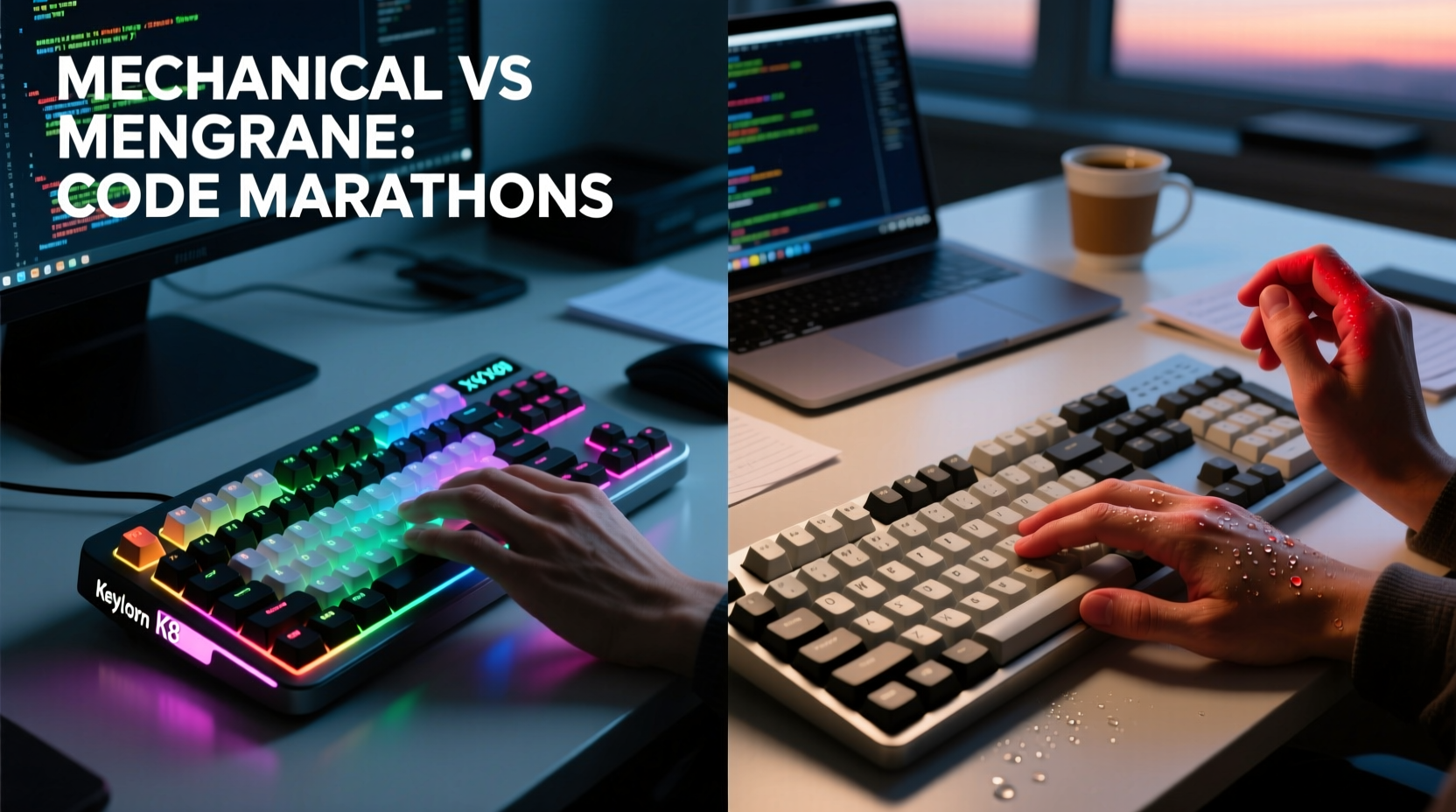
Fatigue during coding marathons doesn’t appear overnight. It’s the cumulative result of repetitive motion, inconsistent key resistance, poor feedback, and inefficient hand positioning. Typing fatigue manifests as wrist soreness, finger strain, shoulder tension, or even carpal tunnel symptoms over time. Two primary contributors are actuation force (how hard you must press a key) and tactile feedback (how clearly you feel when a keypress registers).
Keyboards that require excessive force lead to muscle overuse. Those with mushy or inconsistent responses force users to “bottom out” (press keys all the way down), increasing impact stress. Over eight to twelve hours, these micro-impacts add up. The goal is to minimize effort while maximizing precision—so the right keyboard becomes less of a tool and more of an extension of your workflow.
Mechanical Keyboards: Precision and Responsiveness
Mechanical keyboards use individual mechanical switches under each keycap. These switches come in various types—linear, tactile, and clicky—each offering distinct feel and sound profiles. For coding, tactile switches like Cherry MX Brown or Gateron Brown are popular due to their balanced feedback without loud clicks.
The key advantage lies in actuation consistency. Mechanical switches register keystrokes at a specific point in the key travel (usually around 2mm), allowing typists to reset the key before fully depressing it. This “early registration” reduces finger travel and minimizes repetitive motion, lowering fatigue over long sessions.
Additionally, mechanical keyboards often feature higher build quality, customizable keycaps, and better ergonomics through detachable wrist rests or tenting compatibility. Many wireless models now support Bluetooth and multi-device pairing without compromising responsiveness, thanks to optimized firmware and low-latency protocols.
However, not all mechanical keyboards are created equal. Heavier linear switches like Cherry MX Blacks (60g actuation) may increase strain for some users, while overly stiff springs can lead to finger fatigue. The ideal switch depends on personal typing style and sensitivity.
“Switch selection is critical. A well-chosen mechanical switch can reduce finger exertion by up to 30% compared to standard membrane keys.” — Dr. Lena Torres, Human Factors Engineer at MIT Media Lab
Membrane Keyboards: Soft Touch, Hidden Drawbacks
Membrane keyboards rely on a layered rubber dome system beneath the keys. When pressed, the dome collapses, completing a circuit to register the input. Most budget laptops and office keyboards use this design due to its cost-effectiveness and quiet operation.
On the surface, membrane keyboards seem comfortable—their soft, cushioned feel appears gentle on the fingers. However, this softness comes at a cost. Because they lack precise actuation points, users often press keys all the way to the bottom (bottoming out) to ensure registration. This repeated full-travel motion increases impact on fingertips and joints, contributing to fatigue during extended typing.
Moreover, membrane keyboards tend to have inconsistent key response. Some keys may feel stiffer than others, and over time, the rubber domes degrade, leading to missed keystrokes or double inputs. This forces cognitive compensation—your brain works harder to verify whether a key was registered—adding mental fatigue to physical strain.
While some high-end membrane keyboards (like certain Logitech models) incorporate scissor-switch mechanisms for improved stability, they still fall short of mechanical precision. For coders who type thousands of characters per hour, that difference in reliability and efficiency accumulates significantly over days and weeks.
Comparative Analysis: Mechanical vs Membrane for Long Sessions
| Feature | Mechanical Keyboard | Membrane Keyboard |
|---|---|---|
| Actuation Point | Precise, consistent (e.g., 2mm) | Inconsistent, requires full press |
| Typing Effort | Lower (due to early registration) | Higher (bottoming out required) |
| Tactile Feedback | Clear bump or click (tactile/clicky) | Mushy, indistinct |
| Durability | 50–100 million keystrokes per switch | 5–10 million keystrokes |
| Noise Level | Varies (clicky > tactile > linear) | Generally quieter |
| Ergonomic Flexibility | High (modular, split, tentable) | Limited (fixed layout) |
| Battery Life (Wireless) | Moderate to long (weeks to months) | Often longer (low power draw) |
From this comparison, mechanical keyboards clearly win in terms of typing efficiency and fatigue reduction. Their superior feedback loop allows coders to type faster with fewer errors and less physical strain. However, membrane keyboards still hold advantages in noise output and battery longevity—important considerations in shared workspaces or silent environments.
Real-World Case: A Developer’s 72-Hour Coding Sprint
Jamal, a backend developer, participated in a hackathon requiring non-stop coding for three days. He brought two keyboards: a wireless mechanical model with Kailh Low Profile Browns and a premium membrane keyboard used in his office.
During the first 12 hours, he alternated between both. By hour 18, he noticed persistent thumb fatigue when using the membrane keyboard, especially during rapid command-line navigation. He attributed this to repeatedly pressing Enter and Shift with full force. In contrast, the mechanical keyboard allowed him to “hover-type,” where keys registered before reaching the bottom, reducing finger movement.
After switching exclusively to the mechanical option, Jamal reported improved focus and reduced hand stiffness. He completed the sprint with no residual pain—a rare outcome given past experiences. Post-event, he replaced all his daily drivers with mechanical alternatives, emphasizing switch comfort over aesthetics.
This case illustrates that while initial comfort matters, sustained performance hinges on biomechanical efficiency. The mechanical keyboard didn’t eliminate effort—but it optimized it.
Choosing the Right Wireless Option
Not all wireless mechanical keyboards deliver equal performance. Latency, battery life, and connection stability vary widely. Here’s how to select one that supports marathon coding:
- Opt for Low-Latency Wireless: Look for Bluetooth 5.0+ or proprietary 2.4GHz dongles (e.g., Logitech Lightspeed, Corsair SLIPSTREAM). These minimize input lag, crucial for fast typing.
- Select the Right Switch: Tactile switches (Brown variants) offer feedback without noise. Avoid clicky switches (Blue) in quiet offices. Test switches if possible via sample kits.
- Check Battery Longevity: Top-tier models last 3–6 months on a single charge. Prioritize USB-C charging for faster top-ups during breaks.
- Consider Ergonomic Design: Split layouts, tenting, or adjustable feet reduce wrist angle strain. Brands like Kinesis or ErgoDox offer specialized builds.
- Ensure Firmware Updates: Reliable manufacturers provide update tools to fix bugs and improve connectivity stability over time.
Actionable Checklist: Reducing Coding Fatigue
- ✅ Choose a mechanical keyboard with tactile switches (e.g., MX Brown, Gateron Brown)
- ✅ Ensure wireless connectivity uses Bluetooth 5.0 or 2.4GHz for minimal lag
- ✅ Use a wrist rest to maintain neutral hand posture
- ✅ Adjust keyboard height so wrists remain straight (not bent upward)
- ✅ Take micro-breaks every 45–60 minutes to stretch hands and forearms
- ✅ Enable keyboard backlighting or adjust brightness to reduce eye strain
- ✅ Clean keys regularly to prevent debris from affecting switch performance
Frequently Asked Questions
Can a wireless keyboard cause lag during fast typing?
High-quality wireless mechanical keyboards with modern Bluetooth or dedicated 2.4GHz dongles introduce negligible latency—often under 5ms. This is imperceptible even during rapid coding. However, cheap or outdated wireless modules may stutter, especially when batteries are low.
Are mechanical keyboards too loud for shared spaces?
It depends on the switch. Clicky switches (e.g., Blue) are loud and disruptive. Tactile or linear switches (Brown, Red, or silent variants) operate quietly enough for open offices. PBT keycaps also dampen sound compared to ABS plastic.
Do membrane keyboards last long enough for daily coding?
They can last 2–3 years with moderate use, but frequent coders may notice degradation within 12–18 months. Worn-out domes lead to missed keystrokes, forcing re-typing and increasing cognitive load. Mechanical keyboards typically outlast them by 3x or more.
Final Recommendation: Invest in Mechanical for Endurance
For coding marathons, reducing fatigue isn’t just about comfort—it’s about sustainability. Mechanical keyboards, particularly wireless models with thoughtful switch selection and ergonomic design, offer measurable advantages in precision, consistency, and long-term hand health. While membrane keyboards are cheaper and quieter, their inefficiencies compound over hours, increasing both physical and mental strain.
The best choice isn’t always the loudest or flashiest. It’s the one that lets you type fluidly, accurately, and comfortably from the first line of code to the final debug. If you spend significant time coding, investing in a quality wireless mechanical keyboard isn’t an indulgence—it’s a productivity and wellness necessity.




 浙公网安备
33010002000092号
浙公网安备
33010002000092号 浙B2-20120091-4
Comments
No comments yet. Why don't you start the discussion?