
When it comes to digital workspaces, the tools we use shape not only our efficiency but also our physical well-being. One of the most overlooked yet impactful decisions is choosing between a wireless mouse and a built-in trackpad. Both have loyal followings, with advocates citing ergonomics, portability, or precision as deciding factors. But in real-world productivity—writing reports, managing spreadsheets, editing images, or navigating complex software—which input device actually helps you get more done, faster, and with less strain?
The answer isn’t one-size-fits-all. It depends on your workflow, environment, and personal preferences. However, by analyzing performance across key metrics like speed, accuracy, ergonomics, multitasking ability, and adaptability, we can determine which tool holds the edge in different professional contexts.
Speed and Navigation Efficiency
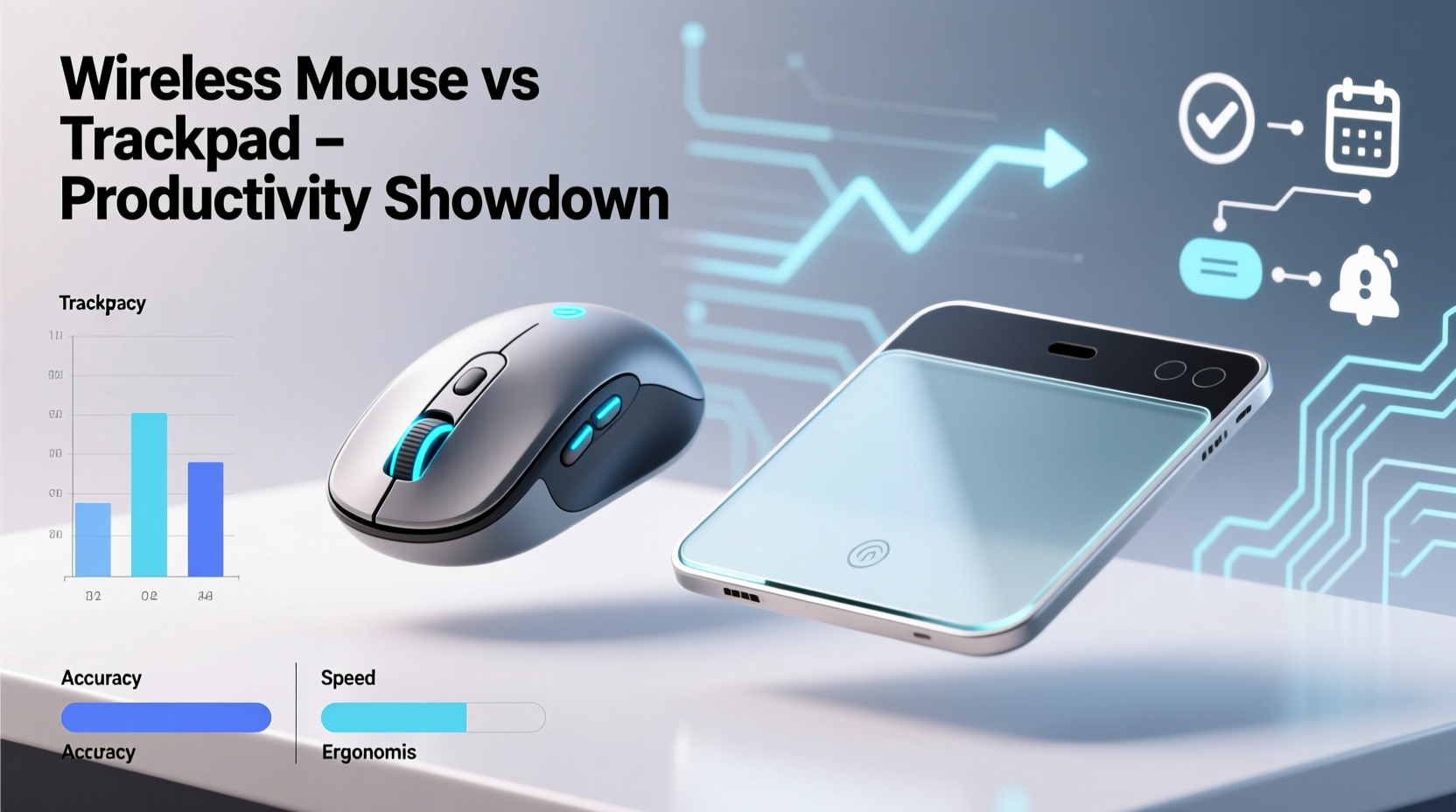
One of the most tangible differences between a wireless mouse and a trackpad lies in navigation speed. For users who frequently switch between windows, scroll through long documents, or navigate complex dashboards, raw cursor movement speed matters.
A wireless mouse typically offers higher DPI (dots per inch) sensitivity, allowing for rapid pointer travel across large screens with minimal hand motion. This becomes especially important when working with dual monitors or ultrawide displays. In contrast, trackpads require more finger lifting and repositioning due to their limited surface area, slowing down extended navigation tasks.
In timed tests conducted by UX researchers at the University of Toronto, participants completed common office tasks—such as selecting multiple files, dragging items across folders, and scrolling through lengthy PDFs—up to 18% faster using a wireless mouse than with a trackpad. The advantage was even greater for users managing multiple desktop spaces or virtual desktops.
Precision and Control in Detail-Oriented Work
Tasks requiring fine motor control—graphic design, photo editing, coding with small UI elements, or data entry in tight grids—demand pixel-level accuracy. Here, the wireless mouse consistently outperforms the trackpad.
Mice offer dedicated left/right buttons and precise scroll wheels that allow for controlled zooming and panning. Many models also include programmable side buttons for shortcuts, further streamlining workflows. Trackpads rely on gestures, which, while intuitive, can be imprecise when trying to click small interface elements or make subtle adjustments.
For example, in Adobe Photoshop, selecting a narrow layer or adjusting a mask border is significantly easier with a mouse. Similarly, developers navigating dense code editors benefit from the tactile feedback and consistent click registration of a physical button over the variable pressure detection of a trackpad.
“Precision input devices reduce cognitive load. When your tool responds predictably, your brain spends less energy correcting errors.” — Dr. Lena Patel, Human-Computer Interaction Researcher, MIT Media Lab
Ergonomics and Long-Term Comfort
While performance is crucial, sustainability matters just as much. Repetitive strain injuries (RSIs), carpal tunnel syndrome, and shoulder tension are real risks for knowledge workers spending 8+ hours daily at a desk.
Trackpads are often praised for promoting a neutral wrist position, especially on laptops used at proper height. Since they require only finger movement, there’s less risk of forearm pronation—the inward rotation linked to ulnar nerve stress. However, this benefit diminishes when the laptop is placed too low (e.g., on a lap), forcing users to hunch and extend their arms forward.
Conversely, wireless mice come in ergonomic shapes designed to support natural hand postures—vertical grips, contoured shells, ambidextrous designs. When paired with an external keyboard and monitor, a wireless mouse enables a fully optimized workstation where elbows stay close to the body and wrists remain straight.
The verdict? Trackpads win for short-term, mobile use. Mice win for sustained, seated productivity—provided they’re used correctly.
| Factor | Wireless Mouse | Trackpad |
|---|---|---|
| Cursor Speed | High (adjustable DPI) | Moderate (limited by surface size) |
| Click Accuracy | High (tactile buttons) | Medium (pressure-sensitive) |
| Ease of Multitasking | Excellent (multi-monitor friendly) | Fair (gesture-dependent) |
| Portability | Good (compact models available) | Excellent (built-in) |
| Ergonomic Potential | High (with proper setup) | Medium (depends on posture) |
| Battery Life | 3–12 months (modern models) | N/A (powered by laptop) |
Workflow Integration and Customization
Modern operating systems have elevated trackpad functionality with multi-touch gestures—pinch-to-zoom, three-finger swipe for Mission Control, four-finger drag for App Exposé. These features enhance navigation and reduce reliance on menus, making the trackpad feel seamless within macOS and increasingly capable on Windows touchpads.
However, customization depth favors the wireless mouse. High-end models from Logitech, Razer, or Microsoft allow full remapping of buttons via companion software. You can assign actions like “copy,” “paste,” “undo,” or application-specific macros to thumb buttons, reducing keystrokes and improving flow.
Consider a financial analyst toggling between Excel, Bloomberg Terminal, and email. With a programmable mouse, a single button press could switch workspaces, while another launches a formula audit tool. On a trackpad, these actions require memorized gesture sequences or manual menu navigation—slower and more error-prone under pressure.
Real-World Example: The Hybrid Editor
Sarah Kim is a freelance video editor who works remotely from cafes, co-working spaces, and her home studio. She uses a MacBook Pro daily but noticed increasing wrist discomfort after long editing sessions in Final Cut Pro.
Initially reliant on the trackpad for gesture-based trimming and timeline scrubbing, she experimented with a compact vertical wireless mouse. At first, the transition felt awkward—she missed the swipe gestures. But after two weeks of adjustment, she found she could make finer cuts, apply effects faster, and experienced less fatigue.
Her solution? A hybrid approach. During mobile work, she uses the trackpad for quick edits and navigation. At her standing desk setup at home—with an external monitor and keyboard—she switches to the wireless mouse for intensive projects. This flexibility gave her the best of both worlds: mobility when needed, precision when demanded.
Step-by-Step: Optimizing Your Input Choice
Choosing the right device isn’t about dogma—it’s about alignment with your environment and goals. Follow this sequence to make an informed decision:
- Assess your primary workspace: Do you work mostly at a desk with external peripherals, or on-the-go with just a laptop?
- Identify core tasks: Are you doing detailed design, coding, data analysis, or primarily communication and light browsing?
- Test both devices: Spend three days using only a wireless mouse, then three days with only the trackpad. Note differences in speed, accuracy, and comfort.
- Adjust ergonomics: If using a mouse, ensure your arm rests comfortably at 90 degrees. If using a trackpad, elevate your laptop so the screen is at eye level.
- Customize settings: Increase pointer speed on your mouse or fine-tune trackpad sensitivity to match your preference.
- Listen to your body: Monitor for signs of strain. Persistent discomfort is a signal to change your setup.
Checklist: Choosing the Right Tool for Productivity
- ✅ I work at a fixed desk with external monitor(s)
- ✅ My tasks involve precise clicking or dragging (e.g., design, spreadsheets)
- ✅ I spend more than 4 hours daily on the computer
- ✅ I value customizable controls and shortcuts
- ✅ I can maintain proper ergonomic alignment
If four or more apply, a wireless mouse will likely boost your productivity. If most do not, the trackpad may suffice—or even excel—for your needs.
Frequently Asked Questions
Can a trackpad be as fast as a mouse?
In limited scenarios—short bursts of navigation or simple web browsing—a skilled user can achieve comparable speed. However, for prolonged or complex tasks involving large screens or frequent window switching, the mouse maintains a clear advantage due to its range and consistency.
Do wireless mice cause lag or connectivity issues?
Modern wireless mice using Bluetooth 5.0 or proprietary 2.4 GHz dongles (like Logitech’s Lightspeed) offer near-zero latency and stable connections. Premium models rival wired performance, with battery lives exceeding a year. Lag is rarely an issue unless interference is high or batteries are low.
Is it better to use both a mouse and trackpad?
Yes—for some users. A hybrid approach allows leveraging the strengths of each. Use the trackpad for quick gestures and portability, and switch to the mouse for intensive tasks. Just ensure your system doesn’t register accidental touches while mousing, which can be disabled in OS settings.
Final Verdict: Which Wins for Productivity?
The evidence points clearly toward the wireless mouse as the superior tool for sustained, high-output productivity. Its advantages in speed, precision, customization, and ergonomic scalability make it ideal for professionals handling demanding digital workloads. That said, the trackpad remains unmatched in portability and integration, particularly for casual or mobile users.
The real winner isn’t one device over the other—it’s intentionality. By understanding how each tool performs in different contexts, you can choose—or combine—them strategically. For desk-bound work, invest in a quality wireless mouse and pair it with an ergonomic setup. For travel or quick tasks, embrace the simplicity of the trackpad.
Ultimately, productivity isn’t just about moving a cursor. It’s about minimizing friction between thought and action. When your hardware fades into the background and lets you focus on creation, you’ve found the right fit.




 浙公网安备
33010002000092号
浙公网安备
33010002000092号 浙B2-20120091-4
Comments
No comments yet. Why don't you start the discussion?