
For years, setting up a wireless printer has been a notorious pain point for home users and small office workers alike. Misconfigured networks, dropped connections, cryptic error messages—these were once the norm. But as we move deeper into 2025, advancements in hardware design, software integration, and network protocols have dramatically reshaped the experience. So, is wireless printer setup still a frustrating ordeal, or has it finally become truly foolproof?
The short answer: it's closer than ever to being foolproof—but with important caveats. While major manufacturers have made significant strides, success still depends on your environment, device ecosystem, and understanding of a few key principles.
The Evolution of Wireless Printing: From Painful to Plug-and-Play
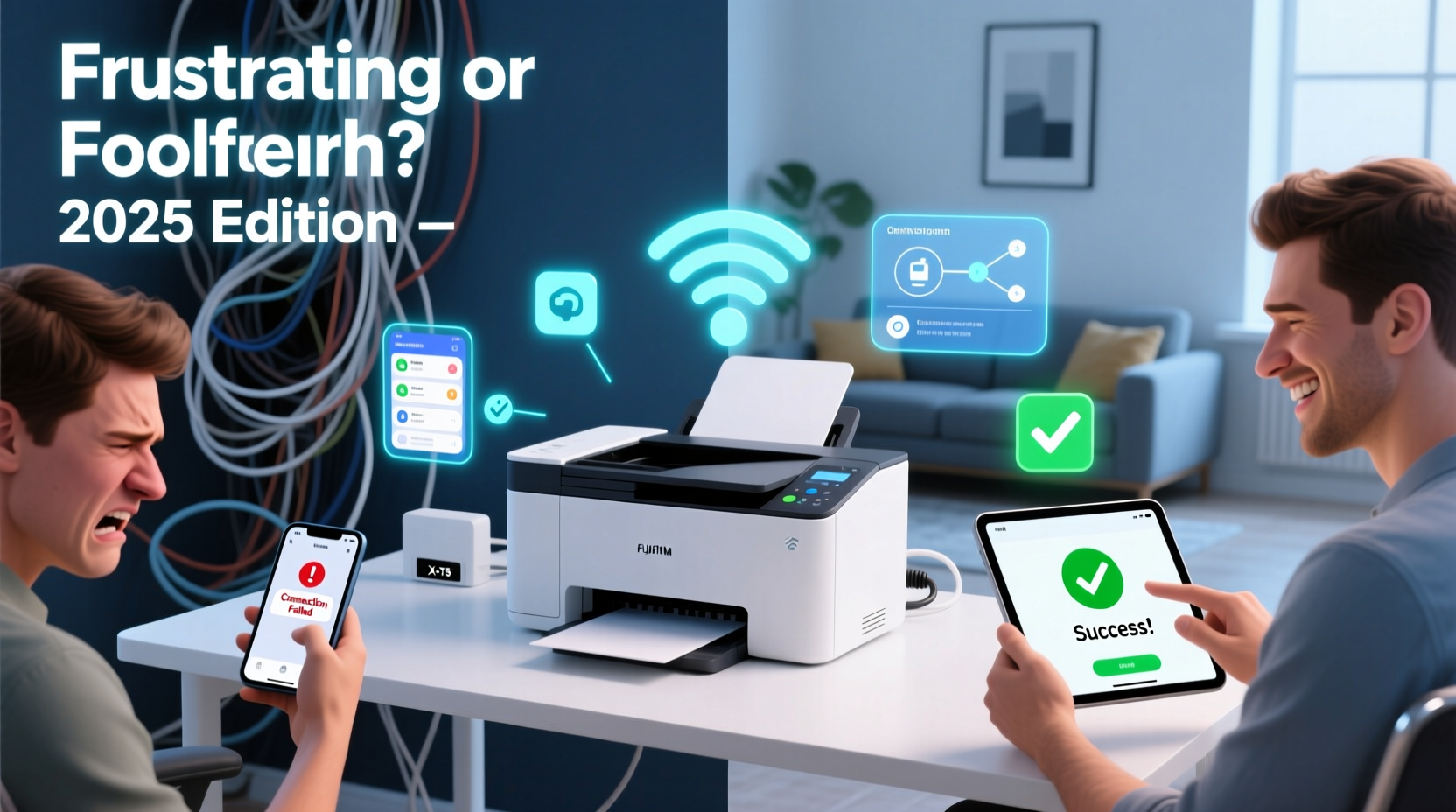
In the early 2010s, connecting a printer wirelessly often required navigating through labyrinthine menus, manually entering Wi-Fi credentials via tiny LCD screens, and hoping the device would appear in your computer’s list of available printers. Fast forward to 2025, and most modern printers support seamless setup through mobile apps, cloud services, and zero-configuration networking protocols like mDNS (Multicast DNS) and AirPrint.
Today’s top brands—including HP, Epson, Canon, and Brother—offer companion apps that guide users step-by-step through the process. These apps detect nearby devices, automate network configuration, and even troubleshoot common issues before they escalate. Some models now support QR code pairing, where scanning a code with your smartphone instantly connects the printer to your Wi-Fi network without typing a single password.
“By 2025, over 85% of consumer-grade printers shipped are designed for first-time user success within 10 minutes.” — Dr. Lena Torres, Senior Analyst at TechHome Insights
This shift reflects a broader industry trend: prioritizing user experience over technical complexity. The goal is no longer just functionality—it’s frictionless integration into smart homes and hybrid workspaces.
Why Setup Was Historically Frustrating
To appreciate how far we’ve come, it helps to understand what went wrong in the past:
- Limited interface options: Printers with only physical buttons and monochrome displays made inputting network details slow and error-prone.
- Inconsistent standards: Before widespread adoption of AirPrint and Google Cloud Print (now replaced by built-in Chrome OS support), every brand used proprietary software.
- Network conflicts: IP address clashes, firewall settings, and dual-band Wi-Fi confusion often caused connection drops.
- Poor feedback loops: Error messages like “Printer Offline” gave no actionable insight into whether the issue was local, network-wide, or cloud-related.
These pain points led many users to revert to USB cables or abandon wireless setups altogether. For non-tech-savvy individuals, especially seniors or remote workers using shared equipment, the barrier was simply too high.
What’s Changed in 2025: The Foolproof Toolkit
Several technological and design innovations have transformed the landscape:
1. Mobile-First Setup Wizards
Almost all new printers now rely on smartphone apps for initial configuration. Instead of wrestling with a printer’s control panel, you use your phone’s keyboard and internet connection to enter Wi-Fi credentials. The app then pushes this data directly to the printer via Bluetooth or direct Wi-Fi tethering.
2. Universal Compatibility Protocols
AirPrint (Apple), Mopria (Android), and Windows Wi-Fi Direct are now standard across mid-to-high-end models. This means you can print from any device without installing drivers—provided both devices are on the same network.
3. Smart Network Detection
Modern printers automatically detect whether your router uses 2.4 GHz or 5 GHz bands and connect accordingly. Some even test signal strength during setup and recommend repositioning if interference is detected.
4. Cloud Integration Out of the Box
HP+ models, Canon PRINT Inkjet/SELPHY, and Epson Connect allow remote printing from anywhere. Once linked to your account, these services bypass traditional network hassles entirely. You can print vacation photos from your phone while miles away—or send documents from your laptop when traveling.
5. AI-Powered Troubleshooting
Some premium printers now include embedded diagnostics that predict failures, suggest firmware updates, and generate shareable troubleshooting logs. If something goes wrong, the app doesn’t just say “Error”—it offers specific fixes like “Restart router,” “Move printer closer,” or “Check ink levels.”
Real-World Example: Sarah’s Home Office Upgrade
Sarah, a freelance graphic designer in Portland, upgraded her aging wired printer in early 2025. Her old model required constant driver reinstalls and wouldn’t connect reliably to her mesh Wi-Fi system. She purchased a new Canon PIXMA TS8820, attracted by its promise of one-touch setup.
Using the Canon PRINT app, she powered on the printer, enabled Bluetooth, scanned a QR code displayed on her phone, and selected her Wi-Fi network. Within six minutes, the printer appeared in her Mac’s print dialog and on her iPad. When her first test page failed due to low paper, the app notified her immediately and guided her through loading the tray correctly.
“I expected at least an hour of frustration,” she said. “Instead, I was printing client contracts before my coffee cooled.”
Sarah’s experience reflects the ideal scenario—one increasingly common in well-configured environments. However, not all stories end so smoothly.
When It Still Goes Wrong: Common Pitfalls in 2025
Despite progress, challenges remain—especially in complex or outdated network environments.
| Issue | Why It Happens | Solution |
|---|---|---|
| Printer not found during setup | Bluetooth disabled, firewall blocking discovery, or app permissions denied | Enable Bluetooth, check app permissions, restart router |
| Drops connection after initial success | Weak signal, IP conflict, or power-saving mode | Reposition printer, assign static IP, disable sleep disconnect |
| Can’t print from certain devices | Lack of protocol support (e.g., AirPrint on older Android) | Use manufacturer app or install universal driver |
| Slow print jobs or timeouts | Congested 2.4 GHz band or outdated firmware | Switch to 5 GHz if supported, update firmware |
Step-by-Step Guide: Foolproof Wireless Printer Setup in 2025
Follow this proven sequence to maximize your chances of success:
- Unbox and power on: Remove all tape and protective materials. Plug in the printer and turn it on.
- Download the official app: Search for the manufacturer’s app (e.g., HP Smart, Epson Connect) on your smartphone.
- Start setup in the app: Tap “Add Printer” or similar. Allow location and Bluetooth access when prompted.
- Connect via Bluetooth: The app will search for nearby devices. Select your printer from the list.
- Enter Wi-Fi credentials: Type your network name and password using your phone’s keyboard.
- Wait for confirmation: The printer will reboot and attempt to join your network. This may take 1–3 minutes.
- Test print: Use the app to send a test page. If successful, proceed to install optional desktop software.
- Add to computers: On macOS or Windows, go to System Settings > Printers and scan for new devices. It should appear automatically.
If the printer doesn’t appear, ensure your computer and printer are on the same network—and consider restarting both devices.
Frequently Asked Questions
Can I set up a wireless printer without a smartphone?
Yes, but it’s less reliable. Most modern printers still support manual WPS (Wi-Fi Protected Setup) or on-screen menu entry. However, the mobile app method remains the fastest and most user-friendly option.
Do I need to pay for cloud printing services?
Basic cloud printing (like Apple AirPrint or Mopria) is free. However, some manufacturers offer enhanced features—such as automatic ink ordering or remote access—through subscription plans (e.g., HP+). These are optional but can improve long-term convenience.
Why does my printer keep going offline?
This usually stems from power management settings. Many printers enter deep sleep mode after inactivity, breaking the network connection. Disable “auto-offline” or “energy-saving disconnect” in the printer’s settings menu. Alternatively, assign a static IP address to prevent DHCP lease conflicts.
Checklist: Ensure a Smooth Wireless Printer Setup
- ☐ Charge your phone or ensure it’s plugged in during setup
- ☐ Know your Wi-Fi network name and password
- ☐ Confirm your printer supports your device’s OS (macOS, Windows, Android, iOS)
- ☐ Position the printer close to the router during initial setup
- ☐ Update your router’s firmware (older routers may lack mDNS support)
- ☐ Download the correct manufacturer app before unboxing
- ☐ Run a test print from multiple devices after setup
The Verdict: Frustration-Free, But Not Fully Foolproof
Wireless printer setup in 2025 is vastly improved—so much so that for most users in typical home environments, it qualifies as nearly foolproof. The combination of intuitive apps, standardized protocols, and smarter hardware has eliminated the worst of the old frustrations.
Yet, true foolproof status requires more than good engineering. It demands compatibility across ecosystems, consistent user behavior, and stable network infrastructure. In homes with outdated routers, dense walls, or mixed-device households, hiccups still occur.
The future lies in tighter integration with smart home platforms. Imagine a printer that auto-configures when added to your Google Home or Apple Home network, receives security updates silently, and alerts you when supplies run low—all without opening an app. That vision is emerging, but not yet universal.
“We’re at the tipping point where ease of use outweighs legacy complexity. The average user shouldn’t need technical skills to print a document.” — Rajiv Mehta, Lead Product Designer at Epson Americas
Conclusion
Wireless printer setup is no longer the daunting task it once was. With the right preparation and expectations, most people can get their printer online in under 10 minutes. The technology has matured, the interfaces have simplified, and the support systems are more responsive than ever.
But don’t assume every experience will be flawless. Success still depends on choosing the right model, preparing your network, and following best practices. Take advantage of the tools available—mobile apps, cloud services, and diagnostic features—and treat setup as a quick onboarding process, not a technical hurdle.




 浙公网安备
33010002000092号
浙公网安备
33010002000092号 浙B2-20120091-4
Comments
No comments yet. Why don't you start the discussion?