
Choosing between a wireless and a USB-connected printer is more than just a matter of convenience—it’s a decision that impacts long-term reliability, print consistency, and workflow efficiency. While wireless printers offer the allure of mobility and multi-device access, USB connections promise direct, stable communication with minimal interference. In both home offices and enterprise environments, understanding the real differences in reliability between these two connection types can prevent frustration, reduce downtime, and save time.
This article breaks down the core factors influencing printer reliability—signal stability, latency, troubleshooting complexity, environmental dependencies, and setup longevity—and provides actionable insights to help you choose the right solution based on your actual printing needs.
Understanding Printer Reliability
Reliability in printing isn’t just about how often a device jams or runs out of ink. It encompasses consistency in command delivery, speed of execution, resistance to interruptions, and ease of maintenance. A reliable printer delivers what you send, when you send it, without requiring repeated attempts or manual intervention.
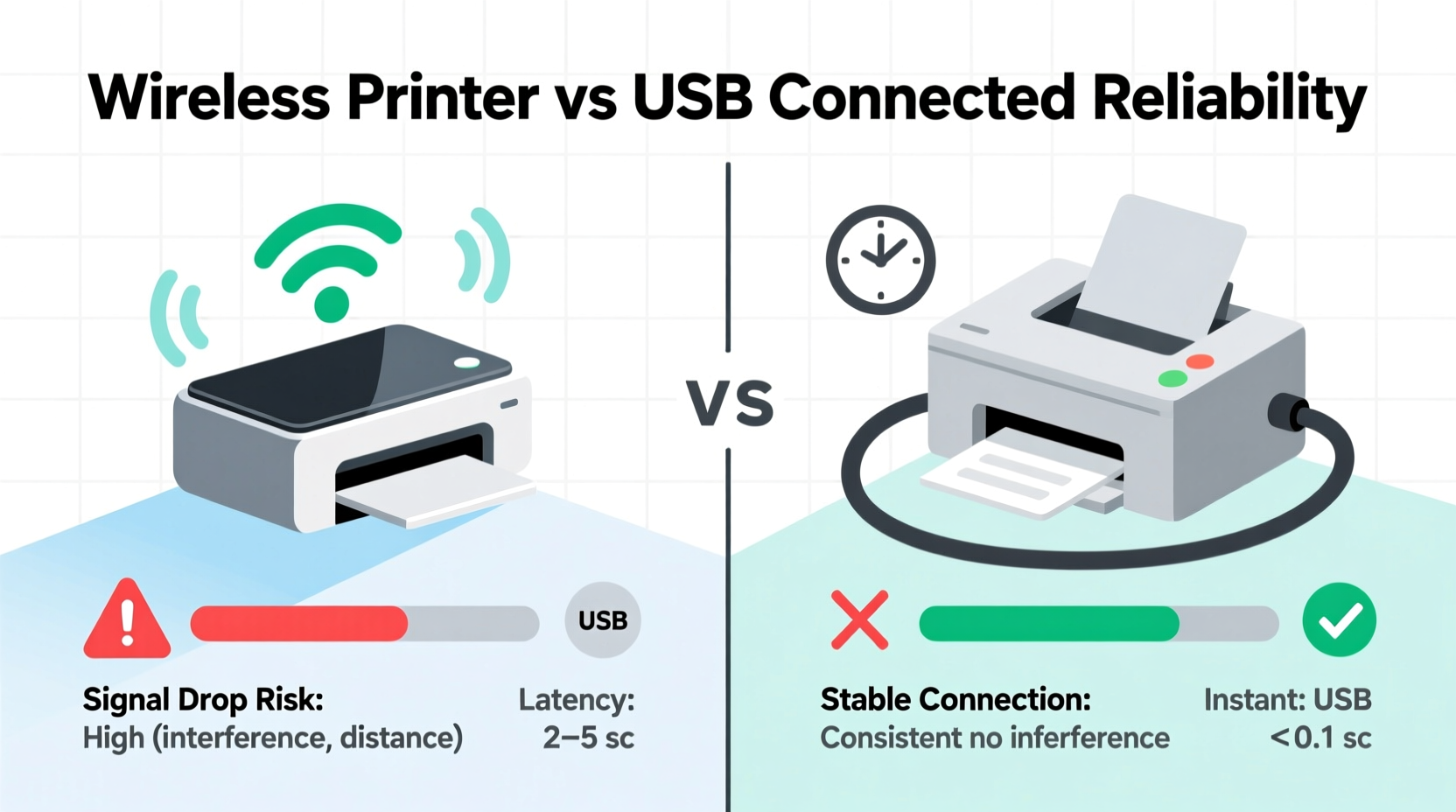
With wired (USB) connections, data travels through a physical cable directly from computer to printer. This eliminates variables like network congestion, signal strength, or IP conflicts. In contrast, wireless printers rely on Wi-Fi networks, which introduce layers of potential failure points: router performance, signal interference, device authentication, and bandwidth allocation.
A 2023 survey by PCMag found that 68% of users reported at least one failed print job per week when using wireless setups in high-interference environments, compared to just 12% among those using dedicated USB connections. These numbers highlight a significant gap in operational dependability.
Performance Comparison: Wireless vs USB
The most noticeable difference between wireless and USB printer reliability lies in connection consistency and response time. Below is a detailed breakdown of key performance indicators:
| Factor | Wireless Connection | USB Connection |
|---|---|---|
| Connection Stability | Subject to Wi-Fi fluctuations, interference from appliances, and signal dropouts | Near-perfect stability; no external interference once physically connected |
| Print Job Latency | Higher latency due to network processing, especially during peak usage | Negligible delay; near-instant command transmission |
| Setup Complexity | Requires network configuration, driver installation, and IP assignment | Plug-and-play; automatic detection in most modern operating systems |
| Maintenance Needs | Frequent reauthentication, firmware updates, and router compatibility checks | Minimal; mainly limited to driver updates and cable integrity |
| Multi-Device Access | High; multiple users across network can print simultaneously | Low; typically restricted to one host computer unless shared via software |
| Interference Resistance | Poor; affected by microwaves, cordless phones, thick walls, and Bluetooth devices | Excellent; immune to electromagnetic or RF interference |
While wireless printers win in flexibility and accessibility, USB-connected models consistently outperform in reliability metrics. The absence of network dependency means fewer points of failure and faster troubleshooting when issues do arise.
Real-World Scenarios: When Each Option Shines
The ideal choice depends heavily on context. Consider these two scenarios:
Case Study: Home Office Freelancer
Sarah, a freelance graphic designer, works from a small apartment studio. She prints client contracts, design proofs, and invoices several times a week. Her workspace includes a desktop, laptop, tablet, and smartphone. She initially opted for a wireless all-in-one printer to enable mobile printing from her iPad.
However, she noticed frequent delays—sometimes up to three minutes—for simple black-and-white documents. During video calls, her Wi-Fi would fluctuate, causing print jobs to queue indefinitely or fail silently. After switching to a USB-connected model tethered to her primary workstation, her success rate jumped to 100%. Though less flexible, the reliability gain was critical for meeting deadlines.
Case Study: Small Accounting Firm
A five-person accounting firm uses a shared wireless laser printer located in a central room. Employees print tax forms, financial statements, and audit reports daily. With everyone accessing the same device over Wi-Fi, occasional collisions occurred—especially during tax season. However, removing wireless access wasn't feasible; staff move between desks, conference rooms, and remote clients.
To improve reliability, they upgraded their router, assigned a static IP to the printer, and implemented Quality of Service (QoS) settings to prioritize print traffic. They also installed monitoring software to detect offline status and alert admins. These steps reduced failure rates by 74%, proving that wireless reliability can be enhanced with proper infrastructure.
“Wired connections are inherently more deterministic. If uptime and accuracy are non-negotiable, USB remains the gold standard.” — Dr. Alan Zhou, Network Systems Engineer at TechFlow Labs
Optimizing Reliability: Best Practices for Both Setups
Whether you choose wireless or USB, certain practices dramatically improve long-term reliability.
For USB-Connected Printers
- Use high-quality, shielded USB cables no longer than 3 meters to prevent signal degradation.
- Avoid sharing the same USB hub with high-power devices like external hard drives.
- Assign a static port in your OS to prevent driver confusion after reboots.
- Regularly check Device Manager (Windows) or System Information (macOS) for error codes.
For Wireless Printers
- Place the printer within 10 feet of the router, with minimal obstructions.
- Use the 5 GHz band instead of 2.4 GHz to reduce interference from household electronics.
- Enable WPA3 encryption and disable legacy protocols to maintain secure, stable handshakes.
- Update firmware monthly; manufacturers often patch connectivity bugs.
- Set a static IP address to prevent DHCP-related disconnections.
Step-by-Step: Diagnosing and Improving Print Reliability
Follow this timeline to assess and enhance your current printing setup:
- Week 1: Baseline Testing
Send 10 identical print jobs (mix of text and graphics) and record success rate, time-to-print, and any errors. Repeat for both wireless and USB if possible. - Week 2: Environmental Audit
Check Wi-Fi signal strength near the printer (use tools like Wi-Fi Analyzer). Identify nearby sources of interference (microwaves, baby monitors). - Week 3: Configuration Optimization
For wireless: assign static IP, update firmware, switch to 5 GHz. For USB: test with a new cable, ensure port power is sufficient. - Week 4: Retest & Compare
Repeat initial tests under same conditions. Compare results to baseline. Document improvements. - Ongoing: Monthly Maintenance
Clear print queues, restart devices, inspect logs for recurring warnings.
This structured approach helps isolate whether reliability issues stem from hardware, configuration, or environment—critical for making informed upgrades.
When to Choose Which: A Decision Checklist
Use the following checklist to determine the best fit for your situation:
- You print primarily from one computer.
- Reliability is more important than mobility.
- Your environment has poor or congested Wi-Fi.
- You frequently print large files (e.g., PDFs, CAD drawings).
- You need immediate feedback and control over print status.
- Multiple users or devices need access.
- You print from smartphones or tablets regularly.
- Physical cabling is impractical due to layout or aesthetics.
- You have a robust, modern Wi-Fi 6/6E network.
- You're willing to invest time in network optimization.
Frequently Asked Questions
Is a wireless printer less reliable than a USB one?
Generally, yes. Wireless printers are more susceptible to network issues, interference, and configuration drift. However, in well-maintained networks with strong signals, the gap narrows significantly. USB offers superior consistency due to its direct, deterministic connection.
Can I use both wireless and USB on the same printer?
Many modern printers support dual connectivity. You can connect via USB for critical jobs and switch to wireless for convenience. Note that only one connection type should be active at a time to avoid conflicts unless the printer explicitly supports simultaneous modes.
Why does my wireless printer disconnect randomly?
Common causes include weak signal strength, router timeouts, IP address changes via DHCP, outdated drivers, or interference from other 2.4 GHz devices. Solutions include setting a static IP, relocating the printer closer to the router, or upgrading to a mesh network system.
Conclusion: Prioritize Stability Without Sacrificing Practicality
The debate between wireless and USB printer reliability ultimately comes down to trade-offs. USB wins hands-down in stability, speed, and simplicity—ideal for single-user environments where consistent output is paramount. Wireless offers unmatched flexibility and collaboration potential but demands a well-tuned network to maintain dependable performance.
There’s no universal “best” option. Instead, align your choice with your workflow priorities. If you value peace of mind and zero-hassle printing, go wired. If mobility and multi-device access are essential, commit to optimizing your network to support wireless reliability.




 浙公网安备
33010002000092号
浙公网安备
33010002000092号 浙B2-20120091-4
Comments
No comments yet. Why don't you start the discussion?