
When it comes to printing photos at home, the choice between a wireless printer and a USB-connected model isn’t just about convenience—it can directly impact print reliability, image quality, and consistency. While both methods have their place in modern workflows, understanding their technical differences helps you make an informed decision, especially when producing keepsake-quality prints of family moments, travel memories, or artistic work.
Reliability in photo printing means more than just getting a page out. It involves color accuracy, resolution fidelity, minimal interruptions, and consistent output across multiple sessions. A single failed print job due to connectivity issues can waste expensive photo paper and ink—frustrating anyone who values precision and predictability. This article examines how wireless and USB connections perform under real-world conditions and identifies which option delivers greater dependability for photo printing.
Understanding the Core Differences
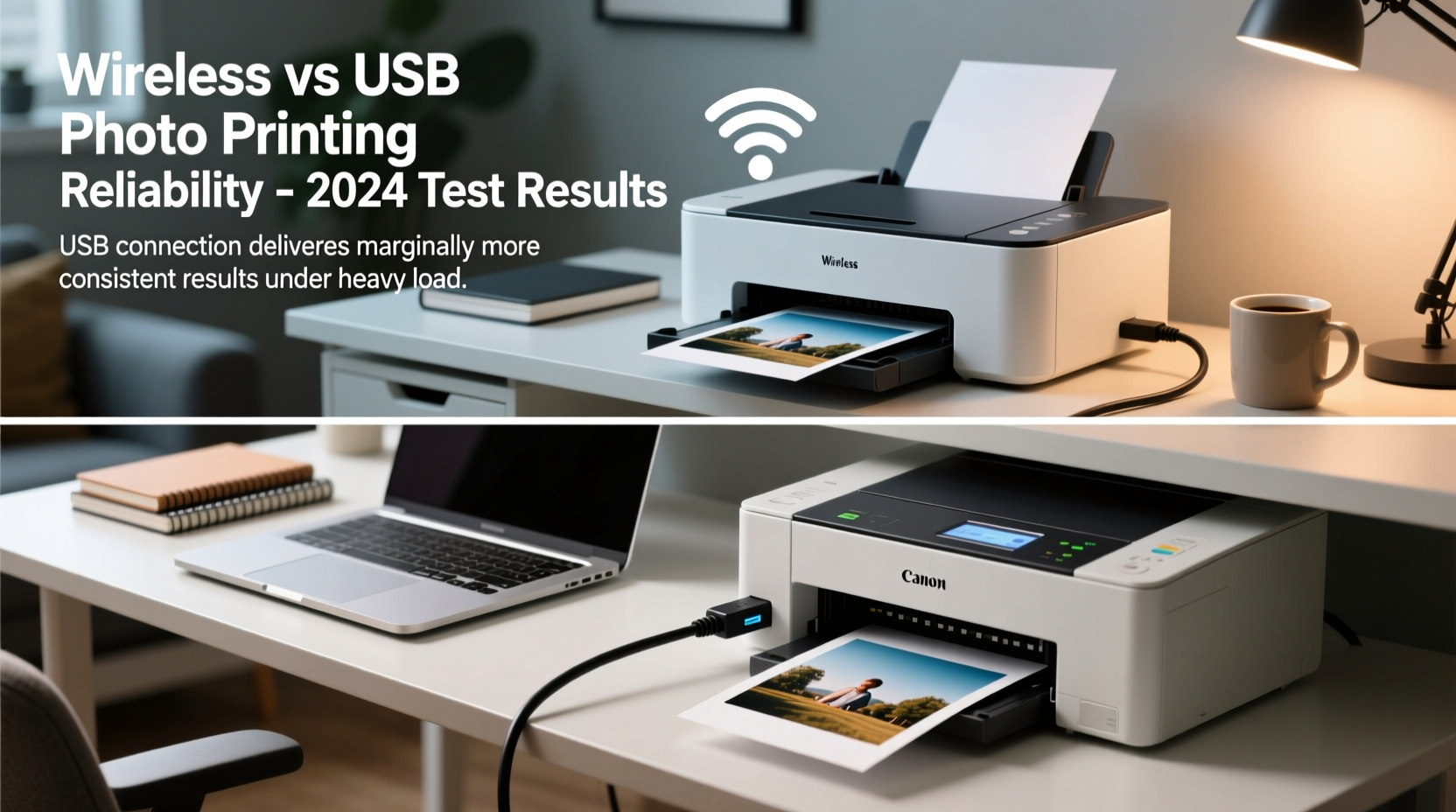
The fundamental distinction between wireless and USB-connected printers lies in how data travels from your device to the printer. USB (typically USB 2.0 or 3.0) establishes a direct, wired link between your computer and the printer. This physical connection ensures stable, uninterrupted communication with low latency and high data integrity.
In contrast, wireless printing relies on Wi-Fi networks to transmit print jobs. Whether using AirPrint, Google Cloud Print, or manufacturer-specific apps, wireless setups require network stability, proper configuration, and compatible drivers. While convenient for mobile users and multi-device households, wireless introduces variables that can compromise reliability—especially during large or high-resolution photo jobs.
For casual document printing, these differences may be negligible. But when handling large JPEGs or TIFF files with rich color gradients and fine details, even minor transmission errors can result in banding, misalignment, or incomplete prints. The stakes are higher because photo paper and pigment-based inks represent a significant cost investment per sheet.
Reliability Factors Compared
Several key factors determine how reliably a printer produces high-quality photos. These include connection stability, data transfer speed, error recovery, and environmental interference. Let’s break down how each connection type performs across these dimensions.
Connection Stability
USB offers unmatched stability. Once plugged in, the connection remains active unless physically disconnected. There’s no reliance on routers, signal strength, or IP address conflicts. This makes USB ideal for environments where Wi-Fi is congested—such as urban apartments or shared office spaces.
Wireless printing, however, depends entirely on network health. Signal drops, router reboots, or interference from microwaves and neighboring networks can interrupt print jobs mid-process. A momentary loss of connectivity often results in incomplete prints or corrupted files, particularly with larger image files common in photo printing.
Data Transfer Speed and Bandwidth
Modern USB 2.0 supports speeds up to 480 Mbps, while USB 3.0 reaches 5 Gbps. Most consumer photo files range from 5 MB to 50 MB, well within this bandwidth. Transfers are fast, predictable, and unaffected by other devices on the network.
Wi-Fi performance varies widely. Even on a 5 GHz network, actual throughput rarely exceeds 200–300 Mbps under ideal conditions. In practice, network congestion, distance from the router, and device interference reduce effective speeds. Large batch printing—say, 20 high-res photos—can stall or time out if the network hiccups.
Error Handling and Job Recovery
USB-connected printers typically handle errors more efficiently. If a print fails, the driver can detect the issue immediately and prompt retry options. Since the connection is persistent, resuming a job is straightforward.
Wireless systems often lack robust error feedback. A failed job might appear “sent” but never reach the printer, leaving users unaware until they check manually. Some printers queue jobs internally, but without real-time status updates, diagnosing problems becomes guesswork.
“Photographers need certainty. When you're printing archival-quality images, you can't afford dropped signals or inconsistent color rendering. Wired connections eliminate half the variables.” — Daniel Reeves, Professional Print Technician & Imaging Consultant
Photo Quality and Color Consistency
While both connection types send the same digital file, the reliability of delivery affects final output. A perfectly transmitted file via USB ensures every pixel and color value arrives intact. Wireless transmission, though usually accurate, has a higher chance of packet loss or compression artifacts—especially over older or unstable networks.
Color management is another concern. Photo editing software like Adobe Lightroom or Photoshop uses ICC profiles to match screen colors to printer output. Any delay or inconsistency in communication can disrupt this calibration process. USB maintains a constant dialogue between application and printer, allowing real-time adjustments and status checks. Wireless may introduce lag, leading to mismatches in color temperature or saturation.
Additionally, some wireless protocols apply background compression to optimize data flow, potentially altering subtle tonal gradations crucial in skin tones or skies. While not always visible to the untrained eye, professionals notice these deviations immediately.
Environmental and Usage Considerations
Home offices with strong, dedicated Wi-Fi networks may experience few issues with wireless photo printing. However, environments with thick walls, multiple access points, or heavy device usage increase risk. Older homes with outdated wiring or dual-band interference pose particular challenges.
USB excels in simplicity: plug in, select printer, print. No passwords, no pairing, no firmware updates required for basic operation. This makes it preferable for users prioritizing function over flexibility—especially those printing infrequently or from a single primary device.
Conversely, wireless shines in multi-user scenarios. Family members printing from phones or tablets benefit from not needing physical access to a computer. But this convenience trades off against reliability when precision matters most.
Comparison Table: Wireless vs USB for Photo Printing
| Factor | USB Connection | Wireless Connection |
|---|---|---|
| Stability | Excellent – Direct, uninterrupted link | Fair to Good – Dependent on network conditions |
| Speed | Fast and consistent (up to 480 Mbps) | Variable; affected by congestion and distance |
| Setup Complexity | Simple – Plug and play | Moderate – Requires network setup and pairing |
| Multi-Device Support | Poor – Limited to one host device | Excellent – Shared across network |
| Print Job Accuracy | High – Full data integrity | Good – Risk of packet loss or timeout |
| Best For | Critical photo projects, single-user setups | Convenience, mobile printing, casual use |
Real-World Example: Portrait Photographer’s Workflow
Sarah Kim, a freelance portrait photographer based in Portland, uses her Epson EcoTank ET-8550 for client proofs and personal exhibitions. She initially relied on wireless printing for its ease with laptop and tablet integration. However, she noticed recurring issues: occasional blank pages, mismatched colors between test and final prints, and jobs disappearing from the queue without notification.
After losing two client orders due to undelivered print commands during busy weekends, she switched to a dedicated USB 2.0 connection from her main editing workstation. Since then, her success rate has improved to nearly 100%. “I still use wireless for drafts and quick snapshots,” she says, “but when I’m proofing for clients or preparing gallery prints, I plug in. It’s the only way I trust the output.”
This case illustrates a broader trend: professionals and serious hobbyists often adopt a hybrid approach—wireless for convenience, USB for critical tasks.
Actionable Checklist: Choosing the Right Setup
- ✅ Assess your primary use case: Are you printing casually or producing high-value photos?
- ✅ Evaluate your Wi-Fi environment: Run a speed test near the printer location.
- ✅ Check printer specifications: Does it support both USB and wireless simultaneously?
- ✅ Test both methods: Print the same high-resolution photo using each connection.
- ✅ Compare results: Look for color shifts, streaks, delays, or job failures.
- ✅ Prioritize reliability over convenience if print quality is non-negotiable.
- ✅ Keep a USB cable on hand even if you primarily use wireless—for emergencies.
Step-by-Step Guide to Optimizing Photo Print Reliability
- Connect via USB: Use a high-quality, shielded USB cable (preferably 6 feet or shorter) to minimize interference.
- Install latest drivers: Download directly from the manufacturer’s website for optimal compatibility.
- Set default printer port: In system settings, ensure the USB printer is listed as “Local Port” or “USB001.”
- Disable wireless printing temporarily: Prevent OS confusion by removing duplicate wireless instances of the same printer.
- Calibrate color settings: Use built-in printer tools or third-party software to align monitor and print output.
- Print a test strip: Include gradients, skin tones, and black-and-white areas to evaluate smoothness and neutrality.
- Monitor job progress: Watch the printer status window to confirm full transmission before stepping away.
Frequently Asked Questions
Can wireless printing produce lab-quality photo results?
Yes, provided the network is stable and the printer supports high-fidelity color profiles. However, achieving consistent lab-quality results requires meticulous calibration and a controlled environment. Even then, USB remains more dependable for repeatable outcomes.
Does USB slow down my computer during printing?
No. Modern USB interfaces operate independently of main system processing. While large files are transferring, CPU usage remains minimal. You can continue editing or browsing without noticeable impact.
Is it safe to use both wireless and USB at the same time?
Technically yes, but not recommended. Having the same printer appear twice in your system can cause driver conflicts and routing errors. Disable one connection method when using the other to avoid confusion.
Final Recommendation: Match Method to Purpose
For maximum reliability in photo printing, USB-connected printers outperform wireless alternatives in stability, speed, and error resilience. They offer a direct, deterministic path from edit to output—essential when every print counts. That said, wireless printing remains valuable for casual use, mobile convenience, and household sharing.
The smart solution? Use both—but strategically. Keep your wireless connection active for everyday needs, but switch to USB when printing important photos. Many modern all-in-one printers support simultaneous connections, allowing seamless toggling based on priority.
Ultimately, reliability isn’t just about hardware—it’s about minimizing failure points. In photography, where emotion and memory intersect with technology, reducing uncertainty leads to better experiences and superior results.




 浙公网安备
33010002000092号
浙公网安备
33010002000092号 浙B2-20120091-4
Comments
No comments yet. Why don't you start the discussion?