
For remote workers and home-based entrepreneurs, a reliable printer is more than a convenience—it’s a productivity lifeline. Whether you're printing contracts, invoices, or presentation materials, the last thing you need is technical hiccups mid-task. The debate between wireless and wired printers often centers on convenience versus consistency. While wireless promises freedom from cords, wired connections offer stability. But which truly causes fewer headaches in a home office environment?
This isn’t just about cables or signal strength; it’s about how your choice affects daily workflow, troubleshooting time, security, and long-term maintenance. Based on real-world usage patterns, IT expert insights, and user feedback, we’ll dissect both options to determine which delivers smoother operation when your work depends on it.
Reliability: The Core of a Hassle-Free Experience
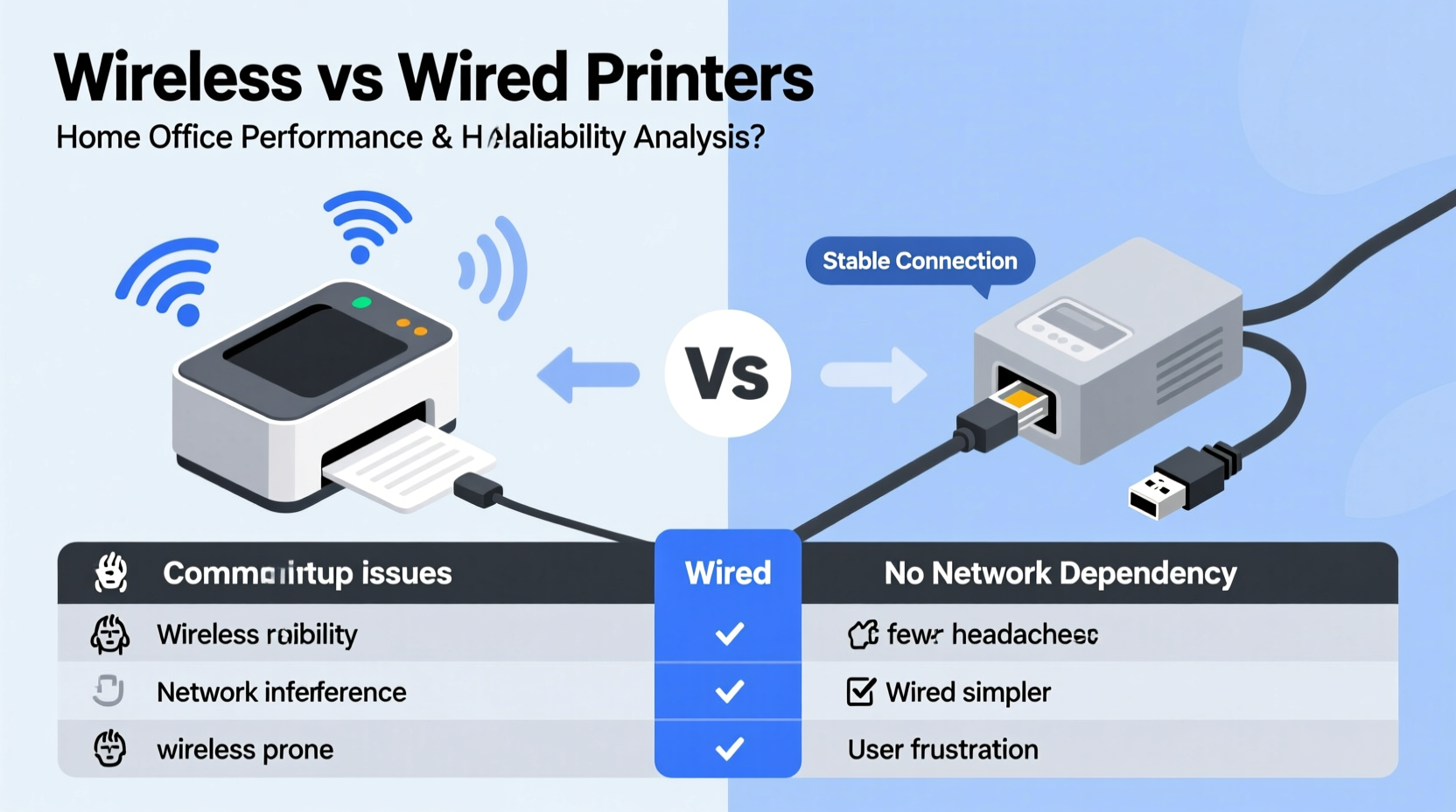
When evaluating \"fewer headaches,\" reliability is paramount. A printer that fails during an urgent print job can disrupt deadlines, damage client trust, and increase stress. Wired printers—those connected via USB or Ethernet—have a clear edge here.
A direct physical connection eliminates interference, latency, and authentication delays. Once configured, a wired printer typically works every single time. There's no renegotiation of network permissions, no dropped signals, and no IP conflicts. It’s plug-and-play with near 100% uptime under normal conditions.
In contrast, wireless printers rely on Wi-Fi networks, which are inherently less stable. Signal strength fluctuates based on distance, walls, electronic interference (from microwaves or cordless phones), and network congestion. These variables can lead to delayed print jobs, failed commands, or devices suddenly appearing \"offline.\"
“Networked peripherals add complexity. In environments where downtime matters, I still recommend wired connections for critical devices.” — Daniel Reeves, Senior Network Administrator at TechFlow Solutions
Setup and Configuration: First Impressions Matter
Initial setup often shapes a user’s long-term perception of a device. Wireless printers market themselves as “easy to set up,” but this claim holds only under ideal conditions. Many users report spending 30 minutes to over an hour getting their wireless printer recognized by multiple devices, especially if they’re using older operating systems or have complex network settings.
The process usually involves connecting the printer to Wi-Fi through its interface (often a tiny screen with limited navigation), ensuring it’s on the same network as the computer, installing manufacturer software, and sometimes manually adding the printer via IP address. Each step introduces potential failure points.
Wired printers bypass most of this. Plug in the USB cable, install drivers (if needed), and the system usually detects the device instantly. No passwords, no network selection, no waiting for discovery protocols. For non-tech-savvy users—especially those managing a home office without dedicated IT support—this simplicity translates directly into fewer frustrations.
However, wireless wins in multi-device households. If three people need to print from laptops, tablets, or smartphones, a wireless printer avoids constant plugging and unplugging. But even here, modern operating systems like Windows 10/11 and macOS have improved native driver support, reducing the friction of shared wired access via one central PC.
Performance and Speed: What’s Lost in Translation?
Speed differences between wired and wireless printers are often overlooked but matter in high-volume environments. USB 2.0 offers data transfer speeds up to 480 Mbps, while standard Wi-Fi (802.11n) averages around 150–300 Mbps in real-world conditions. Newer Wi-Fi 6 improves this, but many home offices still operate on older routers.
More importantly, latency and packet loss affect perceived performance. A large PDF with embedded graphics may take 15 seconds over USB but stall or buffer over Wi-Fi, especially if someone is streaming video on the same network. Users frequently describe this as the printer “thinking” or “freezing,” leading them to cancel and retry jobs repeatedly.
Ethernet-connected printers (a wired alternative to USB) offer a middle ground—networked access without Wi-Fi instability. They integrate well with home servers or NAS devices and allow printing from any device on the LAN without relying on wireless signals. However, they require a spare Ethernet port and cabling, which not all home offices can accommodate easily.
Security and Control: Often Overlooked but Critical
Wireless printers introduce a subtle but serious risk: they’re network endpoints. If not properly secured, they can be exploited for data interception or unauthorized access. Researchers have demonstrated attacks where malicious actors send print jobs remotely or extract cached documents from poorly configured printers.
While rare in residential settings, these vulnerabilities become relevant if you handle sensitive financial, legal, or health-related documents. WPA3 encryption, firmware updates, and disabling unused services (like cloud printing) mitigate risks—but most home users don’t configure these settings.
Wired printers, particularly USB-connected ones, are inherently more secure. They aren’t accessible over the network unless deliberately shared. This isolation reduces the attack surface significantly. For professionals handling confidential information, this peace of mind outweighs the slight inconvenience of a cable.
Real-World Comparison: A Side-by-Side Analysis
| Feature | Wired Printer (USB/Ethernet) | Wireless Printer (Wi-Fi) |
|---|---|---|
| Connection Stability | Excellent – consistent, uninterrupted | Fair to Good – prone to dropouts |
| Setup Difficulty | Low – plug and play | Moderate to High – network configuration required |
| Print Speed (Large Files) | Fast and predictable | Slower, variable due to network load |
| Multi-Device Access | Limited without sharing setup | Easy – connects to all devices on network |
| Security | High – isolated from network | Moderate – requires active configuration |
| Troubleshooting Frequency | Rarely needed | Common – connectivity issues frequent |
| Cable Clutter | Present – requires physical connection | Minimal – clean desk appearance |
Mini Case Study: Sarah’s Home Office Upgrade
Sarah runs a freelance accounting business from her basement office. She initially chose a popular wireless all-in-one inkjet printer for its sleek design and mobile printing features. Within weeks, she noticed recurring issues: print jobs would queue but never execute, her laptop would show the printer as “offline” despite being powered on, and scanning to email failed intermittently.
After spending hours on customer support calls and resetting her router, she switched to a basic USB-connected laser printer. Though it lacked mobile printing, it worked instantly every time. “I didn’t realize how much mental energy I was wasting until it stopped,” she said. “Now I print, it works, and I move on. That alone has reduced my end-of-day stress.”
She later added a low-cost document scanner for digitizing receipts, creating a two-device wired setup that proved far more dependable than her all-in-one wireless model.
Step-by-Step: Choosing the Right Option for Your Workflow
Follow this decision framework to minimize future frustration:
- Assess your primary use case: Do you print occasionally from one device, or frequently from multiple users and platforms?
- Evaluate your network quality: Run a speed test near your intended printer location. If Wi-Fi signal is below 2 bars or ping exceeds 50ms, wireless may underperform.
- Consider security needs: Are you printing tax returns, contracts, or medical forms? If yes, prioritize wired or secured Ethernet models.
- Test before committing: If buying wireless, try it in your actual workspace for at least a week. Monitor job success rate and response time.
- Plan for maintenance: Check firmware update frequency and manufacturer support lifespan. Some brands discontinue app support within 3 years.
Checklist: Minimizing Printer Headaches (Regardless of Type)
- ✅ Keep drivers updated through the manufacturer’s official website
- ✅ Use static IP assignment for networked printers to prevent address changes
- ✅ Clean print heads monthly (for inkjets) to avoid clogs
- ✅ Store spare toner/ink in a cool, dry place away from sunlight
- ✅ Restart your printer weekly to clear memory and prevent firmware hangs
- ✅ Label cables and ports to simplify troubleshooting
- ✅ Disable automatic cloud registration if privacy is a concern
Frequently Asked Questions
Can a wireless printer work without Wi-Fi?
Some models support direct Wi-Fi hotspot mode (printer creates its own network), allowing temporary printing during outages. However, most require a functioning router. Bluetooth-enabled printers are rare and slow. A wired backup option is more reliable.
Is USB really faster than wireless?
In terms of raw throughput and consistency, yes. USB provides a dedicated channel with no contention. Wireless shares bandwidth with other devices and suffers from environmental interference, making it less predictable—even if theoretical speeds seem comparable.
Do wired printers become obsolete faster?
No. In fact, USB remains a universal standard supported across decades of hardware. Many newer printers still include USB ports even when marketed as “wireless-first.” Legacy compatibility ensures longer usable life compared to cloud-dependent wireless models that may lose functionality when apps are discontinued.
Conclusion: Prioritize Stability Over Convenience
In the battle between wireless and wired printers for home office use, the answer to “which causes fewer headaches?” leans decisively toward wired—especially for professionals who value reliability over aesthetics.
Wireless printers offer undeniable convenience, particularly in multi-user homes or when printing from mobile devices. But that convenience comes at the cost of stability, security, and predictability. Every time a print job fails or a device disconnects, it chips away at focus and efficiency.
A wired connection, whether USB or Ethernet, delivers what most home office users need most: consistency. It removes variables, reduces troubleshooting, and operates silently in the background—exactly how office equipment should function.
If you choose wireless, invest time in proper setup, network optimization, and security hardening. But if minimizing frustration is your top priority, go wired. Your future self—rushing to print a last-minute proposal—will thank you.




 浙公网安备
33010002000092号
浙公网安备
33010002000092号 浙B2-20120091-4
Comments
No comments yet. Why don't you start the discussion?