
Connecting your Xbox 360 to the internet should be straightforward, but when it fails, the experience can quickly become frustrating. Whether you're trying to download a game update, play online multiplayer, or stream content, a stable internet connection is essential. Unfortunately, the Xbox 360—released in 2005—is no longer actively supported by Microsoft, which means firmware updates are rare and compatibility with modern routers can be inconsistent. Despite these challenges, many users still rely on the console for retro gaming and media use. This guide provides a comprehensive, practical approach to diagnosing and resolving common connectivity issues.
Understanding Common Connection Problems
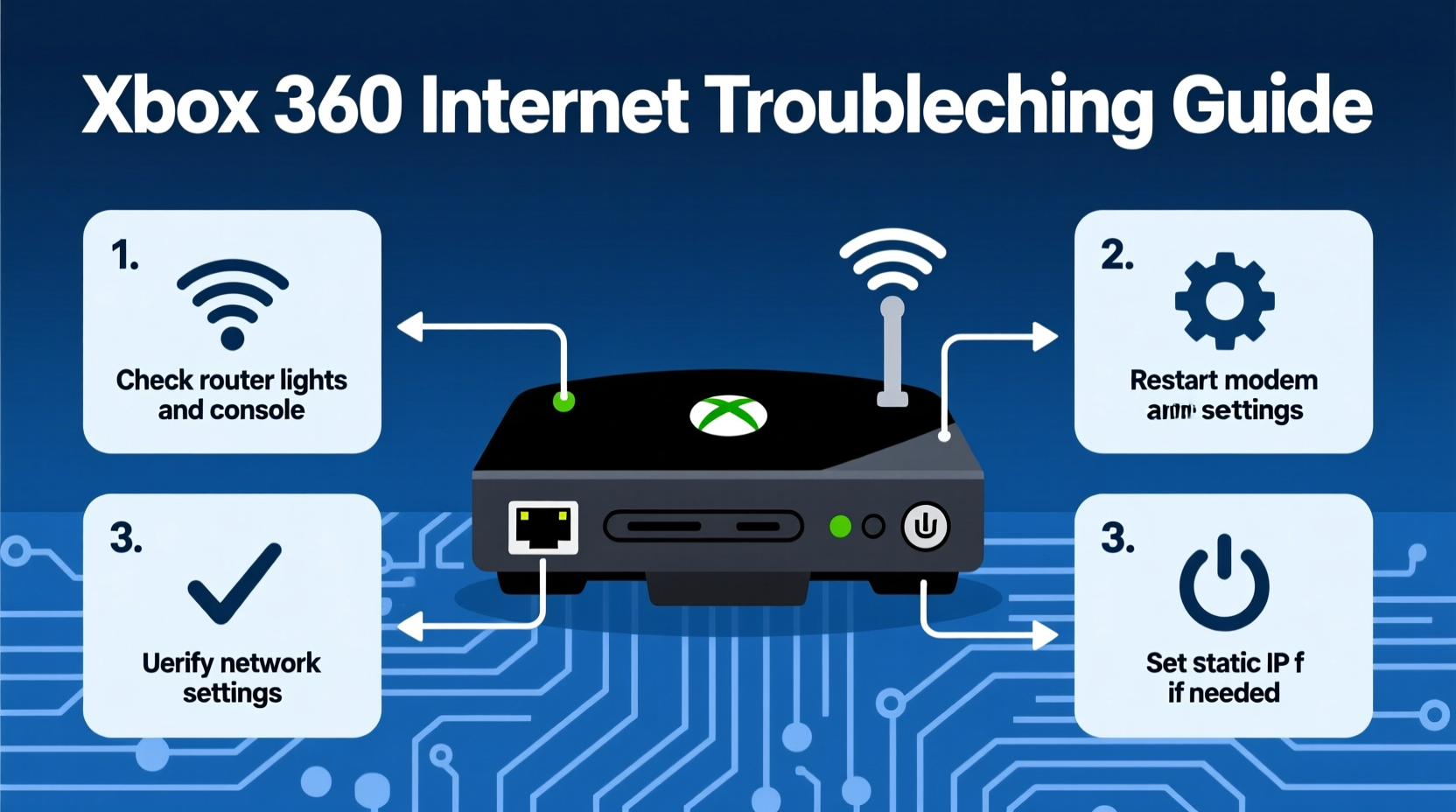
The Xbox 360 may fail to connect to the internet for several reasons, ranging from simple user errors to deeper hardware or network configuration issues. The most frequent symptoms include:
- \"Cannot connect to wireless network\" error
- Success in detecting the network but failure to obtain an IP address
- Intermittent connection drops
- High NAT type (Strict) limiting online functionality
- Failure to pass the Network Test despite correct password entry
Before diving into advanced fixes, it’s important to rule out basic causes. Many users overlook simple solutions such as router reboots or incorrect passwords. Start with foundational checks before progressing to more technical steps.
Step-by-Step Troubleshooting Process
Follow this structured sequence to isolate and resolve the root cause of your Xbox 360's internet failure. Each step builds on the previous one, ensuring no stone is left unturned.
- Verify Your Network Status: Confirm that other devices (smartphones, laptops) can connect to the same network. If they can't, the issue lies with your router or ISP, not the Xbox.
- Check Wireless Signal Strength: On the Xbox Dashboard, go to Settings > Network Settings > Edit Settings > Wireless Mode. Ensure signal strength is at least \"Good.\" Weak signals often prevent stable connections.
- Re-enter Network Password: Even if previously saved, corrupted credentials can block access. Delete the network profile and re-enter the password carefully.
- Use a Wired Connection Temporarily: If possible, connect via Ethernet. This eliminates wireless interference and helps determine if the issue is Wi-Fi-specific.
- Run the Xbox Network Test: Navigate to Settings > Network Settings > Test Xbox Live Connection. Note any specific error codes (e.g., 80151904).
- Manually Configure IP Settings: If automatic DHCP fails, assign a static IP within your router’s subnet range. Use the router’s admin panel to reserve this IP for your Xbox MAC address.
- Open Required Ports on Your Router: The Xbox 360 requires specific ports to be open for optimal performance:
- TCP: 80, 3074, 53
- UDP: 53, 88, 3074
Port Forwarding Example
| Service | Protocol | Port Range |
|---|---|---|
| Xbox Live | TCP/UDP | 3074 |
| DNS | UDP/TCP | 53 |
| HTTP | TCP | 80 |
| Kerberos | UDP | 88 |
Access your router settings via a web browser (typically http://192.168.1.1), locate the Port Forwarding section, and add these rules pointing to your Xbox’s assigned IP address.
Wireless Adapter Limitations and Workarounds
The original Xbox 360 models lack built-in Wi-Fi. Only the Xbox 360 S and E variants support wireless natively. Older models require the official Xbox 360 Wireless Networking Adapter—a USB device notorious for driver limitations and compatibility issues with modern WPA2/WPA3 encryption standards.
If you're using a third-party USB Wi-Fi adapter, it likely won’t work. Microsoft only supports its proprietary hardware. Even the official adapter struggles with certain 5GHz-only networks or routers using AES-CCMP encryption exclusively.
Mini Case Study: Resolving a Persistent NAT Issue
Mark, a long-time Xbox 360 owner, upgraded his home router to a newer mesh system. Afterward, his console showed \"Moderate\" NAT type and failed to join multiplayer lobbies consistently. He confirmed the console had internet access but could not host games. After checking port forwarding without success, he discovered his new router enabled UPnP (Universal Plug and Play) by default—but the Xbox 360 wasn’t being recognized. Disabling UPnP and manually assigning a static IP along with opening TCP/UDP port 3074 resolved the issue. His NAT type changed to \"Open,\" restoring full online functionality.
“Legacy consoles like the Xbox 360 were designed for simpler network environments. Modern security features often interfere with their ability to communicate properly.” — David Lin, Network Infrastructure Specialist
Advanced Fixes for Stubborn Connectivity Failures
When standard methods fail, consider these deeper interventions:
Update Router Firmware
Some older routers have bugs affecting DHCP allocation or DNS handling. Check your manufacturer’s website for firmware updates. Updated firmware may improve backward compatibility.
Change DNS Servers
Instead of relying on your ISP’s DNS, switch to public options like Google DNS (8.8.8.8 and 8.8.4.4) or Cloudflare (1.1.1.1). To do this:
- Go to Network Settings > Edit Settings > IP Settings > Manual
- Enter your IP, Subnet, Gateway, then set DNS to preferred and alternate addresses.
- Save and test the connection.
Disable IPv6
The Xbox 360 does not support IPv6. If your router forces IPv6 routing, it can disrupt connectivity. Log into your router and disable IPv6 under WAN or LAN settings.
MAC Address Filtering Bypass
If your router uses MAC filtering for security, ensure your Xbox 360’s MAC address is added to the allowed list. You can find it under Network Settings > Edit Settings > Additional Settings > Alternate Mac Address.
Troubleshooting Checklist
Use this checklist to methodically eliminate potential causes:
- ✅ Restart router and Xbox 360
- ✅ Confirm Wi-Fi password is correct
- ✅ Test with a wired Ethernet connection
- ✅ Run Network Test and note error codes
- ✅ Assign static IP if DHCP fails
- ✅ Open required ports (3074 TCP/UDP)
- ✅ Disable IPv6 on the router
- ✅ Use WPA2-PSK (TKIP + AES) encryption
- ✅ Update router firmware
- ✅ Try Google DNS (8.8.8.8 / 8.8.4.4)
Frequently Asked Questions
Why does my Xbox 360 say “Limited Connect”?
This means the console connected to the router but couldn’t obtain a valid IP address or internet access. It typically indicates a DHCP issue, faulty cable, or router congestion. Restart the router, check for IP conflicts, or assign a static IP manually.
Can I use a mobile hotspot with Xbox 360?
Yes, but performance varies. Most smartphones create 5GHz-only or WPA3 networks incompatible with the Xbox 360. Enable \"Mobile Hotspot\" with WPA2 and 2.4GHz band support if available. Tethering via USB or Bluetooth won’t work—only Wi-Fi sharing is supported.
What does error code 80151904 mean?
This error usually points to authentication failure or DNS issues. Try changing DNS to Google’s servers, re-enter your Wi-Fi password, or reset network settings on the console.
Final Steps and When to Consider Alternatives
The Xbox 360 was a groundbreaking console, but technology has moved on. While many of the fixes above restore connectivity, some users may find their hardware or network environment too incompatible for reliable use. If repeated attempts fail, consider:
- Using a dedicated old router as a bridge, configured specifically for legacy devices
- Streaming games via backward-compatible titles on Xbox One/Series X with cloud saves
- Preserving the console for offline play only
Microsoft ended major software updates for Xbox 360 in 2016, and Xbox Live services for the platform are now minimal. However, local network features, downloaded games, and disc-based play remain viable.




 浙公网安备
33010002000092号
浙公网安备
33010002000092号 浙B2-20120091-4
Comments
No comments yet. Why don't you start the discussion?