
Slow download speeds in the Xbox app can be frustrating—especially when you're eager to play a new release or update an existing title. Despite having a fast internet connection, users often report that downloads crawl at a fraction of their expected bandwidth. This isn't always due to your ISP. More commonly, it's a mix of software settings, network configuration, and background system behavior. The good news is that most slowdowns are fixable with targeted adjustments. Below is a comprehensive guide to diagnosing and resolving slow download speeds in the Xbox app across PC and console platforms.
Understanding the Root Causes
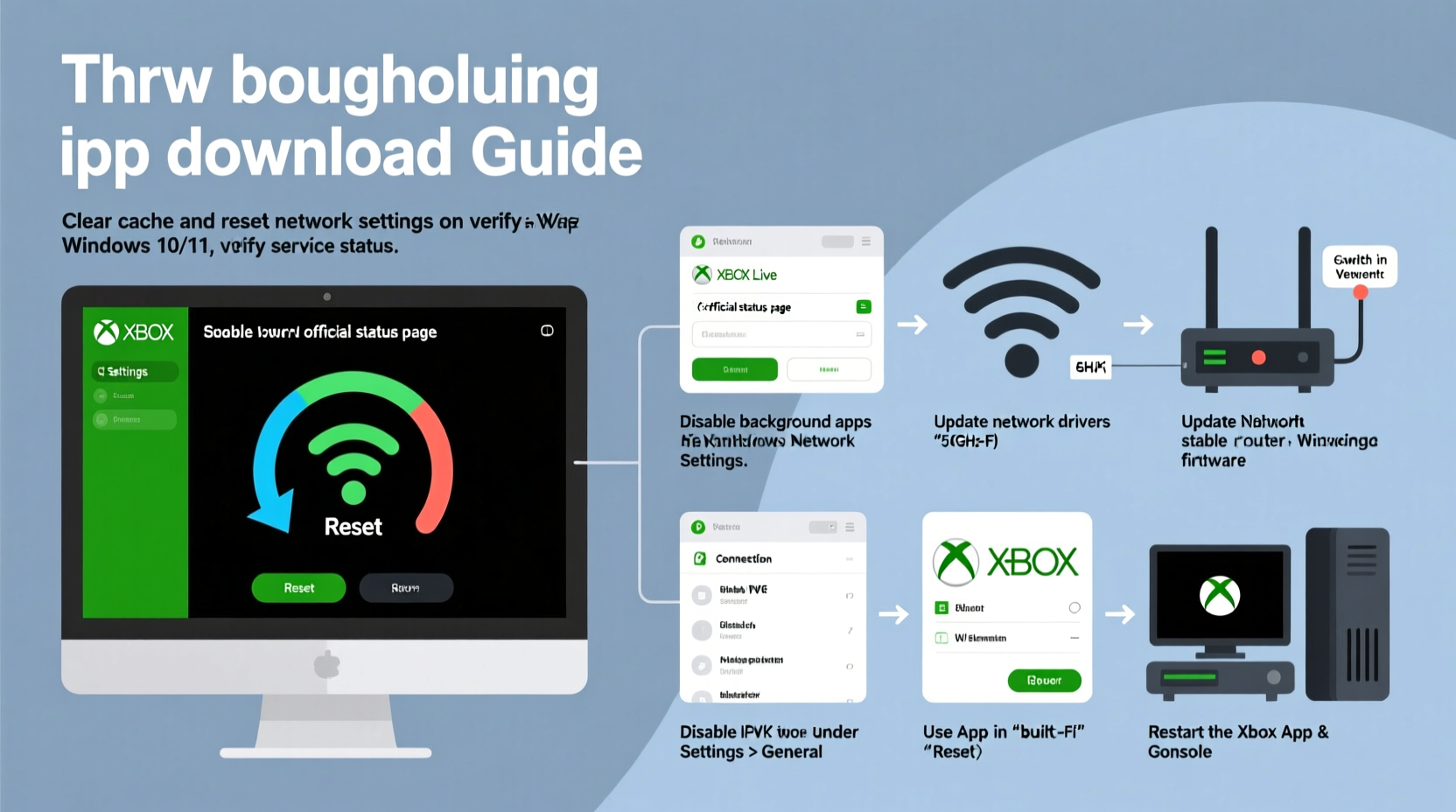
The Xbox app relies on a stable, high-throughput connection to deliver games, updates, and media from Microsoft’s servers. However, several factors can interfere with optimal performance:
- Network congestion: Multiple devices using bandwidth simultaneously.
- Background apps: Software running in the background consuming resources.
- Server-side throttling: Microsoft may limit speeds during peak hours.
- Wi-Fi interference: Physical obstructions or competing signals degrading wireless performance.
- Outdated drivers or firmware: Network adapters or routers operating inefficiently.
- Incorrect DNS settings: Suboptimal routing to Microsoft’s content delivery network (CDN).
Identifying which factor applies to your situation is the first step toward resolution.
Step-by-Step Troubleshooting Guide
Follow this structured sequence to systematically eliminate common causes of slow downloads.
- Check your current internet speed. Use a trusted speed test tool like Speedtest.net while connected directly via Ethernet. Compare results to your ISP’s advertised plan.
- Restart your router and modem. Power cycle networking hardware by unplugging for 30 seconds, then reconnecting. This clears temporary glitches and resets IP assignments.
- Switch from Wi-Fi to Ethernet. If possible, use a wired connection. Wireless networks are more prone to interference and latency spikes.
- Close bandwidth-heavy applications. Stop cloud backups, video streaming, large file syncs, or other downloads running in parallel.
- Reset the Xbox app cache. On Windows, open Settings > Apps > Xbox > Advanced Options > Reset. This clears corrupted data without removing your account.
- Update network drivers. Outdated drivers can cause packet loss or reduced throughput. Visit your motherboard or laptop manufacturer’s website for the latest versions.
- Disable bandwidth limits in Windows. Navigate to Settings > Network & Internet > Data Usage > Change usage options, and ensure metered connection is turned off.
Optimize Xbox App and System Settings
Beyond connectivity, internal configurations can throttle download performance.
Adjust Download Preferences
In the Xbox app, go to Settings > Downloads. Ensure the following:
- “Download using metered connections” is disabled.
- “Pause downloads when playing a game” is unchecked if you want background downloads.
- “Download over metered connections” is only enabled if necessary.
Enable Auto-Install and Background Updates
Allow automatic updates for games and system components. This ensures patches are queued efficiently and don’t bottleneck later.
Modify DNS Settings
Changing your DNS can improve routing to Microsoft’s servers. Try switching to Google DNS or Cloudflare:
| DNS Provider | Primary Address | Secondary Address |
|---|---|---|
| Google DNS | 8.8.8.8 | 8.8.4.4 |
| Cloudflare | 1.1.1.1 | 1.0.0.1 |
| OpenDNS | 208.67.222.222 | 208.67.220.220 |
To change DNS on Windows: Go to Control Panel > Network and Sharing Center > Change adapter settings > Right-click your active connection > Properties > Internet Protocol Version 4 (TCP/IPv4) > Use the following DNS server addresses.
ipconfig /flushdns.
Real-World Case: Recovering From 2 Mbps to 85 Mbps
Jason, a PC gamer in Chicago, experienced persistent 1–3 Mbps download speeds in the Xbox app despite having a 100 Mbps fiber connection. He tested multiple Wi-Fi bands, restarted his router, and even reinstalled the app—no improvement.
After reviewing his network setup, he discovered his Windows PC was set to “metered connection” mode after a recent update. Once disabled, downloads immediately jumped to 85 Mbps. Additionally, he switched from default ISP DNS to Cloudflare, reducing latency to Microsoft’s CDN by 40 ms. The combination resolved his bottleneck entirely.
This case illustrates how subtle system-level settings—often overlooked—can have dramatic effects on app-specific performance.
“We see consistent reports where metered connection settings and outdated DNS configurations are responsible for subpar download performance, not the network itself.” — David Lin, Senior Network Engineer at NetPerf Solutions
Advanced Fixes for Persistent Issues
If basic troubleshooting fails, consider these deeper interventions.
Hosts File Conflict Check
Sometimes third-party software or ad blockers modify the Windows hosts file, blocking access to Microsoft’s update domains. Open Notepad as administrator and navigate to C:\\Windows\\System32\\drivers\\etc\\hosts. Look for lines containing dl.delivery.mp.microsoft.com or similar. If found, remove them or restore the default file.
QoS Packet Scheduler Tuning
On older systems, enabling QoS Packet Scheduler can prioritize traffic. In Network Adapter Settings, check if “QoS Packet Scheduler” is installed and enabled under your connection’s properties.
Use a Different User Profile
Create a new local user account on Windows and log in. Install the Xbox app fresh. If downloads are faster, the original profile may have corrupted preferences or permissions.
Router Firmware Update
Log into your router’s admin panel (usually 192.168.1.1 or 192.168.0.1) and check for firmware updates. Manufacturers often release performance improvements and security patches that enhance throughput stability.
Troubleshooting Checklist
Use this checklist to methodically address slow download issues:
- ✅ Test internet speed via Ethernet
- ✅ Restart router and modem
- ✅ Disable metered connection in Windows
- ✅ Close bandwidth-heavy background apps
- ✅ Switch to wired connection if possible
- ✅ Update network adapter drivers
- ✅ Change DNS to Google or Cloudflare
- ✅ Reset Xbox app cache
- ✅ Flush DNS and reset TCP/IP (via Command Prompt)
- ✅ Check hosts file for blocked domains
Frequently Asked Questions
Why is my Xbox app downloading so slowly when other apps are fast?
The Xbox app uses specific Microsoft CDNs and authentication protocols. While web browsing or streaming may work fine, game downloads involve larger payloads and stricter server handshakes. A misconfigured DNS, metered connection setting, or driver issue can affect this app disproportionately.
Does pausing and resuming downloads help speed them up?
Not usually. However, restarting the download can sometimes re-establish a better connection path to the server, especially if initial routing was inefficient. It won’t increase your max speed but may resolve a stuck session.
Can antivirus software slow down Xbox app downloads?
Yes. Some security suites perform real-time scanning of downloaded files, adding overhead. Temporarily disable antivirus to test—if speed improves, adjust exclusions to allow the Xbox app and its download folder.
Final Steps and Long-Term Prevention
Maintaining consistent download speeds requires ongoing attention. Schedule monthly checks of your router firmware, DNS health, and driver updates. Avoid leaving the Xbox app running indefinitely with paused downloads, as stalled sessions can degrade over time.
For households with multiple gaming devices, consider setting up Quality of Service (QoS) rules on your router to prioritize gaming traffic during peak hours. Many modern routers allow you to assign priority to specific devices or applications.
Conclusion
Slow download speeds in the Xbox app are rarely inevitable. With the right diagnostic approach, most users can restore full download performance using simple, accessible tools. From disabling metered connections to optimizing DNS and ensuring clean driver operation, each adjustment contributes to a smoother, faster experience. Don’t accept sluggish downloads as normal—take control of your network environment and enjoy seamless access to your games.




 浙公网安备
33010002000092号
浙公网安备
33010002000092号 浙B2-20120091-4
Comments
No comments yet. Why don't you start the discussion?