
For years, the idea of playing high-end console games without owning a console seemed like science fiction. Today, Xbox Cloud Gaming (part of Xbox Game Pass Ultimate) makes it possible to stream titles like Halo Infinite, Forza Horizon 5, and Starfield directly to phones, tablets, and browsers. But as convenient as this sounds, a critical question remains: Can cloud gaming truly match the performance of playing on a local Xbox Series X or S?
The answer isn’t a simple yes or no. It depends on your internet connection, device capabilities, expectations for responsiveness, and how you define \"performance.\" While cloud gaming has made impressive strides, fundamental differences in input lag, visual fidelity, and consistency mean that local console play still holds key advantages — especially for competitive or graphically demanding experiences.
Understanding the Core Differences
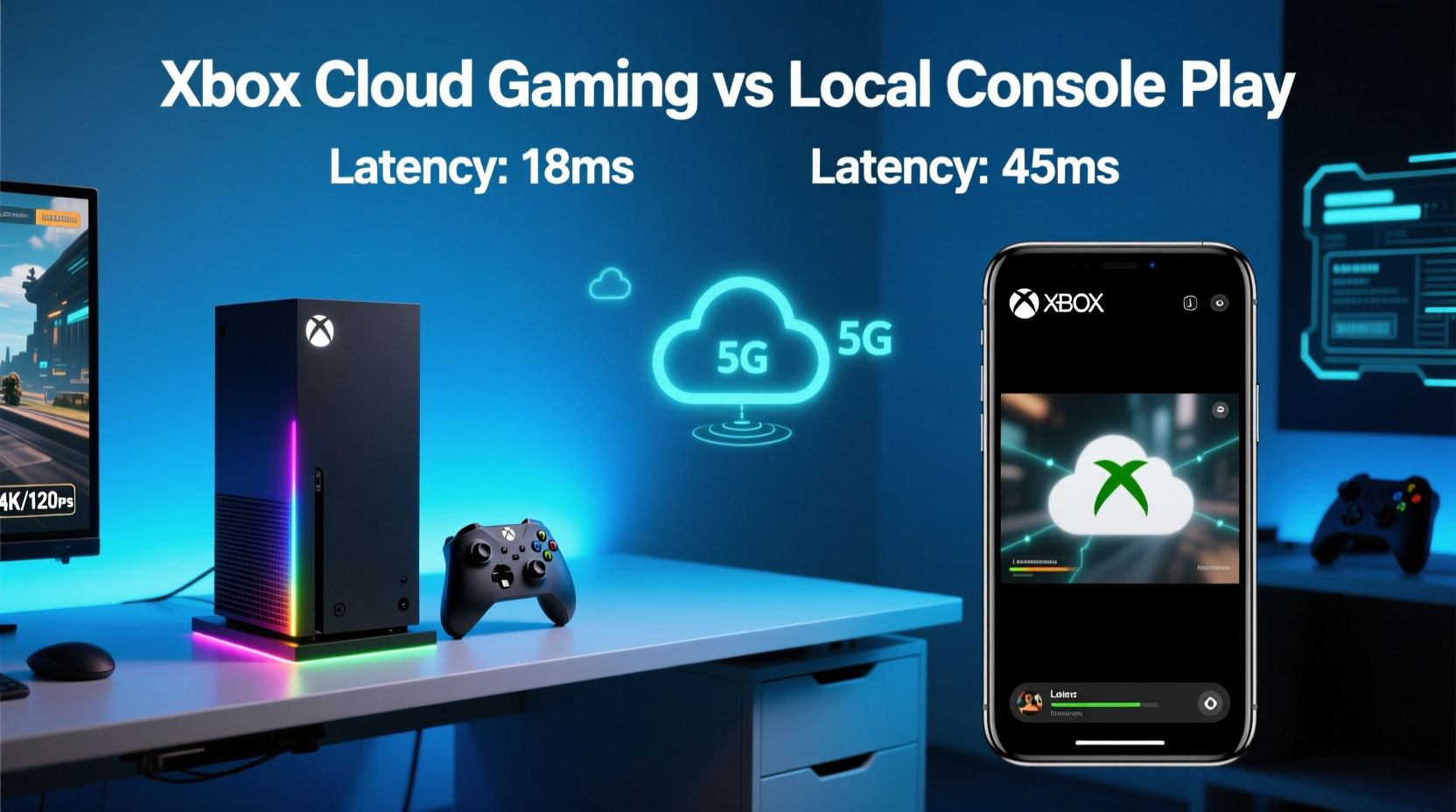
Xbox Cloud Gaming operates by running games on remote servers located in Microsoft’s data centers. The video output is compressed and streamed to your device in real time, while your inputs (button presses, joystick movements) are sent back over the internet. This round-trip communication introduces inherent delays that don’t exist when a game runs locally on a physical console.
In contrast, local console play processes everything on-device. The game renders frames, calculates physics, and responds to inputs within milliseconds — all without relying on external network infrastructure. There’s no compression, no buffering, and no dependency on bandwidth stability.
This distinction forms the foundation of the performance gap. Even with a perfect internet connection, cloud gaming will always face challenges that local hardware avoids entirely.
Latency: The Biggest Hurdle
Input latency is the most noticeable difference between cloud and local play. In competitive titles like Gears 5 or Sea of Thieves, even a 40–60ms delay can affect aim, timing, and overall immersion.
Microsoft reports average latencies of 60–90ms on ideal connections using 5GHz Wi-Fi or Ethernet. However, real-world testing often shows spikes during peak hours or due to background network activity. Local consoles typically operate below 20ms of total system latency, giving them a decisive edge in responsiveness.
Visual Quality and Compression Trade-offs
Xbox Cloud Gaming currently streams at up to 1080p resolution at 60fps, with HDR support in select regions. While this sounds comparable to the base Xbox Series S, the reality is more nuanced. Because the video must be compressed for transmission, fine details, textures, and fast motion often suffer from artifacts.
Local console play delivers uncompressed visuals. On an Xbox Series X, games run natively at up to 4K resolution with full dynamic range, higher-quality anti-aliasing, and consistent frame pacing. Even on the Series S, the absence of video compression means sharper image clarity and better temporal stability.
Compression also affects color depth and shadow gradients. Banding in skies or subtle lighting transitions may appear more pronounced in streamed versions — a trade-off few notice until they side-by-side compare.
“Streaming adds a layer of abstraction between player and game. No matter how optimized, it can’t replicate the immediacy of native execution.” — David Liu, Senior Systems Engineer at a leading game middleware company
Performance Comparison: A Real-World Example
Mini Case Study: Playing Forza Horizon 5 on Cloud vs. Series X
A user in Austin, Texas, tested Forza Horizon 5 across two setups:
- Cloud Setup: iPhone 14 Pro connected via 5GHz Wi-Fi (180 Mbps down, 45 Mbps up), 30ms ping to Dallas server.
- Local Setup: Xbox Series X connected via Ethernet, 4K TV with VRR support.
Results:
| Metric | Xbox Cloud Gaming | Local Console (Series X) |
|---|---|---|
| Resolution | 1080p (streamed) | 4K Dynamic (native) |
| Frame Rate | ~58–60fps (variable due to compression) | Stable 60fps |
| Input Lag | 72ms average (peaked at 110ms) | 16ms |
| Visual Clarity | Moderate blur on distant textures; slight banding | Sharp textures, smooth gradients |
| Audio Sync | Minor lip-sync drift during cutscenes | Perfect sync |
| Reliability | Dropped frames during evening hours | No interruptions |
The tester noted that while cloud gaming was “impressively playable,” tight racing lines and quick steering corrections felt less precise. On the Series X, every input translated instantly, enhancing both control and immersion.
When Cloud Gaming Shines
Despite its limitations, Xbox Cloud Gaming excels in specific scenarios:
- Portability: Play AAA titles on a phone during travel or downtime.
- Accessibility: Try games without investing in hardware.
- Backward Compatibility: Access older titles optimized for cloud with minimal setup.
- Casual Gaming: Turn-based games, RPGs, or exploration-focused titles benefit less from ultra-low latency.
For users who prioritize convenience over precision, cloud gaming offers unmatched flexibility. Parents, commuters, or those with limited space may find it a practical alternative to owning a dedicated console.
Key Factors That Influence Cloud Performance
Not all cloud gaming experiences are equal. Several variables determine whether streaming feels smooth or frustrating:
- Internet Speed & Stability: Microsoft recommends at least 20 Mbps for 1080p streaming. Fluctuations in speed or packet loss degrade quality.
- Server Distance: Closer data centers reduce latency. Users in rural areas may connect to distant servers, increasing ping.
- Network Congestion: Peak usage times (evening hours) can slow server response.
- Device Capability: Older phones or tablets may struggle with decoding high-bitrate streams.
- Wi-Fi Interference: Walls, appliances, and other signals can disrupt wireless connections.
Running a speed test before launching a session and selecting a stable connection method (wired > 5GHz Wi-Fi > cellular) significantly improves reliability.
Checklist: Optimizing Your Cloud Gaming Experience
- ✅ Subscribe to Xbox Game Pass Ultimate (required for cloud access)
- ✅ Use a supported controller (Xbox Wireless, DualShock 4, etc.)
- ✅ Connect via 5GHz Wi-Fi or Ethernet
- ✅ Close background downloads and streaming apps
- ✅ Position router close to your device
- ✅ Test connection using the Xbox app’s network diagnostic tool
- ✅ Play near a data center region (check Microsoft’s coverage map)
The Future of Cloud Gaming: Closing the Gap?
Advancements in 5G, edge computing, and video encoding (like AV1) could narrow the performance divide. Microsoft continues to expand its Azure-powered server footprint and optimize streaming protocols. Future iterations may support 4K streaming, lower-latency codecs, and predictive input rendering to anticipate player actions.
However, physics remains a barrier. Light travels fast, but not instantaneously. Even at the speed of light, a signal traveling 1,000 miles round-trip incurs ~10ms of latency — not including processing, encoding, and decoding delays. Local hardware will always have a physical advantage.
That said, for many players, \"good enough\" is sufficient. As games become more forgiving and adaptive, the threshold for acceptable latency rises. Casual gamers may soon see little reason to own a console at all.
Frequently Asked Questions
Is Xbox Cloud Gaming free?
No. Access requires an Xbox Game Pass Ultimate subscription, which includes cloud streaming, console games, and PC titles. Standalone cloud-only plans are not available.
Can I use any controller with Xbox Cloud Gaming?
Most Bluetooth-enabled controllers work, including Xbox Wireless, PlayStation DualShock 4/5, and third-party options. Touchscreen controls are available but not recommended for action games.
Does cloud gaming support multiplayer and achievements?
Yes. You can join online multiplayer sessions, earn Gamerscore, unlock achievements, and save progress to the cloud — just like on a local console.
Conclusion: Performance Matched — But Not Equal
Xbox Cloud Gaming represents a remarkable achievement in accessibility and convenience. It brings console-quality experiences to devices previously incapable of running them. For casual players, travelers, or those testing new games, it’s an invaluable tool.
Yet, when judged purely on performance — latency, visual fidelity, and consistency — local console play remains superior. The lack of compression, minimal input lag, and full hardware utilization ensure a smoother, more responsive experience, especially in fast-paced or visually intense games.
Streaming hasn’t matched local performance — not yet. But it’s closing the gap faster than many predicted. As infrastructure improves and expectations evolve, the line between cloud and console will continue to blur. For now, think of cloud gaming not as a replacement, but as a powerful complement to traditional play.




 浙公网安备
33010002000092号
浙公网安备
33010002000092号 浙B2-20120091-4
Comments
No comments yet. Why don't you start the discussion?