
For competitive gamers, the right controller isn't just about comfort—it's a precision instrument. The Xbox Elite Wireless Controller Series 2 and the PlayStation DualSense Edge represent the pinnacle of console gaming hardware, each designed with professionals and serious enthusiasts in mind. While both deliver top-tier build quality and advanced features, their approach to customization diverges significantly. Understanding these differences is crucial for players who demand full control over responsiveness, ergonomics, and input behavior.
The debate isn’t simply about brand loyalty or platform preference. It’s about how deeply you can tailor your inputs to match muscle memory, playstyle, and physical needs. Whether you're navigating fast-paced shooters, executing frame-perfect combos in fighting games, or fine-tuning sensitivity for sniping, every millisecond and millimeter matters. This article dissects the customization capabilities of both controllers, examining hardware modularity, software integration, button remapping, trigger tuning, and real-world usability under pressure.
Hardware Modularity: Swappable Parts and Physical Adjustments
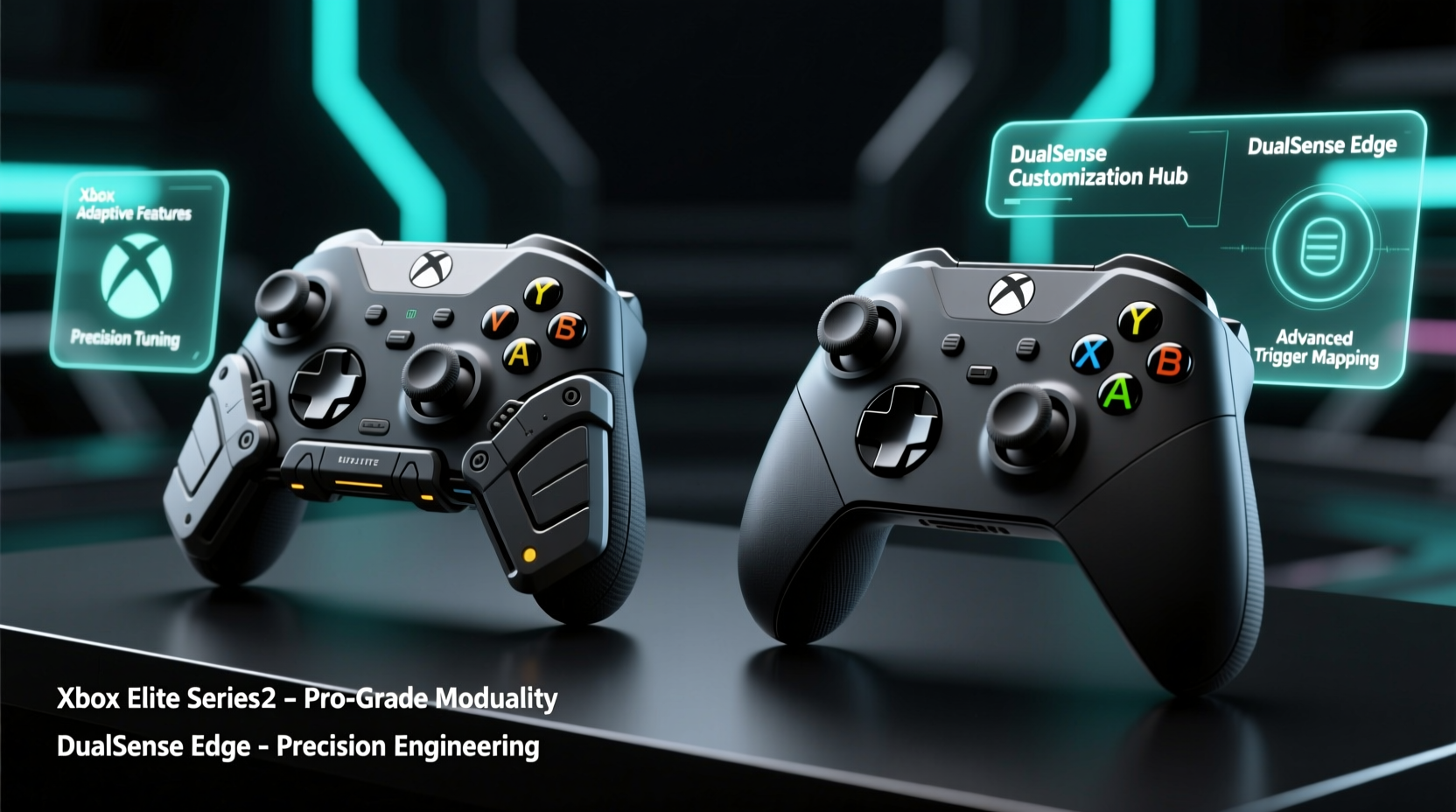
One of the most tangible aspects of professional-grade customization lies in physical adaptability. Both controllers offer swappable components, but the extent and philosophy behind them differ.
The **Xbox Elite Wireless Controller Series 2** leans heavily into modular design. It comes with a case filled with accessories: two types of thumbsticks (standard and tall), four interchangeable paddle shapes, and alternative D-pad configurations—circular, faceted, or hybrid. These aren’t novelty add-ons; they’re engineered for precise grip alignment and tactile feedback. Tall sticks provide finer analog control for sniper aiming, while shorter ones reduce accidental over-rotation in fast turns. The inclusion of back paddles—four programmable buttons accessible by the rear of the hand—allows users to map critical functions like crouch, jump, or weapon swap without lifting thumbs from sticks.
In contrast, the **DualSense Edge** takes a more restrained approach. It includes two sets of stick caps (standard and high-rise) and removable back buttons. However, it lacks alternate D-pads or thumbstick shafts. The back button attachments are simpler in design and require alignment via magnets and clips, making them slightly less secure during intense sessions compared to the screw-mounted Elite paddles. Still, the ability to attach rear controls remains valuable for reducing finger travel during gameplay.
What separates the Elite further is its adjustable tension system for thumbsticks. Gamers can increase resistance to prevent drift or loosen them for quicker flicks—a feature absent on the DualSense Edge. This mechanical tunability gives Xbox’s offering an edge for players sensitive to stick wobble or unintended movement.
Software Customization: Profiles, Sensitivity Curves, and Firmware Control
Hardware is only half the equation. The true depth of customization emerges in software—where button mapping, sensitivity curves, and profile management come into play.
The **Xbox Accessories app**, available on Windows and integrated into Xbox consoles, provides robust profile support. Users can create up to three onboard profiles stored directly on the controller, plus unlimited cloud-based variants. Each profile supports full button remapping, including the back paddles and view/menu buttons. More importantly, the app allows for per-axis sensitivity adjustment. You can modify stick response curves—linear, exponential, or custom—to match personal preference. For example, a flattened curve near the center increases dead zone precision, helping eliminate jitter when aiming down sights.
The **DualSense Edge**, managed through the PS Accessories app on PS5, also supports multiple onboard profiles (up to five) and extensive remapping. Every button—including face buttons, triggers, and back buttons—can be reassigned. However, its analog stick customization falls short. There’s no option to adjust stick sensitivity curves or create non-linear responses. Instead, players are limited to adjusting overall sensitivity in broad tiers (low, medium, high), which lacks the granularity needed for fine-tuned control.
Another limitation: the Edge does not allow independent left/right stick adjustments. If you prefer different sensitivities for movement and camera control, you’re forced to compromise. On the Xbox side, such differentiation is standard and easily implemented.
“Having access to customizable stick curves changed my entire approach to recoil control. I can now make micro-corrections without overcompensating.” — Jordan Lee, Competitive FPS Coach
Trigger Customization and Haptic Feedback Options
Triggers are critical in racing and shooter titles, where partial pulls and rapid resets determine success. Both controllers offer some form of trigger customization, but again, the implementation varies.
The **Elite Series 2** features adjustable trigger stops. Using small switches behind each trigger, users can shorten the pull distance—ideal for faster shooting or braking. This mechanical modification reduces actuation time without altering the feel of the spring. Once set, it behaves like a traditional shortened trigger, giving a consistent tactile experience across games.
The **DualSense Edge** introduces something new: trigger latency adjustment through firmware, allowing digital shortening of the activation point. You can set the trigger to register input at 25%, 50%, or 75% of its physical range. While this offers flexibility, it relies on software interpretation rather than mechanical change. Some players report a slight disconnect between physical feel and registered action, particularly when switching between games or profiles.
Where the Edge shines is in haptics. It retains the full suite of DualSense innovations: adaptive triggers with variable resistance and nuanced vibration motors. In supported games like *Returnal* or *God of War Ragnarök*, pulling a bowstring or driving through mud creates immersive resistance. While not strictly “customizable” in the same way as button layout, this dynamic feedback can be toggled or adjusted within games, adding another layer of sensory control.
The Elite, meanwhile, uses standard rumble motors. It lacks adaptive triggers entirely, which may disappoint players who value immersion alongside performance. However, many pros argue that consistent, predictable feedback is preferable to variable haptics during competition, where split-second decisions rely on uniform response.
Comparison Table: Key Customization Features
| Feature | Xbox Elite Series 2 | DualSense Edge |
|---|---|---|
| Swappable Thumbsticks | Yes – standard & tall, with adjustable tension | Yes – standard & high-rise caps only |
| Back Buttons | 4x removable, screw-mounted paddles | 2x magnetic clip-on buttons |
| Button Remapping | Full remap (including paddles, d-pad, menu/view) | Full remap (all buttons, including back buttons) |
| Analog Stick Curves | Customizable (linear, exponential, user-defined) | No – only global sensitivity levels |
| Trigger Adjustment | Mechanical stop switches for shorter pull | Digital activation points (25%, 50%, 75%) |
| Onboard Profiles | 3 stored on device | Up to 5 stored on device |
| Haptics / Adaptive Triggers | No | Yes – full DualSense haptics and resistance |
| Battery Life (Custom Mode) | ~40 hours (with rechargeable pack) | ~6–8 hours (with high-performance mode) |
Real-World Performance: A Pro Player’s Perspective
Consider Marcus Tran, a semi-professional *Call of Duty: Warzone* player who switched from PlayStation to Xbox mid-season due to team requirements. Initially skeptical, he found the transition smoother than expected—largely because of the Elite controller’s customization depth.
“I used to rely on the DualSense Edge’s back buttons for grenade and crouch-sprint,” Marcus explains. “But once I got used to the Elite’s paddle placement and stick tension controls, my accuracy improved. Being able to tweak the right stick curve so it’s more responsive at low angles made tracking enemies way easier. And the mechanical trigger stops? Game-changer for quick-scoping.”
However, Marcus admits missing the haptics. “When I go back to play *Horizon Forbidden West*, the Edge just feels more immersive. But in ranked matches, predictability beats immersion every time.”
This scenario reflects a broader trend: competitive players often prioritize consistency and control over sensory richness. The Elite’s focus on mechanical precision aligns well with tournament environments, where variables must be minimized. The Edge, while powerful, splits focus between pro functionality and next-gen feel—excellent for single-player mastery, but potentially distracting in high-pressure multiplayer.
Step-by-Step Guide: Setting Up a Pro-Level Profile
Whether you're using the Elite or Edge, optimizing your setup requires deliberate configuration. Follow this sequence to maximize customization:
- Assess Your Playstyle: Determine whether you need faster triggers (shooters), precise movement (platformers), or balanced input (multi-genre).
- Select Physical Components: Attach preferred thumbsticks and back buttons. Test grip comfort over 15 minutes of gameplay.
- Map Essential Functions: Assign frequently used actions (e.g., crouch, melee, aim) to back buttons or paddles.
- Adjust Trigger Settings: Set shortest effective trigger pull—mechanical if using Elite, digital if using Edge.
- Tune Stick Sensitivity: On Xbox, use the Accessories app to apply a slightly exponential curve for smoother camera control. On PS5, choose “High” sensitivity and test in-game.
- Create Multiple Profiles: Save one for FPS, another for racing or platforming. Switch based on game type.
- Test and Iterate: Play for extended sessions. Adjust if fatigue or input lag occurs.
FAQ
Can I use the Xbox Elite Controller on PC?
Yes, fully. It connects via Bluetooth or USB and works natively with Windows. The Xbox Accessories app is available on Microsoft Store, enabling full customization on PC.
Does the DualSense Edge support stick curve editing on PC?
No—not officially. Even when used on PC with third-party tools like DS4Windows, true analog curve customization remains limited. Most workarounds involve external software, which may introduce input lag.
Which controller has better battery life for long sessions?
The Xbox Elite Series 2 lasts up to 40 hours with its rechargeable battery pack. The DualSense Edge averages 6–8 hours in high-performance mode, largely due to power demands from haptics and bright OLED screen. For marathon gaming, the Elite is far superior.
Checklist: Choosing the Right Controller for Pro Customization
- ✅ Need deep analog stick tuning? → Choose Xbox Elite
- ✅ Want immersive haptics and adaptive triggers? → Choose DualSense Edge
- ✅ Prioritize mechanical trigger mods? → Choose Xbox Elite
- ✅ Prefer longer battery life? → Choose Xbox Elite
- ✅ Play mostly on PS5 with richly supported titles? → DualSense Edge enhances experience
- ✅ Compete in online multiplayer tournaments? → Xbox Elite offers more consistent, predictable input
Conclusion
The Xbox Elite Wireless Controller Series 2 and the DualSense Edge both raise the bar for what a modern gamepad can be. Yet when it comes to raw, functional customization for professional players, the Xbox Elite holds a decisive advantage. Its combination of mechanical modularity, granular software controls, and reliable performance makes it the preferred tool for those who treat gaming as a discipline.
The DualSense Edge impresses with innovation and immersion, particularly in single-player experiences where haptics deepen engagement. But for players whose success hinges on microseconds, repeatability, and total command over every input parameter, the Elite’s precision engineering and deeper configurability deliver unmatched utility.




 浙公网安备
33010002000092号
浙公网安备
33010002000092号 浙B2-20120091-4
Comments
No comments yet. Why don't you start the discussion?