
Owners of the Xbox One S often praise its compact design and 4K streaming capabilities. However, over time, many users report sluggish navigation, delayed app launches, and extended load times—issues that disrupt the gaming experience. While the console remains capable, performance degradation can stem from a mix of hardware limitations, software clutter, and network inefficiencies. The good news is that most slowdowns are fixable with targeted troubleshooting. This guide walks through practical, field-tested solutions to restore your Xbox One S to peak responsiveness.
Understanding Common Causes of Xbox One S Slowdowns
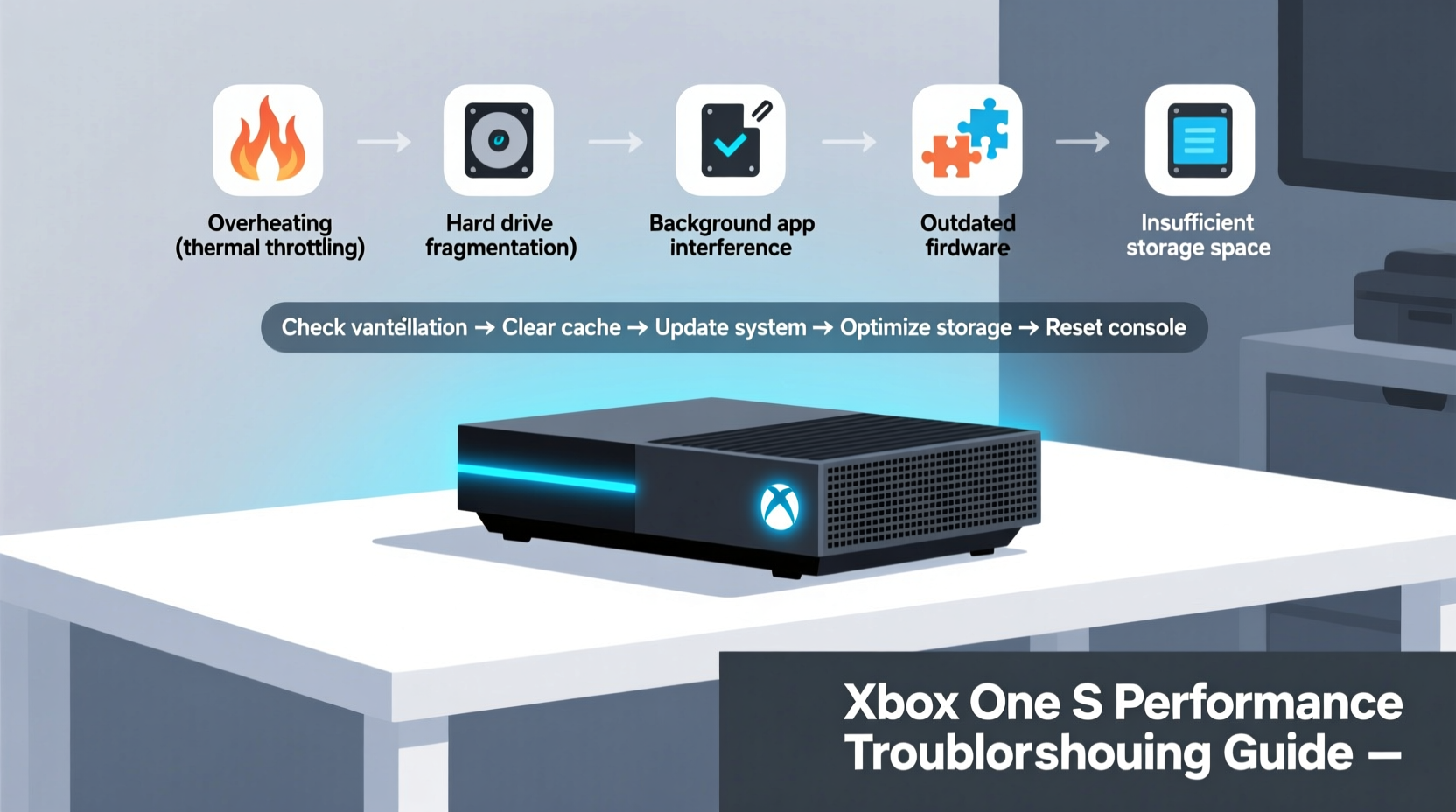
The Xbox One S, released in 2016, features a custom 8-core AMD processor and 8GB of RAM. While sufficient for its era, modern games and background processes demand more resources. Over time, several factors contribute to reduced performance:
- Storage fragmentation: As games install, update, and uninstall, file systems become fragmented, slowing data retrieval.
- Insufficient free space: When internal storage drops below 10–15%, system performance declines significantly.
- Background apps: Apps running in the background consume memory and CPU cycles.
- Firmware bloat: System updates add features but may introduce inefficiencies or bugs.
- Overheating: Dust buildup restricts airflow, causing thermal throttling and reduced processing power.
- Network latency: Poor Wi-Fi or router congestion affects cloud-based services and online gameplay.
Step-by-Step Guide to Restore Xbox One S Speed
Follow this sequence of actions to systematically eliminate performance bottlenecks. Start with non-invasive fixes before progressing to deeper resets.
- Restart the console completely. Press and hold the Xbox button for 10 seconds until it powers off. Unplug the power cable for 2 minutes, then restart. This clears temporary memory and resets network modules.
- Clear the persistent storage cache. Go to Settings > System > Storage > Persistent Storage, select it, and choose \"Clear Now.\" This removes corrupted temporary data without affecting saved games.
- Uninstall unused games and apps. Navigate to My Games & Apps, sort by size, and remove titles you no longer play. Reinstall them later if needed.
- Check for system updates. Go to Settings > System > Updates. Install any pending updates, as Microsoft regularly patches performance issues.
- Switch to a wired Ethernet connection. If using Wi-Fi, switch to a LAN cable to eliminate network-related lag and improve download speeds.
- Rebuild the hard drive database (if advanced). Power off, unplug, then hold the Bind and Eject buttons while plugging in the power. Release when you hear two power tones. This forces a low-level disk scan and reindexing.
Do’s and Don’ts for Xbox One S Performance
| Do’s | Don’ts |
|---|---|
| Keep 20%+ of storage free | Install too many large games simultaneously |
| Clean vents monthly with compressed air | Place the console in enclosed cabinets |
| Use an external USB 3.0 SSD for game storage | Use cheap or underpowered external drives |
| Enable Instant-On Power Mode for faster resume | Leave Instant-On enabled if power consumption is a concern |
| Restart weekly to clear memory | Ignore system update notifications |
Real-World Example: Recovering a Lagging Console
Daniel, a long-time Xbox player from Portland, noticed his Xbox One S was taking over a minute to launch Halo: The Master Chief Collection. Menus stuttered, and the home screen froze frequently. He tried restarting multiple times with little improvement. After reviewing storage, he found only 8GB free on his 500GB drive. He uninstalled three large games, cleared persistent storage, and connected via Ethernet instead of Wi-Fi. The next day, he performed a full system restart using the Bind + Eject method. Result: boot time dropped from 90 seconds to 35, and game load times improved by nearly 40%. Daniel now schedules monthly maintenance to prevent recurrence.
Expert Insight on Console Longevity
“Consoles aren’t immune to digital clutter. Just like PCs, they benefit from regular cleanup, proper ventilation, and updated firmware. A well-maintained Xbox One S can perform reliably for years beyond its expected lifespan.” — Marcus Tran, Senior Hardware Analyst at GameTech Reviews
Performance Optimization Checklist
Use this checklist monthly to keep your Xbox One S running smoothly:
- ✅ Restart the console fully (power cycle)
- ✅ Clear persistent storage cache
- ✅ Delete unused games and apps
- ✅ Check for and install system updates
- ✅ Clean dust from vents and fan exhaust
- ✅ Verify network connection stability
- ✅ Monitor available storage space
- ✅ Backup saves to the cloud or USB drive
- ✅ Test external drive performance (if used)
- ✅ Re-evaluate Instant-On vs. Energy-Saving mode
Frequently Asked Questions
Can I upgrade the internal hard drive on my Xbox One S?
Yes. The Xbox One S supports 2.5-inch laptop-sized SATA III drives up to 8TB. Replace the stock drive with a faster 7200 RPM model or a SATA SSD for dramatically improved load times. Be sure to back up your data first and format the new drive through the console.
Does clearing the cache delete my game progress?
No. Clearing the persistent storage cache only removes temporary system files and corrupted fragments. Your saved games, achievements, and account data remain intact, especially if synced with Xbox Live Cloud.
Why does my Xbox One S run slower after a system update?
Sometimes, updates introduce compatibility issues or background services that weren’t optimized immediately. Microsoft typically releases follow-up patches within weeks. In the meantime, restarting the console or rolling back temporarily (if possible) can help. Ensure all games are also updated post-system patch.
Conclusion: Take Control of Your Console’s Performance
The Xbox One S remains a capable machine, but like any electronic device, it requires maintenance to sustain peak performance. Sluggish behavior isn’t inevitable—it’s often a symptom of manageable issues like storage pressure, overheating, or outdated firmware. By applying regular care and using the right troubleshooting techniques, you can extend the life of your console and enjoy smoother gameplay for years. Don’t wait for freezes and crashes to act. Implement these strategies today and reclaim the responsive experience you paid for.




 浙公网安备
33010002000092号
浙公网安备
33010002000092号 浙B2-20120091-4
Comments
No comments yet. Why don't you start the discussion?