
If you've noticed a yellow outline appearing around elements on your screen—such as text fields, buttons, or menu items—it can be distracting and may raise concerns about hardware issues or malware. However, in most cases, this visual effect is intentional and tied to accessibility or system settings. Understanding the root cause is key to determining whether the outline should stay for usability reasons or be removed for aesthetic or functional preferences.
This guide breaks down the most common sources of yellow outlines, explains why they appear, and provides step-by-step solutions across operating systems and applications. Whether you're using Windows, macOS, or browsing the web, you'll find targeted fixes that restore your screen to its intended appearance.
What Causes the Yellow Outline?
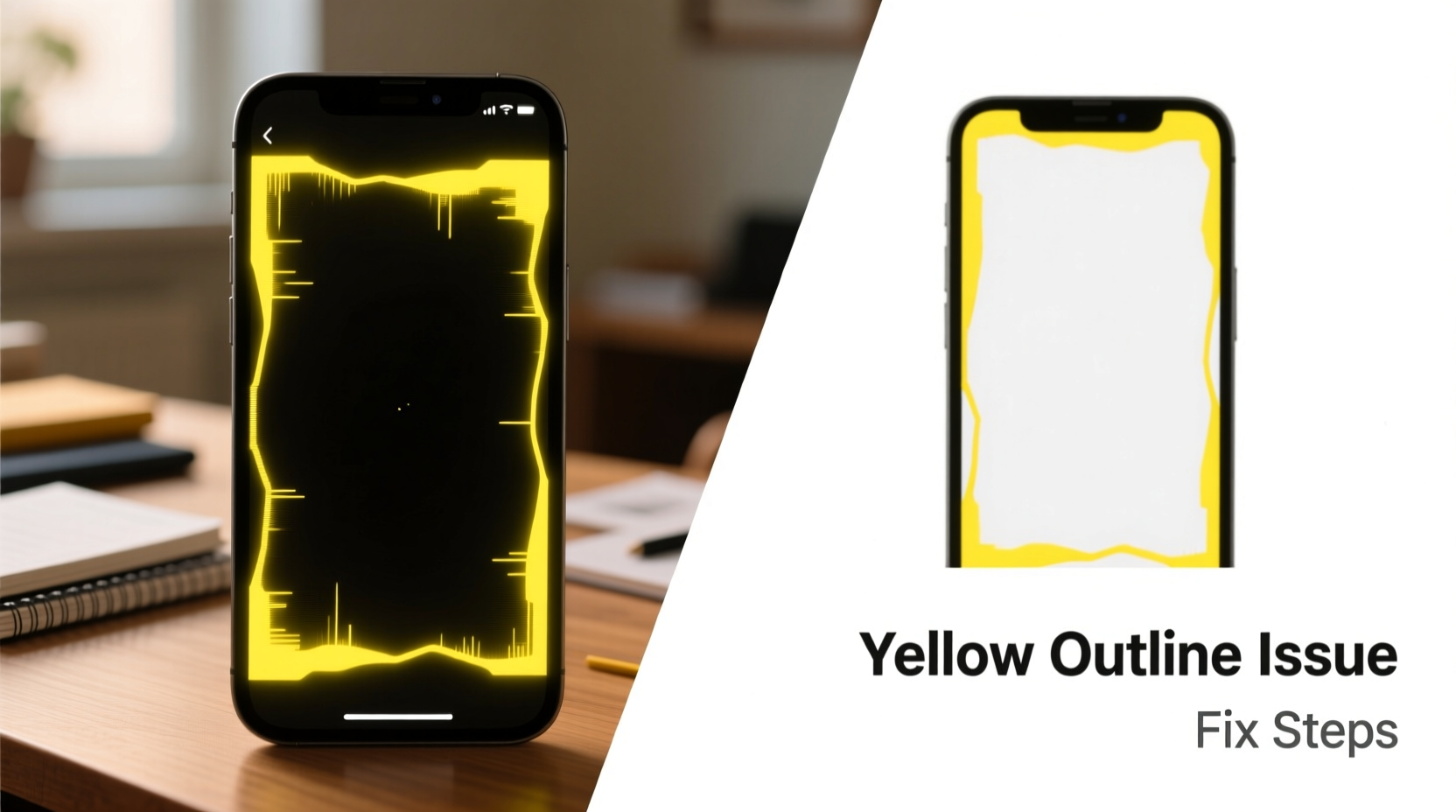
The yellow highlight or border typically appears as a focus indicator. When you navigate a screen using a keyboard (e.g., pressing Tab to move between form fields), the system marks the currently active element with a visible outline. This feature is especially important for users who rely on keyboard navigation due to mobility impairments or visual disabilities.
While the default color varies by platform and browser, many systems use a bright yellow or gold ring. For example:
- Windows High Contrast Mode: Applies bold outlines for better visibility.
- Web Browsers: Chrome, Firefox, and Edge use focus rings to show interactive elements.
- Accessibility Tools: Features like Sticky Keys or Magnifier can alter visual feedback.
- CSS Styling: Websites may define custom focus indicators, sometimes unintentionally using yellow.
Though helpful for accessibility, these outlines can seem out of place in modern interfaces, leading users to seek removal methods.
How to Remove the Yellow Outline on Windows
On Windows devices, the yellow border often stems from accessibility settings designed to assist users with vision or motor challenges. Here’s how to locate and adjust them:
1. Disable Focus Recticles
Windows includes an option called “Show additional focus indicators” or “Adjust visual effects for performance.” To turn it off:
- Open Settings > Accessibility > Keyboard.
- Scroll down to the Visuals section.
- Toggle off Highlight the keyboard focus indicator and Highlight the keyboard cursor.
2. Turn Off High Contrast Mode
High Contrast themes apply strong borders and color changes:
- Navigate to Settings > Accessibility > Contrast themes.
- If a high contrast theme is active (e.g., “High Contrast #1”), switch to “None.”
- Restart your device if necessary.
3. Adjust Visual Effects
Some legacy settings affect focus visuals:
- Right-click Start and select System.
- Click Advanced system settings on the right.
- Under the Advanced tab, click Settings in Performance.
- Choose Adjust for best appearance, or manually enable “Show shadows under windows” and disable unnecessary animations.
“Accessibility features are not just for people with diagnosed disabilities—they help anyone in low-light conditions or multitasking environments.” — Dr. Lena Patel, HCI Researcher at MIT
Fixing Yellow Outlines in Web Browsers
Most modern websites use CSS to style focus indicators. If you’re seeing yellow rings around links or inputs in Chrome, Firefox, or Safari, the issue likely lies in website code or browser extensions.
Check for Browser Extensions
Some accessibility add-ons (like “High Visibility” or “Focus Indicator”) enhance focus states:
- Type
chrome://extensionsin Chrome orabout:addonsin Firefox. - Disable any recently installed tools related to contrast, focus, or readability.
- Reload the page to see if the outline disappears.
Inspect Website CSS
Developers or advanced users can check if a site applies yellow focus styles:
- Right-click the outlined element and select Inspect.
- In the developer tools, look for CSS rules containing
outline: 2px solid yellowor similar. - Temporarily disable the rule to confirm it’s the source.
Override Focus Styles (Advanced)
You can inject custom CSS to remove outlines globally:
- Use a browser extension like “Stylus” to create a personal style sheet.
- Add the following rule:
*:focus { outline: none !important; } - Apply it site-wide or per domain.
Note: This disables all focus indicators, which may reduce accessibility. Use selectively.
| Browser | Common Cause | Solution |
|---|---|---|
| Google Chrome | Accessibility extension or forced colors | Disable extensions, reset flags |
| Mozilla Firefox | Custom userContent.css or zoom level | Check chrome folder, reset zoom |
| Safari | Zoom or pointer control settings | Settings > Accessibility > Display |
macOS: Managing Focus Feedback
Apple’s operating system also supports enhanced focus indicators, particularly when navigating via keyboard.
Step-by-Step Guide to Disable Yellow Borders on Mac
- Open System Settings (or System Preferences on older versions).
- Go to Accessibility > Display.
- Look for Cursor size and Enhance contrast.
- Reduce contrast enhancement or disable it.
- Navigate to Keyboard > Keyboard Navigation.
- Select Text boxes and lists only instead of “All controls” to limit focus rings.
Additionally, some third-party apps on macOS simulate Windows-style focus indicators. Check app-specific settings in utilities like Magnet, BetterTouchTool, or accessibility overlays.
Real-World Example: A Designer’s Dilemma
Jamal, a UI designer at a fintech startup, received complaints from clients about \"glitchy yellow boxes\" appearing during online banking demos. After testing, he discovered the issue wasn’t in his design but was triggered when presenters used keyboard navigation during screen shares.
He initially considered removing all focus outlines via CSS. Instead, after consulting with an accessibility expert, he redesigned the focus state using a subtle blue glow that matched the brand and met WCAG standards. The fix retained usability while eliminating visual jarring—a win for both aesthetics and inclusivity.
This case underscores a critical principle: before removing visual cues, evaluate their purpose. Often, refinement—not removal—is the better solution.
FAQ
Is a yellow outline a sign of malware?
No, in nearly all cases, a yellow outline is a system-level accessibility feature or a website design choice. Malware typically doesn’t manipulate UI focus indicators. If you suspect infection, run a scan with Microsoft Defender or Malwarebytes, but don’t assume the outline itself is malicious.
Why does the yellow border only appear when I press Tab?
This is normal behavior. The outline shows which element has keyboard focus. It helps users navigate without a mouse. If you primarily use a mouse, the outline may seem unnecessary—but it’s vital for keyboard-only navigation.
Can I remove focus outlines without hurting accessibility?
Yes, but only if you replace them with equally visible alternatives. Never remove focus indicators entirely. Instead, restyle them using CSS with a color that fits your design but maintains contrast. For example:
button:focus {
    outline: 2px solid #005fcc;
    outline-offset: 2px;
}
This preserves functionality while improving integration.
Final Checklist: Eliminate Unwanted Yellow Outlines
- ✅ Check if High Contrast Mode is enabled (Windows/macOS).
- ✅ Disable accessibility extensions in your browser.
- ✅ Inspect element to identify CSS-based outlines.
- ✅ Adjust keyboard navigation settings in OS preferences.
- ✅ Avoid global
outline: noneunless providing an alternative. - ✅ Test changes with keyboard navigation to ensure usability remains.
Conclusion
The yellow outline on your screen isn’t a defect—it’s a deliberate design choice meant to improve accessibility. While it may clash with modern aesthetics or feel intrusive, understanding its origin allows for informed decisions. Whether you’re adjusting system settings, fine-tuning browser behavior, or modifying web design, the goal should be balance: maintaining usability without sacrificing visual harmony.
Take a moment to review your current setup. Is the outline serving a purpose? Could it be redesigned rather than removed? By approaching the issue with empathy and technical clarity, you create experiences that work better for everyone.




 浙公网安备
33010002000092号
浙公网安备
33010002000092号 浙B2-20120091-4
Comments
No comments yet. Why don't you start the discussion?