
YouTube is one of the most widely used platforms for video consumption, education, entertainment, and live streaming. Yet, even with its robust infrastructure, users frequently encounter issues that disrupt their viewing experience. Whether videos won’t load, playback stutters, or the app crashes entirely, these problems can be frustrating. The good news is that most YouTube issues are solvable with straightforward troubleshooting steps. This guide breaks down the most common causes and provides actionable solutions tailored to different devices and scenarios.
Understanding Common YouTube Issues
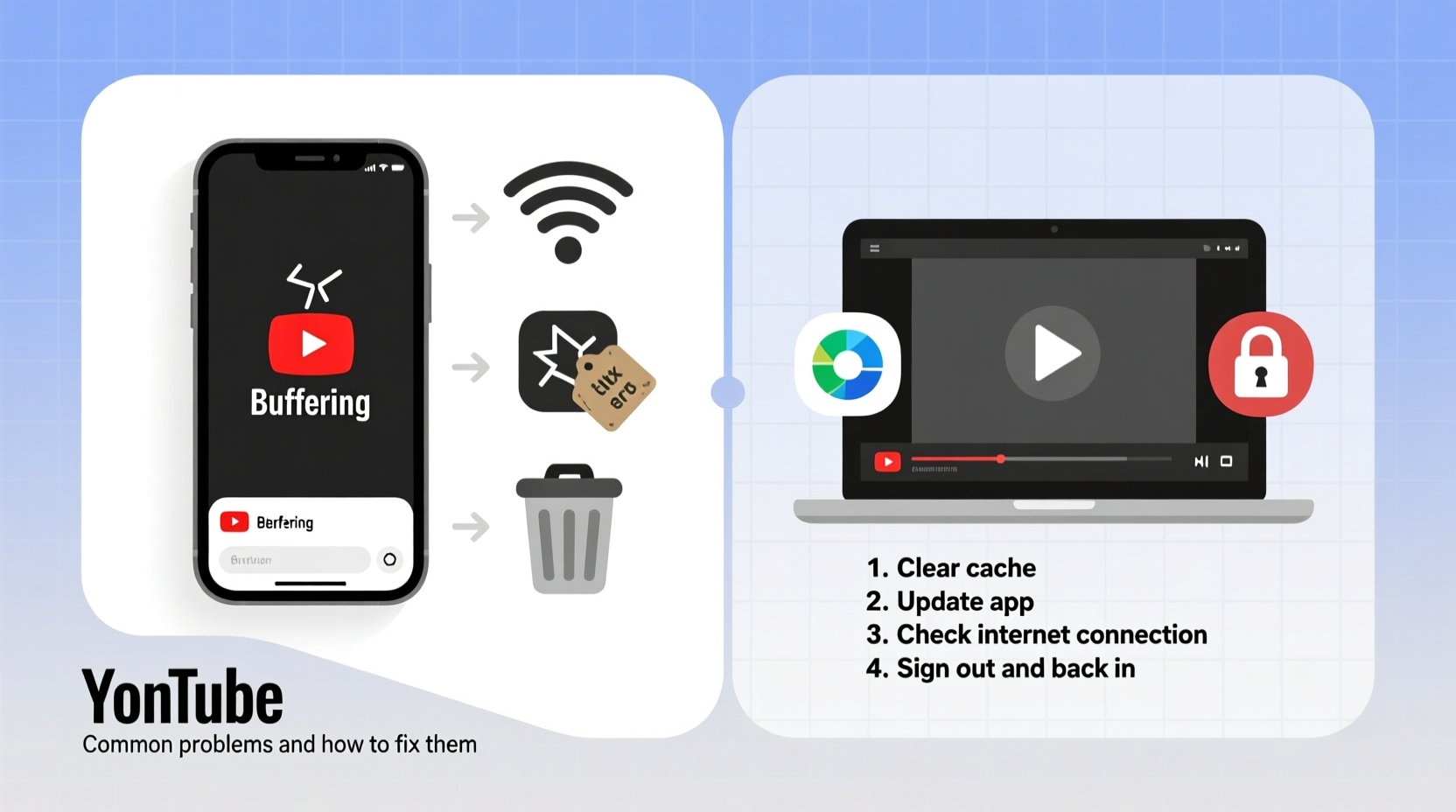
Before jumping into fixes, it's essential to identify the type of problem you're facing. YouTube errors fall into several categories:
- Playback failures: Videos don’t start or freeze mid-playback.
- Loading delays: The spinning wheel appears indefinitely.
- Audio-only or no sound: Sound cuts out or never starts.
- App crashes: The YouTube app closes unexpectedly on mobile or smart TV.
- Search or navigation broken: Can't find videos or browse playlists.
- Buffering and quality drops: Video constantly pauses to buffer or defaults to low resolution.
These symptoms often stem from network instability, outdated software, cache corruption, or device-specific limitations. Pinpointing the root cause saves time and prevents unnecessary troubleshooting.
Step-by-Step Troubleshooting Guide
Follow this logical sequence to isolate and resolve YouTube issues efficiently. Start with basic checks before moving to advanced fixes.
- Check Your Internet Connection
Weak or unstable internet is the leading cause of YouTube problems. Test your connection using another app or website. If speeds are slow, restart your router or switch to a wired connection if possible. - Test YouTube on Another Device
Determine if the issue is isolated to one device. Try opening YouTube on a smartphone, tablet, or computer. If it works elsewhere, the problem lies within the original device’s settings or app. - Restart the Device
A simple reboot clears temporary glitches in memory and resets network connections. Turn off your phone, tablet, smart TV, or computer completely, wait 30 seconds, then power it back on. - Clear App Cache (Mobile Devices)
On Android: Go to Settings > Apps > YouTube > Storage > Clear Cache.
On iOS: Uninstall and reinstall the app, as iOS doesn’t allow manual cache clearing. - Update the YouTube App
Outdated versions may contain bugs. Visit the Google Play Store or Apple App Store and ensure YouTube is up to date. - Check for System Updates
Operating system updates often include performance improvements and security patches that affect app stability. Ensure your device OS is current. - Disable Browser Extensions (Desktop)
If using YouTube on a browser, ad blockers or script filters can interfere with video loading. Temporarily disable extensions to test. - Try Incognito/Private Mode
This rules out interference from cookies or cached data. Open an incognito window and visit youtube.com. - Change DNS Settings
In rare cases, DNS misconfiguration blocks access. Switch to Google DNS (8.8.8.8 and 8.8.4.4) via network settings. - Reinstall the App
If all else fails, uninstall YouTube completely and download a fresh copy from the official store.
Common Problems and Specific Fixes by Device
Different platforms require unique approaches. Below is a comparison of typical issues and targeted solutions.
| Device | Common Issue | Recommended Fix |
|---|---|---|
| Android Phone/Tablet | App crashes on launch | Clear cache, then update or reinstall app |
| iOS Device | Video won’t play in fullscreen | Check orientation lock; reinstall app if persistent |
| Smart TV (Samsung, LG, etc.) | YouTube freezes or logs out repeatedly | Clear app data, restart TV, or reset Smart Hub |
| Windows/Mac Computer | Buffering despite fast internet | Use Chrome/Firefox, disable hardware acceleration |
| Google Chrome Browser | Videos stuck at 0:00 | Clear site data, disable conflicting extensions |
Mini Case Study: Resolving Persistent Buffering on a Roku TV
Sarah, a frequent YouTube user, noticed her Roku TV kept pausing videos every 30 seconds, even though her internet speed tested at 50 Mbps. She first restarted the TV and router—no improvement. Then she checked other devices; her laptop streamed fine, ruling out network issues. She navigated to Settings > System > Storage > Manage Installed Apps, selected YouTube, and cleared its data. After relaunching the app, playback became smooth. The culprit was corrupted local data causing inefficient streaming behavior.
Expert Insight on Platform Stability
“Over 70% of reported YouTube issues are client-side — meaning they originate from the user’s device or network, not the platform itself. A methodical approach starting with connectivity and app health resolves most cases.” — Raj Mehta, Senior Network Support Engineer at TechFlow Solutions
Tips and Best Practices to Prevent Future Issues
Maintaining consistent YouTube performance requires proactive habits. Implement these strategies to reduce disruptions:
- Keep your device and apps updated automatically.
- Use a stable Wi-Fi signal; avoid crowded networks during peak hours.
- Limit background apps that consume bandwidth or memory.
- Log out and back into YouTube periodically to refresh authentication tokens.
- For desktop users, maintain a clean browser profile with minimal extensions.
Do’s and Don’ts When Troubleshooting YouTube
| Do’s | Don’ts |
|---|---|
| Restart your router and device regularly | Ignore firmware update notifications |
| Test YouTube on multiple networks | Assume the problem is always YouTube’s fault |
| Use official app stores for downloads | Install third-party mods or “optimized” YouTube apps |
| Monitor data usage if on a limited plan | Stream in 4K without verifying connection stability |
Frequently Asked Questions
Why does YouTube say \"An error occurred\" when I try to play a video?
This generic message usually indicates a temporary glitch. First, refresh the page or restart the app. If the issue persists, clear the app cache or browser data. Also, verify that your date and time settings are correct — incorrect system time can break secure connections (HTTPS).
Can a poor router cause YouTube buffering even with high-speed internet?
Yes. Even with fast broadband, an outdated or overloaded router can create bottlenecks. Older routers may struggle with modern video streaming demands. Consider upgrading to a dual-band router and placing it centrally to improve signal strength.
Why does YouTube work on Wi-Fi but not on mobile data?
This typically points to carrier restrictions or data-saving settings. Check if your mobile plan throttles video traffic. Also, go to YouTube app settings and ensure \"Limit mobile data usage\" is disabled. Some carriers block certain ports or services that YouTube relies on, especially on older network configurations.
Final Checklist for Quick Resolution
When YouTube stops working, run through this concise checklist:
- ✅ Is your internet working?
- ✅ Does YouTube work on another device?
- ✅ Have you restarted the device and router?
- ✅ Is the YouTube app updated?
- ✅ Did you clear the app cache or browser data?
- ✅ Are system and firmware updates installed?
- ✅ Have you tried a different network?
Conclusion
YouTube not working doesn’t have to mean hours of frustration. Most issues stem from simple, fixable causes like network hiccups, outdated software, or bloated app caches. By following a structured troubleshooting process and adopting preventive maintenance habits, you can enjoy uninterrupted access to your favorite content. Don’t accept recurring glitches as normal — take control of your viewing experience today.




 浙公网安备
33010002000092号
浙公网安备
33010002000092号 浙B2-20120091-4
Comments
No comments yet. Why don't you start the discussion?