
YouTube is one of the most relied-upon platforms for entertainment, education, and communication. When videos fail to load or constantly buffer, it disrupts everything from a casual watch session to an important online class. While the issue might seem technical or complex, most playback problems stem from common, fixable causes — many of which are within your control. Whether you're using a smartphone, tablet, smart TV, or desktop computer, understanding how to systematically diagnose and resolve these issues can save time and frustration.
Check Your Internet Connection
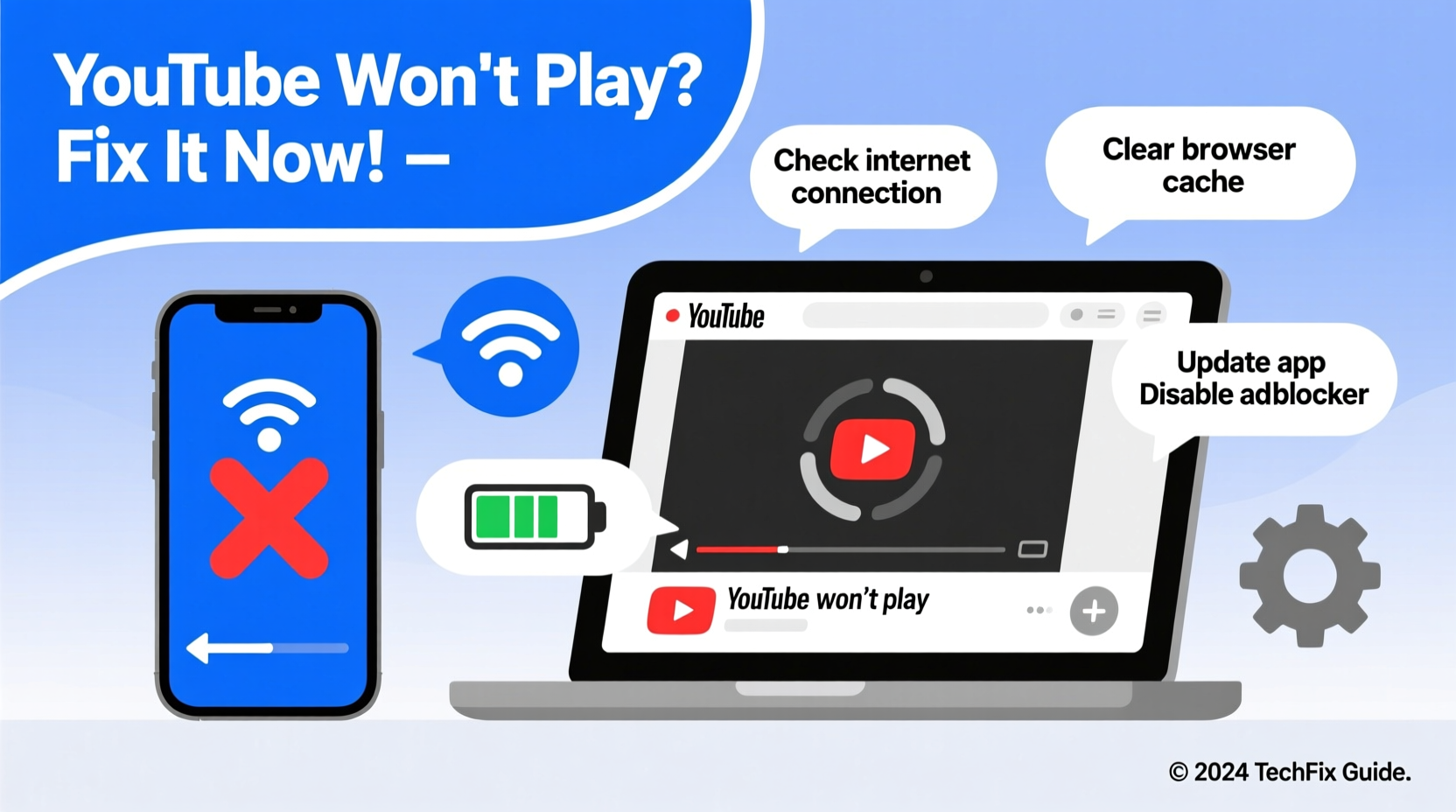
The first and most critical factor in smooth YouTube playback is a stable internet connection. Even high-speed networks can experience temporary hiccups that prevent video streaming. Before diving into advanced troubleshooting, verify that your network is functioning properly.
Start by testing your internet speed using a free tool like Speedtest.net. For standard HD video (720p), a minimum of 5 Mbps is recommended. For 1080p or higher, aim for at least 10–15 Mbps. If your results fall significantly below these benchmarks, consider restarting your router or contacting your internet service provider.
If other websites and apps also load slowly, the problem is likely network-related. However, if only YouTube is affected, the cause may lie elsewhere — such as browser settings, app glitches, or regional server outages.
Clear Cache and Cookies (Browser Users)
Over time, accumulated cache and cookies can interfere with website functionality, including video playback. This is especially true for browsers like Chrome, Firefox, or Safari, where stored data may conflict with updated versions of YouTube’s interface.
To resolve this, clear your browser's browsing data:
- Navigate to your browser settings.
- Select \"Privacy and Security\" or similar.
- Choose \"Clear Browsing Data.\"
- Select \"All Time\" as the time range.
- Check boxes for \"Cookies and site data\" and \"Cached images and files.\"
- Click \"Clear Data.\"
Afterward, restart the browser and reload YouTube. In many cases, this simple action resolves unexplained playback failures, login loops, or black screens during video loading.
Update or Reinstall the YouTube App (Mobile & Smart TVs)
On mobile devices and smart TVs, outdated app versions often lead to crashes or failed video loads. Developers release updates regularly to patch bugs, improve compatibility, and enhance performance.
For Android users:
- Open the Google Play Store.
- Tap your profile icon and select \"Manage apps & device.\"
- Find YouTube under \"Updates available\" and tap \"Update.\"
iOS users should visit the App Store, search for YouTube, and tap the update button if available.
If updating doesn’t help, try uninstalling and reinstalling the app. This ensures a clean installation without corrupted files. Note that signed-in sessions will need to be re-established, but subscriptions and history remain intact.
“App corruption is one of the top silent causes of playback failure on mobile platforms. A fresh install often restores full functionality.” — Jordan Lee, Senior Mobile Support Engineer
Step-by-Step Troubleshooting Timeline
When YouTube isn’t working, follow this logical sequence to identify and fix the root cause efficiently:
- Test another website or app – Confirm whether the issue is isolated to YouTube.
- Restart your device – A reboot clears temporary system errors.
- Check YouTube’s status page – Visit Google Workspace Status Dashboard to see if there’s an ongoing outage.
- Switch networks – Try switching from Wi-Fi to mobile data (or vice versa).
- Try a different browser or incognito mode – Rules out extensions or cached scripts.
- Disable browser extensions – Ad blockers or script filters may interfere with video players.
- Change DNS settings – Use public DNS like Google (8.8.8.8) or Cloudflare (1.1.1.1) to bypass ISP-related restrictions.
- Lower video quality manually – Force 480p or lower to reduce bandwidth demand.
This timeline helps isolate variables methodically. Most users resolve their issue within the first five steps.
Common Playback Errors and What They Mean
YouTube displays specific error codes when something goes wrong. Recognizing them speeds up diagnosis.
| Error Code | Meaning | Solution |
|---|---|---|
| 5xx Series (e.g., 500, 503) | Server-side issue | Wait and retry later; check status dashboard |
| 4xx Series (e.g., 404, 429) | Client request problem | Refresh page, clear cache, or reduce API usage |
| \"Playback ID Failed\" | Device sign-in or authorization error | Sign out of Google account and back in |
| \"Video unavailable\" | Removed, private, or region-blocked | Verify URL or use VPN cautiously |
| Buffering loop | Poor connection or high resolution | Lower quality, pause to buffer, or test speed |
Real-World Example: Fixing Persistent Buffering on a Smart TV
A user reported that YouTube on their Samsung smart TV would start playing but freeze after 30 seconds. Other apps worked fine. Initial attempts to restart the TV and router failed. The user then checked internet speed via the TV’s built-in test tool and found upload/download rates were acceptable. However, upon switching from Wi-Fi to an Ethernet cable, the buffering stopped immediately. Further investigation revealed the router was located on another floor, causing weak signal penetration. By relocating the router and updating the TV’s firmware, the issue was permanently resolved.
This case illustrates how multiple factors — hardware placement, connection type, and software version — can combine to create a persistent problem. Addressing each layer systematically led to success.
Do’s and Don’ts of YouTube Troubleshooting
| Do’s | Don’ts |
|---|---|
| Restart your router and device regularly | Ignore error messages or codes |
| Use incognito/private browsing to test | Assume the problem is always with YouTube’s servers |
| Keep apps and browsers updated | Install unknown third-party YouTube mods or APKs |
| Monitor bandwidth-heavy devices on your network | Leave dozens of tabs or downloads running while streaming |
| Report persistent issues via YouTube Help | Share login credentials to “fix” accounts |
Frequently Asked Questions
Why does YouTube say “An error occurred” when I try to play a video?
This generic message usually points to connectivity issues, corrupted cache, or temporary server problems. Try reloading the page, clearing browser data, or accessing YouTube from another device to determine the source.
Can antivirus software block YouTube videos?
Yes. Some security suites include web filtering or firewall components that mistakenly flag YouTube as suspicious. Temporarily disable the software to test. If playback resumes, adjust the settings or add YouTube to the whitelist.
Why do videos work on Wi-Fi but not mobile data?
Your carrier may throttle video traffic or impose data limits. Check your plan details and ensure background data isn’t restricted for the YouTube app. Also, confirm that mobile data is enabled for YouTube in your phone’s settings.
Final Checklist: Quick Fixes at a Glance
- ✅ Restart your device and router
- ✅ Test internet speed and stability
- ✅ Clear browser cache or app data
- ✅ Update the YouTube app or browser
- ✅ Try a different network (Wi-Fi vs. data)
- ✅ Disable ad blockers or extensions
- ✅ Lower video quality manually
- ✅ Sign out and back into your Google account
Take Control of Your Viewing Experience
YouTube not working doesn’t have to mean hours of downtime. With a structured approach, most playback issues can be diagnosed and fixed in under 20 minutes. The key is to remain systematic — ruling out simple causes before moving to advanced solutions. Whether you're a daily viewer, content creator, or educator relying on video lessons, maintaining a reliable setup ensures uninterrupted access to the world’s largest video library. Apply these strategies today, and enjoy seamless streaming across all your devices.




 浙公网安备
33010002000092号
浙公网安备
33010002000092号 浙B2-20120091-4
Comments
No comments yet. Why don't you start the discussion?