
YouTube is one of the most visited websites in the world, serving billions of videos daily. Despite its reliability, users occasionally face issues—videos won’t load, playback stutters, or the entire app crashes. These problems can stem from your internet connection, device settings, browser extensions, or even temporary server outages. The good news is that most YouTube issues are fixable with straightforward troubleshooting steps. This guide walks through proven solutions to get YouTube running smoothly again, whether you're on a phone, tablet, smart TV, or computer.
Check Your Internet Connection
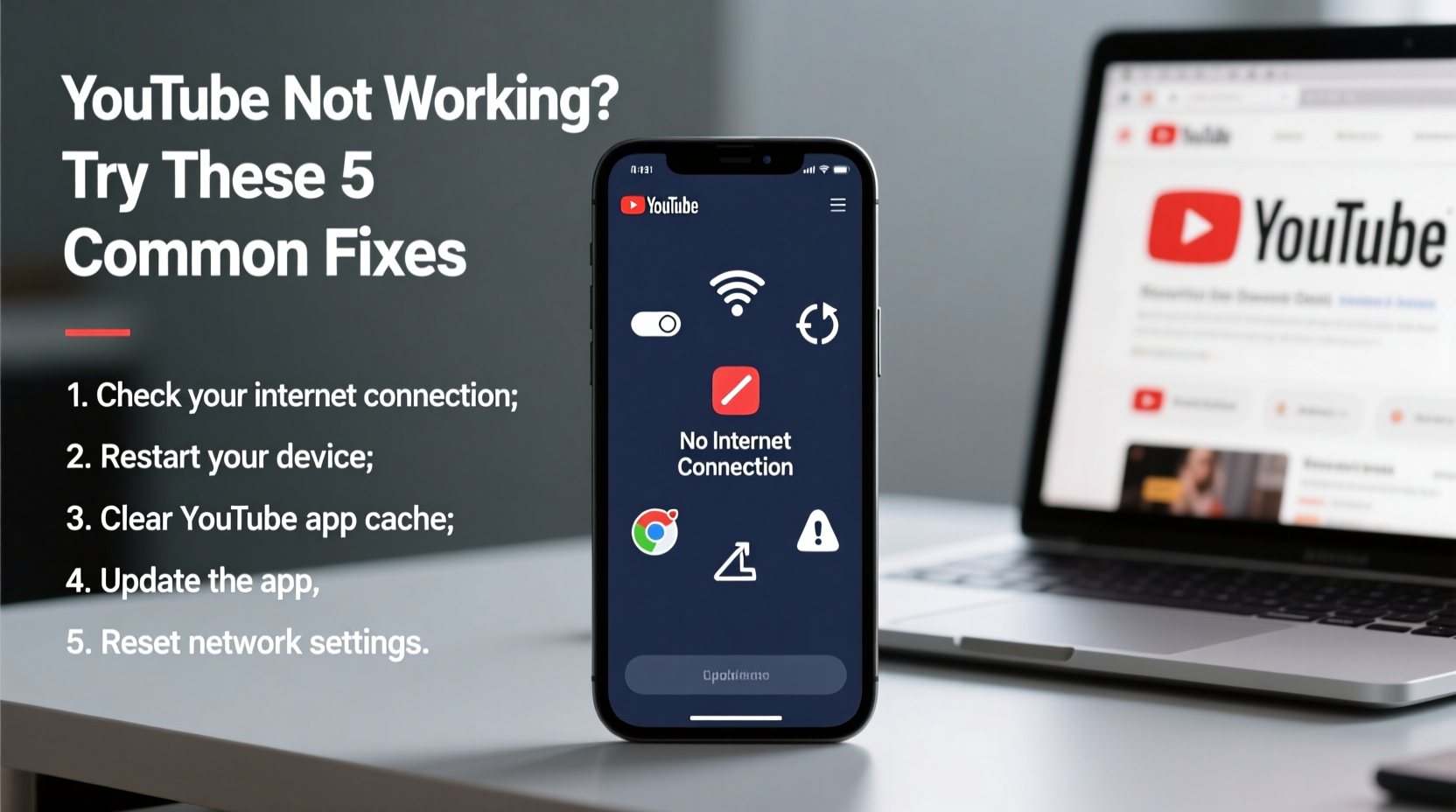
A stable internet connection is essential for streaming video. If YouTube isn’t loading or keeps buffering, your network may be the culprit. Start by testing your current speed using a free tool like Speedtest.net. For smooth HD playback, a minimum of 5 Mbps is recommended. Lower speeds often result in constant rebuffering or low-quality playback.
If you’re on Wi-Fi, try moving closer to the router or switching to a wired Ethernet connection for stability. On mobile devices, toggle between Wi-Fi and cellular data to see if one performs better. You can also forget the Wi-Fi network and reconnect to clear any cached glitches.
Clear Browser Cache and Cookies (For Desktop Users)
If YouTube works on your phone but not on your computer, the issue likely lies within your browser. Over time, accumulated cache and cookies can interfere with website functionality, especially on media-heavy platforms like YouTube.
To resolve this:
- Open your browser settings.
- Navigate to Privacy & Security or History.
- Select “Clear browsing data” or similar.
- Choose a time range (e.g., “All time”) and check boxes for cookies and cached files.
- Click “Clear data.”
After clearing the cache, restart the browser and revisit YouTube. Most playback and loading errors disappear after this step. For Chrome users, typing chrome://settings/clearBrowserData directly into the address bar opens the cleanup menu instantly.
Update or Reinstall the YouTube App (Mobile and Smart TVs)
Outdated apps are a common cause of crashes and performance issues. Developers regularly release updates to patch bugs and improve compatibility. If the YouTube app on your Android, iOS, or smart TV isn’t working properly, check for an update first.
- Android: Open Google Play Store > Search “YouTube” > Tap “Update” if available.
- iOS: Go to App Store > Tap your profile icon > Scroll to YouTube > Tap “Update.”
- Smart TVs: Navigate to the app store (e.g., Samsung Apps, LG Content Store) and look for available updates.
If updating doesn’t help, uninstall and reinstall the app. This ensures a clean installation without corrupted data. Note that reinstalling will sign you out, so have your login credentials ready.
Disable Conflicting Browser Extensions
While ad blockers, script filters, and privacy tools enhance browsing, they can unintentionally break YouTube. Some extensions block video ads too aggressively, preventing the player from initializing. Others interfere with JavaScript, which YouTube relies on heavily.
To test if an extension is causing the issue:
- Open your browser in incognito or private mode (most extensions are disabled here by default).
- Visit YouTube and attempt to play a video.
- If it works, an extension is likely the problem.
Go back to normal mode and disable extensions one at a time—especially ad blockers like uBlock Origin or privacy tools like Privacy Badger—until YouTube functions correctly. You can then whitelist YouTube in the extension settings instead of removing it entirely.
| Extension Type | Likely Impact on YouTube | Solution |
|---|---|---|
| Ad Blockers | Blocks video ads and sometimes entire players | Whitelist YouTube or disable during use |
| Script Blockers | Prevents essential YouTube scripts from loading | Add YouTube to allowlist |
| Dark Mode Tools | Rarely causes functional issues | Generally safe to keep enabled |
Step-by-Step Guide: Fix YouTube Not Working on Any Device
Follow this universal troubleshooting sequence when YouTube fails to load or play videos:
- Test another website or app – Confirm general internet access works.
- Restart your device – Clears temporary software glitches.
- Check YouTube’s status – Visit downdetector.com/status/youtube to see if others report outages.
- Switch networks – Try a different Wi-Fi network or use mobile data.
- Clear app cache (mobile) – Android: Settings > Apps > YouTube > Storage > Clear Cache.
- Force stop and reopen the app – Stops background processes that may be frozen.
- Update the app or browser – Ensures you’re running the latest version.
- Try a different browser or device – Isolates whether the issue is local or widespread.
This methodical approach helps pinpoint the root cause without skipping critical steps.
Real Example: When a Router Caused Constant Buffering
Sarah, a remote worker from Portland, noticed YouTube videos kept pausing every 10 seconds, even though her internet speed tests showed 100 Mbps. She tried restarting her laptop, clearing her browser, and disabling extensions—all without success. Frustrated, she tested YouTube on her phone using the same Wi-Fi and experienced identical issues.
The breakthrough came when she connected her laptop via Ethernet cable. Videos played flawlessly. This indicated the problem wasn’t with YouTube or her devices, but with her Wi-Fi signal. After rebooting her router and changing the wireless channel to reduce interference from neighboring networks, her YouTube streaming returned to normal. Sarah learned that hardware-level issues can mimic platform-specific failures.
Expert Insight
“Over 70% of YouTube playback issues reported to support teams are resolved by basic network resets or cache clearing. Users often overlook simple fixes while jumping to complex theories.” — David Lin, Senior Network Support Analyst at TechFront Solutions
Troubleshooting Checklist
- ✅ Test internet connection with a speed test
- ✅ Restart your router and device
- ✅ Clear browser cache and cookies
- ✅ Disable ad blockers or privacy extensions
- ✅ Update the YouTube app or browser
- ✅ Check for service outages on Downdetector
- ✅ Try YouTube on another device or network
- ✅ Reinstall the YouTube app if necessary
Frequently Asked Questions
Why does YouTube say “An error occurred” when I try to play a video?
This message usually appears due to a temporary glitch, poor internet connection, or corrupted browser data. Try refreshing the page, clearing your cache, or switching browsers. If the issue persists, check YouTube’s server status—sometimes the problem is on their end.
Why is YouTube not working on my smart TV?
Smart TV apps can become outdated or overloaded with cached data. First, ensure your TV’s software and the YouTube app are up to date. Then, clear the app’s cache through your TV’s settings menu. If that fails, uninstall and reinstall the app. Also, confirm your TV is connected to the internet with sufficient speed for streaming.
Can antivirus software block YouTube?
Yes. Some security suites include web filtering features that mistakenly flag YouTube as unsafe, especially if certain videos trigger content filters. Temporarily disable your antivirus firewall or adjust its web protection settings to allow YouTube domains.
Conclusion: Take Control of Your Streaming Experience
YouTube not working doesn’t have to mean hours of frustration. Most issues stem from easily correctable causes—network instability, outdated apps, or conflicting software. By following a structured approach, you can diagnose and resolve problems quickly, regardless of your device. Don’t accept constant buffering or error messages as inevitable. With the right knowledge, you’re fully equipped to maintain seamless access to your favorite videos.




 浙公网安备
33010002000092号
浙公网安备
33010002000092号 浙B2-20120091-4
Comments
No comments yet. Why don't you start the discussion?