
Many remote workers, students, and professionals have encountered a frustrating problem during Zoom meetings: the camera appears too close, overly zoomed in, or cuts off parts of the face. This issue not only affects how you're perceived but can also disrupt communication and professionalism. The good news is that most \"zoomed in\" camera problems are fixable with the right adjustments—both in software settings and hardware setup. Whether your webcam automatically crops your face, your image looks distorted, or your background disappears due to AI framing, this guide provides actionable solutions to regain control over your video appearance.
Why Your Zoom Camera Appears Too Close
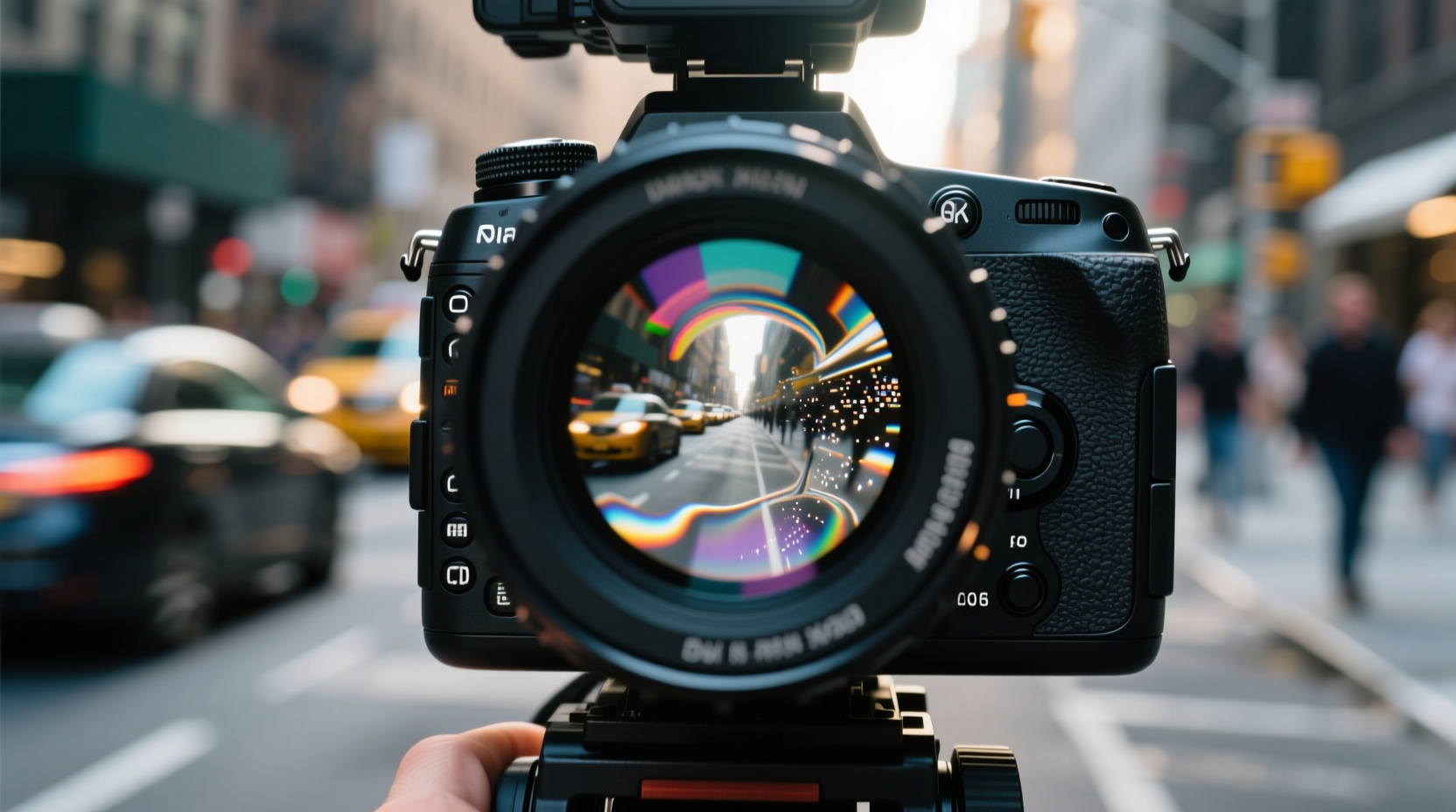
The illusion of being \"too close\" on camera often stems from digital zoom, automatic framing features, or improper camera placement. Unlike optical zoom (which adjusts via lens mechanics), most built-in laptop and USB webcams rely on digital zoom, which crops and enlarges part of the image. This results in a loss of clarity and an unnaturally tight frame.
Zoom’s default behavior may also trigger “touch-up my appearance” or “auto-framing” features that reposition or zoom into your face based on movement. While intended to improve visibility, these tools sometimes overcompensate, especially if your lighting or background is inconsistent.
Additionally, physical placement plays a major role. A camera positioned too low, too high, or too near your face can create unflattering angles and make you appear larger than necessary in the frame.
Step-by-Step Guide to Fix Zoomed-In Video Issues
Follow this sequence of steps to systematically eliminate unwanted zoom and cropping in your Zoom sessions.
- Check Zoom Settings: Open Zoom desktop app > Settings (gear icon) > Video. Ensure “Enable HD” is on and “Touch up my appearance” is off if it's causing unnatural smoothing or zooming.
- Disable Auto-Framing: Under Video settings, look for “Automatic framing” (available on select webcams like Logitech Brio). Turn it off to prevent dynamic zooming as you move.
- Select the Right Camera: Confirm Zoom is using your intended camera. In the same Video tab, choose the correct device from the dropdown menu if multiple cameras are connected.
- Adjust Physical Position: Elevate your laptop or webcam so the lens aligns with your eyes. Use books or a stand if needed. Maintain a distance of roughly three feet.
- Test with Preview: Use the live preview window in Zoom settings to verify framing before joining a meeting.
- Update Webcam Drivers: Visit your webcam manufacturer’s website (e.g., Logitech, Dell, HP) and install the latest drivers to ensure full functionality and prevent forced digital zoom.
- Use Third-Party Software (Optional): Tools like OBS Studio allow manual control over video cropping and scaling before feeding into Zoom as a virtual camera.
Do’s and Don’ts When Adjusting Your Zoom Camera
| Do’s | Don’ts |
|---|---|
| Place the camera at eye level | Mount the camera below your monitor, forcing upward angles |
| Maintain a distance of 2–3 feet from the camera | Sit less than 18 inches from the lens |
| Use soft, front-facing lighting to reduce shadows | Rely solely on backlighting (e.g., windows behind you) |
| Turn off auto-framing if it causes instability | Assume all features improve quality—test them first |
| Regularly clean your camera lens with a microfiber cloth | Ignore smudges or dust that degrade image clarity |
Mini Case Study: Remote Educator Fixes Classroom Presence
Sarah, a college instructor teaching online courses, noticed students frequently commented that she looked “like a giant head” during lectures. Her face filled the screen, and her shoulders were cut off. After investigation, she discovered her newer laptop had enabled “AI framing” by default through its preinstalled camera software. This feature was digitally zooming in beyond acceptable limits, assuming she wanted a tighter shot.
Sarah disabled the AI feature in her OEM camera utility (HP Vision Control), adjusted her laptop onto a riser to elevate the camera, and moved her chair back slightly. She then tested the new setup in a Zoom test meeting. The difference was immediate: her upper body appeared naturally framed, eye contact improved, and students reported feeling more engaged. By addressing both software automation and physical ergonomics, Sarah resolved the zoom issue without purchasing new equipment.
“Most camera problems aren’t hardware failures—they’re misconfigurations. Understanding where control lies—in Zoom, the OS, or third-party apps—is half the battle.” — Marcus Tran, IT Support Specialist, University of Oregon
Tips for Different Devices and Setups
Solutions vary depending on whether you're using a Mac, Windows PC, integrated laptop camera, or external webcam. Here’s how to adapt fixes across platforms.
For Windows Users
Some Windows laptops come with manufacturer-specific camera apps (e.g., Dell CinemaColor, Lenovo SmartFrame). These can override Zoom’s settings. Navigate to your system settings or vendor software suite and disable any intelligent zoom, face tracking, or auto-framing options.
For Mac Users
MacBooks generally don’t support optical zoom, so digital cropping comes from either macOS-level enhancements or Zoom’s own processing. Go to System Settings > Privacy & Security > Camera, and check if any third-party apps are modifying the feed. Also, ensure Zoom has updated permissions to access the camera properly.
External Webcams
If using a high-end webcam like the Logitech Brio or Razer Kiyo Pro, use the companion software (Logitech G Hub, Razer Synapse) to manually set field-of-view (FOV). Choose a wider angle (e.g., 90°) instead of narrow (78°) to capture more space and avoid tight framing.
FAQ: Common Questions About Zoom Camera Zoom Issues
Why does my face look too big on Zoom even when I move back?
This often happens with wide-angle lenses common in laptop cameras. When you sit close, these lenses exaggerate facial features (especially noses). Moving farther back helps, but you may also need to adjust the FOV in your webcam software or disable digital enhancement features.
Can I manually control zoom level in Zoom?
No, Zoom does not offer a manual zoom slider for standard users. Zoom relies on your camera’s native capabilities. To gain control, use external software like OBS Studio to scale and crop your video feed before routing it to Zoom as a virtual camera.
Does internet speed affect how zoomed in my video looks?
Not directly. Bandwidth affects resolution and frame rate, not framing. However, in low-bandwidth situations, Zoom may reduce video quality, making digital zoom appear grainier and more pronounced.
Conclusion: Take Control of Your On-Screen Presence
A camera that’s too close or overly zoomed in undermines confidence and connection in virtual environments. The fix isn’t always technical—it’s often a mix of smart positioning, disabling aggressive automation, and understanding where control resides across software layers. From adjusting your seat position to turning off AI-driven features, each small change contributes to a more balanced, professional appearance.
You don’t need expensive gear to look good on camera. What matters most is consistency, awareness, and proactive setup. Apply these strategies before your next meeting, and notice the difference in how you’re seen—and how you feel.




 浙公网安备
33010002000092号
浙公网安备
33010002000092号 浙B2-20120091-4
Comments
No comments yet. Why don't you start the discussion?