
For many people, especially those using a smartphone for the first time, making a simple phone call can feel overwhelming. Between unlocking the device, finding contacts, and navigating menus, it’s easy to get lost in the process. But calling someone doesn’t have to be complicated. With a few clear steps, anyone—regardless of age or tech experience—can confidently make and receive calls. This guide breaks down everything you need to know in plain language, focusing on practical actions and real-world usability.
Understanding Your Mobile Phone Basics
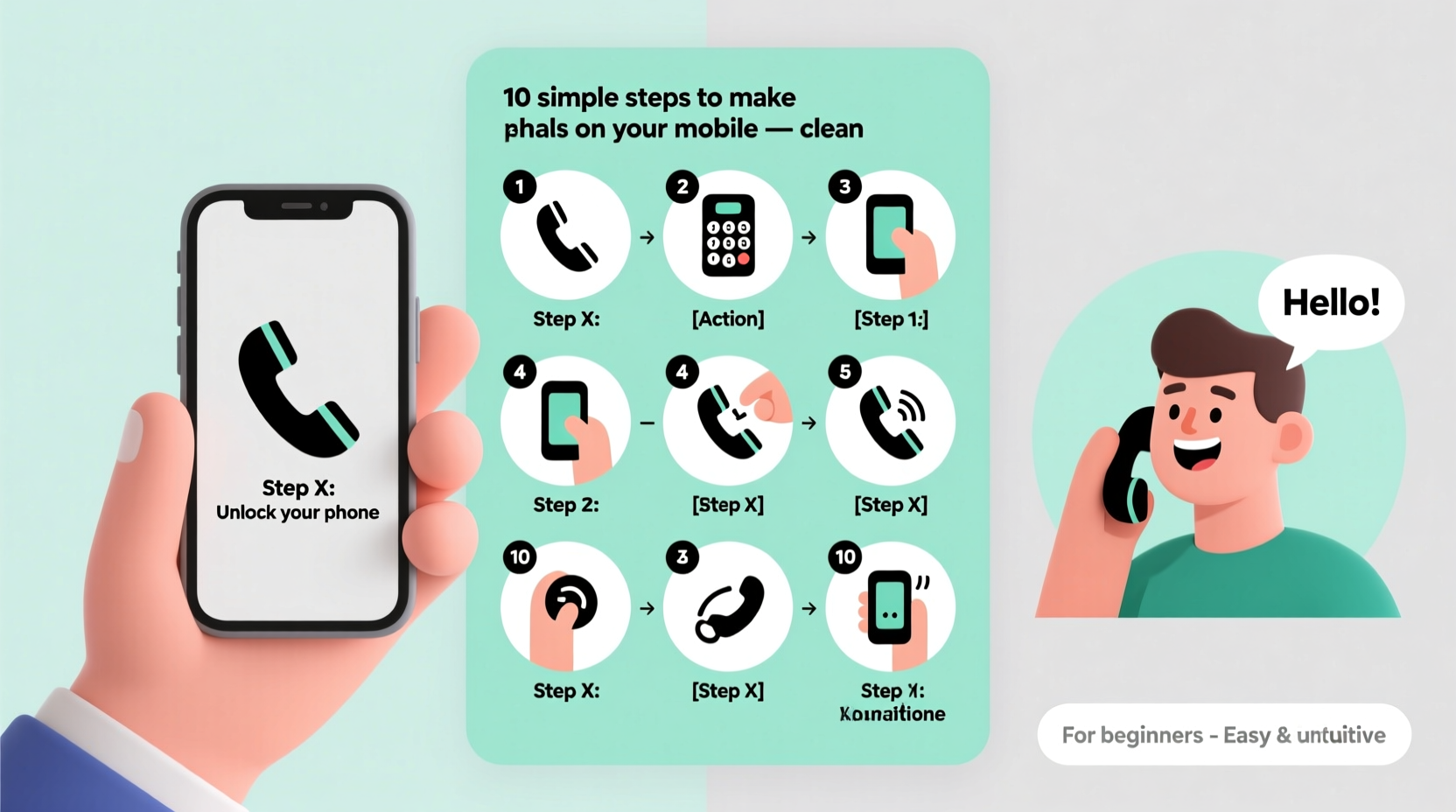
Before diving into the steps, it helps to understand the core components involved in making a call. Every mobile phone—whether Android or iPhone—has a built-in phone app designed specifically for voice communication. This app allows you to dial numbers manually, access your saved contacts, view recent calls, and manage settings like speakerphone or mute.
The physical elements you’ll use include:
- Screen: Displays the interface where you interact with apps.
- Power button: Used to turn the screen on/off or lock the device.
- Volume buttons: Adjust speaker volume during a call.
- Microphone and speaker: Built into the phone for speaking and listening.
Familiarizing yourself with these parts ensures smoother operation when placing a call.
Step-by-Step Guide to Making a Call
Follow these 10 straightforward steps to successfully place a phone call from your mobile device:
- Unlock your phone – Use your passcode, fingerprint, or facial recognition to access the home screen.
- Locate the Phone app – Look for an icon labeled “Phone,” “Dialer,” or one that resembles a telephone receiver. It’s usually found on the home screen or in the app drawer.
- Open the Phone app – Tap the icon to launch the dialing interface.
- Choose how to dial – You can either type a number using the keypad or select a contact from your list.
- Enter the number manually (if needed) – Tap the digits on the on-screen keypad. Include the area code for local calls and country code for international ones (e.g., +1 for the US).
- Select a contact (alternative method) – Tap “Contacts” or “Recents” within the app to choose someone from your saved list.
- Initiate the call – After entering the number or selecting a contact, tap the green call button (usually a circular icon with a phone symbol).
- Wait for the recipient to answer – You’ll hear ringing tones while the call connects.
- Speak clearly during the call – Hold the phone near your ear, speak at a normal pace, and ensure you’re in a quiet environment if possible.
- End the call – When finished, tap the red button on the screen or simply wait for the other person to hang up.
This sequence works across most modern smartphones, regardless of brand or operating system.
Do’s and Don’ts When Making Mobile Calls
To avoid common issues and improve your calling experience, refer to this simple comparison table:
| Do’s | Don’ts |
|---|---|
| Save frequently called numbers as contacts | Don’t share personal information over unknown or suspicious calls |
| Use headphones in noisy environments | Don’t yell into the phone—speak naturally |
| Check signal strength before calling | Don’t ignore software updates that may affect call quality |
| Charge your phone regularly | Don’t leave the speakerphone on unintentionally in public |
A Real-Life Example: Maria Learns to Call Her Granddaughter
Maria, a 72-year-old retiree, received her first smartphone after switching from a basic flip phone. At first, she was hesitant to use it beyond receiving texts. One day, she wanted to call her granddaughter but didn’t know where to start. She opened her phone, tapped the screen, and saw several icons. Remembering the green phone symbol from a community workshop, she tapped it. The dial pad appeared. She carefully typed her granddaughter’s number, double-checking each digit. Then, she pressed the green call button. After a few rings, her granddaughter answered with a cheerful “Hi, Grandma!”
That small success boosted Maria’s confidence. Over the next week, she saved her daughter’s number as a contact and practiced ending calls properly. Within a month, she was making daily calls without assistance. Her story shows that with patience and the right guidance, anyone can master mobile calling.
“Learning to make a phone call is often the first step toward digital independence. Once users gain confidence here, they’re more likely to explore messaging, video calls, and even online services.” — Dr. Alan Reyes, Senior Technology Educator at Community Connect Initiative
Essential Tips for Clear and Successful Calls
Beyond just knowing how to initiate a call, there are best practices that enhance clarity and reliability:
- Verify the number before calling – A single wrong digit can connect you to the wrong person or result in a disconnected line.
- Use speed dial for frequent contacts – Many phones allow you to assign a number to a long-press shortcut (e.g., holding “1” to call a specific person).
- Enable call waiting if available – This feature lets you manage two incoming calls without missing either.
- Turn on speakerphone when appropriate – Useful during hands-free situations, like cooking or driving (when legally allowed).
- Consider Wi-Fi calling in low-signal areas – If your carrier supports it, this option routes calls through your internet connection.
FAQ: Common Questions About Mobile Calling
What should I do if my call won’t connect?
First, check your signal strength. If there are no bars, move to a better-lit or open area. Restart your phone or toggle airplane mode on and off to reset the network connection. If the problem persists, contact your service provider.
Can I make calls without a SIM card?
Not traditionally—but if your phone is connected to Wi-Fi, you can use internet-based calling apps like WhatsApp, FaceTime (for Apple users), or Google Voice. These don’t require a cellular plan but do need the recipient to have the same app installed.
Why does my voice sound muffled to others?
This often happens when the microphone is blocked by fingers, a case, or dirt. Clean the bottom edge of your phone gently with a dry brush or cloth. Also, avoid covering the mic during calls.
Final Checklist Before You Make Your First Call
Use this quick checklist to ensure everything is ready:
- ✅ Phone is charged (at least 20%)
- ✅ Screen is unlocked
- ✅ You have a stable signal (look for network bars)
- ✅ Correct number entered or contact selected
- ✅ Volume is turned up so you can hear the ringtone
- ✅ Microphone is unobstructed
Conclusion: Start Connecting Today
Making a phone call on your mobile device is a fundamental skill that opens doors to staying in touch with family, managing appointments, and accessing support. What might seem confusing at first becomes second nature with practice. By following these ten simple steps and applying the tips shared, you’re well-equipped to communicate confidently using your smartphone. Don’t hesitate to ask a friend or family member to guide you through the process the first few times. Each call you make builds your comfort and competence.




 浙公网安备
33010002000092号
浙公网安备
33010002000092号 浙B2-20120091-4
Comments
No comments yet. Why don't you start the discussion?