
The mechanical keyboard market has evolved far beyond full-sized 104-key layouts. Today, compact builds like 60% and Tenkeyless (TKL) keyboards dominate enthusiast spaces for their sleek profiles, reduced desk footprint, and minimalist appeal. But with fewer keys comes a trade-off—most notably, the absence of dedicated arrow keys, function row, and navigation cluster. The question isn’t just about space; it’s about functionality. For users considering a switch from TKL to 60%, or vice versa, one concern rises above the rest: Do you really miss the arrow keys?
The answer isn’t universal. It depends on your workflow, muscle memory, software use, and willingness to adapt. This article dissects the practical differences between 60% and TKL keyboards, evaluates how the loss of arrow keys impacts real-world usage, and helps you decide whether downsizing is worth the sacrifice.
Understanding the Layouts: 60% vs TKL
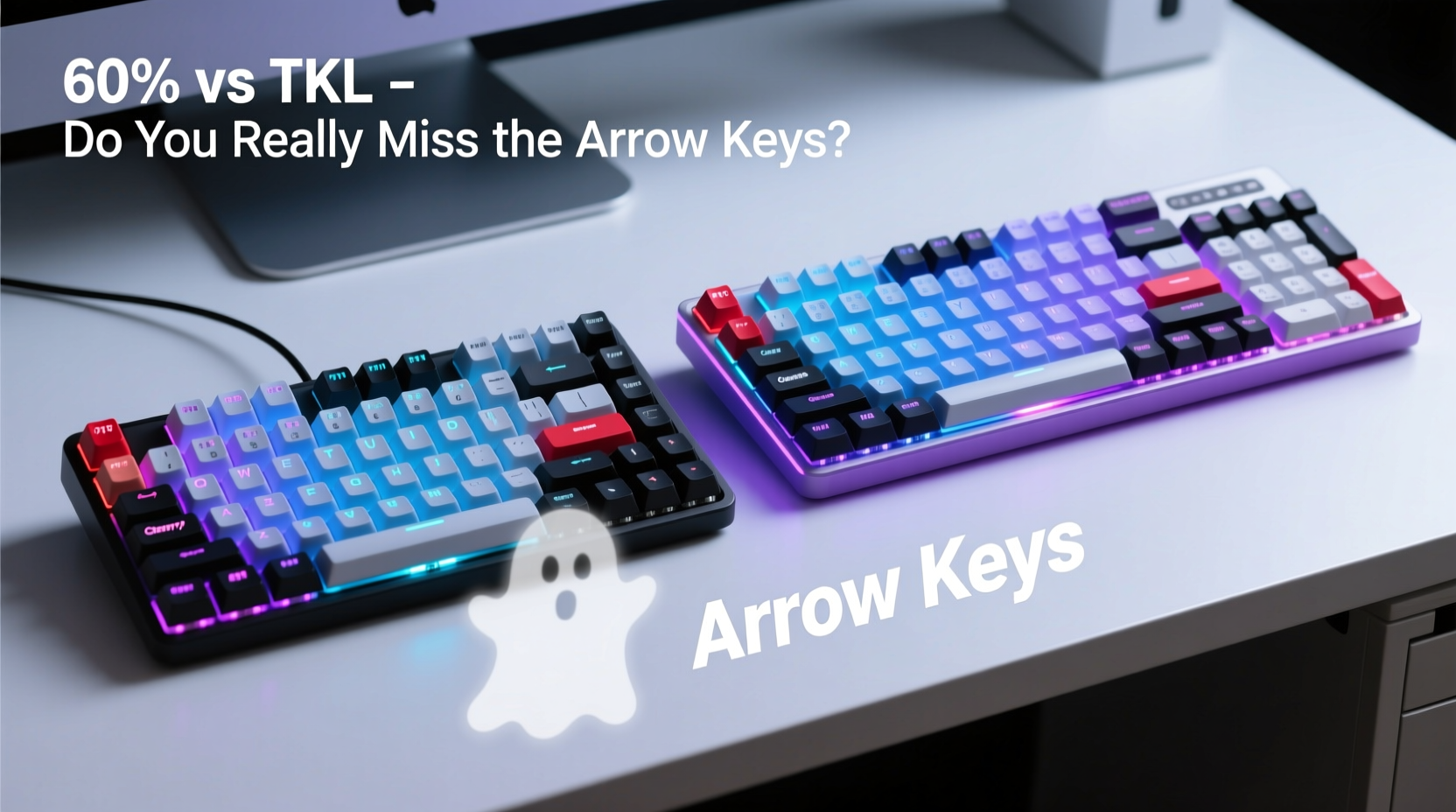
Before diving into usability, it’s essential to clarify what “60%” and “TKL” actually mean in terms of physical layout and key availability.
Tenkeyless (TKL), also known as 80%, removes the numeric keypad but retains the function row (F1–F12), arrow keys, and navigation cluster (Insert, Delete, Home, End, Page Up, Page Down). It typically has around 87 keys and reduces desk space by roughly 20% compared to a full-sized board.
60% keyboards take minimalism further. They eliminate the function row, arrow keys, navigation cluster, and numeric keypad. What remains is the core alphanumeric section, modifier keys, and a few essentials like Escape and Backspace. At approximately 61 keys, these boards are about 40% smaller than full-sized models.
This aggressive reduction forces reliance on layers—secondary key functions accessed via a modifier (usually Fn). For example, pressing Fn + K might register as a down arrow, while Fn + U becomes up. These mappings vary by firmware and customization options.
Key Differences at a Glance
| Feature | TKL (80%) | 60% |
|---|---|---|
| Total Keys | ~87 | ~61 |
| Numeric Keypad | No | No |
| Function Row (F1-F12) | Yes | No (via layer) |
| Arrow Keys | Yes | No (via layer) |
| Navigation Cluster | Yes | No (via layer) |
| Desk Footprint | Moderate | Compact |
| Ease of Transition | High | Moderate to Low |
| Customization Required | Minimal | Frequent (layer mapping) |
Do You Actually Miss the Arrow Keys?
The emotional and functional attachment to arrow keys is real. For decades, they’ve been a fixed point in computing—used for scrolling through code, navigating spreadsheets, playing games, or editing documents. Removing them feels like removing a limb. But in practice, many users adapt quickly—especially if they understand alternative input methods.
On a 60% keyboard, arrow functions are reassigned using a layer system. Common mappings include:
Fn + I= Up ArrowFn + J= Left ArrowFn + K= Down ArrowFn + L= Right Arrow
Some firmware (like QMK or VIA) allows full remapping, so you can place arrows wherever makes sense—such as on the right side of the keyboard using a thumb key.
For light typing and general browsing, most people adjust within a week. However, intensive tasks reveal the true cost of abstraction.
“Switching to a 60% taught me how much I relied on subconscious navigation. It took two weeks of frustration before efficiency returned.” — Derek Lin, Software Developer & Keyboard Enthusiast
When Arrow Key Loss Matters Most
Certain workflows suffer more than others when arrow keys go virtual:
- Programming: Navigating deeply nested code without arrow keys can disrupt flow. While Vim/Emacs users thrive with hjkl movement, IDE-dependent developers may find layer shifts disruptive.
- Data Entry: Moving cell-to-cell in Excel or Google Sheets becomes slower when every direction requires a modifier combo.
- Gaming: Some games rely on arrow keys for menu navigation or secondary controls. Though rare, this can be a dealbreaker.
- Content Editing: Writers moving through long documents lose precision when scrolling line-by-line requires layered input.
In contrast, casual typists, email users, and web surfers rarely notice the difference after initial adjustment.
Who Should Choose 60%, and Who Should Stick with TKL?
The choice between 60% and TKL isn’t just about preference—it’s about aligning hardware with habits.
Choose a 60% Keyboard If You:
- Prioritize desk space and clean aesthetics
- Use text editors with modal navigation (e.g., Vim, Neovim)
- Are comfortable learning new key mappings
- Spend most time in browsers or lightweight apps
- Want maximum portability for LAN parties or travel
Stick with TKL If You:
- Work extensively in spreadsheets or data-heavy environments
- Need quick access to F-keys for macros or media controls
- Prefer zero compromise on navigation speed
- Share computers with others unfamiliar with layer systems
- Use software that relies heavily on Insert, Delete, Home, or End
Real-World Adaptation: A Mini Case Study
Consider Mark, a junior front-end developer working remotely. His daily routine includes coding in VS Code, reviewing pull requests, writing documentation, and attending Zoom calls. He used a full-sized keyboard for years but felt his desk was cluttered.
Curious about minimalist setups, he bought a 60% board with QMK firmware. The first three days were frustrating. He constantly reached for missing arrow keys and fumbled with Fn combinations. Simple tasks like deleting a word or jumping lines became cognitive hurdles.
By day five, he remapped his layout. He moved the Escape key to Caps Lock (using a mod-tap), assigned arrow keys to Fn + WASD (freeing up IJKL for typing), and enabled tap-dance functions for faster layer switching.
After two weeks, his typing speed returned to baseline. He even preferred the tighter hand position. However, during a spreadsheet-heavy audit, he borrowed a colleague’s TKL and realized how much smoother data navigation felt.
His verdict? “I love my 60% for coding and writing—but I keep a TKL nearby for Excel work. It’s not all-or-nothing.”
Optimizing Your Compact Keyboard Experience
If you’re committed to a 60% or considering the jump, optimization is key. Raw hardware matters less than smart configuration.
Step-by-Step Guide to Smoother Transition
- Start with a TKL – Test compact ergonomics before going full 60%. Many find TKL sufficient for space savings.
- Pick a programmable board – Choose one with QMK or VIA support for flexible remapping.
- Map arrows to accessible keys – Use IJKL, WASD, or dedicated thumb keys based on your typing style.
- Enable mod-taps – Assign dual functions (e.g., Shift on hold, Enter on tap) to reduce layer dependency.
- Practice daily navigation drills – Spend 10 minutes navigating text files using only layered keys.
- Use software shortcuts – Learn OS-level navigation (Ctrl+Arrow, Ctrl+Backspace) to reduce reliance on physical keys.
- Keep a cheat sheet – Print your layer map until muscle memory kicks in.
Checklist: Is a 60% Right for You?
- ☐ I value desk space over key availability
- ☐ I’m willing to spend time configuring firmware
- ☐ My primary tasks don’t involve heavy spreadsheet use
- ☐ I already use modal editing or keyboard-centric workflows
- ☐ I have access to a secondary keyboard for edge cases
- ☐ I prioritize portability or travel-friendliness
“The best keyboard is the one that disappears during use. If you’re thinking about layers instead of content, it’s not the right fit.” — Lena Park, UX Designer & Ergonomic Consultant
Frequently Asked Questions
Can I add arrow keys back on a 60% keyboard?
Yes—virtually. Through firmware like QMK or VIA, you can assign arrow functions to any key using a layer. Some custom builds even add micro-switches or rotary encoders for tactile feedback. However, there’s no way to physically restore dedicated arrow keys without modifying the PCB.
Is a TKL keyboard better for gaming?
It depends. Competitive FPS or MOBA players often prefer 60% or TKL for mouse clearance and faster hand transitions. However, strategy games, MMOs, or older titles that use arrow keys for menus may benefit from TKL’s native layout. Most modern games remap controls easily, minimizing the gap.
How long does it take to adapt to a 60% keyboard?
Most users report 7–14 days to regain baseline efficiency. Full comfort with layered navigation can take up to 30 days. Consistent daily use, proper key mapping, and deliberate practice accelerate adaptation.
Conclusion: Function Over Form, But Balance Matters
The debate between 60% and TKL keyboards ultimately comes down to personal workflow versus aesthetic ideals. While the 60% layout offers undeniable space savings and a sleek profile, it demands adaptation. The absence of arrow keys isn’t a flaw—it’s a design decision that shifts responsibility to the user.
You don’t “miss” the arrow keys if you never needed them directly. But if your work involves constant cursor navigation, data traversal, or legacy software dependencies, the friction introduced by layered input can accumulate into real productivity costs.
TKL strikes a compelling balance: it sheds bulk without sacrificing accessibility. For most professionals, it’s the sweet spot between minimalism and functionality. The 60%, meanwhile, excels as a specialist tool—for coders, travelers, or enthusiasts who treat keyboard customization as part of their craft.
Don’t downsize just because it’s trendy. Ask instead: Does this layout serve my work, or does my work serve the layout? Choose deliberately. Configure wisely. And remember—your keyboard should empower your hands, not retrain them against your will.




 浙公网安备
33010002000092号
浙公网安备
33010002000092号 浙B2-20120091-4
Comments
No comments yet. Why don't you start the discussion?