
Android powers over 2.5 billion devices worldwide, making it the most widely used mobile operating system. With such broad adoption comes constant evolution—regular software updates are essential for security, performance, and access to new features. Yet, many users either miss these updates or don’t know how to manage them effectively. Whether you're using a Google Pixel, Samsung Galaxy, OnePlus, or budget-friendly device, understanding how to check for, install, and troubleshoot Android updates is critical for optimal device health.
Why Android Updates Matter
Software updates aren’t just about flashy new features. They deliver crucial security patches that protect against malware, phishing, and data breaches. Google releases monthly security bulletins addressing known vulnerabilities, and manufacturers roll out these fixes through system updates. Ignoring updates leaves your device exposed.
Performance improvements are another key benefit. Updates often optimize battery life, enhance app compatibility, and fix bugs that cause crashes or slowdowns. Over time, outdated software can degrade user experience—even if hardware remains capable.
“Staying current with Android updates is one of the simplest yet most effective ways to protect your privacy and ensure smooth operation.” — Dr. Lin Zhang, Mobile Security Researcher at Stanford University
How to Check for Android Updates: Step-by-Step
Finding available updates varies slightly depending on your device brand, but the general path remains consistent across Android versions 10 and above.
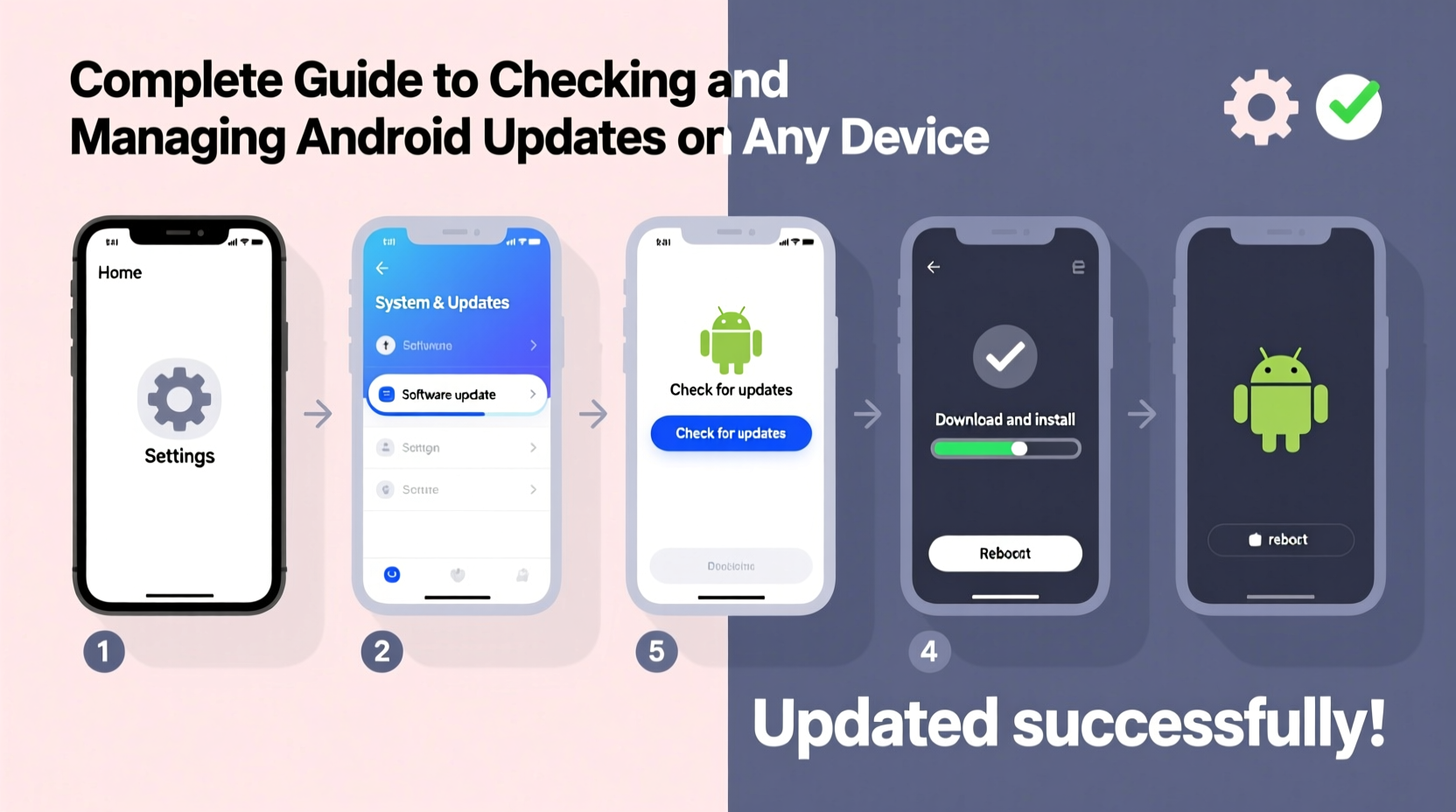
- Open the Settings app on your device.
- Scroll down and tap on System.
- Select System Update (or Software Update on Samsung devices).
- Tap Check for Updates.
- If an update is available, review details and tap Download and Install.
- Follow on-screen prompts to complete installation.
Some devices, like Samsung Galaxy models, place the update option under Software Update directly in Settings. Others, such as Xiaomi phones, label it as MIUI Update. The naming may differ, but the function remains the same.
Understanding Update Types and Their Impact
Not all updates are created equal. Android devices receive several types of updates, each serving a different purpose.
| Update Type | Purpose | Frequency | Examples |
|---|---|---|---|
| Security Patch | Fixes known vulnerabilities | Monthly | CVE-2023-21234 (privilege escalation flaw) |
| Feature Drop / Major OS Update | New UI, tools, AI capabilities | Annually or biannually | Android 14, One UI 6, Pixel Feature Drops |
| Bug Fix / Maintenance Update | Resolves post-release issues | As needed | Camera crash fix, Bluetooth pairing issue |
| Carrier-Specific Update | Network optimization, carrier apps | Irregular | Verizon preloads, T-Mobile VoLTE settings |
Google Pixel devices receive updates directly from Google, typically within days of release. Other brands rely on their own development timelines, which can delay rollout by weeks or months. Knowing what kind of update you’re installing helps set expectations for changes and stability.
Managing Updates Across Different Brands
While Android is standardized at its core, manufacturer skins add variation. Here’s how major brands handle updates:
- Google Pixel: Direct from Google; fastest update delivery. Supports 5 years of OS and security updates.
- Samsung Galaxy: One UI skin; promises 7 years of security updates for flagship models (S24 and later).
- OnePlus: OxygenOS; offers 4 years of OS updates and 5 years of security patches.
- Xiaomi / Redmi: MIUI; historically slower updates, though improving with recent models.
- Motorola: Near-stock Android; moderate update speed, usually within 60 days of Google’s release.
Always verify your device’s official update policy. For example, Samsung’s “Peace of Mind” promise now matches Apple’s longevity support, making it a strong factor in long-term ownership decisions.
Real Example: Delayed Update Causes App Crash Issue
Jamal, a freelance photographer, noticed his camera app freezing after a recent Instagram update. He assumed it was a third-party bug. After troubleshooting, he discovered his phone hadn’t received the latest security patch in over two months due to being on a delayed carrier rollout. Once he manually checked for updates and installed the missing patch, the camera stabilized immediately. The fix included a kernel-level correction affecting media services—an invisible but critical background improvement.
Best Practices for Installing Updates Safely
Installing an update seems straightforward, but missteps can lead to failed installations or data loss. Follow this checklist to ensure a smooth process:
- ✅ Charge your phone to at least 50% (ideally 80%)
- ✅ Connect to a stable Wi-Fi network
- ✅ Back up important data via Google Drive or local backup
- ✅ Close running apps to free up memory
- ✅ Avoid using the phone during installation
- ✅ Restart the device after installation completes
Large updates, especially major OS upgrades, can take 20–45 minutes. Do not interrupt the process—forcing a reboot mid-update can corrupt the system and require factory reset or professional repair.
Troubleshooting Common Update Issues
Sometimes, despite best efforts, updates fail. Here are common problems and solutions:
- \"Update Failed\" Error: Clear cache partition (via recovery mode) or restart and retry.
- Insufficient Storage: Delete unused apps, photos, or cached files. Use built-in \"Free up space\" tool.
- Device Not Receiving Updates: Confirm model is still supported. Some older devices lose eligibility after 3–4 years.
- Stuck on Boot Screen: Perform a soft reset (hold power button 30 seconds). If unresolved, use manufacturer’s flash tool (e.g., Samsung Smart Switch, Fastboot for Pixel).
If your device consistently fails updates, consider resetting to factory settings after backing up data—a clean slate often resolves underlying software conflicts.
Frequently Asked Questions
How often should I check for Android updates?
Manually check every 2–4 weeks. However, ensure automatic checks are enabled so your device notifies you when updates arrive. Most modern phones auto-check weekly over Wi-Fi.
Can I downgrade to a previous Android version?
Generally no, for security reasons. Downgrading erases all data and is only possible using advanced tools like Fastboot or Odin—and even then, bootloader locks and firmware signing prevent easy rollback.
Do all apps work after an update?
Most do, but occasionally developers need time to optimize for new OS versions. If an app crashes post-update, check the Play Store for an updated version or contact the developer.
Final Thoughts: Make Updates Part of Your Digital Routine
Just as you’d maintain a car with regular oil changes, your Android device needs consistent software care. Updates are not optional extras—they’re essential maintenance. By staying informed and proactive, you extend your device’s usable life, protect personal data, and enjoy a smoother, more reliable experience.




 浙公网安备
33010002000092号
浙公网安备
33010002000092号 浙B2-20120091-4
Comments
No comments yet. Why don't you start the discussion?