
Apple Pay has transformed the way millions of people make purchases—whether in stores, online, or within apps. Designed with security, speed, and simplicity in mind, it eliminates the need to carry physical cards while offering a seamless payment experience. From contactless transactions at grocery stores to one-tap checkout on mobile apps, Apple Pay integrates into daily life with minimal friction. This guide walks through everything you need to know: how to set it up, where it works, how it protects your data, and practical tips to get the most out of it.
How Apple Pay Works: The Basics
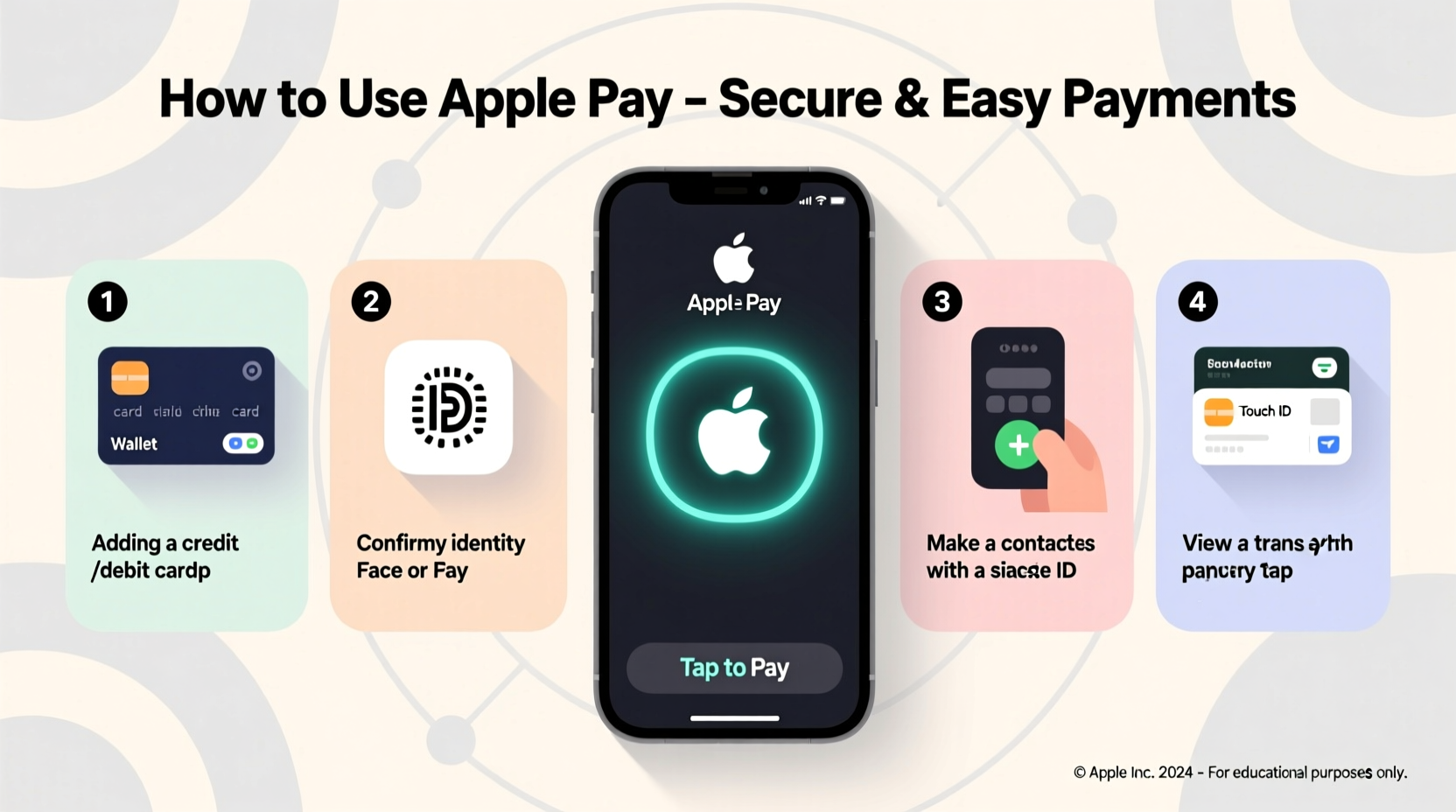
Apple Pay is a digital wallet service that allows users to store credit, debit, prepaid, and transit cards on their iPhone, Apple Watch, iPad, or Mac. When making a purchase, instead of swiping or inserting a card, the device uses Near Field Communication (NFC) technology to transmit payment information securely to a contactless reader.
The system doesn’t send your actual card number during transactions. Instead, it assigns a unique Device Account Number—a digital token—that represents your card. This number is encrypted and stored in the Secure Element, a dedicated chip on your device isolated from the operating system. Even if intercepted, this token is useless outside the context of that specific device and transaction.
For online and in-app purchases, Apple Pay appears as a payment option at checkout. Tapping the Apple Pay button initiates authentication via Face ID, Touch ID, or passcode, completing the transaction without manually entering billing details.
Setting Up Apple Pay in 5 Simple Steps
Adding a card to Apple Pay takes just minutes and can be done directly from your iPhone or Apple Watch. Follow this step-by-step process:
- Open Wallet App: Launch the Wallet app on your iPhone (or Apple Watch via the Watch app).
- Add a Card: Tap the \"+\" icon and follow prompts to add a new card. You can use the camera to scan the card or enter details manually.
- Verify with Your Bank: Most banks require verification, which may come via SMS, email, phone call, or in-app authentication.
- Set as Default (Optional): Choose whether this card should be your default for payments.
- Start Using It: Once approved, you’re ready to pay in stores, online, or in apps.
For Apple Watch, open the Watch app on your iPhone, go to \"Wallet & Apple Pay,\" and tap “Add Credit or Debit Card.” The setup mirrors the iPhone process.
“Apple Pay’s tokenization model sets a benchmark in consumer payment security—it ensures sensitive data never leaves the device.” — Dr. Lisa Tran, Cybersecurity Analyst at Digital Trust Labs
Where Apple Pay Is Accepted
Apple Pay works wherever contactless payments are supported. Look for the Apple Pay symbol or the contactless payment logo (four curved lines) at checkout terminals. Its acceptance spans across industries and locations:
- Retail chains: Walmart, Target, Best Buy, Whole Foods
- Restaurants: Starbucks, McDonald’s, Panera Bread
- Transit systems: New York City MTA, London Underground, Chicago CTA
- Online retailers: Amazon, Uber, Airbnb, Shopify stores
- Apps: Food delivery, subscription services, gaming platforms
In addition, many banks now support Apple Pay for peer-to-peer transfers through Apple Cash, allowing instant money sending between contacts via iMessage.
| Payment Scenario | Device Used | Authentication Method |
|---|---|---|
| In-store purchase | iPhone or Apple Watch | Face ID / Double-click side button |
| In-app purchase | iPhone or iPad | Face ID, Touch ID, or passcode |
| Online checkout | Mac with Touch ID | Touch ID or password |
| Transit fare | Apple Watch or iPhone | No authentication required (express mode) |
Security Features That Protect Your Data
One of Apple Pay’s strongest advantages is its layered security architecture. Unlike traditional card transactions, your actual card number is never shared with merchants or transmitted during payment.
Each transaction is authorized using dynamic security codes generated in real time. These one-time codes prevent replay attacks and ensure no two transactions are identical—even if someone intercepts data, they cannot reuse it.
If your device is lost or stolen, you can instantly suspend Apple Pay remotely using Find My iPhone. Simply log into iCloud.com or use the Find My app to put your device in Lost Mode or remove all cards.
Mini Case Study: Contactless Commute in New York City
Jamal, a Brooklyn-based teacher, used to carry a MetroCard and wallet every day. After setting up Apple Pay with his transit card, he now taps his Apple Watch at subway turnstiles. No fumbling, no lost cards. During a recent commute, his phone battery died, but his Watch still worked for entry. He also received automatic balance refill alerts, avoiding mid-week disruptions. Within a month, he eliminated cash and physical cards entirely from his routine.
Best Practices and Common Pitfalls
To maximize convenience and safety, follow these best practices when using Apple Pay:
- Use strong passcodes and biometric authentication
- Add multiple cards for flexibility
- Check merchant compatibility before relying solely on Apple Pay
- Review transaction history regularly in the Wallet app
- Don’t share your device passcode
- Don’t add cards on untrusted Wi-Fi networks
- Don’t leave expired cards in Wallet—they can cause failed payments
- Don’t assume all ATMs accept Apple Pay (most still require physical cards)
Frequently Asked Questions
Is Apple Pay free to use?
Yes, Apple does not charge any fees to use Apple Pay. However, your bank or card issuer may have terms related to international transactions or cash advances, just as they would with regular card usage.
Can I use Apple Pay without an internet connection?
Absolutely. For in-person contactless payments, no internet is needed. The transaction uses NFC and local authentication. Internet is only required when adding new cards or syncing transaction data later.
What happens if my card expires or is replaced?
If your bank automatically reissues a card (e.g., due to expiration), Apple Pay often updates the details seamlessly. However, some banks require you to manually delete and re-add the new card. Check with your issuer for specifics.
Final Tips for Getting the Most Out of Apple Pay
Apple Pay shines when integrated into everyday routines. Consider these advanced uses:
- Use Express Transit Mode: On iPhone and Apple Watch, enable this for faster commutes—no authentication needed.
- Track Spending: View recent transactions directly in the Wallet app for quick budget checks.
- Leverage Rewards: All card benefits—cash back, points, airline miles—apply normally when using Apple Pay.
- Share Cards Securely: Family members can add approved cards to their devices if your bank supports shared digital wallets.
“Adopting Apple Pay reduced my average checkout time by over 60%—especially helpful during morning coffee runs.” — Sarah Kim, Frequent User and Tech Blogger
Conclusion: Embrace Simplicity and Security
Apple Pay combines cutting-edge security with unmatched convenience. Whether you're shopping at a corner store, booking a ride, or paying bills online, it streamlines the process while protecting your financial data. With widespread acceptance, robust encryption, and intuitive design, there’s never been a better time to leave your wallet behind. Set up Apple Pay today, explore its full range of features, and experience what modern, secure payments truly feel like.




 浙公网安备
33010002000092号
浙公网安备
33010002000092号 浙B2-20120091-4
Comments
No comments yet. Why don't you start the discussion?