
Every running program on a computer operates as a process, each assigned a unique identifier known as a Process ID (PID). Whether you're troubleshooting performance issues, terminating unresponsive applications, or scripting system automation, knowing how to retrieve a process's PID is a fundamental skill for developers, system administrators, and power users alike. Unlike static identifiers, PIDs are dynamically assigned at runtime and vary between sessions and systems. This guide covers reliable methods to obtain PIDs across major operating systems—Windows, Linux, and macOS—with precision and efficiency.
Understanding the Role of Process IDs
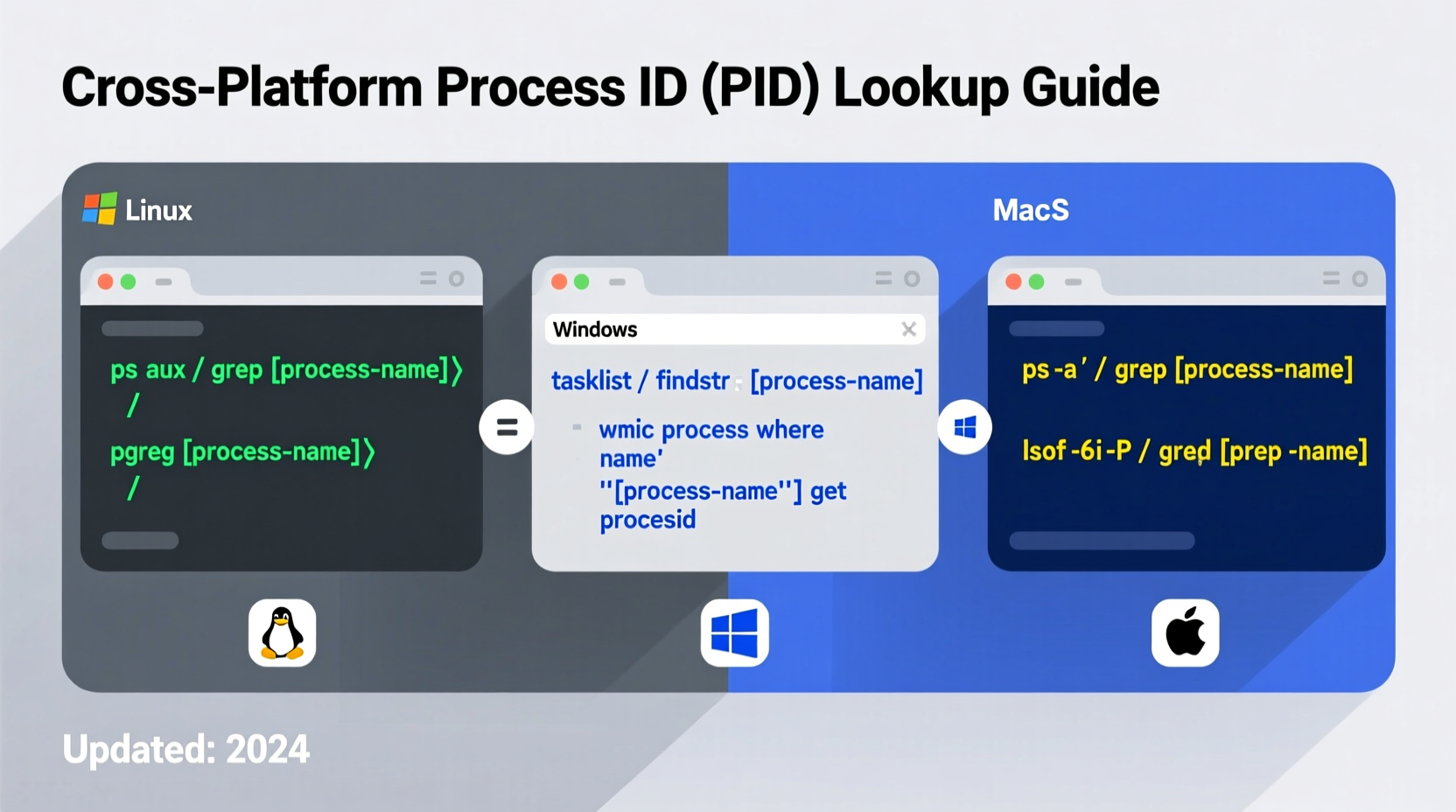
A Process ID is a numeric value assigned by the operating system kernel to identify an active process. These IDs are crucial for managing system resources, debugging software behavior, and controlling execution flow. For example, when a process becomes unresponsive, using its PID allows targeted termination without affecting other applications. Similarly, monitoring tools rely on PIDs to track CPU and memory usage per process.
While the concept of a PID is universal across platforms, the tools and syntax used to retrieve them differ significantly. Each OS provides built-in utilities designed for process inspection, but mastering their nuances ensures accurate results in both interactive and automated environments.
“Knowing how to locate a PID efficiently separates novice users from those who can truly control their systems.” — Lin Zhao, Senior Systems Engineer at Red Hat
How to Find PIDs on Linux Systems
Linux offers multiple command-line tools to retrieve process information, each suited to different use cases. The most commonly used utilities include ps, pidof, pgrep, and top.
Using ps and grep
The ps command displays current processes. To find a specific process:
ps aux | grep firefoxThis lists all running processes and filters for lines containing \"firefox\". The second column contains the PID.
Using pidof
For exact process names, pidof returns PIDs directly:
pidof chromeIf multiple instances exist, it outputs all corresponding PIDs.
Using pgrep (Recommended)
pgrep supports pattern matching and is ideal for scripts:
pgrep -f \"node server.js\"The -f flag searches the full command line, not just the process name.
pgrep -l to display both the PID and process name for verification.
Retrieving PIDs on Windows
Windows uses different tools depending on whether you're working in Command Prompt, PowerShell, or through GUI interfaces. While Task Manager provides a visual overview, command-line access enables automation and remote management.
Using tasklist in Command Prompt
To list all processes with their PIDs:
tasklistFilter by image name:
tasklist | findstr chrome.exeThe PID appears in the \"PID\" column.
Using PowerShell (Most Powerful)
PowerShell offers granular control. To get the PID of a process:
Get-Process chrome | Select-Object Id, NameFor pattern-based search:
Get-Process | Where-Object {$_.Name -like \"*sql*\"} | Select-Object Id, NameFinding PID via WMI (Advanced)
Use WMI queries for deeper integration:
wmic process where \"name='notepad.exe'\" get ProcessIdGUI Method: Task Manager
Press Ctrl+Shift+Esc, go to the \"Details\" tab, and ensure the PID column is visible. Right-click the header to customize columns if needed.
Accessing PIDs on macOS
As a Unix-based system, macOS shares many tools with Linux. However, slight differences in default configurations and available flags require attention.
Using ps and grep
Similar to Linux:
ps aux | grep SafariUsing pgrep
Available by default and highly efficient:
pgrep SafariTo include process names:
pgrep -l SafariUsing Activity Monitor (GUI)
Open Activity Monitor from Applications > Utilities. The \"PID\" column is displayed by default. Sort by name or PID for quick lookup.
Using top or htop
Run top in Terminal to view real-time process data. Press q to exit. Install htop via Homebrew for enhanced readability:
brew install htop && htopCross-Platform Comparison and Best Practices
| OS | Tool | Command Example | Best For |
|---|---|---|---|
| Linux | pgrep |
pgrep -f nginx |
Scripting, automation |
| Windows | PowerShell | Get-Process svchost | Select Id |
Admin tasks, remote management |
| macOS | pgrep |
pgrep -i firefox |
Case-insensitive search |
| All | GUI Tools | Task Manager / Activity Monitor | Quick visual inspection |
kill or
Stop-Process.
Mini Case Study: Debugging a Hanging Web Server
A developer noticed high CPU usage on a production Linux server. Using top, they identified a runaway Node.js instance consuming 95% CPU. They ran:
pgrep -f \"app.js\"Which returned PID 2145. After confirming it was the correct process with ps -p 2145 -o comm,cmd, they gracefully terminated it:
kill -15 2145The service was then restarted safely. This precise PID targeting prevented disruption to other services.
Essential Checklist for Reliable PID Retrieval
- ✅ Identify the process name exactly (including case sensitivity on Unix-like systems).
- ✅ Use
pgreporGet-Processfor scriptable, clean output. - ✅ Combine with
psortasklistfor context (user, memory, command line). - ✅ Verify multiple instances—some applications spawn several processes.
- ✅ Prefer command-line tools over GUIs when automating or working remotely.
Frequently Asked Questions
Can a PID be reused after a process ends?
Yes. Once a process terminates, its PID is released back into the pool. The OS may assign it to a new process, especially on systems with high process turnover. However, immediate reuse is rare due to allocation strategies that minimize collision risks.
What’s the difference between PID and PPID?
PID stands for Process ID—the unique identifier of a process. PPID (Parent Process ID) refers to the PID of the process that launched it. For example, a browser tab might have a PPID pointing to the main browser process. You can view PPIDs using ps -o pid,ppid,cmd on Unix systems.
Why can’t I see certain PIDs even as an administrator?
System-level processes (e.g., kernel threads or security daemons) may not appear in standard user queries. On Linux and macOS, try prefixing commands with sudo. On Windows, run PowerShell or Command Prompt as Administrator to access restricted processes.
Mastering Process Identification Across Platforms
Finding a process ID is more than a technical step—it's the foundation of effective system control. Whether you're writing a deployment script, diagnosing a memory leak, or simply closing a frozen application, the ability to accurately retrieve a PID streamlines your workflow. By understanding the strengths of each OS-specific tool, you gain flexibility and confidence across environments. From pgrep on Linux to PowerShell’s Get-Process on Windows, these utilities empower precise, non-disruptive system interaction.




 浙公网安备
33010002000092号
浙公网安备
33010002000092号 浙B2-20120091-4
Comments
No comments yet. Why don't you start the discussion?