
Every application you install or use on Windows generates data. From cached login tokens and preferences to saved game progress and offline media, this information is stored across multiple directories in structured—and sometimes hidden—locations. Understanding where this data lives, how it's organized, and why it matters empowers you to manage storage, troubleshoot issues, protect privacy, and even recover lost settings. This guide walks through the key aspects of app data on Windows with clear steps and real-world insights.
Understanding App Data: What It Is and Why It Matters
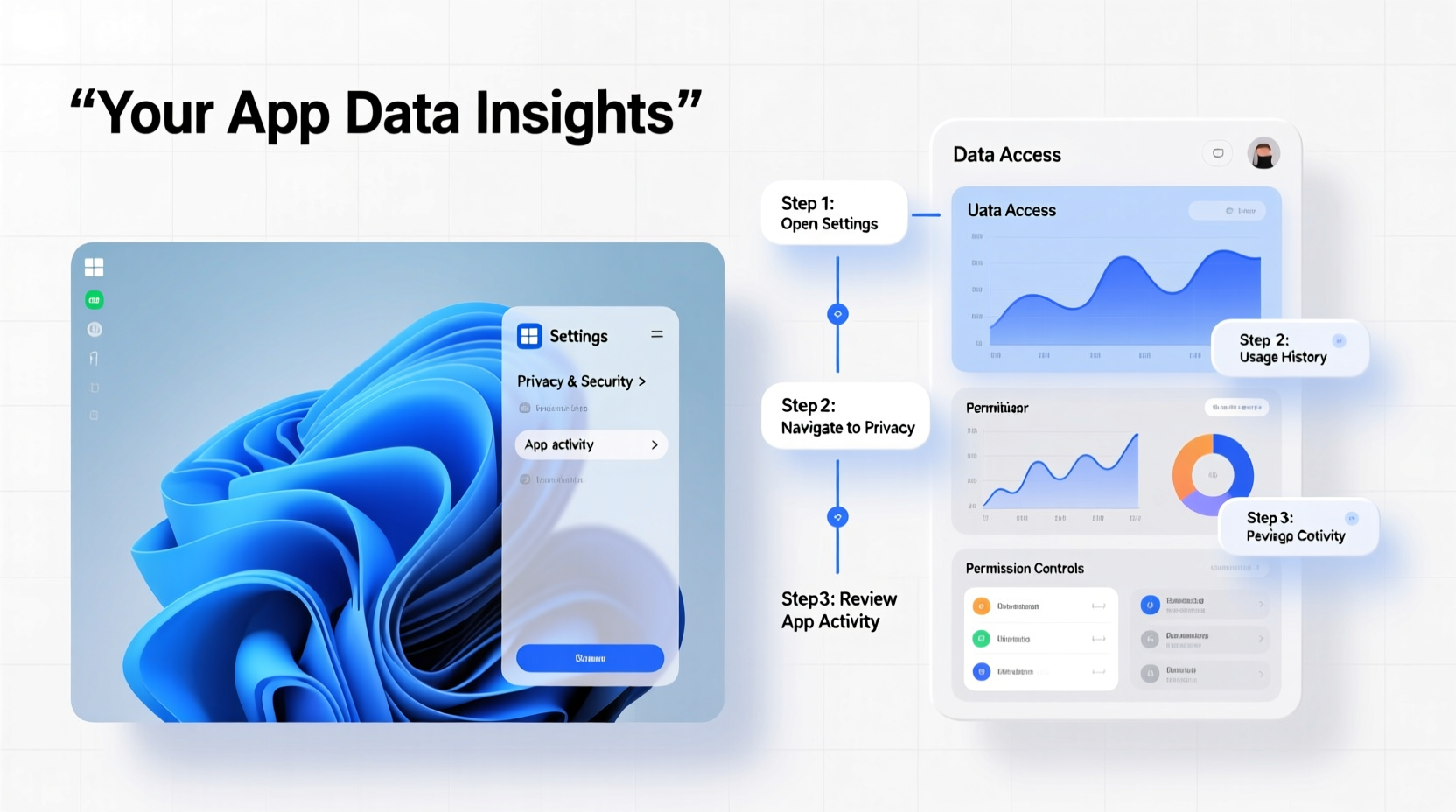
App data refers to any file or setting created or modified by an application during its operation. Unlike user documents like photos or spreadsheets, app data typically includes configuration files, logs, caches, temporary files, and local databases. These files ensure applications remember your preferences, work efficiently offline, and launch faster over time.
Windows organizes app data into three primary categories:
- Roaming: Data that syncs across devices when using a Microsoft account (e.g., browser bookmarks).
- Local: Device-specific data not meant to be synced (e.g., cached videos).
- LocalLow: Data from low-integrity processes like web browsers running in protected mode.
These folders are critical for both functionality and troubleshooting. For example, resetting a misbehaving app often means clearing its Local folder, while migrating to a new PC may require transferring Roaming profiles.
Navigating Key App Data Directories
The main repository for app data in Windows is the AppData folder, located within each user profile. Although hidden by default, it can be accessed directly via File Explorer.
Step-by-Step: Accessing AppData
- Press Win + R to open the Run dialog.
- Type
%appdata%and press Enter—this opens the Roaming folder. - To access Local, type
%localappdata%. - For LocalLow, manually navigate to
C:\\Users\\[YourUsername]\\AppData\\LocalLow.
Inside these directories, you’ll find subfolders named after installed applications—such as Discord, Spotify, or Microsoft\\Edge. Each contains configuration (.ini, .json), cache, and log files essential to the app’s behavior.
Common App Data Locations
| Path | Purpose | Example Contents |
|---|---|---|
%appdata% |
User-specific roaming data | Browser profiles, email client settings |
%localappdata% |
Machine-specific data, larger caches | Game saves, update downloads, temp files |
%temp% |
Temporary files (safe to clean) | Installer remnants, partial downloads |
ProgramData |
Shared app data (system-wide) | Default templates, shared licenses |
“Many support issues stem from corrupted app data. Knowing where to look cuts resolution time in half.” — Daniel Reed, Senior Desktop Support Analyst at TechFlow Solutions
Interpreting App Data: Files You Should Know
Not all app data is binary or encrypted. Many modern apps use human-readable formats such as JSON, XML, or SQLite databases. Recognizing these can help diagnose problems or extract useful information.
- settings.json / config.xml: Stores user preferences like theme choices or startup behavior.
- Cache folders: Contain temporary media or rendered assets; safe to delete if disk space is low.
- Logs (.log files): Record errors and events—useful when reporting bugs.
- LocalState folder (UWP apps): Holds data for Microsoft Store apps like Calculator or Weather.
For instance, Chrome stores browsing history, cookies, and passwords in an SQLite database inside %localappdata%\\Google\\Chrome\\User Data\\Default. While direct editing isn't recommended, tools like DB Browser for SQLite allow inspection without altering data.
Mini Case Study: Recovering Lost Notes After an App Crash
Sophie, a freelance writer, used a note-taking UWP app that suddenly stopped launching. She couldn’t access her recent drafts. Instead of reinstalling, she navigated to C:\\Users\\Sophie\\AppData\\Local\\Packages\\NoteApp_xyz\\LocalState, where she found a folder called autosave. Inside were timestamped JSON files containing unsaved entries. By copying them to her desktop before reinstalling, she recovered three days’ worth of work—without cloud backup.
Managing App Data Safely: A Checklist
Whether optimizing performance or protecting privacy, managing app data requires care. Follow this checklist to stay safe and effective:
- ✅ Always back up important app folders before making changes.
- ✅ Use built-in app settings to clear cache when available (safer than manual deletion).
- ✅ Regularly clean %temp% and
Downloadsto free up space. - ✅ Review permissions for apps accessing sensitive data (via Settings > Privacy & Security).
- ✅ Avoid moving or renaming app data folders unless documented by the software vendor.
- ✅ Disable syncing for apps that store sensitive data in Roaming if using shared accounts.
Frequently Asked Questions
Can I move app data to another drive?
Yes, but only through symbolic links or third-party tools. Manually relocating folders may break apps. For example, you can move a large game’s save folder (like Minecraft in %appdata%\\.minecraft) to an external drive and create a symlink using Command Prompt: mklink /J \"C:\\Users\\You\\AppData\\Roaming\\.minecraft\" \"D:\\Games\\MinecraftData\".
Is it safe to delete everything in AppData?
No. While some cache files are disposable, deleting entire folders can cause apps to malfunction or lose settings permanently. Target specific apps you no longer use, and do so one at a time.
Why can’t I see AppData in File Explorer?
It’s hidden by default. Enable visibility via File Explorer > View > Hidden items. Alternatively, use the Run command (Win + R) with %appdata% or %localappdata% to access it directly.
Conclusion: Take Control of Your Digital Environment
Your Windows device holds vast amounts of invisible yet valuable data generated by everyday apps. By learning how to access, interpret, and manage this information, you gain greater control over performance, privacy, and recovery options. Whether you're troubleshooting a glitchy program, reclaiming disk space, or recovering lost content, understanding app data transforms you from a passive user into an informed operator.
%localappdata% and explore one app’s folder. Note what kinds of files exist and their sizes. Awareness is the first step toward mastery. Share your findings or questions in the comments below!




 浙公网安备
33010002000092号
浙公网安备
33010002000092号 浙B2-20120091-4
Comments
No comments yet. Why don't you start the discussion?