
Smart glasses are no longer science fiction—they're tools reshaping how we interact with the world. At the heart of their most transformative features is object recognition, a technology that identifies physical items in real time and overlays contextual digital information. Whether you're navigating a foreign city, identifying machinery parts at work, or assisting someone with visual impairments, enabling this feature unlocks powerful augmented reality (AR) capabilities. But activation isn’t always plug-and-play. This guide walks through the essential steps, settings, and strategies to get object recognition working effectively on your device.
Understanding Object Recognition in Smart Glasses
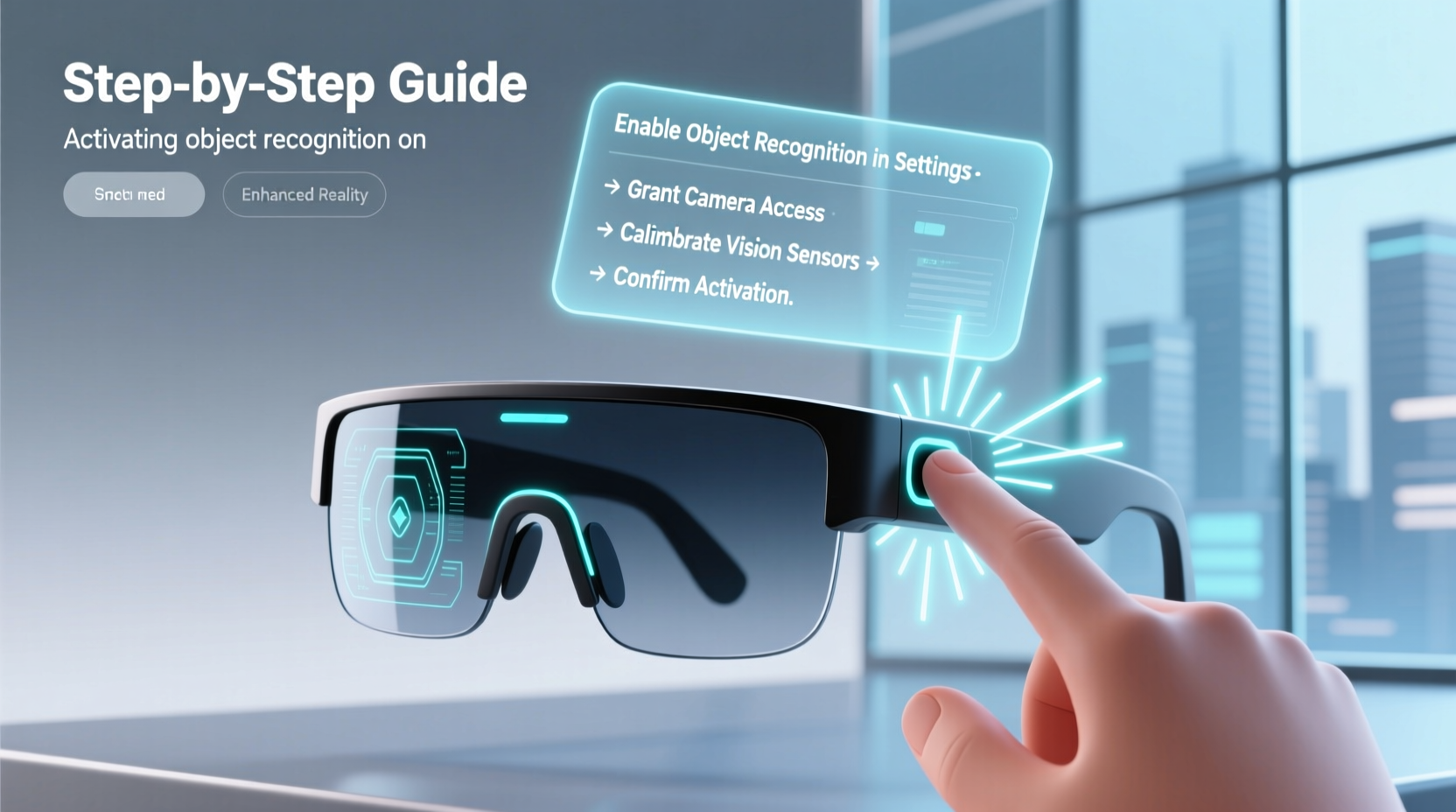
Object recognition uses computer vision algorithms and onboard cameras to detect, classify, and label objects within your field of view. Unlike basic AR markers, modern systems rely on machine learning models trained on vast image datasets. When activated, your smart glasses can identify everyday items—like doors, chairs, or food labels—and deliver relevant data: product details, safety warnings, navigation cues, or accessibility support.
The technology works best when paired with sufficient processing power, accurate sensors, and up-to-date software. Most consumer-grade smart glasses from brands like Vuzix, Nreal (now XREAL), and Ray-Ban Meta use cloud-based or edge AI processing to balance speed and battery life. Enterprise models such as Microsoft HoloLens 2 or Google Glass Enterprise Edition offer more advanced local inference for secure environments.
“Object recognition turns passive viewing into active understanding. It’s not just about seeing—it’s about knowing what you’re looking at.” — Dr. Lena Torres, AR Research Lead at MIT Media Lab
Step-by-Step Guide to Activating Object Recognition
Activating object recognition varies by model, but the underlying principles remain consistent. Follow this universal sequence tailored for both consumer and professional devices.
- Check Device Compatibility: Confirm your smart glasses support object recognition. Refer to the manufacturer’s specifications. Some entry-level models may only offer basic audio assistance or gesture control.
- Update Firmware and Apps: Navigate to the companion app (e.g., XREAL Air App, Vuzix M400 Companion) and ensure all firmware and AR services are current. Updates often include improved recognition accuracy and new object categories.
- Enable Camera Access: Open device settings and verify camera permissions are granted to the AR platform. Without visual input, recognition cannot function.
- Install or Enable Recognition Module: In many cases, object recognition runs as a separate module or plugin. For example, on HoloLens, enable “Seeing AI” or “Azure Spatial Anchors.” On consumer models, activate features like “Visual Search” or “Live Labeling” in the AR dashboard.
- Calibrate Sensors: Perform a quick sensor calibration. Tilt your head slowly in a figure-eight motion to align the IMU (inertial measurement unit), ensuring accurate spatial tracking.
- Test in Controlled Environment: Point your glasses at known objects—a coffee mug, smartphone, or door. Wait for the system to highlight and label them. If no results appear, check lighting conditions and reposition slightly.
- Adjust Sensitivity Settings: Some platforms allow you to set recognition thresholds. Lower sensitivity reduces false positives; higher sensitivity increases detection range but may drain battery faster.
Optimizing Performance: Do’s and Don’ts
Even with proper activation, performance depends on environmental and usage factors. The table below outlines key practices to maximize reliability.
| Do’s | Don’ts |
|---|---|
| Use adequate ambient lighting—avoid dim or overly bright areas | Don’t rely on recognition in complete darkness without IR support |
| Keep lenses clean with microfiber cloth to prevent blurry input | Don’t obstruct the front-facing camera with fingers or accessories |
| Point directly at objects for 2–3 seconds to allow full analysis | Don’t expect instant identification of obscure or partially hidden items |
| Train custom models if supported (enterprise use) | Don’t disable motion sensors or GPS if location context is needed |
Real-World Example: Warehouse Technician Using Object Recognition
Jamal, a logistics technician at a regional distribution center, uses Google Glass Enterprise Edition to manage inventory. Each morning, he activates object recognition via voice command: “Start Visual Scan.” As he walks down aisles, his glasses highlight pallets, overlaying SKU numbers, expiration dates, and destination zones. When he pauses near a mislabeled crate, the system flags a discrepancy between the barcode and visual classification, prompting a manual check. This integration reduced error rates by 37% and cut average task time by 22 minutes per shift. Jamal credits the improvement to consistent calibration and selective use of high-sensitivity mode during audits.
Essential Checklist Before Deployment
Before relying on object recognition in critical scenarios, run through this checklist to ensure readiness:
- ✅ Confirm battery level is above 50% (recognition is power-intensive)
- ✅ Verify internet or local server connection (required for cloud-based models)
- ✅ Test recognition accuracy with 5 common objects in your environment
- ✅ Set up fallback procedures (e.g., voice commands or manual input) in case of failure
- ✅ Review privacy policies—ensure compliance when recording in public or sensitive areas
- ✅ Customize alert types (audio, vibration, visual) based on your workflow
Frequently Asked Questions
Can object recognition work offline?
Yes, but with limitations. High-end enterprise glasses like HoloLens 2 can run lightweight neural networks locally, recognizing pre-loaded objects. Consumer models typically require cloud processing, so connectivity is essential for full functionality.
Is object recognition accurate with moving objects?
Most systems are optimized for static or slow-moving items. Fast motion can blur camera input, reducing detection reliability. For dynamic environments, consider devices with high-frame-rate cameras and predictive tracking algorithms.
How does it handle low-light conditions?
Performance degrades significantly in poor lighting unless the glasses have infrared (IR) or night vision capabilities. Devices like the Vuzix Shield include IR sensors to maintain recognition in dark warehouses or outdoor nighttime use.
Maximizing Long-Term Use and Integration
Once activated, object recognition should evolve with your needs. Explore integrations with productivity tools—link detected items to inventory databases, calendar events, or translation services. Developers can leverage SDKs from Unity MARS, Apple ARKit, or Google ARCore to build custom recognition workflows. Regularly audit system logs to identify frequently misidentified items and adjust training data accordingly.
Battery management remains a challenge. Continuous camera use can limit runtime to 2–3 hours. To extend usability, activate recognition only when needed and disable background scanning. Some models support external battery packs or charging while in use—ideal for field technicians or tour guides.
Conclusion: Step Into Smarter Reality
Activating object recognition transforms your smart glasses from passive displays into intelligent assistants. With careful setup, environmental awareness, and ongoing optimization, you unlock a layer of digital insight that enhances decision-making, safety, and efficiency. Whether you're using them for work, travel, or daily convenience, the ability to instantly understand your surroundings marks a leap toward truly seamless augmented reality.




 浙公网安备
33010002000092号
浙公网安备
33010002000092号 浙B2-20120091-4
Comments
No comments yet. Why don't you start the discussion?