
Data packs are one of the most powerful tools available to Minecraft players who want to enhance or modify their gameplay experience without installing mods. Unlike mods, which require additional loaders like Forge or Fabric, data packs work natively in vanilla Minecraft. They allow you to add custom recipes, advancements, functions, loot tables, and even entirely new game mechanics—all through simple file placement and in-game commands. Whether you're a casual player looking to spice up survival mode or a server administrator aiming to offer unique challenges, understanding how to add and manage data packs is essential.
What Are Data Packs and Why Use Them?
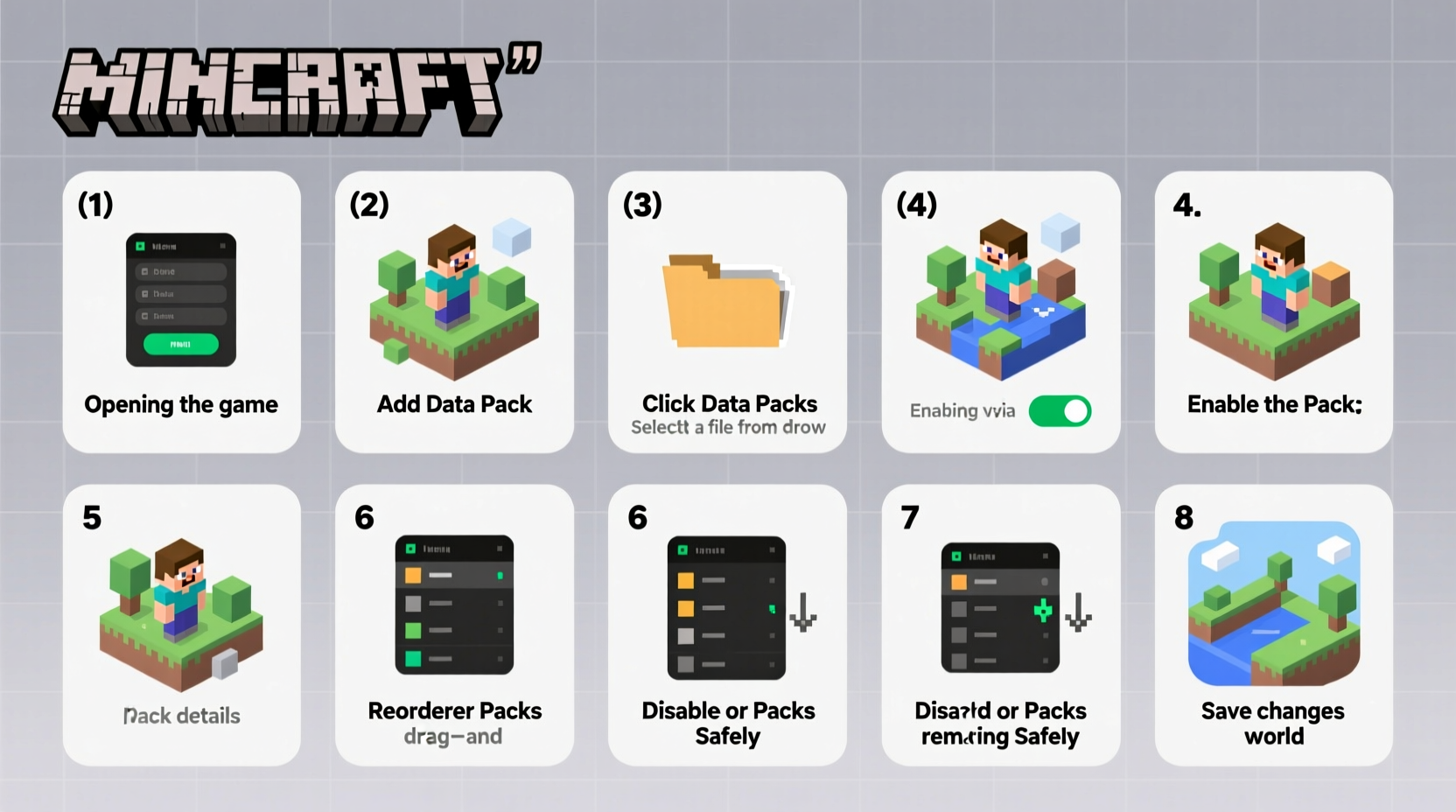
Data packs are folders containing JSON and function files that modify specific aspects of Minecraft’s behavior. Introduced in version 1.13, they replaced many legacy system overrides and provided a structured way to customize the game. Because they’re built on JSON and command functions, they don’t alter core game files, making them safe, reversible, and compatible across updates—provided they’re updated accordingly.
Players use data packs for various purposes: automating farming with custom redstone logic, introducing RPG-style progression systems, creating puzzle maps, or balancing difficulty on multiplayer servers. Since they can be toggled on and off, they also provide flexibility during world generation and gameplay.
“Data packs democratize game design in Minecraft. You don’t need to code in Java—you just need to understand structure and logic.” — Alex Turner, Minecraft Educator & Content Creator
Step-by-Step Guide to Installing a Data Pack
Adding a data pack to your Minecraft world involves downloading the pack, placing it in the correct folder, and loading it into an existing or new world. Follow these steps carefully:
- Download a Data Pack: Visit trusted sources like Planet Minecraft, CurseForge, or GitHub repositories. Ensure the pack matches your Minecraft version (e.g., 1.20.1).
- Verify File Format: Most data packs come as .zip files. Do not extract them unless instructed. The archive must contain a
data/folder and apack.mcmetafile at the root. - Locate Your World Folder: Open your Minecraft launcher, load the game, and go to “Singleplayer.” Select the world you want to modify and click “Edit,” then “Open World Folder.”
- Navigate to datapacks Folder: Inside the world directory, find or create a folder named
datapacks. - Insert the Data Pack: Drag the .zip file (or extracted folder, if allowed) into the
datapacksfolder. - Reload or Re-enter the World: Return to the game. If the world was already loaded, use the command
/reloadin creative mode with cheats enabled. Otherwise, re-enter the world normally. - Confirm Installation: Upon successful load, a message will appear: “Loaded data-pack(s): [name].” You can also type
/datapack listto see all active and available packs.
Managing Active and Available Data Packs
Once installed, data packs can be enabled, disabled, or prioritized using in-game commands. This gives fine control over which packs take precedence when multiple ones modify the same mechanic.
Use the following commands to manage your data packs:
/datapack list– Shows all data packs currently loaded (active) and those available but inactive./datapack enable \"file_name\"– Activates a previously disabled pack./datapack disable \"file_name\"– Temporarily turns off a pack without deleting it./datapack enable \"file_name\" after \"other_pack\"– Sets load order, useful when two packs conflict.
For example, if you have a “FasterCrafting” pack and a “HardcoreRecipes” pack both modifying crafting times, you can control which one takes effect by adjusting their load order.
| Command | Purpose | Example |
|---|---|---|
/datapack list |
Lists all data packs | Shows “vanilla”, “my_modifications.zip” |
/datapack enable \"bonus_loot.zip\" |
Activates a disabled pack | Adds extra drops to mobs |
/datapack disable \"old_events\" |
Deactivates a pack | Removes outdated event triggers |
/reload |
Applies changes without restarting | Required after enabling/disabling |
Creating and Customizing Your Own Simple Data Pack
You don’t need advanced skills to make a basic data pack. Here’s how to create one that adds a custom advancement:
- Create a new folder named
MyFirstPack. - Inside it, create a
pack.mcmetafile with this content:{ \"pack\": { \"pack_format\": 15, \"description\": \"My first custom data pack\" } }(Note:pack_formatvaries by Minecraft version. For 1.20.4, use 37; check documentation for accuracy.) - Create a
datafolder insideMyFirstPack. - Inside
data, createmyfirstpack/advancements/custom/greeting.json. - Add this JSON content:
{
  \"display\": {
    \"title\": \"Hello, World!\",
    \"description\": \"You've activated a custom data pack.\",
    \"icon\": {
      \"item\": \"minecraft:paper\"
    },
    \"frame\": \"task\"
  },
  \"criteria\": {
    \"impossible\": {
      \"trigger\": \"minecraft:tick\"
    }
  }
}
This creates an always-visible advancement. - Zip the entire
MyFirstPackfolder (or place it directly indatapacks). - Load it into a world using the installation steps above.
This foundational example demonstrates how accessible customization can be. From here, you can expand into functions, tags, predicates, and more complex behaviors.
Troubleshooting Common Data Pack Issues
Even well-designed data packs can fail to load due to version mismatches or syntax errors. Here are common problems and solutions:
- Pack Not Showing Up: Double-check that the
pack.mcmetafile is present and correctly formatted. A missing comma or incorrect bracket can prevent loading. - Incompatible Pack Format: If Minecraft says “unsupported pack format,” update the
pack_formatnumber inpack.mcmetato match your version. - Conflicting Packs: If two packs modify the same recipe or advancement, only one may apply. Use
/datapack listto adjust load order. - Commands Not Working: Some packs require cheats enabled. In singleplayer, open the world to LAN with cheats turned on, or create the world with cheats from the start.
Frequently Asked Questions
Can I use data packs on multiplayer servers?
Yes. Server owners can place data packs in the world’s datapacks folder before launching. Players connecting to the server will automatically receive the changes. However, client-side resources like textures still require resource packs.
Do data packs work in Bedrock Edition?
No. The data pack system described here is exclusive to Java Edition. Bedrock uses “add-ons,” which are conceptually similar but built differently and not cross-compatible.
Will updating Minecraft break my data packs?
Sometimes. Major updates change block IDs, command syntax, or advancement structures. Always check the pack’s documentation for version compatibility. Many creators release updated versions shortly after Minecraft updates launch.
Conclusion: Take Control of Your Minecraft Experience
Data packs transform Minecraft from a static sandbox into a dynamic platform for creativity and experimentation. By mastering how to install, manage, and even create your own packs, you unlock endless possibilities—from subtle quality-of-life improvements to full-scale gameplay overhauls. Start with pre-made packs from trusted communities, then explore building your own as your confidence grows. With each new pack, you’re not just playing the game—you’re reshaping it.




 浙公网安备
33010002000092号
浙公网安备
33010002000092号 浙B2-20120091-4
Comments
No comments yet. Why don't you start the discussion?