
Switching your Google account on a smartphone is a common task, whether you're setting up a new device, sharing a phone temporarily, or managing personal and work profiles. While the process varies slightly between Android and iPhone, it’s straightforward once you know the correct steps. This guide walks you through everything—from removing old accounts to adding new ones—with clear instructions for both operating systems. You’ll also learn best practices to protect your data and avoid common pitfalls.
Why Change Your Google Account?
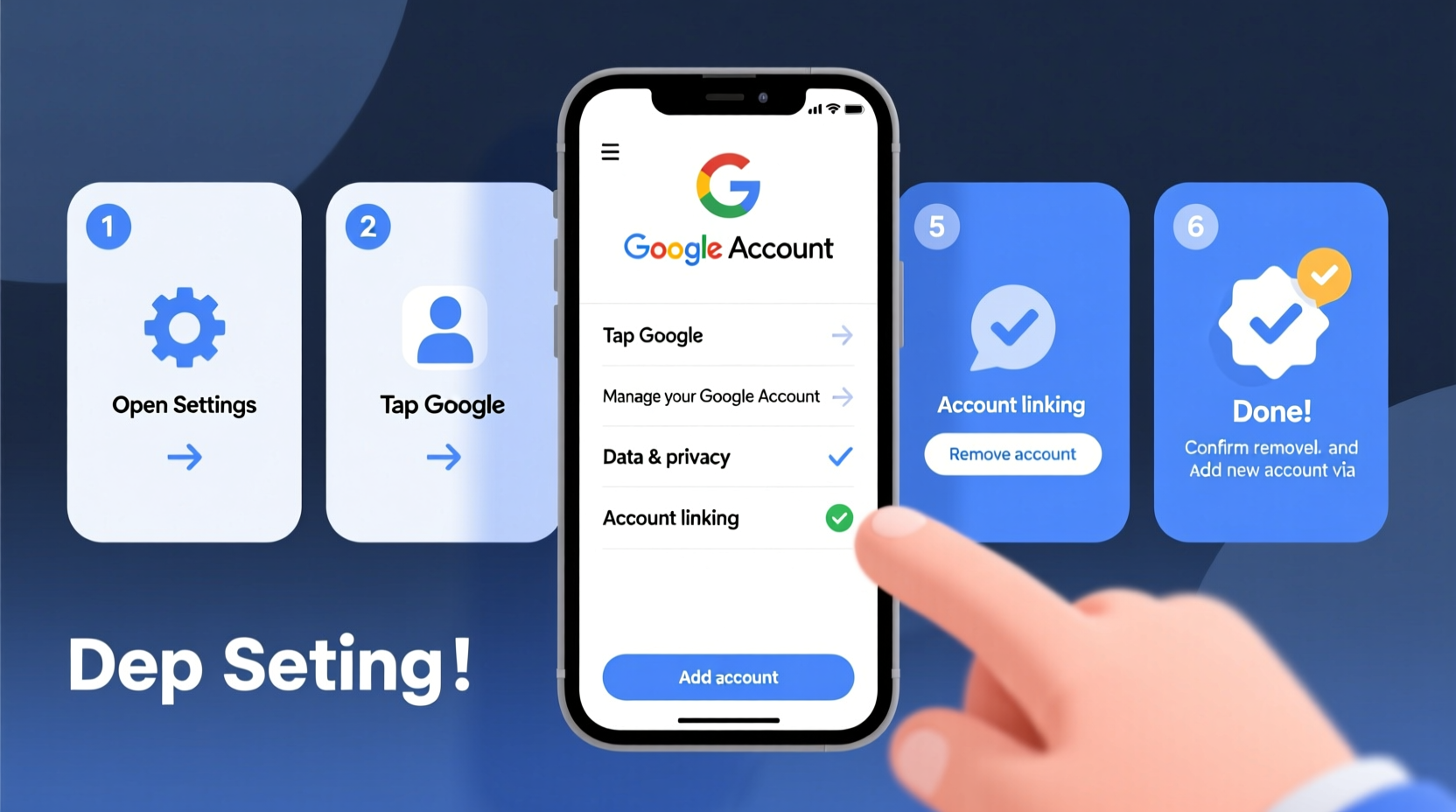
Your Google account controls access to Gmail, Google Drive, Calendar, Photos, YouTube, and app downloads via the Play Store. When you change devices, transfer ownership, or separate personal and professional use, switching accounts ensures privacy and proper functionality.
For example, using a shared phone? Removing your account prevents others from accessing your emails or location history. Switching jobs? Adding a new work account while removing the old one keeps your digital life organized.
Step-by-Step: How to Change Your Google Account on Android
Android phones are built around Google services, so account management is seamless. Follow these steps to remove an existing account and add a new one.
- Open Settings – Tap the gear icon on your home screen or app drawer.
- Go to “Accounts” – On most devices, this is labeled “Accounts & Sync,” “Passwords & Accounts,” or simply “Accounts.”
- Select “Google” – You’ll see a list of currently added Google accounts.
- Tap the account you want to remove – Choose “Remove Account” at the bottom of the screen.
- Confirm removal – A warning will appear explaining that synced data (like contacts and calendar events) will be deleted from the device. Tap “Remove” to proceed.
- Add a new account – Return to the Accounts menu, tap “Add Account,” then select “Google.”
- Sign in with new credentials – Enter the email and password for the new account. Follow any two-factor authentication prompts.
- Choose sync options – Decide which services (Gmail, Drive, etc.) should sync with your device.
Once complete, your phone will reflect the new account across all Google apps. The Play Store, for instance, will now show apps linked to the newly added account.
Changing Google Account on iPhone
iPhones don’t rely on Google as their primary ecosystem, but many users still depend on Gmail, Google Calendar, and Drive. Unlike Android, iOS doesn't tie the entire system to a Google login, so \"changing\" accounts means updating them within individual apps or settings.
To effectively switch your active Google presence on an iPhone:
- Remove old account from Settings – Go to Settings > Mail > Accounts > Google. Select the current account and tap “Delete Account.”
- Re-add with new credentials – Tap “Add Account,” choose Google, and sign in with the new email and password.
- Enable desired services – Toggle on Mail, Contacts, Calendars, and Notes as needed.
- Update Google apps individually – Open the Gmail, Drive, or YouTube app, go to your profile picture in the top right, tap “Manage accounts on this device,” then remove the old one and add the new.
This method ensures your iPhone pulls data from the correct Google profile across all platforms.
Do’s and Don’ts When Switching Google Accounts
| Do’s | Don’ts |
|---|---|
| Back up important data (contacts, photos) before removing an account. | Forget to sign out of shared devices after removing your account. |
| Use two-factor authentication when signing into a new account. | Save passwords on public or borrowed phones. |
| Review permissions granted to third-party apps linked to your Google account. | Click on suspicious sign-in prompts—always verify they’re legitimate. |
| Clear browser cookies and cache after switching accounts on web browsers. | Assume removing the account deletes data from Google’s servers—it doesn’t. |
Mini Case Study: Maria’s Work-to-Personal Phone Transition
Maria worked remotely for a tech startup where she used her personal Android phone with a company Google account for email and documents. When she left the role, she needed to remove the business account without losing her personal photos and messages.
She followed the Android removal steps carefully, ensuring she backed up critical files to her personal Drive first. After removing the work account, she verified that no corporate calendars or emails remained visible. Then, she signed into her personal Google account fully, re-enabling photo sync and app backups. By taking her time and double-checking each step, Maria transitioned smoothly—keeping her privacy intact and avoiding any accidental data leaks.
Expert Insight on Digital Account Management
“People underestimate how much personal information is tied to a single Google account. Safely switching accounts isn’t just about convenience—it’s a fundamental part of digital hygiene.” — Dr. Alan Torres, Cybersecurity Consultant at NetShield Labs
Checklist: Securely Change Your Google Account
- ✅ Back up contacts, photos, and calendar events to the cloud or local storage.
- ✅ Ensure Wi-Fi is connected to avoid interruptions during sign-in.
- ✅ Remove the old Google account from the device entirely.
- ✅ Sign in with the new account using strong credentials and 2FA.
- ✅ Verify sync settings for Gmail, Drive, Calendar, and Photos.
- ✅ Log out of Google services in mobile browsers (Chrome, Safari).
- ✅ Test functionality: Send a test email, open a file in Drive, check calendar events.
Frequently Asked Questions
Will I lose my data if I remove my Google account from my phone?
No—removing an account from your phone only deletes locally synced data like contacts and calendar entries stored on the device. All data remains safe in the cloud (Gmail, Drive, Photos) as long as you don’t delete the account itself online.
Can I have multiple Google accounts on one phone?
Yes. Both Android and iPhone support multiple Google accounts. On Android, they’re managed system-wide. On iPhone, you can add several within apps like Gmail or manually in Settings for mail syncing.
What should I do if I can’t remember the password to my old Google account?
Visit Google Account Recovery to regain access using backup email, phone number, or security questions. Without recovery options, removing the account may require factory resetting the device—if it’s set up with Factory Reset Protection (FRP).
Final Tips for a Smooth Transition
Changing your Google account should be quick and stress-free when done correctly. Always prioritize security: never leave traces of your account on devices you don’t own, and always enable two-factor authentication on your primary account.
If you're switching due to a new job or device upgrade, take the opportunity to review what data is being synced and whether older apps still need access. A clean account switch sets the foundation for better organization and peace of mind.




 浙公网安备
33010002000092号
浙公网安备
33010002000092号 浙B2-20120091-4
Comments
No comments yet. Why don't you start the discussion?