
High-quality JPG images are essential for websites, social media, digital portfolios, and print materials. Despite the rise of newer formats like WebP and AVIF, JPG remains one of the most widely supported and efficient image types due to its balance of quality and file size. However, not all JPGs are created equal. Poorly optimized files can appear blurry, pixelated, or unnecessarily large, slowing down websites and reducing visual impact.
This guide walks through a practical, reliable process for generating crisp, vibrant JPG images without technical complexity. Whether you're a blogger, marketer, designer, or small business owner, these steps will help you produce professional-grade visuals consistently.
1. Start with a High-Resolution Source
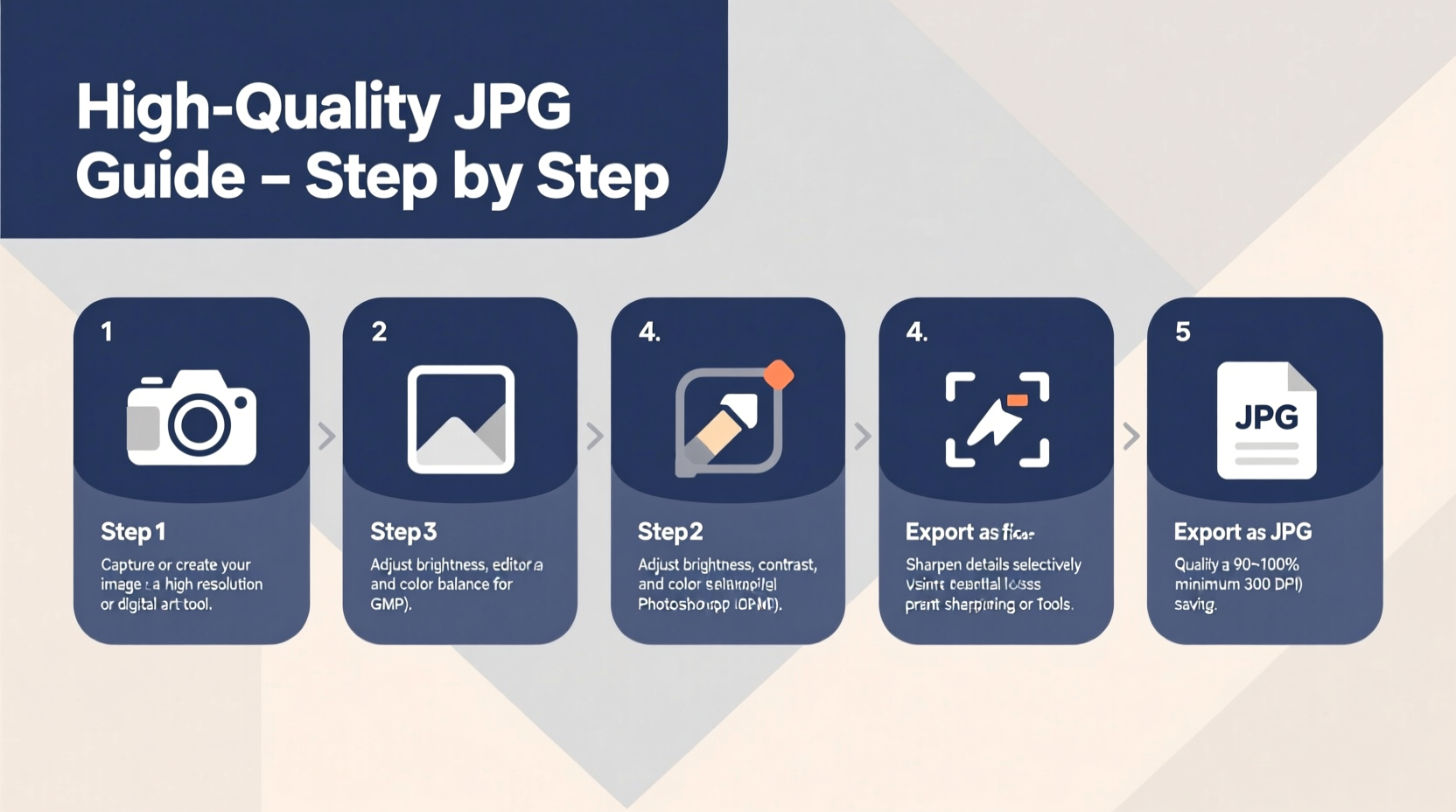
The foundation of any high-quality JPG is the original image. Whether you're capturing photos with a camera, designing graphics in software, or sourcing visuals online, always begin with the highest resolution available. A low-resolution source cannot be improved through editing—it only degrades further when upscaled.
For photography, use cameras with at least 12 megapixels and shoot in RAW format if possible. For digital illustrations or graphics, design at 300 pixels per inch (PPI) for print and 72–150 PPI for web, depending on display context. When exporting from design tools like Photoshop or Canva, choose the largest export option before converting to JPG.
2. Optimize Image Dimensions and Aspect Ratio
Resizing an image incorrectly introduces blurriness or distortion. Before saving as a JPG, ensure the dimensions match the intended use. For example:
- Blog post featured image: 1200 × 630 pixels
- Social media post (Instagram): 1080 × 1080 pixels
- E-commerce product photo: minimum 800 × 800 pixels, preferably 2000+
- Print brochure: 300 PPI at actual print size (e.g., 8.5 × 11 inches)
Use image editing tools to resize proportionally. Avoid stretching or compressing images to fit non-native aspect ratios. Cropping should be done thoughtfully to preserve key visual elements.
“Proper sizing isn’t just about aesthetics—it’s critical for performance. Oversized images slow down websites and waste bandwidth.” — David Lin, Web Performance Engineer
3. Adjust Color and Sharpness Before Export
JPG compression can mute colors and soften details. Compensate by fine-tuning brightness, contrast, saturation, and sharpness before final export.
In tools like Adobe Photoshop, GIMP, or Affinity Photo, apply subtle sharpening using the Unsharp Mask filter. Over-sharpening creates halos and noise, especially around edges. A moderate setting—radius: 1.0, amount: 80%, threshold: 2 levels—is often sufficient.
Ensure color profiles are correctly embedded. Use sRGB for web images to guarantee consistent appearance across devices. If exporting from a wide-gamut workspace (like Adobe RGB), convert to sRGB during export to avoid oversaturated colors on standard monitors.
| Adjustment | Recommended Setting | Purpose |
|---|---|---|
| Brightness | +5 to +10 | Compensate for screen dimming |
| Contrast | +10 to +15 | Enhance depth and clarity |
| Saturation | +5 to +8 | Maintain vivid but natural colors |
| Sharpening | Unsharp Mask: 80%, Radius 1.0 | Recover detail lost in compression |
4. Export with Optimal JPG Compression Settings
This is where most users compromise quality unintentionally. The key is balancing visual fidelity with file size. Most editing software offers a quality slider from 0% to 100%. Here's how to use it effectively:
- Set quality between 80–90%: This range preserves excellent detail while minimizing file size. Below 70%, artifacts become visible; above 95%, file sizes balloon with diminishing returns.
- Enable progressive encoding for web use: Progressive JPGs load in layers, improving perceived performance on slow connections.
- Choose baseline (standard) for universal compatibility, especially in email or legacy systems.
- Check file size: Aim for under 500 KB for web images unless high detail is required (e.g., art portfolios).
Some tools, like Adobe Photoshop, allow you to preview the image at different compression levels. Zoom to 100% and inspect areas with fine detail (hair, text, textures) for blurring or blockiness.
5. Verify and Test Your Final Output
After exporting, open the JPG in a separate viewer—not the editor—to assess real-world appearance. Check for:
- Color accuracy across devices
- Presence of compression artifacts (blocky patches, color banding)
- Clarity of text or fine lines
- Correct orientation (some cameras embed rotation data that may not render universally)
Upload a test version to your website or platform and view it on mobile and desktop. Use developer tools to confirm load time and responsiveness. If the image appears fuzzy or loads slowly, revisit the export settings.
Mini Case Study: E-Commerce Product Image Optimization
Sarah runs an online jewelry store. Her initial product photos were taken on a smartphone and saved directly from messaging apps—resulting in blurry, poorly lit images. After following this guide, she upgraded her process:
- Shot new images on a white backdrop using natural light
- Edited in Lightroom: adjusted exposure, white balance, and applied slight sharpening
- Resized to 2000 × 2000 pixels at 150 PPI
- Exported as JPG at 85% quality with sRGB profile
The result? Conversion rates increased by 27% within six weeks. Customers reported the products “looked exactly like the photos,” and page load speed improved by 1.4 seconds on average.
Essential Checklist for High-Quality JPG Creation
Follow this checklist every time you prepare a JPG image:
- ✅ Start with a high-resolution source (minimum 72 PPI for web, 300 PPI for print)
- ✅ Crop and resize proportionally to target dimensions
- ✅ Adjust brightness, contrast, and color balance
- ✅ Apply mild sharpening to recover detail
- ✅ Convert color profile to sRGB for web use
- ✅ Export at 80–90% quality with appropriate encoding
- ✅ Review on multiple devices and platforms
- ✅ Keep original file for future edits
Frequently Asked Questions
Can I convert PNG to JPG without losing quality?
You can convert PNG to JPG, but transparency will be lost (replaced with white or a background color), and compression may reduce quality. Always save a PNG backup if transparency is needed. For opaque images, conversion at 85–90% quality typically yields excellent results.
Why does my JPG look blurry even at high resolution?
Blurriness often stems from incorrect resizing algorithms, over-compression, or lack of sharpening. Ensure you’re using \"bicubic sharper\" or \"Lanczos\" resampling when downsizing, and apply light sharpening post-resize. Also, verify the image isn’t being stretched beyond its native dimensions on the webpage.
Is JPG suitable for text-heavy graphics or logos?
JPG is not ideal for images with sharp edges, fine text, or flat colors, as compression introduces softness and artifacts. Use PNG for such graphics. Reserve JPG for photographs and complex images with gradients and varied textures.
Final Thoughts and Next Steps
Creating high-quality JPG images doesn’t require expensive software or advanced skills—just a disciplined approach. By starting with strong source material, optimizing dimensions and color, applying smart compression, and testing thoroughly, you ensure your visuals make a professional impression wherever they appear.
Great images build trust, enhance engagement, and elevate your brand. Don’t let poor image quality undermine your message. Take control of your visual output today—apply these steps to your next project and see the difference clarity and consistency can make.




 浙公网安备
33010002000092号
浙公网安备
33010002000092号 浙B2-20120091-4
Comments
No comments yet. Why don't you start the discussion?