
WhatsApp has evolved from a mobile-only messaging app into a cross-platform communication tool that supports desktop use. Whether you're working remotely, managing multiple conversations, or simply prefer typing on a keyboard, using WhatsApp on your laptop enhances productivity and convenience. Unlike third-party clients or browser extensions, the official WhatsApp desktop app offers full functionality, end-to-end encryption, and seamless syncing with your phone. This guide walks you through the entire process—from download to daily use—with practical tips and troubleshooting insights.
Why Use WhatsApp on Your Laptop?
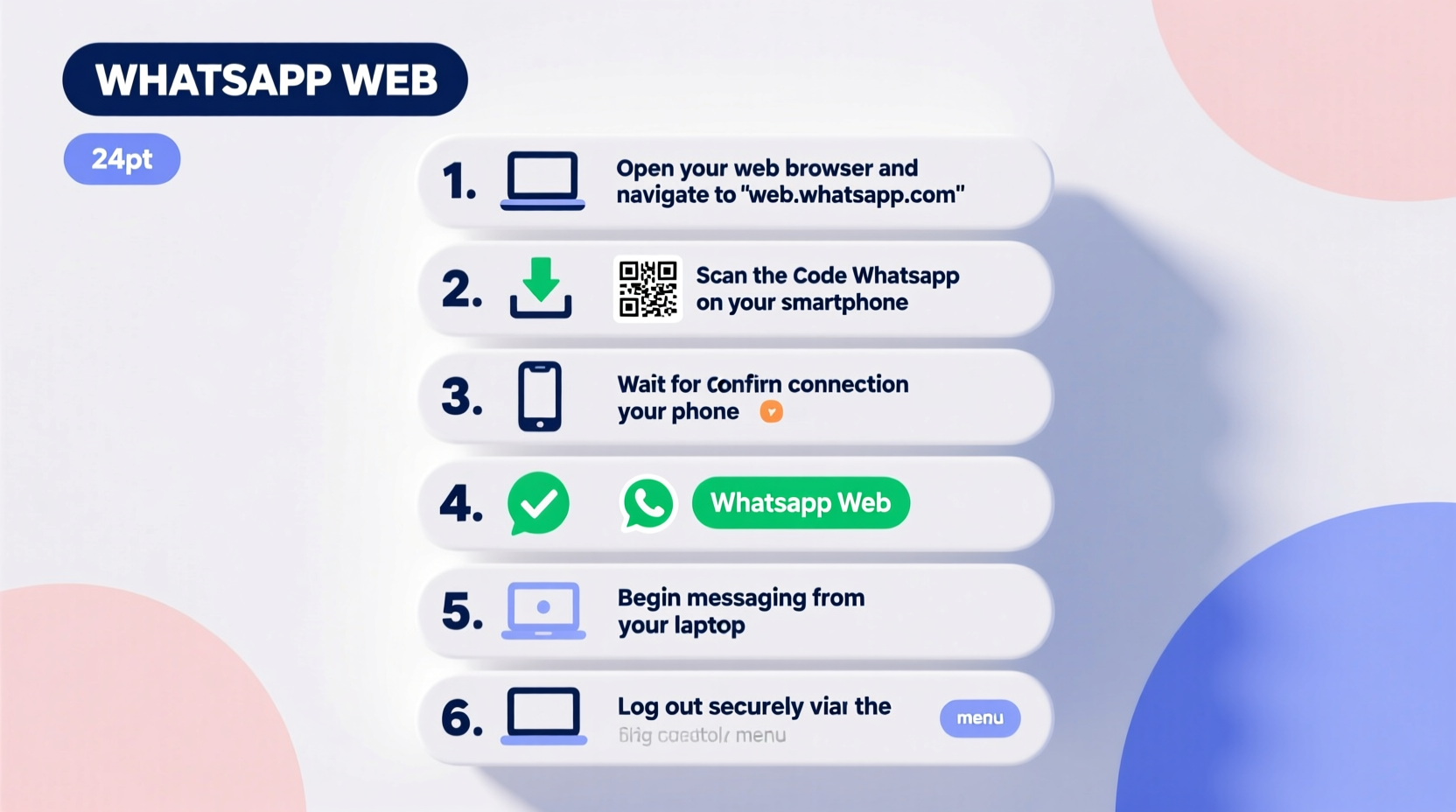
While smartphones remain the primary device for WhatsApp, switching to a laptop offers tangible benefits. Typing long messages is faster on a physical keyboard. Managing group chats, sending documents, and participating in video calls become more efficient with a larger screen and better audio output. Additionally, multitasking between WhatsApp and other work applications—like email or spreadsheets—reduces context switching and improves workflow.
WhatsApp’s desktop version mirrors your mobile account in real time. Messages, media, and contacts stay synchronized without duplication or delay. Because it relies on your phone's connection, no data is stored directly on the laptop, preserving privacy and security.
“Using WhatsApp Desktop significantly reduces strain during prolonged messaging sessions, especially for remote teams.” — Daniel Reeves, Remote Work Consultant
Step-by-Step: Downloading and Installing WhatsApp on Windows and macOS
The official WhatsApp desktop application is available for both Windows (7 and later) and macOS (10.9 and later). It does not require any additional software like emulators or Android simulators. Follow this timeline to get started:
- Visit the Official Website: Open your browser and go to https://www.whatsapp.com/download.
- Select Your Operating System: The page automatically detects your OS. If not, manually choose between “Windows” or “Mac” under the “Desktop” section.
- Download the Installer: Click the download button. The file will be named
WhatsAppSetup.exe(Windows) orWhatsApp.zip(Mac). - Run the Installer: On Windows, double-click the .exe file and follow the prompts. On Mac, extract the ZIP file, drag WhatsApp into the Applications folder, then open it.
- Launch the App: Once installed, open WhatsApp from your Start menu (Windows) or Applications folder (Mac).
Linking Your Phone to WhatsApp Desktop
After launching the app, you must link it to your smartphone via QR code authentication. This ensures only authorized devices can access your account.
- Open WhatsApp on your phone.
- Navigate to Settings > Linked Devices (on iOS) or More options > Linked devices (on Android).
- Select Link a Device.
- Point your phone’s camera at the QR code displayed on your laptop screen.
- Wait for confirmation. Once scanned, your chats will begin syncing instantly.
The linking process typically takes less than 10 seconds. If the scan fails, ensure good lighting, clean your phone’s camera lens, and refresh the QR code on the desktop app by clicking the circular arrow icon.
Understanding Linked Device Behavior
Your phone must remain connected to the internet for WhatsApp Desktop to function. However, you don’t need to keep your phone physically close—the connection works over Wi-Fi or cellular data. If your phone is off or disconnected for an extended period, the desktop app will show a warning but retain message history until reconnection.
| Action | Supported on Desktop? | Notes |
|---|---|---|
| Send text messages | Yes | Sent instantly; synced with phone |
| Make voice/video calls | Yes | Uses laptop microphone and speakers |
| Share files up to 2GB | Yes | Larger than typical email attachments |
| Use two-step verification | Yes | Set up via phone settings |
| Receive notifications when phone is off | No | Requires active phone connection |
Maximizing Productivity with WhatsApp Desktop Features
Once linked, the desktop interface provides nearly all features available on mobile. Here are key functionalities and how to use them effectively:
- Keyboard Shortcuts: Press Ctrl + N (or Cmd + N on Mac) to start a new chat. Use Ctrl + Shift + ] to navigate to the next chat.
- Drag-and-Drop File Sharing: Drag photos, PDFs, or videos directly into a chat window for instant upload.
- In-App Calling: Click the phone or video icon in any chat to initiate a call using your laptop’s webcam and mic.
- Notification Management: Right-click the WhatsApp icon in your system tray to mute specific chats or disable pop-ups during focus hours.
- Dark Mode: Enable dark theme via Settings > Theme to reduce eye strain during night usage.
Mini Case Study: Streamlining Customer Support
Sophie runs a small e-commerce store and uses WhatsApp to respond to customer inquiries. Previously, she managed messages solely from her phone, leading to delayed replies during business hours. After installing WhatsApp Desktop, she began handling messages alongside order processing tools. By using split-screen mode—one side for WhatsApp, the other for inventory management—she reduced response time by 60% and improved customer satisfaction scores within three weeks.
Troubleshooting Common Issues
Even with a stable setup, users may encounter occasional glitches. Below are common problems and verified solutions:
- QR Code Won’t Scan: Clear cache on your phone’s WhatsApp app, restart both devices, and retry. Avoid screenshot-based scanning attempts.
- No Notifications: Check system notification settings for WhatsApp and ensure \"Do Not Disturb\" isn't enabled.
- Messages Not Syncing: Re-link the device by logging out from desktop settings and repeating the pairing process.
- App Crashes on Startup: Update your operating system and reinstall WhatsApp Desktop using the latest installer.
Checklist: Setting Up WhatsApp on Laptop Successfully
- ✅ Confirm your laptop runs Windows 7+ or macOS 10.9+
- ✅ Visit whatsapp.com/download
- ✅ Download the correct version for your OS
- ✅ Install and launch the app
- ✅ Open WhatsApp on your phone and go to Linked Devices
- ✅ Scan the QR code shown on the laptop
- ✅ Test by sending a message from desktop
- ✅ Customize settings (notifications, theme, shortcuts)
Frequently Asked Questions
Can I use WhatsApp on my laptop without a phone?
No. WhatsApp Desktop requires an active mobile connection. The app mirrors your phone’s account and cannot operate independently.
Is WhatsApp Web the same as the Desktop app?
Functionally similar, but the desktop app offers better performance, native notifications, and offline access to recent messages. The standalone app is recommended over the browser version.
Are my messages safe on the laptop?
Yes. All messages are end-to-end encrypted. No chat data is stored permanently on your computer—everything syncs temporarily while your phone is online.
Conclusion: Take Control of Your Messaging Workflow
Integrating WhatsApp into your laptop environment transforms how you communicate—making it faster, safer, and more integrated with your digital workspace. From effortless file sharing to hands-free calling, the desktop experience complements mobile use without compromising security. With just a few minutes of setup, you gain access to a powerful tool that keeps you connected across devices.




 浙公网安备
33010002000092号
浙公网安备
33010002000092号 浙B2-20120091-4
Comments
No comments yet. Why don't you start the discussion?