
Google Sites is a powerful, user-friendly platform that allows educators, small business owners, and teams to build functional websites without coding. One of the most effective ways to boost engagement is by embedding videos—whether they’re instructional clips, product demos, or welcome messages. However, many users struggle with formatting issues, poor alignment, or broken embeds. This guide walks through the correct methods to embed videos into Google Sites with precision, ensuring they load quickly, appear correctly across devices, and enhance your site’s professionalism.
Why Video Matters on Your Google Site
Incorporating video content increases visitor retention and improves communication. A short explainer video can convey more information than several paragraphs of text. According to research from HubSpot, pages with video generate 50% more traffic on average. For schools, businesses, or portfolios hosted on Google Sites, embedding relevant videos adds credibility and keeps visitors engaged longer.
However, simply pasting a YouTube URL isn’t always enough. To maintain visual harmony and ensure responsiveness, proper embedding techniques are essential. The good news? You don’t need technical expertise—just attention to detail.
Supported Platforms and Requirements
Google Sites natively supports video embedding from select platforms. Understanding which services work—and how they integrate—can save time and prevent frustration.
| Platform | Direct Embed? | Requires Code? | Responsive Design Support |
|---|---|---|---|
| YouTube | Yes (via URL) | No | Yes |
| Vimeo | Limited | Yes (embed code) | Yes |
| Google Drive | Yes (shared link) | No | Moderate (depends on sharing settings) |
| Other Platforms (Wistia, Loom, etc.) | No | Yes (iframe required) | Variable |
Note: While Google Sites has improved its media handling, it does not support direct upload of MP4 or MOV files. All videos must be hosted externally and embedded via supported links or HTML code.
Step-by-Step Guide to Embedding Videos
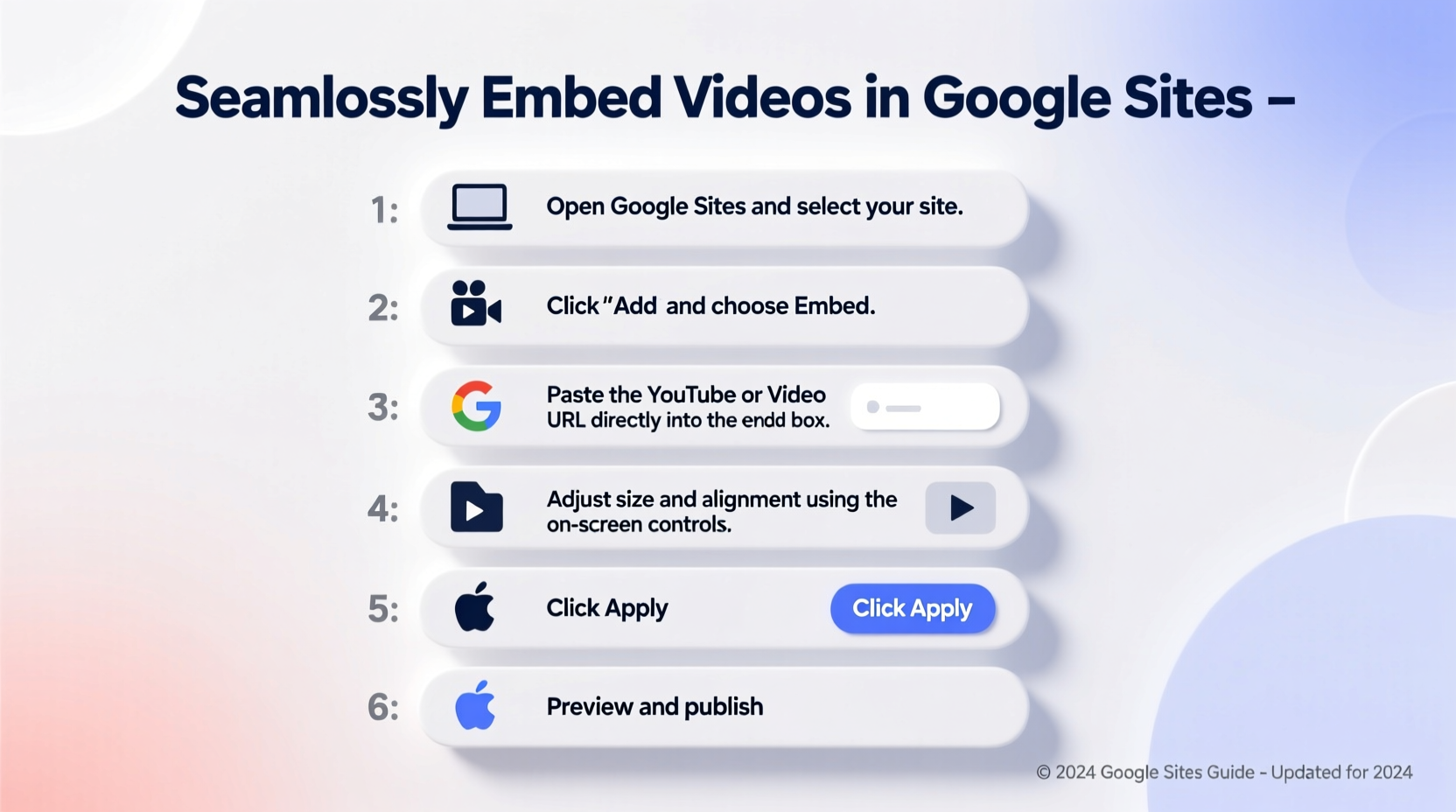
Follow this detailed process to embed videos correctly and avoid common pitfalls.
- Prepare Your Video Host
Upload your video to YouTube, Vimeo, or Google Drive. For internal team sites, Drive works well. For public-facing content, YouTube offers better analytics and SEO benefits. - Copy the Correct Link or Embed Code
- For YouTube: Open the video, click “Share” → “Copy link.” Use the full URL (e.g., https://www.youtube.com/watch?v=abc123).
- For Vimeo or other platforms: Click “Embed,” copy the full iframe code.
- For Google Drive: Right-click the file → “Get link” → Set sharing to “Anyone with the link” → Copy the link. - Open Your Google Site Editor
Navigate to the page where you want the video. Click the “+” icon to add a new content block and select “Video.” - Paste the URL or Embed Code
- If using YouTube or Drive: Paste the copied link directly into the prompt. Google Sites will auto-generate a preview.
- If using Vimeo or custom embed: Switch to “Embed” mode in the video tool and paste the iframe code. - Adjust Size and Alignment
After embedding, click the video to reveal size options. Choose from Small, Medium, Large, or Full Width. For best results on mobile, use “Medium” or “Large” to balance visibility and load speed. - Test Responsiveness
Use the preview function to view your site on desktop and mobile. Ensure the video scales properly and doesn’t overflow containers. - Publish and Monitor
Save changes and publish the site. Visit the live page to confirm the video loads and plays without errors.
“Properly embedded videos increase dwell time by up to 70%. But only if they’re optimized for fast loading and mobile compatibility.” — Sarah Lin, Web Experience Analyst at EduWeb Insights
Troubleshooting Common Issues
Even when following the correct steps, problems may arise. Here are frequent issues and their solutions:
- Video won’t load: Check sharing permissions. If using Google Drive, ensure the file is shared publicly or with “Anyone with the link.”
- Black screen or playback error: Some browsers block autoplay. Encourage viewers to click play manually. Also, verify the video isn’t age-restricted (YouTube).
- Video appears too small or stretched: Avoid dragging corners manually. Instead, use the built-in size presets in Google Sites for consistent scaling.
- Embed code not working: Google Sites filters certain iframe attributes. Remove width/height specifications or sandbox restrictions from the code before pasting.
Best Practices for Professional Results
To make your embedded videos look polished and function smoothly, follow these expert-backed strategies:
- Optimize Video Length
- Keep videos under 3 minutes for maximum engagement. Shorter clips perform better on informational pages.
- Add Contextual Text
- Place a brief description above or below the video explaining its purpose. Example: “Watch how our software streamlines daily workflows.”
- Use Thumbnails Strategically
- Custom YouTube thumbnails attract more clicks. Design clear, branded images with readable text.
- Consider Accessibility
- Enable captions and provide a transcript link nearby for hearing-impaired visitors and SEO improvement.
- ✅ Video uploaded and published on supported platform
- ✅ Sharing settings allow public access
- ✅ Correct link or clean embed code copied
- ✅ Embedded using Google Sites’ native video tool
- ✅ Size adjusted for responsive layout
- ✅ Tested on mobile and desktop
- ✅ Accompanied by descriptive text
Real-World Example: School Newsletter Site
Lincoln High School uses Google Sites for its monthly parent newsletter. The communications team wanted to include a principal’s message video each month but initially struggled with inconsistent playback and layout issues.
They followed the steps outlined here: uploading to YouTube as unlisted, using the shareable link in Google Sites, and selecting “Large” sizing. They also added a caption: “Principal James welcomes families to Q3 and shares upcoming events.”
Within two months, newsletter page views increased by 40%, and parents reported feeling more connected. The team now embeds student project highlights and event recaps using the same method, maintaining a cohesive, engaging site.
Frequently Asked Questions
Can I embed a video from my computer directly?
No. Google Sites does not support direct video uploads. You must host the file on YouTube, Google Drive, or another streaming platform first, then embed it using a link or code.
Why does my embedded video show a privacy error?
This usually happens when the source video is set to “Private” or “Restricted.” Change the sharing settings to “Anyone with the link” (Drive) or “Unlisted/Public” (YouTube) to resolve the issue.
Do embedded videos slow down my site?
Not significantly. Videos are loaded from external servers (like YouTube), so they don’t consume your site’s bandwidth. However, embedding multiple large videos on one page may affect perceived load time. Use them strategically.
Final Thoughts
Embedding videos in Google Sites is a simple yet transformative way to elevate your content. Whether you're teaching, marketing, or sharing stories, a well-placed video builds connection and clarity. By following structured steps, testing across devices, and applying best practices, you ensure a seamless experience for every visitor.




 浙公网安备
33010002000092号
浙公网安备
33010002000092号 浙B2-20120091-4
Comments
No comments yet. Why don't you start the discussion?