
Deleting an online account may seem straightforward, but doing it correctly—especially with a design platform like Canva that stores creative work, team collaborations, and personal data—requires careful planning. Many users assume deactivating or uninstalling the app removes their presence entirely. That’s not the case. To truly erase your digital footprint from Canva, you must follow a precise sequence of actions to ensure no data remains and no recurring charges occur.
This guide walks you through every essential phase: preparing your account, backing up critical files, canceling subscriptions, initiating deletion, and verifying permanent removal. Whether you're leaving due to privacy concerns, switching platforms, or simply no longer need the service, this process ensures your exit is secure and complete.
Why Permanent Deletion Matters
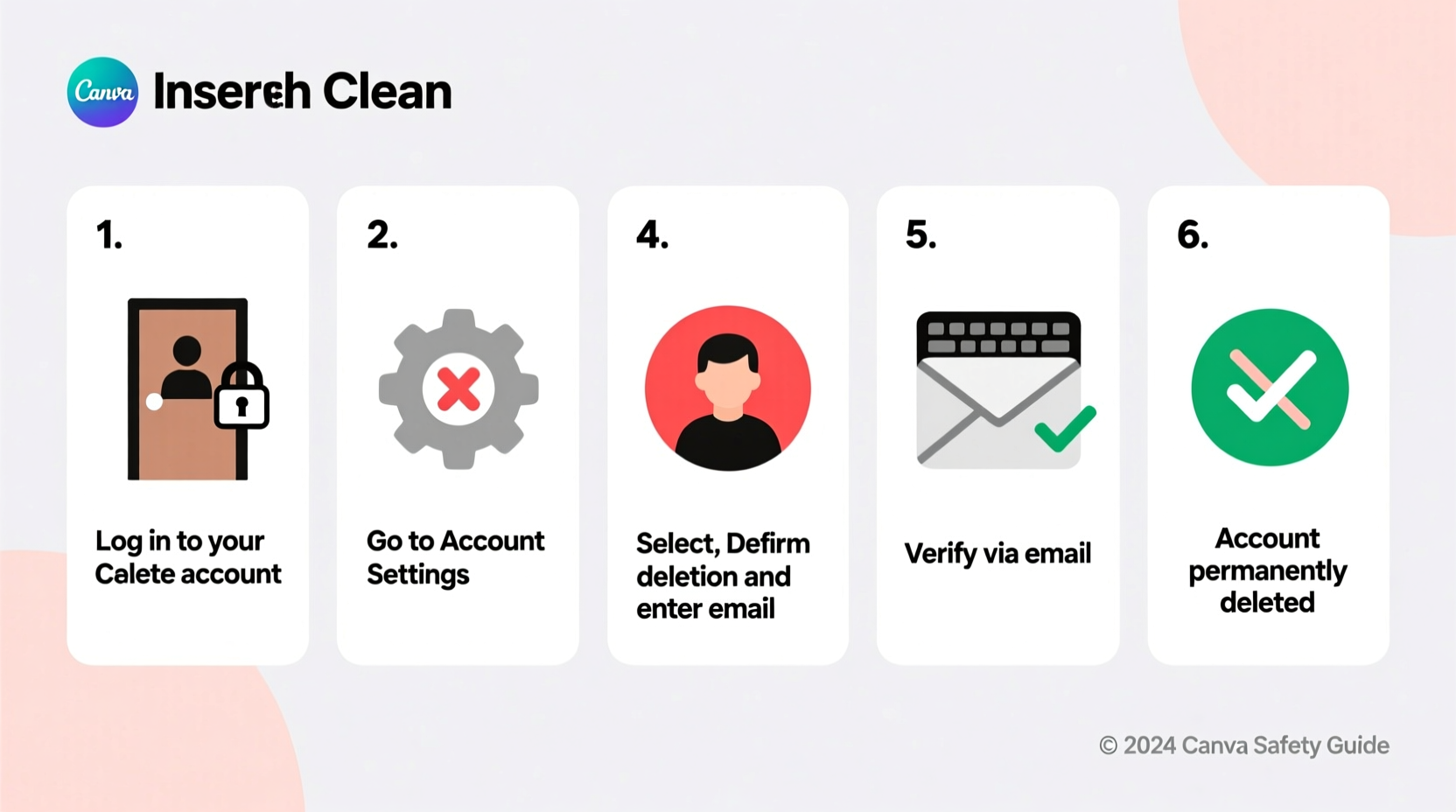
Leaving an account inactive doesn’t protect your data. Companies may retain user information for extended periods unless explicitly deleted. In Canva’s case, while free accounts may be deactivated after prolonged inactivity, personal details, uploaded assets, and designs could still reside on their servers. For those concerned about data privacy, intellectual property, or unwanted renewals, proactive deletion is non-negotiable.
The General Data Protection Regulation (GDPR) and similar privacy laws grant users the “right to be forgotten,” meaning companies must allow full data erasure upon request. Canva complies with these regulations, but the responsibility lies with the user to initiate the process correctly.
Step-by-Step Timeline to Delete Your Canva Account
Follow this chronological checklist to delete your Canva account without losing important files or incurring future charges.
- Back up all designs and media – Export and download any projects, brand kits, or custom fonts you want to keep.
- Cancel any active subscriptions – Prevent future billing by turning off auto-renewal.
- Remove connected apps and third-party integrations – Revoke access to Google Drive, Dropbox, or social platforms.
- Transfer ownership of team designs (if applicable) – Ensure collaborators aren’t locked out.
- Submit the account deletion request via Canva’s official form – This is the only way to trigger permanent removal.
- Confirm deletion via email – Click the verification link sent to your registered address.
- Wait 30 days for final processing – Canva retains data briefly to allow for recovery requests.
- Verify deletion by attempting to log in – A failed login confirms successful removal.
Data Backup: Securing Your Creative Work
Before initiating deletion, safeguard everything you’ve created. Canva does not provide automatic backups, and once your account is gone, recovery is impossible.
- Individual Designs: Open each project, click “Download,” and select PNG (for images), PDF (for print-ready files), or MP4 (for videos).
- Folders & Projects: Manually navigate through folders and repeat the download process for each file.
- Brand Kits: Go to Brand Hub, view your kit, and manually note down color codes, fonts, and logo usage guidelines.
- Uploads: Visit the “Uploads” tab and download original files (logos, photos, icons) one by one.
If you’re part of a Canva team, confirm whether files are owned by the team or your personal account. Team-owned items will remain accessible to other members, but your personal contributions tied to your profile should be exported first.
Subscription and Billing Cancellation
If you're on Canva Pro, Teams, or Enterprise, canceling your subscription is a separate action from deleting your account. Failing to cancel can result in continued charges even after deletion.
To cancel:
- Log into your Canva account.
- Navigate to Account Settings (click your profile icon > “Account”).
- Under “Subscription,” click “Manage Plan.”
- Select “Cancel Subscription” and follow the prompts.
- Choose a reason for cancellation and confirm.
You’ll retain full access until the end of your current billing cycle. After that, your account reverts to free tier—or, if you’ve requested deletion, it begins the removal process.
| Action | Required? | Timing | Notes |
|---|---|---|---|
| Cancel Subscription | Yes (if paid plan) | Before deletion request | Prevents future charges |
| Export All Files | Yes | Before deletion request | No recovery after deletion |
| Delete Account | Yes | After backup & cancellation | Use official Canva form only |
| Verify Deletion | Yes | After 30+ days | Attempt login to confirm |
Submitting the Deletion Request
Canva does not allow account deletion directly from the app or settings menu. Instead, you must use their dedicated privacy request form.
Visit: https://www.canva.com/help/contact-us/
Steps:
- Select “Privacy” as the topic.
- Choose “I want to delete my account” as the subject.
- Fill in your registered email address.
- Write a clear message stating your intent to permanently delete your account.
- Submit the form.
You’ll receive an automated response confirming receipt. Within 24–48 hours, Canva will send a verification email to your inbox. You must click the link in that email to confirm deletion. Without confirmation, the request is void.
“Users often overlook the confirmation step. The deletion isn’t processed until the verification link is clicked.” — Data Privacy Analyst, TechCompliance Weekly
Post-Deletion Verification and What Happens Next
After confirmation, Canva begins processing your request. According to their privacy policy, accounts and associated data are fully erased within 30 days. During this window, you can reverse the deletion by logging in.
After 30 days:
- All designs, uploads, and profile data are permanently deleted.
- Your username becomes available for others to claim.
- Email preferences and marketing consents are revoked.
- Any linked social media connections are severed.
To verify deletion:
- Wait at least 35 days after submitting the request.
- Attempt to log in using your old email and password.
- If you receive an error saying “We couldn’t find an account with that email,” deletion was successful.
Mini Case Study: Sarah’s Secure Exit from Canva
Sarah, a freelance graphic designer, used Canva Pro for client branding kits and social media templates. After switching to Adobe Express, she decided to close her Canva account. Initially, she canceled her subscription but didn’t realize her files were still stored.
Two weeks later, she received a renewal notice. Upon investigation, she found her subscription had reactivated due to a glitch. She then followed this guide: backed up 47 designs, canceled again via settings, submitted the deletion form, and confirmed via email. Thirty-five days later, she tested login access—unsuccessful. Her data was gone, and no further charges occurred.
Her experience highlights the importance of combining subscription management with formal deletion requests.
Frequently Asked Questions
Can I recover my account after deletion?
No. Once the 30-day window passes, all data is irreversibly erased. Recovery is only possible if you log back in before the period ends.
Will deleting my account cancel my subscription automatically?
No. You must manually cancel your subscription first. Otherwise, billing continues, and you may be locked out without recourse.
What happens to team designs I contributed to?
If the team workspace is separate from your personal account, your contributions remain unless they were saved under your personal ownership. Always transfer or export shared files before deletion.
Final Checklist Before You Proceed
✅ Backed up all designs in multiple formats ✅ Downloaded all uploaded logos, images, and videos ✅ Cancelled Canva Pro or Teams subscription ✅ Removed third-party app connections ✅ Submitted deletion request via Canva’s privacy form ✅ Confirmed deletion via email ✅ Verified account is gone after 30+ daysTake Control of Your Digital Presence
Your online accounts are extensions of your identity. Letting them linger indefinitely increases exposure to data breaches, unwanted tracking, and financial surprises. By following this guide, you don’t just delete a Canva account—you reclaim control over your digital life.
Start today. Back up your creativity, sever unnecessary ties, and close the chapter securely. If you found this guide helpful, share it with others who value privacy and intentionality in their tech use.




 浙公网安备
33010002000092号
浙公网安备
33010002000092号 浙B2-20120091-4
Comments
No comments yet. Why don't you start the discussion?