
In an era where digital identity is as valuable as physical assets, securing your social media accounts is no longer optional—it's essential. Facebook, one of the world’s largest social networks, holds vast amounts of personal data, from private messages to photos and contact information. A compromised account can lead to identity theft, financial fraud, or reputational damage. Two-factor authentication (2FA) is one of the most effective tools available to protect your account. Unlike passwords alone, which can be guessed, phished, or leaked, 2FA adds a second layer of verification that makes unauthorized access significantly more difficult.
Despite its importance, many users still haven’t enabled 2FA on their Facebook accounts. This guide walks you through the entire process—step by step—so you can lock down your account using trusted methods like authenticator apps, security keys, and SMS codes. You’ll also learn best practices, common pitfalls, and what to do if you lose access.
Why Two-Factor Authentication Matters
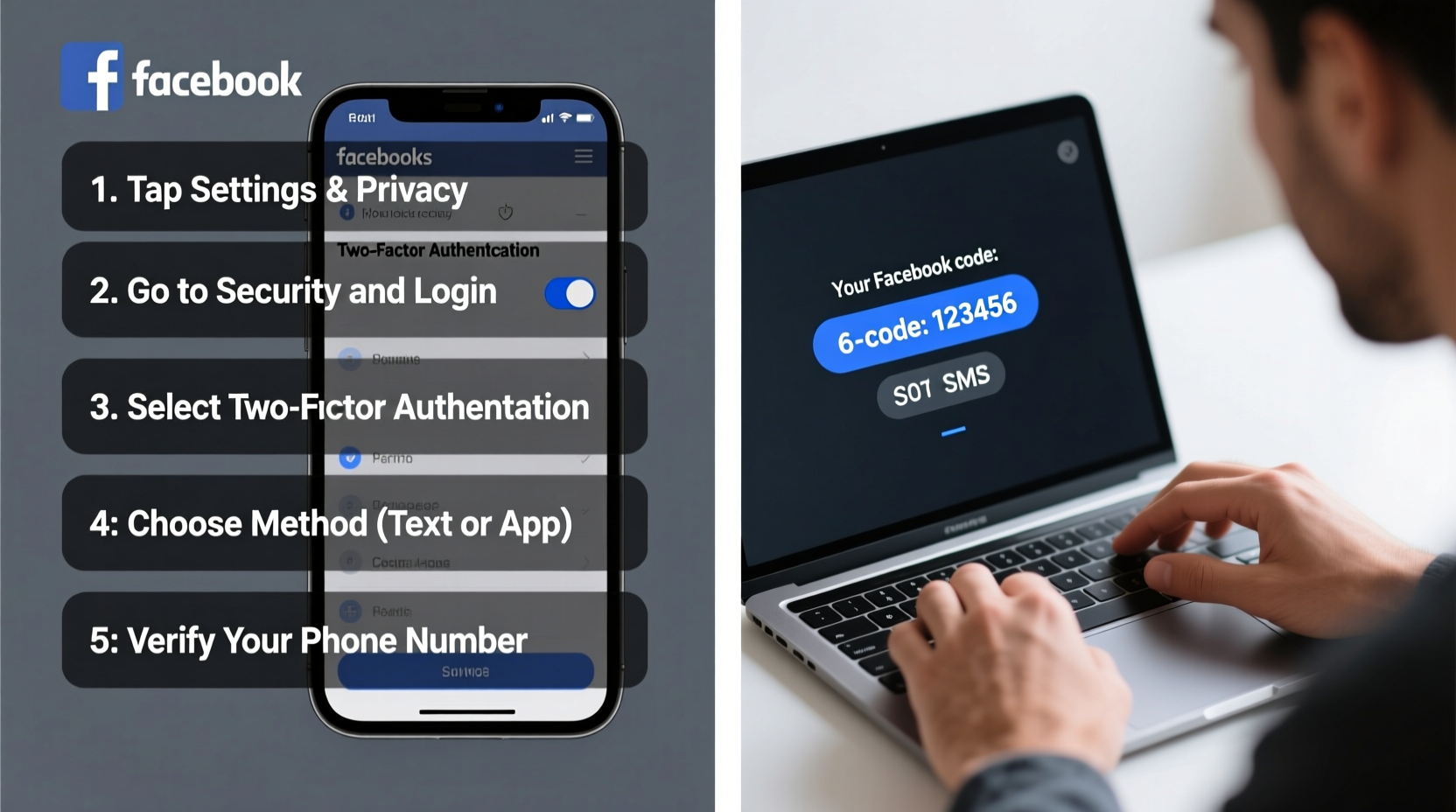
Passwords are inherently fragile. People reuse them across sites, choose weak ones, or fall for phishing scams. Even strong passwords can be exposed in data breaches. According to a 2023 report by the FBI’s Internet Crime Complaint Center, social media account takeovers increased by 45% year-over-year, with Facebook being among the most targeted platforms.
Two-factor authentication combats this by requiring not only something you know (your password) but also something you have (a phone, security key, or authentication app). This means that even if someone steals your password, they still can’t log in without the second factor.
“Two-factor authentication stops over 99% of automated attacks. It’s one of the simplest yet most powerful steps users can take.” — Kevin Mitnick, cybersecurity expert and former white-hat hacker
Step-by-Step: How to Enable 2FA on Facebook
Enabling two-factor authentication on Facebook is straightforward. Follow these steps whether you're using a mobile device or desktop computer.
- Log into your Facebook account using your current credentials.
- Navigate to Settings & Privacy > Settings.
- In the left-hand menu, click Security and Login.
- Scroll down to the section labeled Two-Factor Authentication and click Edit.
- You’ll be prompted to re-enter your password for verification.
- Select your preferred method of 2FA:
- Text Message (SMS)
- Authentication App
- Security Key
- Follow the on-screen instructions to set up your chosen method.
- Once configured, confirm that 2FA is now active.
Choosing the Right 2FA Method
Facebook supports multiple 2FA options. Each has pros and cons depending on your lifestyle and technical comfort level. Here’s a comparison to help you decide.
| Method | How It Works | Pros | Cons |
|---|---|---|---|
| SMS (Text Message) | Firebase sends a code via text to your registered phone number. | Easy to use; widely accessible. | Vulnerable to SIM swapping; requires cell service. |
| Authentication App (e.g., Google Authenticator, Authy) | Generates time-based codes every 30 seconds. | Offline access; more secure than SMS. | Requires app setup; lost device = lost access unless backed up. |
| Security Key (e.g., YubiKey) | Physical USB/NFC device you plug in or tap during login. | Highest security; immune to phishing. | Costs money; easy to lose; not all devices support it. |
For most users, combining an authentication app with a printed recovery code offers the best balance of security and convenience.
Real Example: Recovering Access After a Breach Attempt
Consider Maria, a freelance graphic designer who uses Facebook to manage client pages. One morning, she received an email from Facebook stating, “We prevented a login attempt from Ukraine.” Alarmed, she checked her recent activity and saw unfamiliar devices. Fortunately, she had enabled 2FA using Google Authenticator months earlier. The attacker had her password—but not the six-digit code generated by her phone. Maria changed her password immediately and reviewed her active sessions, logging out unknown devices.
Without 2FA, the story could have ended differently. Her accounts could have been hijacked, used to send spam, or leveraged to scam her clients. This real-world scenario underscores how 2FA acts as a critical safety net—even when your password is compromised.
Best Practices and Common Mistakes
Setting up 2FA is just the beginning. To ensure long-term protection, follow these best practices:
- Never share 2FA codes, even with people claiming to be from Facebook support.
- Use an authenticator app instead of SMS when possible—SIM swap attacks are increasingly common.
- Store recovery codes securely. Print them and keep them in a locked drawer or safe deposit box.
- Avoid using public Wi-Fi to access Facebook without a VPN, especially during login.
- Review login activity monthly under Settings > Security and Login > Where You're Logged In.
What to Do If You Lose Your 2FA Device
Losing your phone or security key doesn’t mean losing your account—if you’re prepared. Facebook provides several recovery paths:
- Use backup codes: When you set up 2FA, Facebook gives you 10 one-time-use codes. Keep these in a safe place.
- Trusted contacts: Designate three to five friends who can help you regain access by sending recovery codes.
- Account recovery form: Submit proof of identity through Facebook’s Help Center if other methods fail.
It’s wise to download and print your backup codes immediately after enabling 2FA. Store them separately from your devices—for example, in a home safe or with a trusted family member.
FAQ
Can I use more than one 2FA method at the same time?
Yes. Facebook allows you to enable multiple 2FA methods simultaneously—such as both an authenticator app and a security key. This provides redundancy and flexibility without compromising security.
Is SMS 2FA safe enough?
SMS is better than nothing, but it’s less secure than app-based or hardware methods. Carriers can transfer numbers via SIM swap scams, allowing attackers to intercept texts. For high-value accounts, avoid relying solely on SMS.
Will I need to enter a 2FA code every time I log in?
No. Facebook lets you mark devices as “trusted,” so you won’t be prompted repeatedly on those. However, new devices, browsers, or locations will trigger 2FA for verification.
Conclusion
Securing your Facebook account with two-factor authentication isn’t just a recommendation—it’s a necessity in today’s threat landscape. With just a few minutes of setup, you dramatically reduce the risk of unauthorized access, identity theft, and social engineering attacks. Whether you choose an authentication app, security key, or SMS, the key is consistency and preparation. Enable 2FA today, store your recovery options safely, and regularly audit your login activity.




 浙公网安备
33010002000092号
浙公网安备
33010002000092号 浙B2-20120091-4
Comments
No comments yet. Why don't you start the discussion?