
When you search for nearby restaurants, gas stations, or weather updates, Google relies heavily on your device’s location to deliver relevant results. But if your location settings are outdated or disabled, you might end up with inaccurate suggestions—like seeing cafes from a city you visited last week instead of the one you're in now. Ensuring Google has access to your correct location not only improves search accuracy but also enhances experiences across Maps, YouTube, and other Google services. This guide walks through the essential steps to update and manage your location settings effectively across devices.
Why Accurate Location Matters
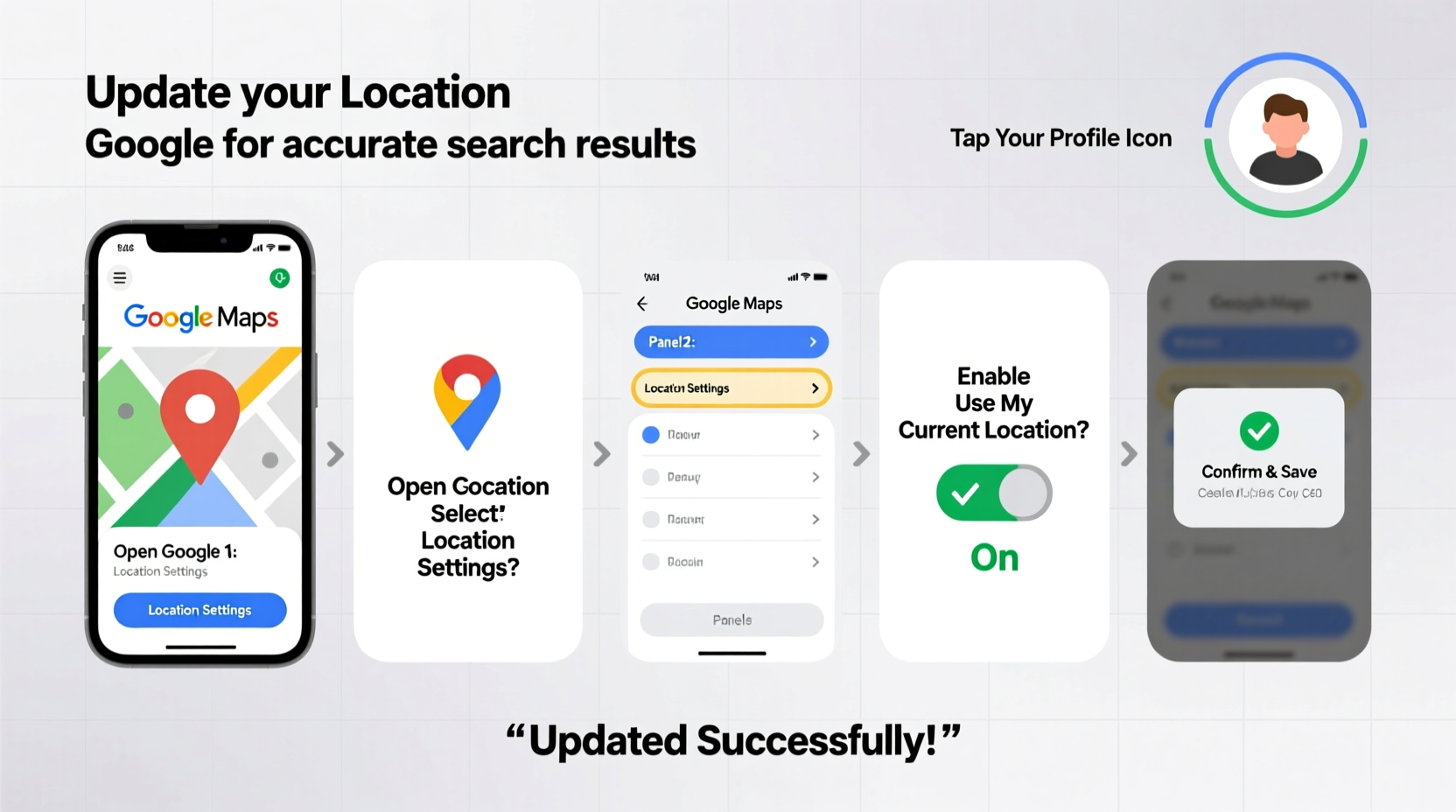
Google uses location data to personalize your digital experience. From traffic alerts during your commute to finding the nearest pharmacy in an emergency, precise location tracking is more than a convenience—it can be critical. However, many users either disable location services due to privacy concerns or fail to realize their settings have changed after a software update. The result? Generic or outdated search results that don’t reflect your current surroundings.
“Accurate location data allows Google to serve contextually relevant information, reducing search friction and improving user satisfaction.” — Dr. Lena Patel, UX Researcher at Mobile Insights Group
By actively managing your location permissions and understanding how Google interprets your position, you gain both precision and control over your online interactions.
Step-by-Step: How to Update Your Location on Android
Android devices offer granular control over location settings. Follow these steps to ensure Google apps use your most accurate position:
- Open the Settings app on your Android phone.
- Tap Location. If it's turned off, enable it.
- Select Mode or Location Services (varies by manufacturer).
- Choose High Accuracy. This setting uses GPS, Wi-Fi, mobile networks, and sensors to pinpoint your location.
- Return to Settings and go to Apps & Notifications > See All Apps.
- Find and select Google or Google Play Services.
- Tap Permissions > Location and set it to Allow all the time for full functionality.
- Open the Google app or Chrome, perform a search like “nearby coffee shops,” and check if results match your actual area.
Updating Location on iPhone and iOS Devices
iOS handles location differently, emphasizing user privacy while still allowing robust service integration. Here’s how to optimize it for Google searches:
- Go to Settings on your iPhone.
- Scroll down and tap Privacy & Security, then Location Services.
- Ensure Location Services is toggled On.
- Scroll down and find Google in the list of apps.
- Select While Using the App or Always for best results (note: \"Always\" may impact battery life).
- Also verify that System Services like Networking & Wireless are enabled under Location Services > System Services.
- Open Safari or the Google app and search “restaurants near me” to test accuracy.
If results still seem off, try turning Airplane Mode on for 10 seconds, then off again. This resets network connections and often triggers a fresh location fix.
Web Browser Location Settings (Chrome, Safari, Firefox)
Your browser must also grant permission for websites like Google.com to access your location. These settings override device-level controls when using web apps.
For Google Chrome:
- Navigate to chrome://settings/content/location.
- Ensure “Ask before accessing” is enabled.
- Check if google.com is listed under “Sites that can always use location.”
- If not, visit Google.com, perform a location-based search, and click “Allow” when prompted.
For Safari and Firefox:
Safari requires macOS/iOS location services to be enabled globally. In Firefox, go to Preferences > Privacy & Security > Permissions > Settings next to “Location,” and allow google.com.
| Browser | Enable Location Path | Common Issue |
|---|---|---|
| Chrome (Desktop) | Settings > Privacy > Site Settings > Location | Blocked by ad blocker extensions |
| Safari (Mac) | System Settings > Privacy > Location Services | Requires system-wide access |
| Firefox | Options > Privacy & Security > Location Settings | Must manually allow each site |
Real-World Example: Traveler Regains Local Search Accuracy
Sophie, a freelance designer traveling between Portland and Seattle, noticed her Google searches kept showing Seattle-based results even after arriving in Portland. She had used Google Maps extensively in Seattle but hadn’t interacted much since crossing state lines. After checking her Android settings, she discovered her location mode was set to “Battery Saving,” which relied solely on Wi-Fi and network data—insufficient for immediate updates. Switching to “High Accuracy” mode and restarting her phone corrected the issue within minutes. Her next search for “best brunch spots” returned local Portland cafes instantly.
This case highlights how subtle changes in location settings can disrupt real-time relevance—and how quickly they can be resolved with targeted adjustments.
Best Practices Checklist
To maintain consistently accurate search results, follow this checklist regularly:
- ✅ Enable device location services at the OS level.
- ✅ Set location mode to “High Accuracy” (Android) or “Precise Location” (iOS).
- ✅ Grant Google app location permissions (“Allow all the time” or “Always”).
- ✅ Allow website location access when prompted on Google.com.
- ✅ Reboot your device after major travel or network switches.
- ✅ Disable conflicting VPNs or proxies during local searches.
- ✅ Periodically clear browser cache related to location data.
Frequently Asked Questions
Why does Google show the wrong city even though I’m in a new location?
Google may rely on outdated Wi-Fi signals, IP address data, or cached location history. Ensure GPS is active and your device has a clear signal. Restarting the device or toggling Airplane Mode can prompt an immediate update.
Can I use Google without sharing my location?
Yes, but you’ll lose personalization. Without location access, Google defaults to broader regional results based on your IP address, which may not reflect your exact position. For optimal utility, temporary or “while-using” permissions strike a balance between privacy and performance.
Does incognito mode affect location accuracy?
Incognito mode doesn’t block location services by default. If permissions are granted, Google can still access your location. However, no search history is saved afterward, so predictive location improvements won’t accumulate over time.
Conclusion: Take Control of Your Digital Context
Accurate location isn’t just about convenience—it shapes how you interact with information, services, and communities around you. By taking a few deliberate steps to configure your device, app, and browser settings, you ensure that every search reflects where you truly are. Whether you're navigating a new city, looking for urgent services, or simply exploring local options, updated location settings empower smarter, faster decisions.




 浙公网安备
33010002000092号
浙公网安备
33010002000092号 浙B2-20120091-4
Comments
No comments yet. Why don't you start the discussion?