
LinkedIn is more than a professional networking platform—it’s a dynamic career tool that can open doors to recruiters, hiring managers, and industry leaders. While your profile acts as a living resume, uploading an actual resume file adds credibility and convenience for potential employers. More importantly, optimizing how that resume integrates with your profile increases your chances of being noticed. This guide walks you through the process of uploading your resume and fine-tuning your LinkedIn presence to maximize impact.
Why Upload Your Resume to LinkedIn?
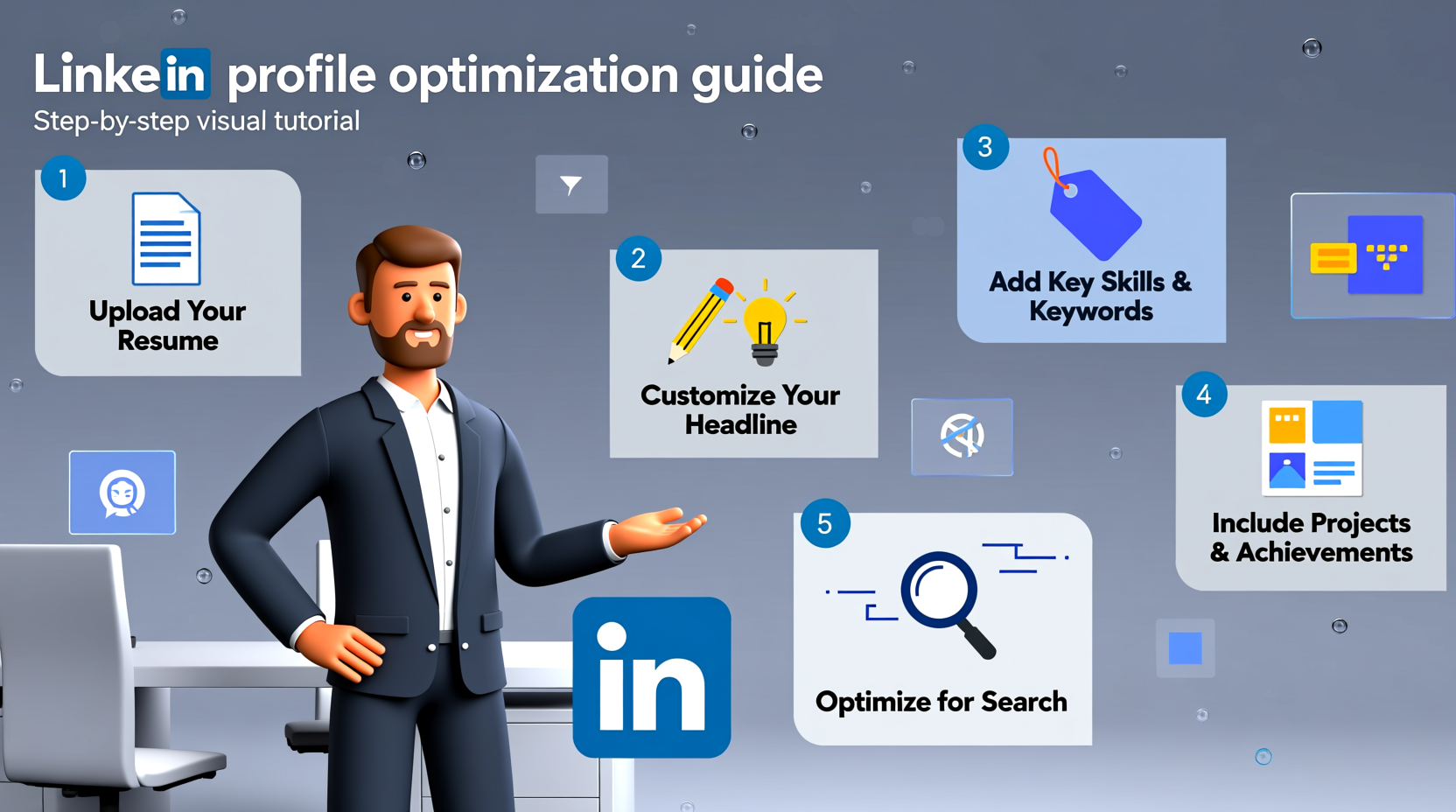
Many professionals assume their LinkedIn profile alone is enough. But adding a downloadable resume offers tangible benefits. Recruiters often prefer reviewing formatted documents, especially when comparing candidates or sharing profiles internally. A PDF or Word version of your resume gives them quick access without navigating your entire profile.
Additionally, having a resume uploaded increases your profile completeness score, which can boost visibility in search results. According to LinkedIn, members with complete profiles receive up to 40 times more profile views than those who don’t.
Step-by-Step: How to Upload Your Resume to LinkedIn
- Log into your LinkedIn account and navigate to your profile by clicking “Me” at the top of the homepage, then select “View Profile.”
- Scroll down to the “Featured” section. If you don’t see it, click “Add profile section” and expand “Recommended.” Choose “Featured” to add it to your profile.
- Click the + icon in the Featured section and select “Media.”
- Upload your resume file by dragging and dropping it or browsing your device. Supported formats include PDF, DOCX, PPTX, and image files.
- Add a title such as “Professional Resume – [Your Name]” and optionally include a short description like “Updated March 2025 | Full-stack Developer | React & Node.js Expertise.”
- Click “Save” to publish it directly to your profile.
The resume will now appear in your Featured section, visible to anyone visiting your profile. You can reorder or remove it at any time by editing the media item.
Optimize Your Resume for LinkedIn Visibility
Uploading is just the beginning. To get the most out of your resume on LinkedIn, align it strategically with your overall profile. Here’s how:
1. Mirror Keywords from Your Profile
Recruiters use keyword searches to find candidates. Ensure your resume includes the same core competencies, job titles, and skills listed in your headline, summary, and experience sections. For example, if your headline says “Digital Marketing Strategist | SEO & Content Growth,” make sure those terms appear naturally in your resume.
2. Keep Formatting Clean and Professional
Even though it's a document, your resume should reflect modern design standards. Avoid excessive colors, graphics, or columns that may distort when viewed on mobile. Use clear headings, bullet points, and consistent fonts (e.g., Calibri, Lato, or Arial).
3. Tailor It Slightly for Public Viewing
Unlike a resume sent directly to a company, this version is public-facing. Consider removing sensitive details like your home address or references. Instead, include your LinkedIn URL, portfolio link, or GitHub profile.
Do’s and Don’ts When Uploading Your Resume
| Do’s | Don’ts |
|---|---|
| Use a clear filename: e.g., \"John_Doe_Resume_FullStack.pdf\" | Use vague names like \"Resume_Final_v3.pdf\" |
| Update your resume every 3–6 months | Forget to update after changing jobs or gaining new certifications |
| Include measurable achievements (e.g., “Increased conversion by 30%”) | Rely solely on job duties without showing impact |
| Upload in PDF format for universal compatibility | Submit editable .doc files that may display incorrectly |
| Pin your resume at the top of the Featured section | Bury it under multiple posts or articles |
Real Example: From Inactive to Interview-Ready
Samantha, a project manager in Austin, had a basic LinkedIn profile but wasn’t getting recruiter messages. After attending a career workshop, she uploaded a polished resume to her Featured section, rewrote her headline to “Certified ScrumMaster | Agile Project Leader | Driving On-Time Delivery,” and added metrics to her experience.
Within two weeks, her profile views increased by 70%. A tech recruiter from a mid-sized SaaS company found her through a keyword search for “Agile PM” and reached out using the resume she’d uploaded. She landed an interview—and eventually a new role—with minimal outreach effort.
“Your LinkedIn profile isn’t just a digital business card—it’s a discoverability engine. The resume you upload becomes proof of your claims.” — Marcus Reed, Talent Acquisition Lead at TechForward Inc.
Checklist: Optimize Your LinkedIn Resume Upload
- ✅ Format your resume as a clean, one- to two-page PDF
- ✅ Use a professional filename (e.g., FirstName_LastName_Role.pdf)
- ✅ Upload it to the “Featured” section of your profile
- ✅ Align keywords with your headline, summary, and skills
- ✅ Remove overly personal information (address, ID numbers)
- ✅ Add a call-to-action or link to your online portfolio
- ✅ Pin the resume so it appears first in the Featured section
- ✅ Review and refresh every quarter
Frequently Asked Questions
Can employers see when I last updated my resume on LinkedIn?
No, LinkedIn does not display timestamps for uploaded media. However, including the date on your resume (e.g., “Updated: April 2025”) helps signal freshness.
Should I upload multiple versions of my resume?
If you’re targeting different roles (e.g., marketing vs. analytics), consider uploading separate resumes labeled clearly—such as “Marketing Resume” and “Data Analysis Resume.” Just ensure they’re relevant to your stated expertise.
Is it safe to make my resume public on LinkedIn?
Yes, as long as you omit sensitive data like your Social Security number, home address, or private email. Use a professional email and consider creating a dedicated one for job searches.
Maximize Your Professional Presence
Uploading your resume to LinkedIn is a small action with significant ripple effects. When done thoughtfully, it reinforces your credibility, improves searchability, and streamlines the hiring process for both you and recruiters. Pairing a well-formatted resume with a strong, keyword-rich profile turns passive browsing into active opportunity generation.
Remember, your LinkedIn profile is not static. Treat it like a personal brand dashboard—update it regularly, refine your messaging, and ensure your resume reflects your latest achievements. The next job offer might come from someone who saw your resume pinned right at the top of your profile.




 浙公网安备
33010002000092号
浙公网安备
33010002000092号 浙B2-20120091-4
Comments
No comments yet. Why don't you start the discussion?