
Every time you log into your bank account, submit personal information, or shop online, you're trusting that the website is secure. One of the most critical safeguards in this process is the SSL (Secure Sockets Layer) certificate. It encrypts data between your browser and the server, ensuring no third party can intercept sensitive details. But not all SSL certificates are created equal — some may be expired, self-signed, or issued to suspicious domains. Knowing how to verify an SSL certificate empowers you to browse safely and avoid falling victim to phishing or man-in-the-middle attacks.
Why SSL Verification Matters
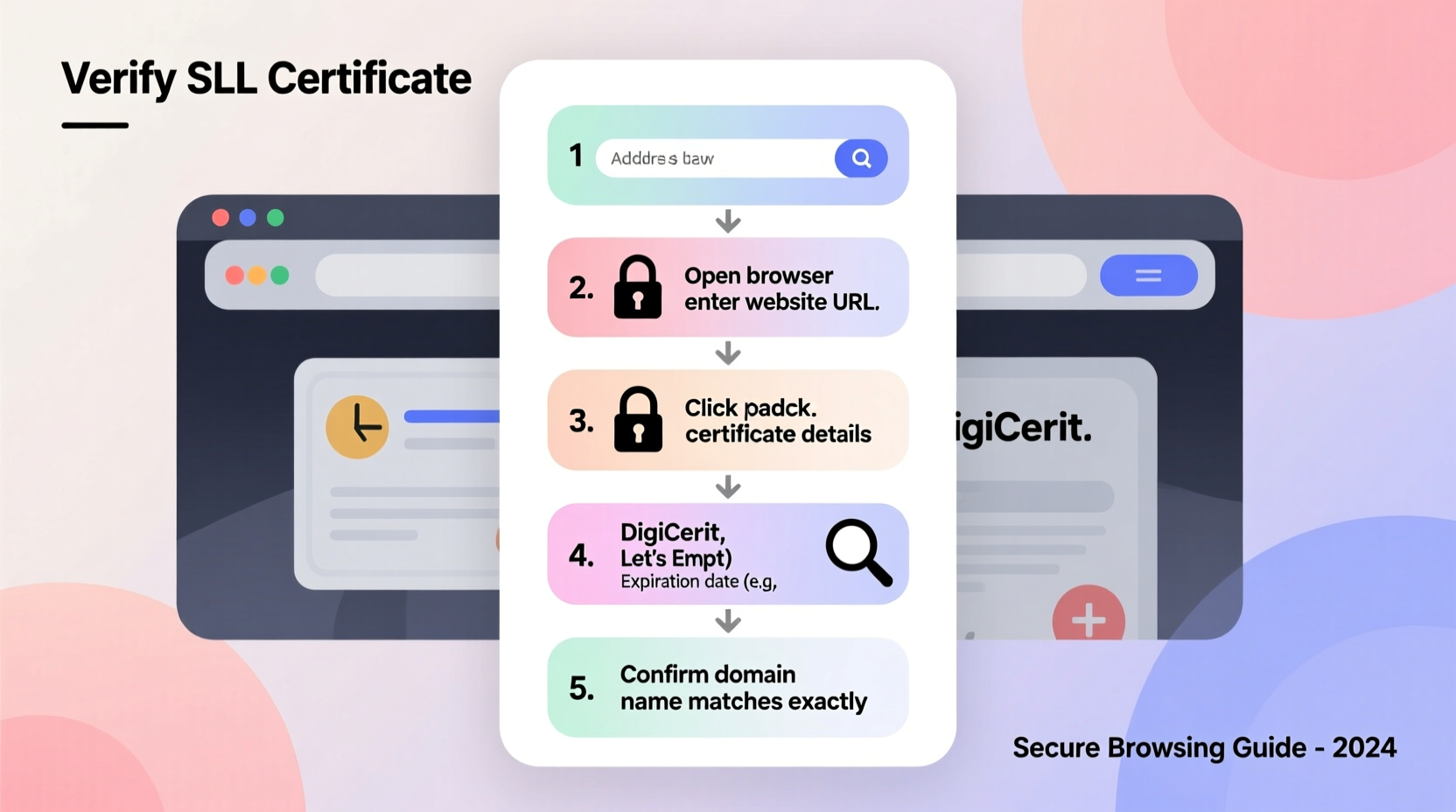
SSL certificates are digital passports that authenticate a website’s identity and enable encrypted communication. When properly configured, they form the backbone of HTTPS — the secure version of HTTP. However, cybercriminals often use fake or improperly issued certificates to mimic legitimate sites. A padlock icon in the address bar doesn’t guarantee safety; it only means encryption exists, not that the site is trustworthy.
Verifying an SSL certificate allows you to confirm:
- The website owner is who they claim to be
- The certificate was issued by a trusted Certificate Authority (CA)
- The certificate hasn't expired
- The domain matches exactly what you intended to visit
“Encryption without verification is like locking your door but handing the key to a stranger.” — Dr. Lena Torres, Cybersecurity Researcher at Stanford University
Step-by-Step Guide to Verifying an SSL Certificate
Whether you're using Chrome, Firefox, Safari, or Edge, the process of inspecting an SSL certificate is straightforward. Follow these steps to manually verify any website’s certificate:
- Navigate to the website – Open the site you want to verify (e.g., https://yourbank.com).
- Click the padlock icon – Located in the left side of the address bar, this indicates an active SSL connection.
- Select “Certificate” or “Connection is secure” – In most browsers, clicking the padlock reveals a menu. Choose the option that leads to certificate details (e.g., “Certificate (valid)” in Chrome).
- Review the certificate window – This displays technical information including the issuer, subject, validity period, and public key.
- Check the “Issued To” field – Ensure the “Common Name” or “Subject Alternative Names” match the domain you’re visiting.
- Verify the “Issued By” authority – Confirm it comes from a recognized CA such as DigiCert, Let's Encrypt, Sectigo, or GlobalSign.
- Inspect validity dates – The current date must fall within the “Valid from” and “Valid to” range.
- Look for certificate hierarchy – Trusted certificates include a chain: Root CA → Intermediate CA → Website Certificate. All should be valid.
What to Watch For
During inspection, red flags include:
- Domain mismatch (e.g., certificate issued to “example.org” but you’re on “yourbank.com”)
- Self-signed certificate (not issued by a trusted CA)
- Expired or not-yet-valid certificate
- Unrecognized issuer or vague organization name
Using Online Tools for Deeper Analysis
While browser-based checks are sufficient for casual users, advanced tools provide deeper insights into certificate health, configuration issues, and vulnerabilities. These services scan the entire SSL stack and report potential weaknesses.
| Tool | Key Features | Best For |
|---|---|---|
| SSL Labs (Qualys) | Grades encryption strength, protocol support, and misconfigurations | Comprehensive security audit |
| DigiCert Certificate Utility | Analyzes local and remote certificates, exports details | IT administrators and developers |
| crt.sh | Searchable database of public SSL certificates | Checking if a domain has unexpected certificates |
For example, running your bank’s website through SSL Labs might reveal outdated protocols like TLS 1.0 still enabled — a known risk. Or, using crt.sh could show that multiple certificates exist for subdomains you didn’t recognize, indicating possible shadow IT or malicious setups.
Real-World Example: Spotting a Phishing Attempt
Sarah received an email appearing to be from her credit union, urging her to update her account information. The link led to https://secure.creditunion-banking.com. At first glance, the padlock was visible and the design looked authentic. But when she clicked the padlock and viewed the certificate, she noticed:
- Issued To: Common Name = *.cloud-service-login.net
- Issued By: Let's Encrypt, but covering a generic cloud domain
- No official credit union name in the organization field
Sarah realized this wasn’t her actual bank’s domain. She reported the site and avoided entering her credentials. This simple verification prevented a potential breach of her financial data.
Essential SSL Verification Checklist
Use this checklist whenever you need to validate a website’s SSL certificate — especially for sensitive activities like online banking, shopping, or logging into work accounts.
- ✅ Padlock icon is present in the address bar
- ✅ URL begins with
https:// - ✅ Domain name matches exactly (watch for typos like “paypa1.com”)
- ✅ Certificate is issued by a trusted Certificate Authority
- ✅ “Issued To” includes the correct organization name
- ✅ Certificate is currently valid (not expired)
- ✅ No browser warnings or error messages appear
- ✅ Certificate chain is complete and trusted
Frequently Asked Questions
Can a website have HTTPS without being safe?
Yes. HTTPS ensures encryption, but not legitimacy. Malicious sites can obtain valid SSL certificates through automated issuers like Let's Encrypt. Always verify the domain and issuer independently.
What does a self-signed certificate mean?
A self-signed certificate is created by the website owner without third-party validation. While it enables encryption, browsers mark it as untrusted because there’s no external verification of identity. Avoid entering sensitive data on such sites unless you’re certain of their authenticity (e.g., internal company tools).
How often do SSL certificates expire?
As of 2020, most publicly trusted SSL certificates are valid for up to 13 months (397 days). Some organizations renew every 90 days for better security control. Automated renewal systems help prevent lapses that lead to downtime or warnings.
Staying Ahead of Digital Threats
In an era where digital impersonation is increasingly sophisticated, relying solely on visual cues like the padlock symbol is no longer enough. Cybercriminals exploit trust in HTTPS by deploying valid certificates on fraudulent domains. Taking a few extra seconds to verify a certificate builds a strong defense against credential theft, financial fraud, and data leaks.
Organizations should also educate employees on these practices, especially those handling customer data or accessing internal systems remotely. Browser extensions like “HTTPS Everywhere” can help enforce secure connections, but human verification remains the final line of defense.
“The weakest link in cybersecurity is often the assumption that ‘secure’ means ‘safe.’ True security requires both technology and vigilance.” — Mark Rivera, Senior Security Analyst at NIST
Take Control of Your Online Safety Today
Verifying an SSL certificate isn’t just for IT professionals — it’s a fundamental skill for anyone who uses the internet. Whether you're checking your email, paying bills, or signing into social media, taking a moment to inspect the certificate adds a powerful layer of protection. Start practicing this habit today. Share this knowledge with friends and family. The more people who know how to verify SSL, the harder it becomes for attackers to succeed.




 浙公网安备
33010002000092号
浙公网安备
33010002000092号 浙B2-20120091-4
Comments
No comments yet. Why don't you start the discussion?