
In today’s digital-first world, a high-quality monitor is no longer a luxury—it’s a necessity. Whether you're editing photos, managing spreadsheets, gaming, or streaming content, a display with sharp clarity enhances productivity, comfort, and enjoyment. But premium resolution and color accuracy don’t have to come with a premium price tag. A new wave of budget-friendly monitors now offers 1080p and even 1440p resolution, wide viewing angles, and excellent color reproduction—all under $300. The key is knowing what features matter most and where to look.
What Defines Clear Picture Quality?
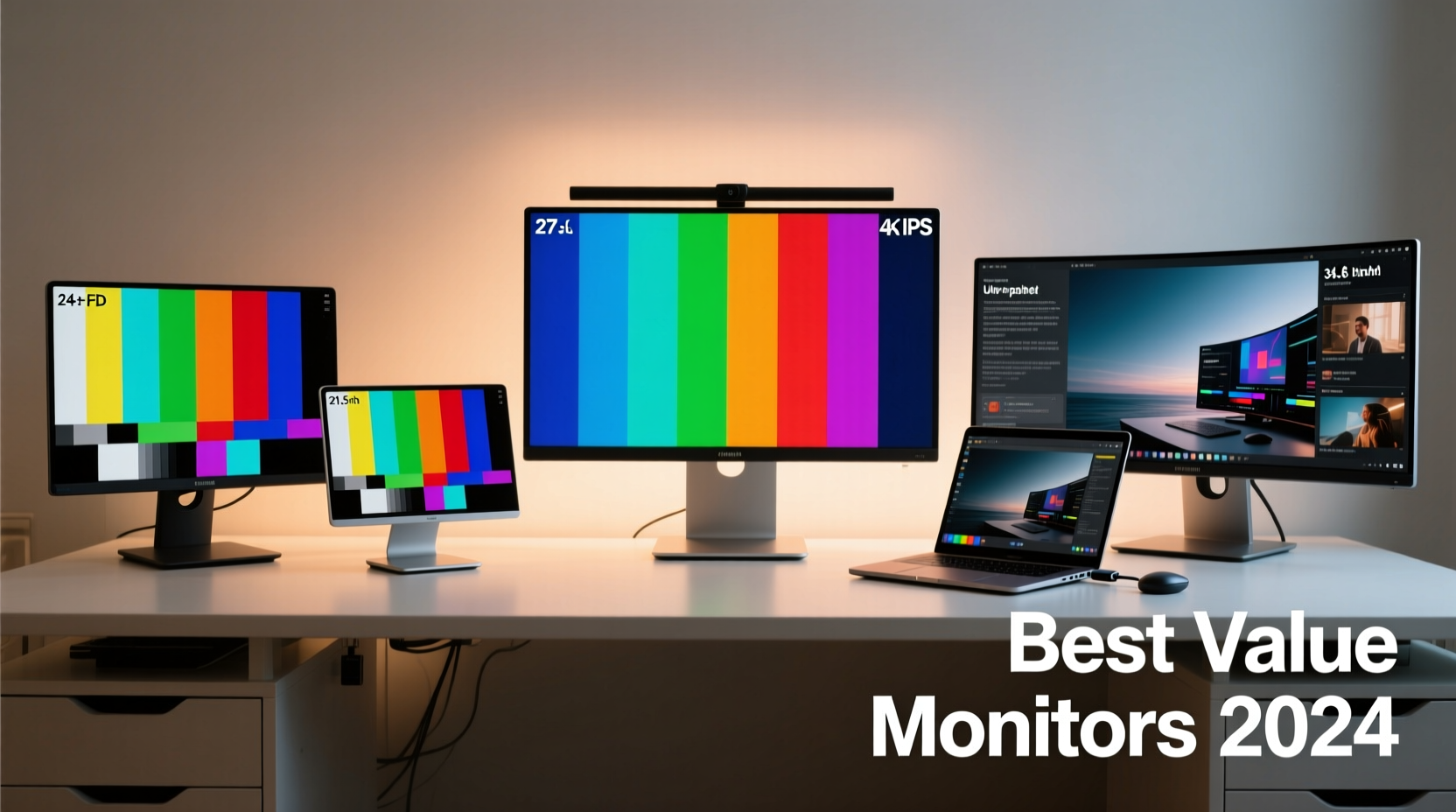
Clear picture quality isn't just about high resolution. It's a combination of several technical factors working in harmony:
- Resolution: At minimum, 1920x1080 (Full HD) ensures sharp text and detailed images. For larger screens (27 inches and up), 2560x1440 (QHD) delivers noticeably better clarity.
- Panel Type: IPS (In-Plane Switching) panels provide superior color accuracy and wider viewing angles compared to TN or VA, making them ideal for creative work and shared viewing.
- Color Accuracy: Look for monitors covering at least 99% sRGB. This ensures colors appear true-to-life, essential for photo editing or design tasks.
- Contrast Ratio: Higher contrast means deeper blacks and more vibrant images. While VA panels often lead here, modern IPS models have closed the gap significantly.
- Pixel Density (PPI): Measured in pixels per inch, higher PPI reduces screen-door effects and makes text smoother, especially on smaller displays.
Top 5 Affordable & Versatile Monitors with Excellent Clarity
The following models balance price, performance, and versatility across work, entertainment, and light creative use. All are priced under $300 and widely available through major retailers.
| Model | Size & Resolution | Panel Type | Key Features | Price Range |
|---|---|---|---|---|
| Dell S2421HS | 23.8\" FHD (1920x1080) | IPS | Thin bezels, flicker-free, TÜV-certified for eye comfort | $150–$180 |
| AOC 24B2XH | 23.8\" FHD | IPS | USB-C connectivity, height-adjustable stand, low blue light mode | $160–$190 |
| LG 27QN880-B | 27\" QHD (2560x1440) | IPS | High pixel density, HDR10 support, Ergo stand compatibility | $260–$290 |
| ASUS VP249QGR | 23.8\" FHD | IPS | 144Hz refresh rate, Adaptive-Sync, near-frameless design | $170–$200 |
| ViewSonic VX2758-mhd | 27\" FHD | IPS | 144Hz, FreeSync, sleek design with minimal stand footprint | $180–$210 |
Each of these models excels in delivering crisp visuals for everyday users. The Dell and AOC options are ideal for office setups or dual-monitor configurations due to their compact size and clean aesthetics. Meanwhile, the LG 27QN880-B stands out with its QHD resolution—offering desktop real estate and clarity typically found in pricier models.
How to Choose Based on Your Use Case
Not all monitors serve every purpose equally. Consider your primary activities when selecting a model.
For Office Work & Web Browsing
Focus on ergonomics and readability. An anti-glare IPS panel with flicker-free backlighting reduces eye strain during long sessions. Models like the Dell S2421HS include built-in brightness intelligence that adjusts output based on ambient light—a subtle but valuable feature.
For Creative Tasks (Photo/Video Editing)
Color fidelity is critical. Prioritize monitors with factory calibration reports or those advertising 99% sRGB coverage. The LG 27QN880-B includes HDR10 support and consistent color across angles, making it a strong choice despite its modest price.
For Gaming
While 1080p may seem dated to some gamers, it remains the sweet spot for smooth performance on mid-tier GPUs. Look for 144Hz refresh rates and AMD FreeSync support. The ASUS VP249QGR and ViewSonic VX2758-mhd both offer fast response times and tear-free gameplay without requiring a high-end graphics card.
“Even budget monitors now deliver professional-grade clarity thanks to advancements in IPS technology and tighter manufacturing tolerances.” — Marcus Lin, Display Technology Analyst at TechInsight Labs
Step-by-Step Guide to Setting Up Your New Monitor
Getting the most from your monitor involves more than plugging it in. Follow this setup sequence to optimize picture quality:
- Position Correctly: Place the top of the screen at or slightly below eye level, about an arm’s length away.
- Use the Right Cable: For 1080p at 144Hz or QHD at 60Hz+, use DisplayPort or HDMI 2.0. Avoid older HDMI versions that limit bandwidth.
- Select Optimal Input Source: In the monitor’s on-screen menu, set input to match your cable (e.g., DisplayPort, HDMI 2).
- Adjust Brightness & Contrast: Start with default settings, then reduce brightness to 70–80% in normal lighting to avoid glare.
- Enable Presets: Choose “Standard” or “sRGB” mode for accurate colors; avoid “Vivid” or “Cinema” modes which oversaturate.
- Calibrate via Software: Use Windows’ built-in ClearType tuner or macOS Display Calibrator Assistant to fine-tune text rendering.
Mini Case Study: Remote Worker Upgrades Home Setup
Sophie, a freelance writer and editor, spent months using her aging 22-inch TN-panel monitor. Text appeared blurry, and colors looked washed out. After researching affordable upgrades, she purchased the AOC 24B2XH for $175. With its USB-C connection, she powers and docks her laptop with one cable. The IPS panel made a dramatic difference—text became razor-sharp, and her video calls looked clearer thanks to improved brightness and color. Within two weeks, she reported reduced eye fatigue and increased focus during writing sessions. The upgrade cost less than a week’s grocery budget but transformed her daily workflow.
Checklist: Before You Buy a Budget Monitor
- ✅ Confirm resolution matches screen size (avoid 1080p on anything over 27\")
- ✅ Verify panel type—prioritize IPS for clarity and viewing angles
- ✅ Check connectivity options (HDMI, DisplayPort, USB-C)
- ✅ Look for flicker-free backlight and low blue light modes
- ✅ Ensure VESA mount compatibility if wall-mounting or using a third-party arm
- ✅ Read recent user reviews focusing on dead pixels or backlight bleed
Frequently Asked Questions
Is 1080p still good for a 27-inch monitor?
At close viewing distances (under 2 feet), 1080p on a 27-inch screen can appear slightly pixelated. For optimal clarity, choose a 24-inch 1080p display or step up to 1440p at 27 inches. However, many users find 1080p acceptable for general tasks when seated farther back.
Do affordable monitors last as long as premium ones?
Yes, with proper care. LED backlights typically last 30,000–60,000 hours. Build quality has improved across brands, and even budget models now come with 3-year warranties. Avoid leaving static images on-screen for extended periods to prevent burn-in.
Can I use multiple budget monitors together?
Absolutely. Many professionals use dual 24-inch IPS monitors for multitasking. Match models as closely as possible for consistent color and brightness. Use cable management clips to keep connections tidy and reduce visual clutter.
Final Thoughts: Clarity Doesn’t Have to Be Costly
The idea that only expensive monitors deliver clear visuals is outdated. Today’s market offers exceptional value, with sub-$300 models providing IPS clarity, QHD resolution, and thoughtful features once reserved for高端 displays. By focusing on resolution, panel type, and intended use, you can select a monitor that enhances both productivity and pleasure—without overspending.




 浙公网安备
33010002000092号
浙公网安备
33010002000092号 浙B2-20120091-4
Comments
No comments yet. Why don't you start the discussion?