
When your AirPods go missing, the first instinct is to open the Find My app and locate them on a map. But what if they’re not showing up at all? This can be frustrating—especially when you're certain they’re nearby and charged. The good news is that in most cases, this issue isn’t permanent. With the right approach, you can usually get your AirPods reappearing in Find My within minutes. The problem often stems from connectivity glitches, outdated software, or incorrect settings rather than hardware failure.
This guide walks through the most effective, step-by-step solutions to fix AirPods not appearing in Find My. Whether you’re using AirPods (1st–3rd gen), AirPods Pro, or AirPods Max, these methods apply across models and devices. Let’s restore visibility and regain control over your lost or misplaced earbuds.
Why Your AirPods Might Not Appear in Find My
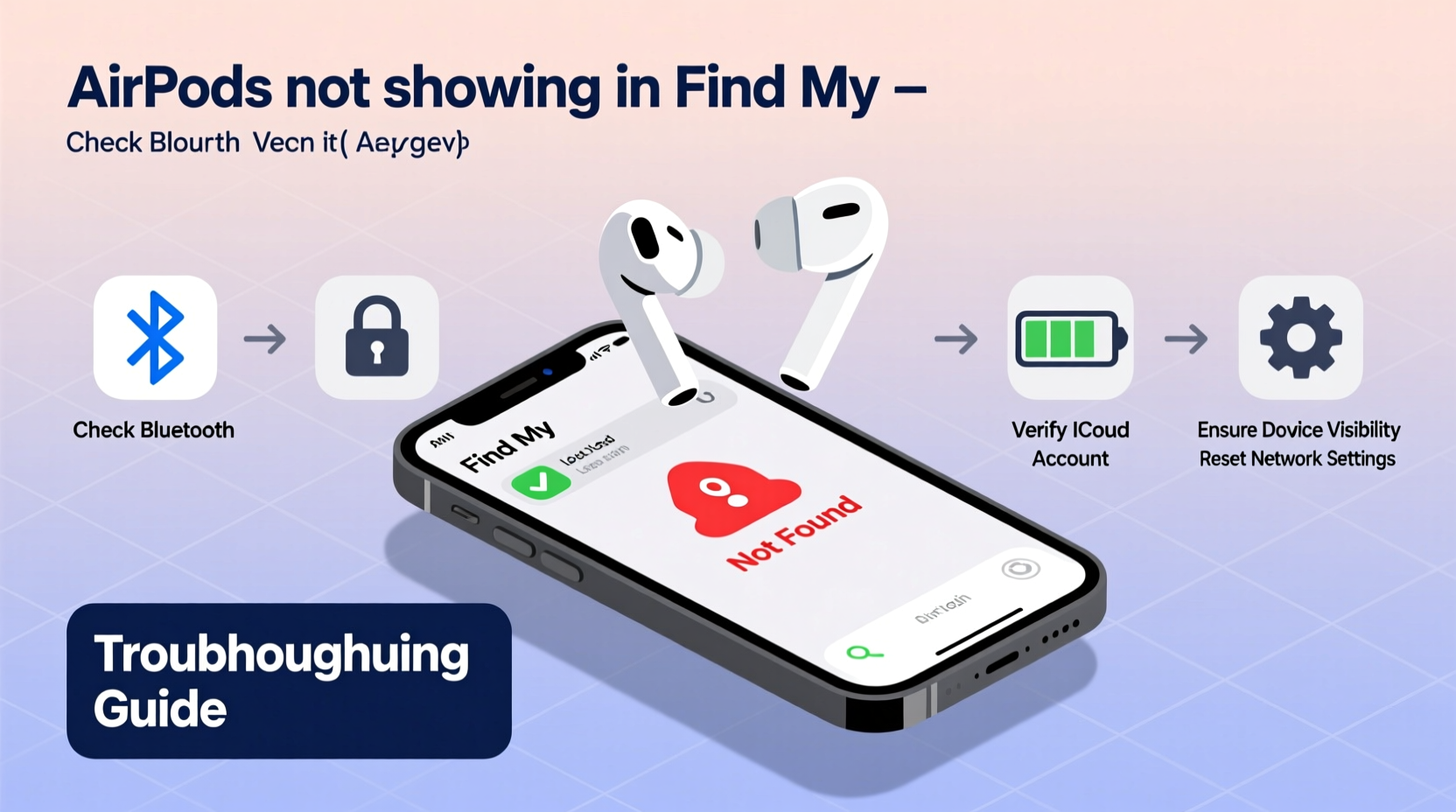
The Find My network relies on Bluetooth signals, iCloud syncing, and location services to pinpoint your AirPods. If any of these components fail, your earbuds won’t show up—even if they’re fully charged and within range.
Common reasons include:
- Bluetooth is turned off or disconnected on your device
- Find My is disabled for your AirPods
- Your AirPods are out of battery or out of range
- iCloud sync issues between devices
- Software bugs due to outdated iOS or firmware
- Accidental reset or unpairing of the AirPods
Before jumping into advanced fixes, confirm basic conditions: Are your AirPods charged? Is Bluetooth enabled? Are they within range of an Apple device signed into the same iCloud account?
Step-by-Step Troubleshooting Guide
Follow this logical sequence to diagnose and resolve the issue efficiently.
- Check Battery and Range
AirPods need power to transmit their location. If the battery is dead, charge them in the case for at least 15 minutes. Also, ensure they’re within Bluetooth range (approximately 30 feet) of an Apple device connected to your iCloud account. - Verify Find My Settings
On your iPhone or iPad, go to Settings > [Your Name] > Find My > Find My [Device]. Make sure both “Find My iPhone” and “Find My Network” are enabled. Then navigate to Settings > Bluetooth, tap the “i” icon next to your AirPods, and confirm that “Show in Find My” is toggled on. - Restart Your iPhone
A simple restart clears temporary system glitches. Press and hold the side button and either volume button, then slide to power off. Wait 30 seconds, turn it back on, and check Find My again. - Toggle Bluetooth and Wi-Fi
Turn Bluetooth off and on via Control Center or Settings. Do the same for Wi-Fi. This refreshes wireless connections and may prompt your AirPods to reconnect. - Re-pair Your AirPods
Open the AirPods case near your iPhone. Press and hold the setup button on the back of the case until the status light flashes white. Then reconnect them like new devices through the pop-up window. - Update Software
Ensure your iPhone runs the latest iOS version (Settings > General > Software Update). Outdated systems may fail to sync with the Find My network. Similarly, AirPods receive firmware updates automatically when connected to an updated iOS device. - Sign Out and Back Into iCloud
Go to Settings > [Your Name], scroll down, and tap “Sign Out.” Confirm and restart your device, then sign back in with your Apple ID. This forces a full iCloud sync, which can restore missing device listings.
Troubleshooting Checklist
✅ Quick Fix Checklist – Run Through These Steps First:
- Charge AirPods for at least 15 minutes
- Ensure Bluetooth is enabled on your iPhone/iPad
- Confirm “Show in Find My” is turned on in Bluetooth settings
- Restart your iPhone
- Toggle airplane mode on and off
- Check that Find My is enabled in iCloud settings
- Bring your iPhone close to the AirPods case
- Try viewing Find My from another Apple device
Do’s and Don’ts When Fixing Find My Issues
| Do | Don't |
|---|---|
| Keep your AirPods case charged regularly | Assume they’re lost immediately |
| Use the Find My app across multiple Apple devices | Reset network settings without trying simpler steps first |
| Update iOS and allow automatic AirPods firmware updates | Leave Bluetooth off for extended periods |
| Label your AirPods in Find My with a custom name | Factory reset unless absolutely necessary |
Real-World Example: Recovering \"Lost\" AirPods After a Software Glitch
Sarah, a freelance designer in Portland, couldn’t find her AirPods Pro after returning home from a café. She opened Find My, but they showed as “Offline” despite being nearby. She checked the case—it was charged. Her iPhone had Bluetooth on, but no connection.
She followed the checklist: restarted her phone, toggled Bluetooth, and reopened the case. Nothing changed. Then she remembered updating her iPhone the night before. She went to Settings > General > About and noticed a pending AirPods firmware update. After placing the AirPods in the case and connecting to her iPhone for 10 minutes, the firmware updated automatically. Within moments, the AirPods reappeared in Find My with a green dot indicating they were online.
Sarah played a sound, found them under a couch cushion, and confirmed that keeping devices updated prevents future dropouts.
“Many Find My issues stem from silent software mismatches—not physical loss. A quick sync or firmware update often resolves it.” — Jordan Lee, Apple Support Specialist
Advanced Fixes for Persistent Problems
If standard steps don’t work, consider these deeper interventions:
- Reset Network Settings: Go to Settings > General > Transfer or Reset iPhone > Reset > Reset Network Settings. This clears saved Wi-Fi, Bluetooth, and cellular configurations. After resetting, re-pair your AirPods.
- Use Another Apple Device: Log into the same iCloud account on a friend’s or family member’s iPhone. Open Find My there. Sometimes cross-device syncing reveals the AirPods even when your primary phone doesn’t.
- Check Last Known Location: If your AirPods were recently online, Find My may display their last known location on the map. Tap “Notify When Found” to receive an alert once they reconnect.
- Contact Apple Support: If none of the above works and you suspect hardware failure (e.g., damaged H1/W1 chip), schedule a Genius Bar appointment. Apple can test the case and AirPods for internal connectivity issues.
Frequently Asked Questions
Why do my AirPods show as “No Location Found”?
This message appears when your AirPods are out of range, powered off, or not communicating with any Apple device on the Find My network. They must connect to at least one iCloud-signed device via Bluetooth to report their location.
Can I track AirPods if they’re in the charging case?
Yes, as long as the case has battery and the AirPods are inside with the lid closed briefly. The case emits a Bluetooth signal periodically. However, if the case is completely dead, tracking stops until it’s charged.
What if I factory reset my AirPods?
Resetting erases pairing data and removes them from Find My temporarily. You’ll need to re-pair them to your device. Once paired again, Find My will resume tracking—provided the feature is still enabled.
Conclusion: Regain Control and Prevent Future Issues
Not seeing your AirPods in Find My doesn’t mean they’re gone for good. In most cases, the solution lies in reestablishing the digital handshake between your earbuds, your iPhone, and iCloud. By methodically checking settings, restarting devices, and ensuring software is up to date, you can restore visibility quickly.
Make it a habit to verify Find My settings after iOS updates, keep your case charged, and label your AirPods clearly in the app. These small actions save time and stress when they go missing. Technology should help you feel more in control—not add to the panic.




 浙公网安备
33010002000092号
浙公网安备
33010002000092号 浙B2-20120091-4
Comments
No comments yet. Why don't you start the discussion?