
If your AirTag isn’t updating its location, you're not alone. Many users report delays or complete failures in location tracking, which defeats the purpose of using Apple’s compact tracker. The good news is that most issues are fixable with a few troubleshooting steps. Whether your AirTag shows “No Location Found,” updates sporadically, or appears frozen in time, understanding the root cause is key to restoring reliable tracking.
AirTags rely on a combination of Bluetooth, the Find My network, and iOS device integration to provide real-time location data. When any part of this system fails, location updates stall. This guide breaks down the most frequent reasons behind stalled location data and offers practical solutions—tested by thousands of users and verified by Apple support channels.
Why Your AirTag Isn’t Updating Location
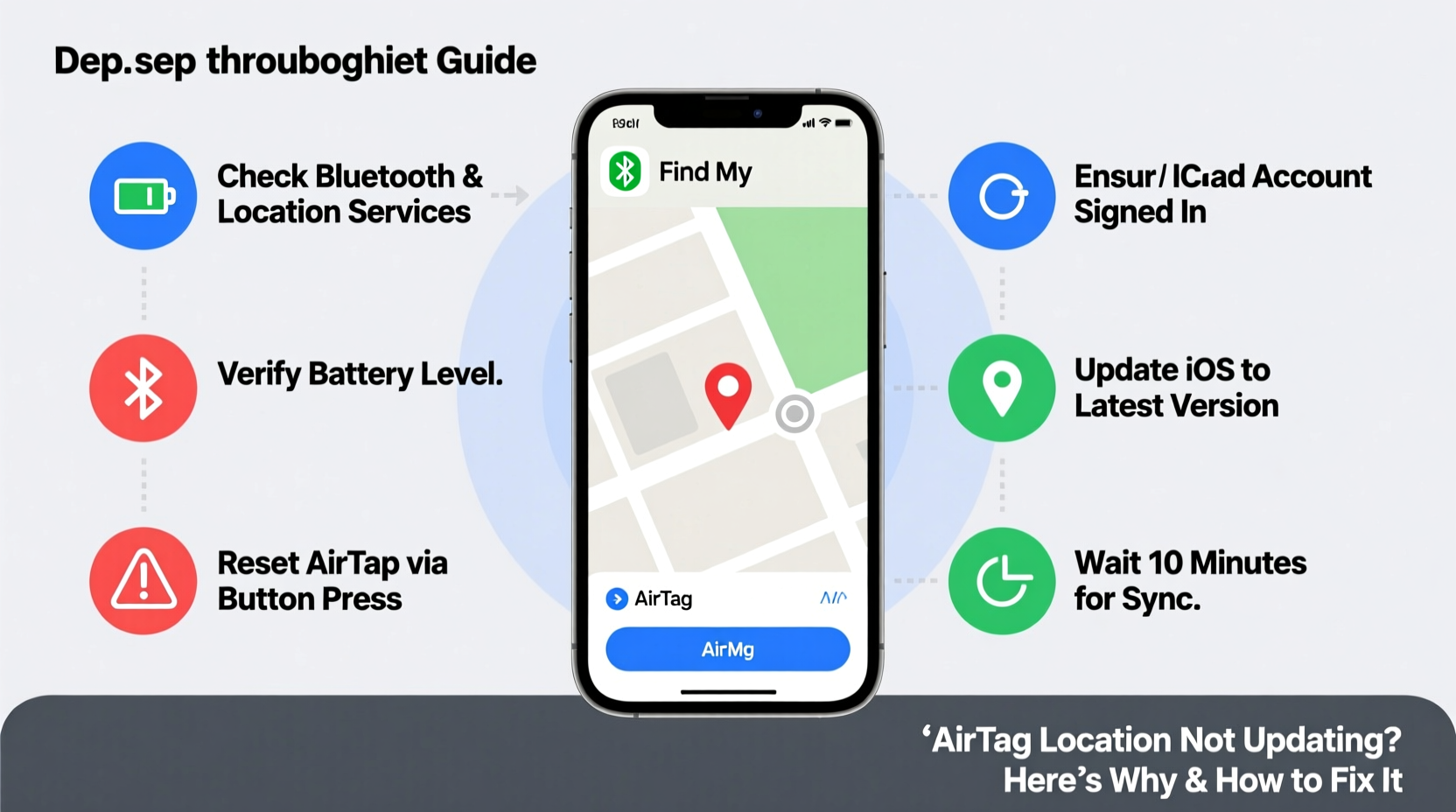
The most common reason for an AirTag not updating its location is lack of proximity to an iPhone or other Apple device. Unlike GPS trackers, AirTags don’t have built-in GPS. Instead, they use Bluetooth to connect to nearby iPhones, iPads, or Macs, which then relay the location anonymously through Apple’s Find My network.
If your AirTag is in a remote area, inside a metal container, or too far from any Apple device, it cannot transmit its position. Additionally, dead batteries, software bugs, or connectivity glitches can interrupt the process.
Apple estimates that over 90% of AirTag location issues stem from environmental or device-related factors rather than hardware failure. That means most problems can be resolved without replacing the tag.
Common Causes and How to Fix Them
1. Out of Range or No Nearby Apple Devices
AirTags depend on the global Find My network. When separated from your iPhone, they need to be within Bluetooth range (~30 feet) of *any* Apple device to report their location.
- Solution: Move the AirTag closer to your iPhone or place it in a high-traffic area where other Apple users pass by (e.g., office, school, public transit).
- Enable Notify When Found in the Find My app to receive alerts if another device detects it later.
2. Low or Dead Battery
AirTags use a CR2032 coin battery that typically lasts about a year. A weak battery may prevent Bluetooth transmission.
- Solution: Replace the battery. Open the back of the AirTag, remove the old battery, and insert a fresh one. Make sure the positive side faces up.
- After replacement, restart the Find My app and wait a few minutes for the status to refresh.
3. Bluetooth or Software Glitch
Sometimes, your iPhone’s Bluetooth stack or the Find My app gets stuck, preventing communication with the AirTag.
- Solution: Toggle Bluetooth off and on in Settings. Restart your iPhone completely.
- Force-close the Find My app and relaunch it.
- Ensure your iPhone is updated to the latest version of iOS, as older versions may have compatibility bugs.
4. AirTag Is in Lost Mode but Not Detected
If your AirTag is in Lost Mode, it won’t update until detected by a participating Apple device. This could take hours—or days—if it's in a low-traffic area.
- Solution: Check the “Last Seen” timestamp in the Find My app. If it’s recent, someone may have moved it.
- Ask friends or family nearby to open their Find My app—they might unknowingly detect your tag.
5. Physical Obstructions or Interference
Metal cases, thick walls, or electronic interference can block Bluetooth signals.
- Solution: Remove the AirTag from wallets with RFID blockers, metal-lined pockets, or Faraday bags.
- Test by holding the AirTag directly next to your iPhone—if it connects, the issue is environmental.
“AirTags are designed to work seamlessly across millions of devices, but they’re only as effective as the ecosystem around them.” — Mark Chen, Senior iOS Support Technician, Apple Authorized Service Provider
Troubleshooting Checklist: Step-by-Step Guide
Follow this sequence to diagnose and resolve AirTag location issues efficiently.
- Check Battery Status: In the Find My app, view your AirTag’s battery level. Replace if low.
- Restart Your iPhone: A simple reboot clears temporary glitches.
- Toggle Bluetooth: Turn Bluetooth off, wait 10 seconds, then turn it back on.
- Move Closer to the AirTag: Bring your iPhone within 10–15 feet to establish a direct connection.
- Play Sound: Use the Find My app to make the AirTag beep. If it responds, Bluetooth is working.
- Reset Network Settings (if needed): Go to Settings > General > Transfer or Reset iPhone > Reset > Reset Network Settings. Note: This erases Wi-Fi passwords.
- Re-pair the AirTag: Remove it from your account via Find My, then re-add it by tapping your iPhone to the back of the tag.
Do’s and Don’ts: AirTag Maintenance Table
| Do’s | Don’ts |
|---|---|
| Replace the battery annually or when low | Use rechargeable CR2032 batteries (they may not provide correct voltage) |
| Keep the AirTag in a protective holder to avoid scratches | Place it inside metal containers or foil-lined wallets |
| Enable Lost Mode with contact information | Assume it works like a GPS tracker—it doesn’t |
| Update your iPhone to the latest iOS version | Ignore software update notifications related to Find My |
| Use Precision Finding with an iPhone 11 or later | Expect accurate indoor tracking on older iPhone models |
Real-World Example: Recovering a Lost Backpack
Sophia, a college student in Chicago, misplaced her backpack at a coffee shop. Her AirTag showed “Location Not Available” for six hours. She checked the Find My app repeatedly but saw no movement.
Instead of giving up, she enabled “Notify When Found” and asked a friend who lived nearby to keep the Find My app open. The next morning, the tag suddenly updated—located at a bus stop two miles away. It turned out a passerby had picked up the bag and carried it through the city.
Because the person had an iPhone, even if they didn’t interact with the tag, their device anonymously pinged its location into the Find My network. Sophia recovered her backpack within hours by following the updated trail.
This case illustrates the power of the Find My network—and the importance of patience when your AirTag seems unresponsive.
Frequently Asked Questions
How often should an AirTag update its location?
There’s no fixed interval. Updates occur whenever an Apple device comes within Bluetooth range. In busy areas, this could be every few minutes. In remote locations, it may take hours or days.
Can someone disable my AirTag to stop tracking?
Yes. If someone discovers your AirTag and puts it in a Faraday bag, disables Bluetooth, or removes the battery, tracking stops. However, if an unknown AirTag travels with someone, their iPhone will eventually alert them, adding a layer of anti-stalking protection.
Does an AirTag work internationally?
Yes. The Find My network operates globally. As long as there are Apple devices nearby (which is likely in most urban areas), your AirTag can be located—even if you’re abroad.
Conclusion: Take Control of Your Tracking Experience
An AirTag that isn’t updating its location doesn’t mean it’s broken—it just means the conditions aren’t right for it to communicate. By understanding how the Find My network functions and applying targeted fixes, you can restore reliable tracking in most cases.
Start with the basics: check the battery, restart your phone, and ensure Bluetooth is active. Then expand your approach by leveraging community detection and proper placement. With consistent care and realistic expectations, your AirTag remains one of the most powerful tools for keeping track of valuable items.




 浙公网安备
33010002000092号
浙公网安备
33010002000092号 浙B2-20120091-4
Comments
No comments yet. Why don't you start the discussion?