
Notifications are the heartbeat of modern smartphone use—connecting us to messages, updates, and alerts in real time. But not all notification systems are created equal. Android and iPhone (iOS) take fundamentally different approaches to how alerts are delivered, managed, and customized. For users who value control over their digital environment, understanding these differences is essential. One platform emphasizes granular control and adaptability; the other prioritizes consistency and simplicity. This article breaks down both systems in depth, comparing their strengths and limitations to answer a pressing question: which truly offers better control and customization?
Philosophy Behind Notification Design
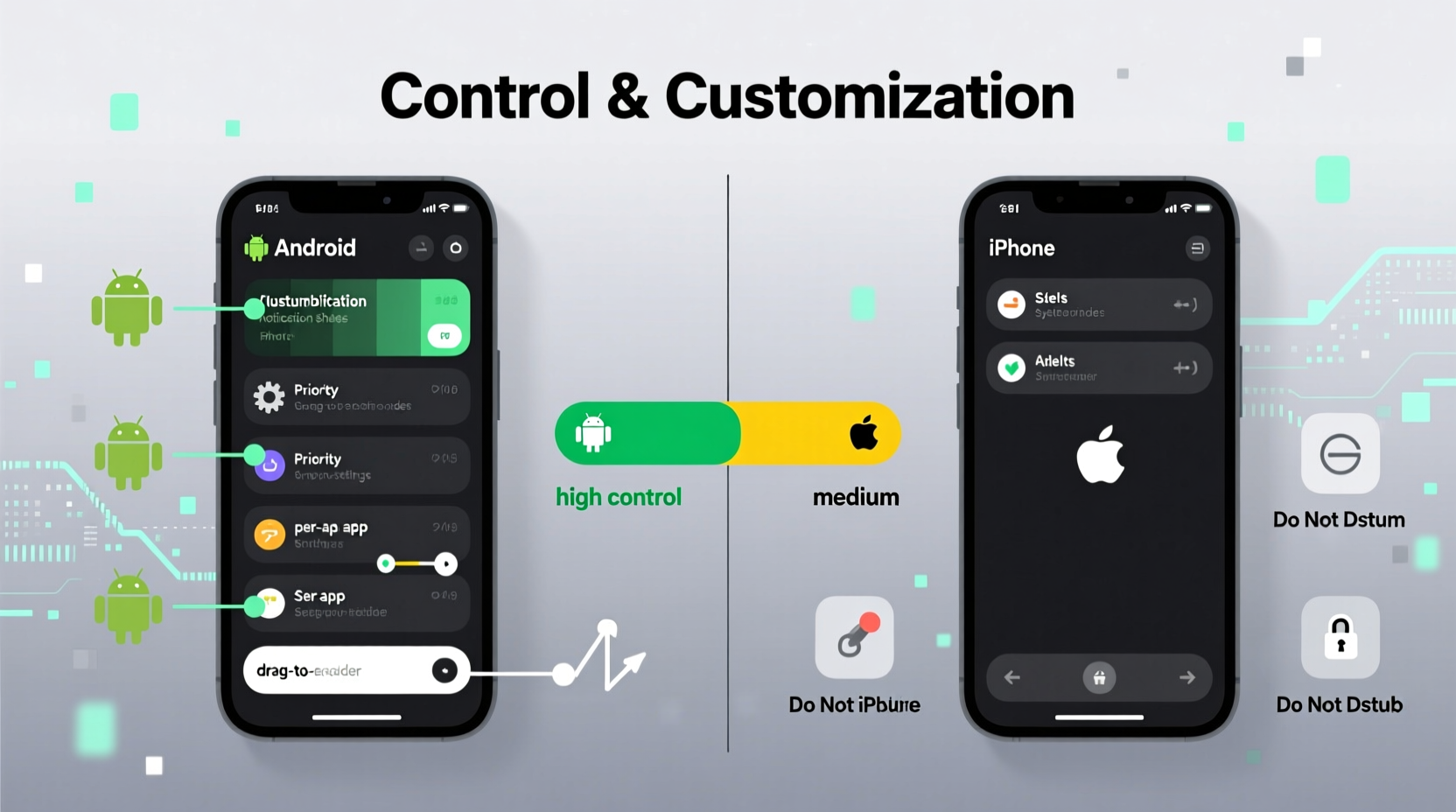
The core difference between Android and iOS notifications stems from their underlying design philosophies. Google’s Android has long championed openness and personalization, allowing users to deeply modify nearly every aspect of their device. Apple’s iOS, on the other hand, favors a curated, uniform experience that ensures reliability and predictability across devices.
This divergence shapes how each platform handles notifications. Android treats notifications as dynamic, interactive elements that can be tailored per app with precision. Users can adjust sound, vibration, pop-up behavior, lock screen visibility, and even notification categories—all independently for each application. iOS also allows customization but within tighter boundaries. While recent versions have improved, Apple maintains stricter limits on how apps interact with the system, partly for privacy and security reasons.
For power users and those who want fine-tuned control over distractions, Android’s approach often feels more empowering. However, for users who prefer a clean, consistent interface without needing to configure every detail, iOS provides a smoother out-of-the-box experience.
Granularity of Per-App Notification Settings
One of the most critical aspects of notification control is the ability to customize settings on a per-app basis. Here, Android consistently delivers deeper options than iOS.
In Android (particularly from Android 8.0 Oreo onward), each app can have multiple notification channels. These channels let you separate types of alerts—such as “Messages,” “Promotions,” or “Updates”—and apply distinct behaviors to each. For example, you could silence promotional emails from a shopping app while still receiving order confirmations with full sound and pop-up alerts.
iOS introduced App Notification Groups in iOS 12 and enhanced them further in later versions, allowing some categorization of alerts by type (e.g., messages grouped by conversation). However, it doesn’t offer the same level of independent configuration per category. You can choose whether banners appear, sounds play, or badges show, but you cannot assign different vibration patterns or priority levels to sub-types within an app.
Moreover, Android allows users to set custom notification tones not just per app, but per channel. On iPhone, you can only assign one tone per app, limiting your ability to distinguish between urgent and non-urgent alerts from the same source.
Customization Features Compared
Beyond basic on/off toggles, true customization includes visual appearance, interaction methods, and automation. Let’s examine key areas where Android and iOS differ:
Visual Presentation and Interactivity
Android supports rich, expandable notifications with inline actions like reply, snooze, or dismiss directly from the shade. Developers can embed images, progress bars, and even media controls. The notification panel itself is highly customizable—users can adjust quick settings tiles, enable dark mode, or use third-party launchers to change layout and behavior.
iOS notifications are cleaner and more minimalist. Since iOS 15, they support contact photos and app icons displayed larger for better recognition. Notifications are grouped by app or topic, improving organization. However, interactivity remains limited compared to Android. Inline replies exist for select apps (like Messages), but functionality depends heavily on developer implementation.
Scheduling and Automation
Android integrates tightly with system-level tools like Tasker, Bixby Routines, or Pixel’s Adaptive Suggestions, enabling advanced automation. For instance, you can create rules such as: “When headphones are connected after 9 PM, mute all notifications except calls and alarms.”
iOS offers Shortcuts and Focus Modes, which are powerful but less flexible. Focus Modes allow silencing specific apps during certain times or locations, but creating complex conditional logic requires navigating multiple menus and lacks the immediacy of Android’s ecosystem.
“Android’s open architecture allows for unparalleled automation in notification management—something iOS restricts in the name of simplicity.” — David Lin, Mobile Systems Analyst at TechPulse Insights
Detailed Comparison Table: Android vs iPhone Notifications
| Feature | Android | iPhone (iOS) |
|---|---|---|
| Per-app notification channels | Yes – multiple customizable channels per app | No – single setting per app, with grouped types |
| Custom vibration patterns | Yes – per channel or app | Limited – one pattern per app |
| Notification sound per channel | Yes | No – one sound per app |
| Pop-up (heads-up) notifications | Configurable – timing, duration, priority | Limited – based on priority and Do Not Disturb |
| Lock screen visibility options | Three modes: Show all, hide sensitive, hide all | Three modes – similar, but fewer granular controls |
| Automation & scheduling | High – via Tasker, routines, etc. | Moderate – Focus Modes and Shortcuts |
| Third-party launcher support | Yes – alters notification presentation | No – UI is fixed |
| Priority interruptions (interruption level) | Five levels including \"silent\" | Four Focus-based filters (e.g., Immediate, Time Sensitive) |
Real-World Example: Managing Work-Life Balance
Consider Sarah, a project manager who uses Slack, email, and calendar apps across both work and personal accounts. She wants to stay reachable for urgent team messages but avoid burnout from constant pings after hours.
On her **Pixel phone (Android)**, she creates separate notification channels for “Urgent Alerts” and “General Chat” in Slack. She assigns the urgent channel a loud ringtone, vibration, and pop-up alert, while muting the general channel outside work hours using a Bixby Routine that activates at 7 PM daily. Her personal Gmail notifications are hidden on the lock screen, but her partner’s texts bypass Do Not Disturb thanks to priority exceptions.
On an **iPhone**, Sarah sets up a “Work” Focus Mode scheduled from 9 AM to 7 PM. It allows notifications from her work apps and specific contacts. Outside this window, most alerts are silenced. However, she cannot differentiate between high-priority and routine Slack messages unless the app developer implements Time-Sensitive permissions—which many don’t. As a result, either all Slack alerts come through, or none do, reducing precision.
This scenario illustrates how Android’s deeper layering enables more nuanced control, especially when managing overlapping personal and professional demands.
Step-by-Step: Optimizing Notifications on Each Platform
Regardless of your device, optimizing notifications improves focus and reduces stress. Follow these steps to gain better control:
- Inventory Your Alerts: List all apps sending notifications. Disable any that aren’t essential (e.g., games, retail apps).
- Categorize by Priority: Group apps into High (messages, calls), Medium (social updates), and Low (promotions, newsletters).
- Adjust Visual & Audio Settings:
- On Android: Go to Settings > Apps & Notifications > [App Name] > Notifications. Customize each channel.
- On iPhone: Settings > Notifications > [App Name]. Choose alert style, sound, and badge.
- Set Up Downtime Rules:
- Android: Use Digital Wellbeing or a routine app to schedule quiet hours.
- iOS: Configure Focus Modes for Sleep, Work, or Personal time.
- Enable Exceptions: Allow critical contacts or apps (e.g., family, health apps) to bypass silent modes.
- Review Monthly: Reassess which notifications add value and which contribute to noise.
Frequently Asked Questions
Can I completely disable notifications for one app without uninstalling it?
Yes, on both platforms. In Android, go to App Info and toggle off notifications. On iPhone, go to Settings > Notifications and select “None” for the alert style. The app remains installed but won’t disturb you.
Do iPhones support different notification sounds per message type?
No. Unlike Android, iOS only allows one custom sound per app. You cannot assign unique tones to different kinds of alerts (e.g., DMs vs group chats) unless the app provides its own internal sound settings.
Which system handles spam or unwanted notifications better?
iOS has a slight edge due to stricter app review policies. Fewer apps abuse notifications because Apple limits background activity and requires explicit permission. Android allows more freedom, so poorly designed apps may send excessive alerts—but this can be mitigated manually through channel management.
Final Verdict: Control vs Consistency
When it comes to raw control and customization, **Android wins decisively**. Its support for notification channels, per-channel audio/vibration settings, deep automation, and third-party integrations gives users unmatched power to shape their alert experience. If you want to fine-tune exactly when, how, and why you’re interrupted, Android provides the tools.
However, **iOS excels in consistency and ease of use**. Its streamlined interface makes it simple to manage notifications without diving into nested menus. Focus Modes are intuitive and well-integrated across Apple’s ecosystem. For users who want effective—but not exhaustive—control, iOS strikes a balanced chord.
The choice ultimately depends on your relationship with technology. Are you someone who likes to optimize every detail and automate routines? Android will feel liberating. Do you prefer a clean, reliable system that works well out of the box with minimal tweaking? iOS may suit you better.
“The best notification system isn’t the one with the most features—it’s the one that helps you stay informed without feeling overwhelmed.” — Lena Torres, UX Researcher at Mindful Tech Lab
Take Control of Your Digital Attention
Your smartphone should serve you, not distract you. Whether you're on Android or iPhone, now is the time to audit your notifications and reclaim your focus. Spend 15 minutes today adjusting settings, silencing noise, and preserving space for what truly matters. Share your favorite tip or ask a question in the comments—let’s build smarter notification habits together.




 浙公网安备
33010002000092号
浙公网安备
33010002000092号 浙B2-20120091-4
Comments
No comments yet. Why don't you start the discussion?