
For aspiring animators, the journey often begins with a single question: where do I start without breaking the bank? One of the most common entry points is investing in a graphics tablet—a digital tool that replaces the mouse with a pen and pressure-sensitive surface. But not everyone can afford high-end models from Wacom or XP-Pen’s premium lines. So, are budget graphics tablets actually suitable for animation beginners?
The short answer is yes—many budget-friendly tablets are more than capable of supporting early-stage animation work. However, understanding what “budget” means, what features matter most, and how to set realistic expectations is key to making a smart investment.
What Defines a \"Budget\" Graphics Tablet?
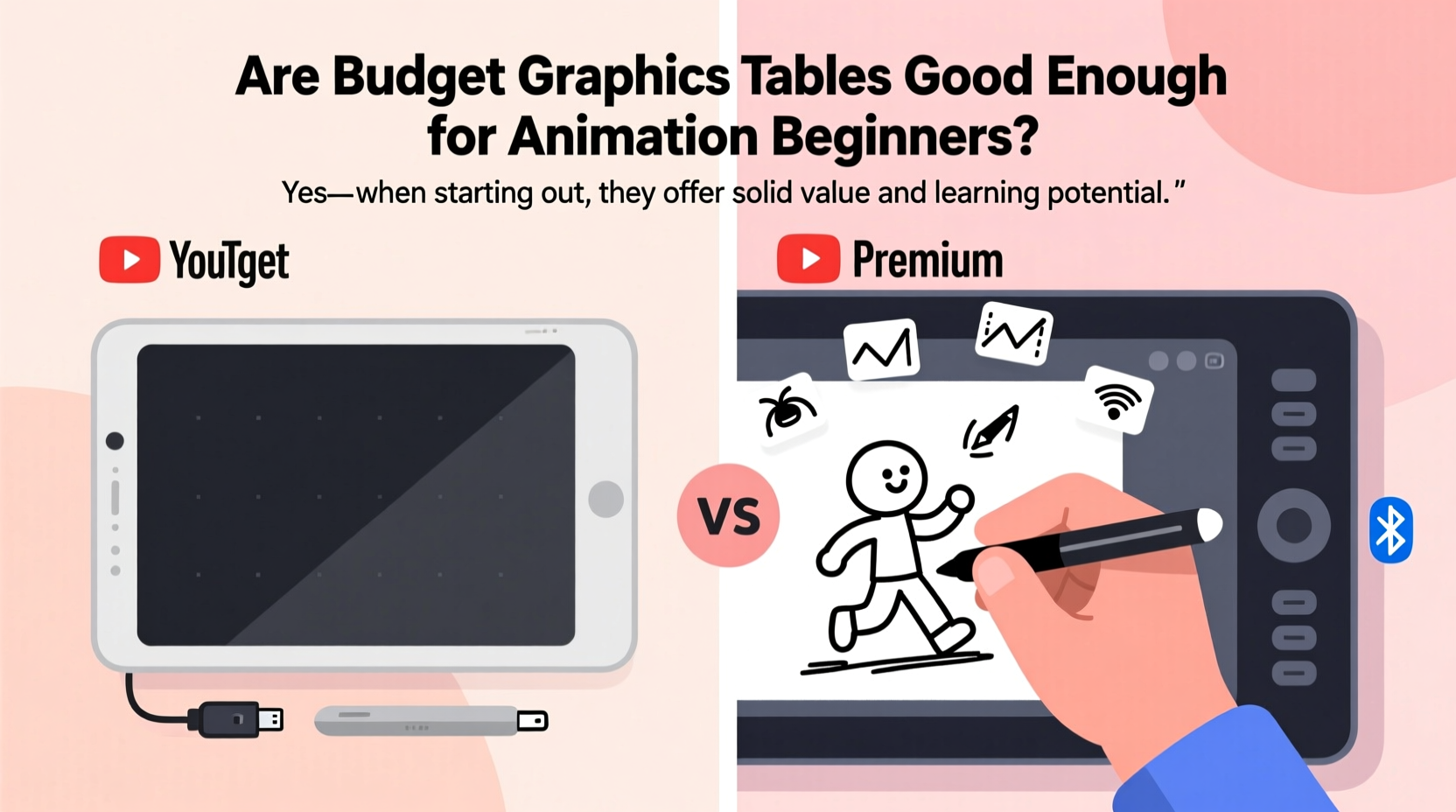
A budget graphics tablet typically costs between $30 and $100. These devices are usually entry-level models designed for casual users, students, or hobbyists. Brands like Huion, XP-Pen, Gaomon, and even Wacom (with its Intuos line) offer competitive options in this range.
While they may lack advanced features such as battery-free pens, OLED displays, or ultra-high pressure sensitivity, budget tablets still deliver core functionality: pen input, pressure responsiveness, and compatibility with major animation software.
It's important to distinguish between *graphics tablets* (pen-only input devices without screens) and *drawing monitors* (which allow direct screen drawing). Most budget options fall into the former category, which is perfectly adequate for learning the fundamentals of frame-by-frame or digital cut-out animation.
Key Features That Matter for Animation Beginners
Not all specs are equally important when starting out. Prioritizing the right features ensures you get a tablet that supports your workflow without overspending.
- Pressure Sensitivity: The ability to vary line thickness and opacity based on pen pressure is essential for expressive drawing. Most modern budget tablets offer 8192 levels, matching higher-end models.
- Active Area Size: A larger drawing surface (e.g., 10 x 6 inches) provides better hand movement control. Smaller tablets (like 6 x 4 inches) can feel cramped over time but are acceptable for initial practice.
- Pen Performance: Battery-free pens (electrostatic resonance) are ideal, but many budget tablets use lightweight rechargeable pens. Check reviews for latency and comfort during extended sessions.
- Driver & Software Compatibility: Ensure the tablet works smoothly with free or beginner-friendly animation tools like Krita, OpenToonz, Pencil2D, or even Adobe Animate.
- Shortcut Keys: Express keys and touch rings help streamline workflows by reducing reliance on keyboard shortcuts.
Beginners should focus less on pixel-perfect accuracy and more on building muscle memory, timing, and spacing—skills that develop through consistent practice, not expensive gear.
Comparison: Budget vs. Mid-Range Tablets for Animation
| Feature | Budget Tablet (e.g., XP-Pen StarG640) | Mid-Range Tablet (e.g., Wacom Intuos Pro) | High-End (e.g., Wacom Cintiq 16) |
|---|---|---|---|
| Price Range | $40–$70 | $100–$250 | $600+ |
| Pressure Levels | 8192 | 8192 | 8192+ |
| Display? | No | No | Yes |
| Tilt Support | Limited (on select models) | Yes | Yes |
| Express Keys | 6–8 | 8 | 8 + Touch Strip |
| Durability & Build | Plastic, lightweight | Reinforced materials | Premium construction |
| Best For | Learning basics, sketching, simple animations | Serious hobbyists, student projects | Professional production |
As the table shows, budget tablets match mid-range ones in critical areas like pressure sensitivity. Where they differ is build quality, ergonomics, and long-term reliability. For someone just testing the waters of animation, this trade-off is reasonable.
Realistic Workflow: What You Can Achieve with a Budget Tablet
Jessica, a college art student from Portland, started her animation journey using a $55 Huion H610 Pro. With no prior experience, she downloaded Pencil2D and began experimenting with flipbook-style animations.
“I was skeptical at first,” she recalls. “The pen felt a little stiff, and the active area was smaller than I wanted. But after two weeks, I got used to it. I made five short animations—all under 30 seconds—and posted them online. One even got noticed by a local indie studio.”
Jessica’s story isn’t unique. Many beginners find that within a month of regular use, they adapt to the limitations of budget hardware. The real bottleneck isn’t the device—it’s skill development. As one animation instructor put it:
“Your first tablet doesn’t need to be perfect. It needs to be functional enough to let you fail, learn, and improve. A $50 tablet does that job better than any tutorial video ever could.” — Marcus Lin, Digital Animation Instructor at Vancouver Film School
The truth is, animation is as much about timing, anticipation, and exaggeration as it is about clean linework. Budget tablets don’t hinder these principles—they simply require slight adjustments in technique.
Step-by-Step Guide to Getting Started with a Budget Tablet
If you’ve decided to go the affordable route, follow this practical timeline to maximize your results:
- Week 1: Setup and Calibration
Select a tablet with good driver support. Install official drivers and calibrate the pen to your monitor. Practice basic strokes and circles to get comfortable with hand-eye coordination. - Week 2: Master Pen Pressure
Create a series of tapered lines, varying pressure deliberately. Use this exercise to train muscle memory. Save daily progress in a folder to track improvement. - Week 3: Simple Frame-by-Frame Tests
Use free software like Krita or OpenToonz to create a bouncing ball animation (6–12 frames). Focus on squash and stretch, not perfection. - Week 4: Add Timing and Spacing Drills
Animate a pendulum swing or a falling leaf. Study reference videos and mimic motion curves. Export as GIFs to share and receive feedback. - Month 2+: Build a Mini Portfolio
Combine small animations into a demo reel. Include walk cycles, blinking characters, and transitions. This becomes your foundation for further learning or job applications.
This structured approach ensures you’re not just buying a tool—you’re actively developing skills that transfer regardless of future upgrades.
Common Pitfalls to Avoid
Even with the right mindset, beginners often make mistakes that reduce the effectiveness of their budget setup.
- Skipping Driver Updates: Outdated drivers cause lag and erratic pen behavior. Always download the latest version from the manufacturer’s site.
- Using the Wrong Software: Some programs aren’t optimized for low-latency input. Stick to animation-specific tools rather than general image editors unless necessary.
- Ignoring Ergonomics: Cramping your wrist due to poor posture leads to fatigue. Position the tablet close to your body and take breaks every 30 minutes.
- Expecting Immediate Results: It takes 20+ hours of practice to feel natural with a pen tablet. Don’t judge your talent based on early shaky lines.
Frequently Asked Questions
Can I do professional-quality animation on a budget tablet?
You can produce high-quality animation concepts and personal projects, but full professional pipelines (especially involving tight deadlines and complex rigging) often benefit from larger, more responsive hardware. However, many indie animators have launched careers using entry-level gear.
Do I need a screen tablet to animate well?
No. While screen tablets (like Cintiqs) offer direct visual feedback, non-display tablets are widely used in studios. Animators adapt by training their hand-eye coordination. In fact, some professionals prefer non-screen tablets for their durability and lower cost.
How long do budget tablets last?
With proper care, 3–5 years is typical. The main wear point is the pen nib. Replace worn nibs regularly (most come with spares), and avoid using abrasive surfaces or excessive pressure.
Checklist: Choosing the Right Budget Tablet for Animation
Before purchasing, verify the following:
- ✅ At least 8192 pressure levels
- ✅ Compatible with your OS (Windows/macOS/Linux)
- ✅ Works with your chosen animation software
- ✅ Has programmable shortcut keys (minimum 6)
- ✅ Includes reliable driver updates from the manufacturer
- ✅ Active area of at least 6 x 4 inches
- ✅ Positive user reviews focused on animation or drawing use
Brands like XP-Pen Deco series, Huion Kamvas (non-display models), and Wacom Intuos Small offer excellent entry points that meet most of these criteria.
Final Thoughts: Value Over Specs
The best tool for a beginner isn’t the most powerful—it’s the one you’ll actually use consistently. Budget graphics tablets remove financial barriers to entry, allowing thousands of new creators to explore animation without risk.
Yes, there are limitations. The build might feel flimsy. The pen might need charging. The surface might scratch over time. But none of these negate the core value: enabling creativity.
Many renowned animators started with far less—paper pads, flipbooks, even chalkboards. Today’s budget tablets offer more precision and flexibility than those analog tools ever did. If your goal is to learn, experiment, and grow, then a $60 tablet isn’t just “good enough”—it’s a launchpad.




 浙公网安备
33010002000092号
浙公网安备
33010002000092号 浙B2-20120091-4
Comments
No comments yet. Why don't you start the discussion?