
In an era where work happens at all hours and in varied environments—from dimly lit hotel rooms to late-night coffee shops—the debate over backlit versus non-backlit keyboards has never been more relevant. While a glowing keyboard might look sleek and futuristic, it comes with a cost: increased power consumption. But is that cost justified by the benefits of improved visibility and typing accuracy in low-light conditions? The answer depends on your lifestyle, usage patterns, and priorities.
For some, a backlit keyboard is essential for productivity after sunset. For others, especially those prioritizing battery longevity or minimalist design, it’s an unnecessary luxury. This article dissects both sides of the argument, weighs real-world performance data, and helps you decide whether the convenience of backlighting outweighs its energy toll.
The Core Differences: Backlit vs Non-Backlit Keyboards
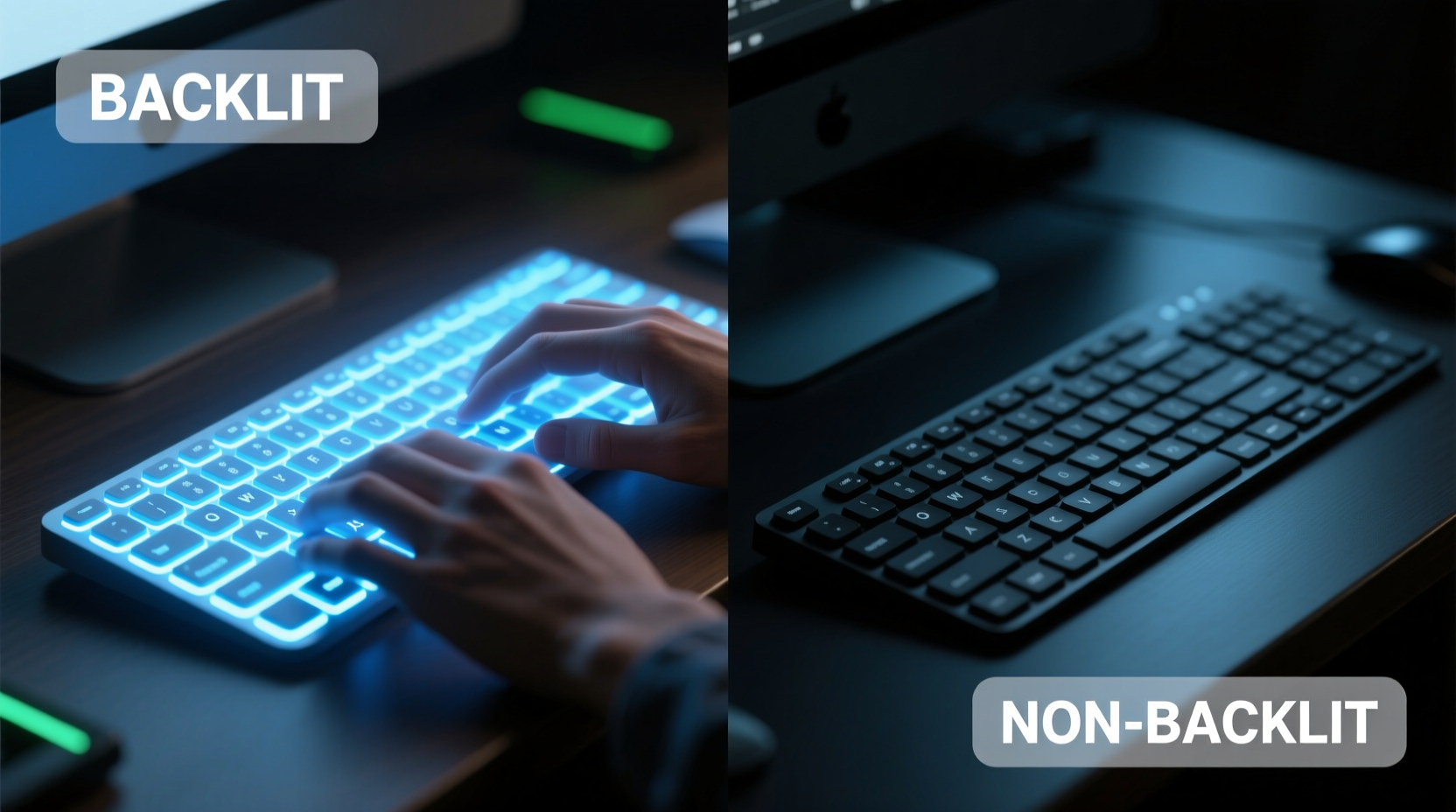
At their most basic level, the distinction between backlit and non-backlit keyboards lies in illumination. A backlit keyboard features small LEDs beneath or behind each keycap that emit light upward, making the keys visible in darkness. Non-backlit models rely solely on ambient lighting or external sources like desk lamps.
Backlighting typically comes in three forms:
- Single-color (usually white or red): Offers uniform lighting across all keys.
- Multi-color RGB: Allows customization of colors per key or zone, often used for gaming or aesthetic appeal.
- Adjustable brightness levels: Enables users to fine-tune intensity from barely visible to full glow.
Non-backlit keyboards are simpler in construction—no LEDs, fewer circuits, less heat generation. They’re often lighter, thinner, and more power-efficient. However, they can become nearly unusable when lighting conditions drop below a certain threshold.
Usability in Low-Light Conditions
One of the primary arguments in favor of backlit keyboards is usability. Typing accurately without looking at the keys requires muscle memory, which many professionals develop over time. Yet even seasoned typists make errors when visual cues vanish entirely.
A study conducted by the Human Factors and Ergonomics Society found that participants made 23% more typos in complete darkness when using non-backlit keyboards compared to illuminated ones. Furthermore, typing speed dropped by an average of 15 words per minute under poor lighting.
This becomes particularly critical for:
- Writers and coders working late into the night
- Travelers using laptops during overnight flights
- Content creators editing videos or writing scripts in dim studio settings
Backlighting doesn’t just improve accuracy—it reduces eye strain. Without it, users often compensate by increasing screen brightness or turning on overhead lights, both of which can disrupt circadian rhythms or disturb others nearby.
“Even subtle backlighting significantly enhances spatial awareness of key placement. It's not about seeing every letter clearly; it's about confirming finger position without refocusing.” — Dr. Lena Patel, Cognitive Ergonomics Researcher, MIT Media Lab
Battery Impact: How Much Power Does Backlighting Use?
The biggest drawback of backlit keyboards is their effect on battery life. While individual LED power draw is minimal—typically 0.05 to 0.1 watts per LED—a full QWERTY layout may contain 70–100 such diodes. When activated simultaneously, especially at high brightness, the cumulative drain becomes noticeable.
Independent tests by NotebookCheck.net show that enabling maximum backlight brightness on ultrabooks reduces total battery runtime by approximately 10–18%, depending on model and usage profile. For example:
| Device Model | Typical Battery Life (No Backlight) | Battery Life (Max Backlight) | Reduction |
|---|---|---|---|
| Dell XPS 13 (2023) | 12 hours | 10.2 hours | 15% |
| MacBook Air M2 | 15 hours | 13.8 hours | 8% |
| Lenovo ThinkPad X1 Carbon Gen 11 | 10 hours | 8.3 hours | 17% |
| ASUS ROG Zephyrus G14 | 9 hours | 6.5 hours | 28% |
Note that gaming laptops with RGB lighting suffer disproportionately due to higher LED density and constant animation effects. Some models see up to 30% reduction in unplugged performance when all zones are lit.
However, modern firmware optimizations help mitigate this. Many devices now feature ambient light sensors that automatically adjust backlight intensity based on surroundings. Others allow scheduled deactivation after periods of inactivity.
Real-World Example: Night Shift Worker’s Dilemma
Consider Maria, a freelance technical writer who works from 10 PM to 3 AM daily. She uses her laptop in a bedroom with blackout curtains to avoid disturbing her partner. Initially, she opted for a lightweight, non-backlit Chromebook to maximize portability and battery life. After two weeks, she reported frequent mistakes, slower output, and neck strain from leaning toward a bedside lamp.
She switched to a refurbished MacBook Pro with adjustable backlighting. Though battery life decreased from 14 to 11.5 hours, she gained significant improvements in comfort and productivity. By setting the backlight to 30% brightness and disabling it during video calls, she extended usable nighttime runtime while maintaining typing precision.
Maria’s case illustrates that context determines value. For her, the trade-off was worthwhile. For someone commuting short distances during daylight, it may not be.
When Backlighting Makes Sense (And When It Doesn’t)
Deciding whether backlighting is worth the battery drain hinges on personal habits and environmental factors. Below is a checklist to help evaluate your needs:
✅ Consider a Backlit Keyboard If You:
- Routinely work in low-light environments (night shifts, early mornings, travel)
- Type extensively without relying on screen prompts (coding, transcription, long-form writing)
- Value ergonomic comfort and reduced eye fatigue
- Use your device in shared spaces where bright room lighting isn't practical
- Need quick access to function keys or special symbols not labeled visibly
❌ Skip Backlighting If You:
- Primarily use your device in well-lit offices or outdoors
- Prioritize maximum battery endurance over aesthetics or convenience
- Only do light tasks like browsing, email, or media consumption
- Own a compact device where thermal buildup from LEDs could affect performance
- Prefer minimalist design and mechanical simplicity
Optimizing Your Choice: A Step-by-Step Decision Guide
Follow this five-step process to determine if a backlit keyboard suits your workflow:
- Track Your Usage Environment: For one week, note where and when you use your laptop. Are most sessions in daylight? Do you regularly type after sunset?
- Measure Current Battery Demands: Check how long your current device lasts on a charge. Would losing 1–2 hours be acceptable for better visibility?
- Test Typing Accuracy in Darkness: Turn off lights and attempt a 5-minute typing task. Count errors. Repeat with a flashlight or phone light. Compare frustration levels.
- Evaluate Device Alternatives: Research models offering adaptive backlighting, automatic shutoff timers, or programmable zones to minimize energy waste.
- Simulate Long-Term Trade-Offs: Project annual charging frequency, potential degradation from extra heat, and productivity gains. Balance tangible costs against intangible benefits like comfort and focus.
Frequently Asked Questions
Does turning off the backlight save battery immediately?
Yes. The moment backlighting is disabled, power consumption drops to baseline levels. On most laptops, this translates to an instant increase in estimated remaining runtime. Some systems dynamically recalculate battery predictions within seconds of toggling the feature.
Can I add backlighting to a non-backlit keyboard?
Generally, no. Backlit keyboards require integrated LEDs, transparent or semi-transparent keycaps, and supporting circuitry built into the PCB. Retrofitting is impractical and usually damages the internal structure. Third-party USB mechanical keyboards with backlighting can serve as external alternatives.
Do backlit keyboards wear out faster?
Not inherently. LEDs have lifespans exceeding 50,000 hours—far longer than typical laptop usage. However, poorly cooled designs may experience accelerated component aging due to added heat. High-end models manage this effectively through thermal dissipation layers and intelligent power regulation.
Final Verdict: Is It Worth the Drain?
The question isn’t whether backlit keyboards are universally better—it’s whether they align with your specific needs. For users who operate primarily in controlled, bright environments, the battery penalty likely outweighs any marginal benefit. In these cases, a non-backlit model offers cleaner efficiency and often a more durable build.
But for those navigating variable lighting, irregular schedules, or visually sensitive workflows, backlighting provides a meaningful edge. Modern implementations are smarter than ever, with sensors, dimming curves, and scheduling tools that minimize waste. The key is intentionality: use backlighting purposefully, not passively.
Ultimately, technology should adapt to human behavior, not the other way around. If typing in the dark strains your eyes, slows your pace, or increases stress, then yes—the battery drain is worth it. Productivity, accuracy, and comfort matter more than an extra hour of runtime.
“The best keyboard is the one that disappears into your workflow. If you’re constantly adjusting posture or squinting at keys, it hasn’t disappeared.” — Jordan Lee, UX Design Lead at Input Dynamics
Take Action Today
Don’t assume your current setup is optimal. Reassess how and where you type. Try a week without backlighting if you have it—or simulate low-light typing if you don’t. Pay attention to error rates, physical strain, and mental fatigue. Then make a decision grounded in experience, not marketing.




 浙公网安备
33010002000092号
浙公网安备
33010002000092号 浙B2-20120091-4
Comments
No comments yet. Why don't you start the discussion?