
Building your first custom PC can feel overwhelming. With dozens of components, technical terms, and compatibility concerns, it’s easy to freeze at the starting line. But the truth is, assembling a PC isn’t about memorizing specs—it’s about understanding how parts work together. When you know what to look for, selecting compatible hardware becomes a logical, rewarding process. This guide walks you through each critical component, explains how they interact, and gives you practical tools to avoid common pitfalls—so you can build with confidence.
Understanding the Core Components
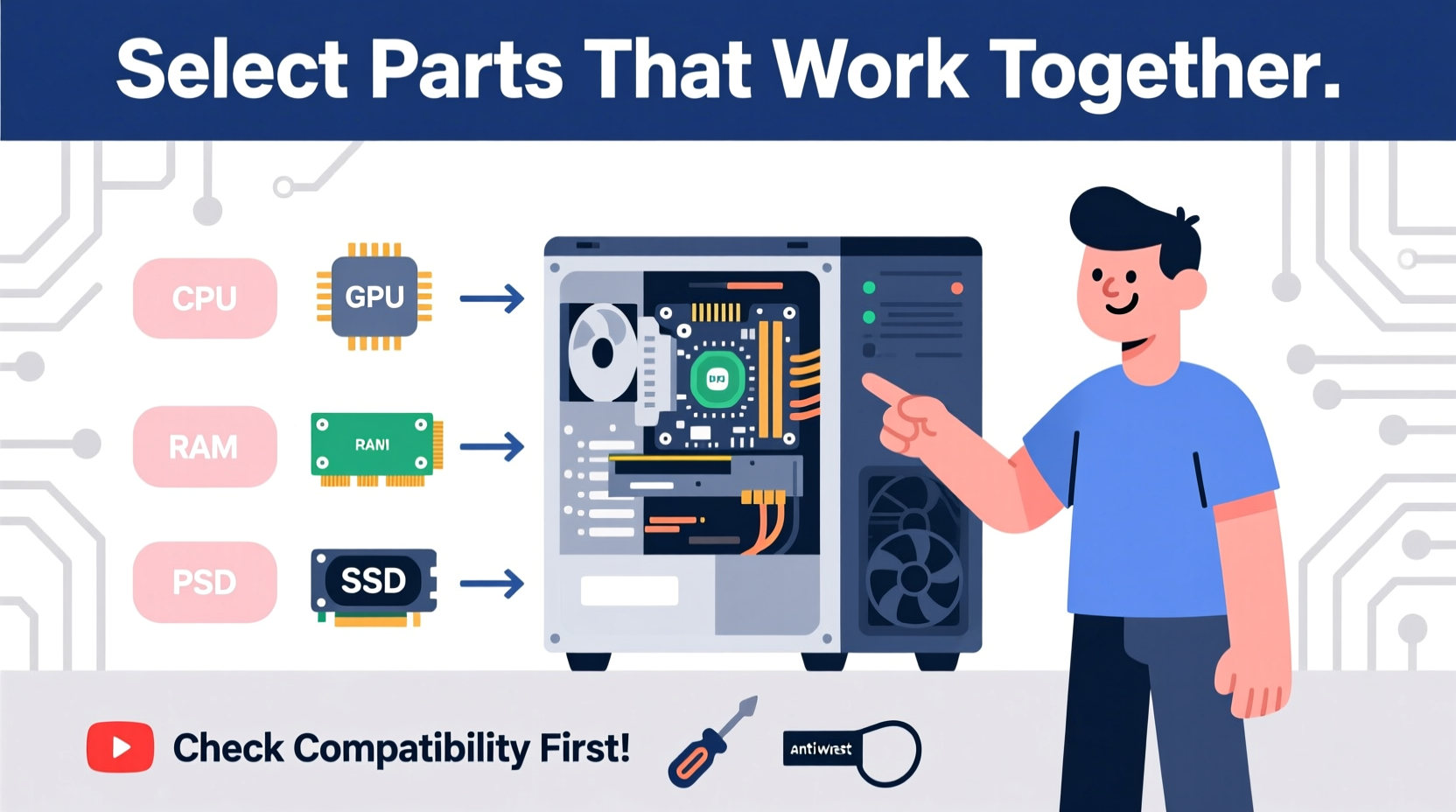
A desktop PC is made up of several essential parts that must work in harmony. Before diving into compatibility, it helps to know what each component does:
- CPU (Central Processing Unit): The brain of your computer. It handles calculations and executes instructions.
- Motherboard: The central hub that connects all components. It determines which CPUs, RAM, and expansion cards are supported.
- RAM (Random Access Memory): Temporary storage for active programs. More RAM allows smoother multitasking.
- GPU (Graphics Processing Unit): Handles rendering images, video, and 3D graphics. Essential for gaming and creative work.
- Storage: Where your operating system, apps, and files live. Options include SSDs (fast) and HDDs (high capacity).
- Power Supply (PSU): Supplies power to all components. Must deliver enough wattage and have the right connectors.
- Case: Houses all components. Size and layout affect cooling and upgradeability.
Each part has specifications that determine whether it will work with others. The key to avoiding frustration is checking compatibility early and often.
The Compatibility Checklist: What You Need to Verify
Before buying any part, cross-check these five compatibility factors. Missing one could lead to an unusable component or costly returns.
- Socket Type: The CPU and motherboard must share the same socket. For example, an Intel Core i5-13600K uses LGA 1700, so your motherboard must support LGA 1700.
- Chipset Compatibility: Not all motherboards with the same socket support every CPU. Check the manufacturer’s CPU support list.
- RAM Type and Speed: DDR4 and DDR5 RAM are not interchangeable. Your motherboard dictates which type and maximum speed you can use.
- Physical Fit: Ensure your GPU and CPU cooler fit inside your case. Measure clearance for length, width, and height.
- Power Requirements: Add up the wattage needs of your CPU, GPU, and other parts. Choose a PSU with a 15–20% buffer above that total.
Common Compatibility Pitfalls
New builders often assume that if a part “plugs in,” it works. That’s not always true. Here are frequent mistakes:
- Buying DDR5 RAM for a DDR4 motherboard.
- Selecting a high-end GPU that requires more power than the PSU can deliver.
- Choosing a full-tower CPU cooler for a small-form-factor case.
- Installing an M.2 NVMe SSD in a slot that doesn’t support PCIe Gen4 when the drive requires it.
“Compatibility isn’t just about physical fit—it’s about electrical standards, firmware support, and thermal design. Always double-check the motherboard’s QVL (Qualified Vendor List).” — David Lin, Hardware Engineer at PCBuild Labs
Step-by-Step: Building Your Build Plan
Follow this sequence to ensure every part works with the next. Skipping steps increases the risk of mismatched components.
- Define Your Purpose: Are you building for gaming, video editing, office work, or streaming? This guides your budget and performance needs.
- Pick a CPU: Choose based on performance tier (e.g., Intel Core i5 or AMD Ryzen 7). Note the socket type and TDP (thermal design power).
- Select a Matching Motherboard: Search for boards with the correct socket and chipset. For example, a Ryzen 7 7700X needs an AM5 socket and ideally a B650 or X670 chipset.
- Choose RAM: Match the type (DDR5), speed (e.g., 6000 MT/s), and capacity (16GB or 32GB). Ensure the motherboard supports the speed via XMP or EXPO profiles.
- Add a GPU: If you’re gaming or doing creative work, select a dedicated graphics card. Confirm it fits in your case and that your PSU has the required PCIe power connectors.
- Pick Storage: Use an NVMe SSD for your operating system. Add a SATA SSD or HDD for extra storage if needed.
- Select a PSU: Use a PSU calculator (like the one from OuterVision) to estimate total wattage. Add 100–150W headroom and choose an 80+ Bronze-rated or higher unit.
- Choose a Case: Make sure it supports your motherboard size (ATX, micro-ATX, mini-ITX) and has enough space for airflow and cable management.
Component Compatibility Table: Quick Reference
| Component | Key Compatibility Factor | What to Check |
|---|---|---|
| CPU & Motherboard | Socket and Chipset | Ensure socket match (e.g., AM5, LGA 1700); verify CPU support on motherboard manufacturer’s site |
| RAM & Motherboard | RAM Type and Speed | DDR4 vs DDR5; check max supported speed and XMP/EXPO support |
| GPU & Case | Physical Dimensions | Compare GPU length and case clearance; allow space for airflow |
| PSU & GPU/CPU | Power Connectors and Wattage | Ensure 8-pin or 12VHPWR connectors match; total system draw under PSU rating |
| Storage & Motherboard | M.2 and SATA Support | Check number of M.2 slots and PCIe generation supported |
A Real Build Example: Gaming on a Budget
Meet Jordan, a college student who wants a reliable gaming PC for under $800. They need smooth 1080p gameplay in titles like Apex Legends and Elden Ring.
Jordan starts by choosing an AMD Ryzen 5 7600—a strong mid-range CPU with integrated graphics as a backup. It uses the AM5 socket, so they pick a B650 motherboard for future upgradeability. The board supports DDR5, so they add 16GB of 6000 MT/s RAM.
For graphics, they go with an NVIDIA RTX 4060, which fits their budget and power needs. A 550W 80+ Bronze PSU covers it comfortably. They select a compact but well-ventilated case that supports ATX motherboards and has room for the 10-inch-long GPU.
Using PCPartPicker, Jordan confirms no compatibility warnings. They also notice the site suggests a slightly larger case for better airflow—so they upgrade for $15 more. The final build runs smoothly, boots on the first try, and leaves room for adding more storage later.
This example shows how methodical planning prevents stress. No single part was chosen in isolation—each decision considered what came before and after.
Frequently Asked Questions
Can I use an old power supply with a new GPU?
Only if it meets the wattage requirements and has the necessary power connectors. Modern GPUs often need 8-pin or 12VHPWR cables. Even if the PSU has enough watts, missing connectors make it incompatible. Also, older PSUs may degrade in efficiency and safety over time.
Do I need to buy Windows separately?
Yes, unless you’re reusing a license. Most custom builds require purchasing a Windows license directly from Microsoft or a trusted retailer. Some motherboards come with a free version, but those are rare. Avoid third-party cheap keys—they’re often volume licenses and can be deactivated.
Will my RAM work at its advertised speed?
Not always. Motherboards list maximum supported speeds, but achieving them requires enabling XMP (Intel) or EXPO (AMD) in the BIOS. Without this, RAM runs at default JEDEC speeds (often 4800 MT/s for DDR5), which is slower. Always plan to enable these profiles after booting.
Final Tips for Stress-Free Success
Building a PC should be exciting, not stressful. Stick to these principles:
- Double-check compatibility before every purchase.
- Use trusted tools like PCPartPicker to catch errors early.
- Buy from retailers with good return policies in case of mistakes.
- Assemble in a clean, static-free environment with proper lighting.
- Don’t rush the BIOS setup—verify that all components are detected.
Most importantly, remember that every expert builder started exactly where you are now. One misplaced screw or forgotten BIOS setting doesn’t define the build—it’s part of the learning process.
Conclusion: Start Building with Confidence
Selecting compatible PC parts isn’t magic—it’s methodical planning. By understanding how components interact and using the right tools, you eliminate guesswork and reduce risk. Whether you’re building a powerhouse workstation or a simple everyday machine, the process remains the same: choose wisely, verify thoroughly, and assemble patiently.




 浙公网安备
33010002000092号
浙公网安备
33010002000092号 浙B2-20120091-4
Comments
No comments yet. Why don't you start the discussion?