
For serious gamers, a cluttered Steam library isn’t just an eyesore—it’s a productivity killer. Scrolling endlessly through unsorted games, hunting for that one title you played last year, or accidentally launching the wrong version of a game can break immersion before you even hit “Play.” Professional gamers and streamers don’t rely on luck to find their games; they use deliberate organization systems that save time, reduce friction, and enhance their overall gaming experience. Whether you own 50 or 500 games, adopting pro-level habits can transform how you interact with your Steam collection.
1. Master Steam Categories and Tags
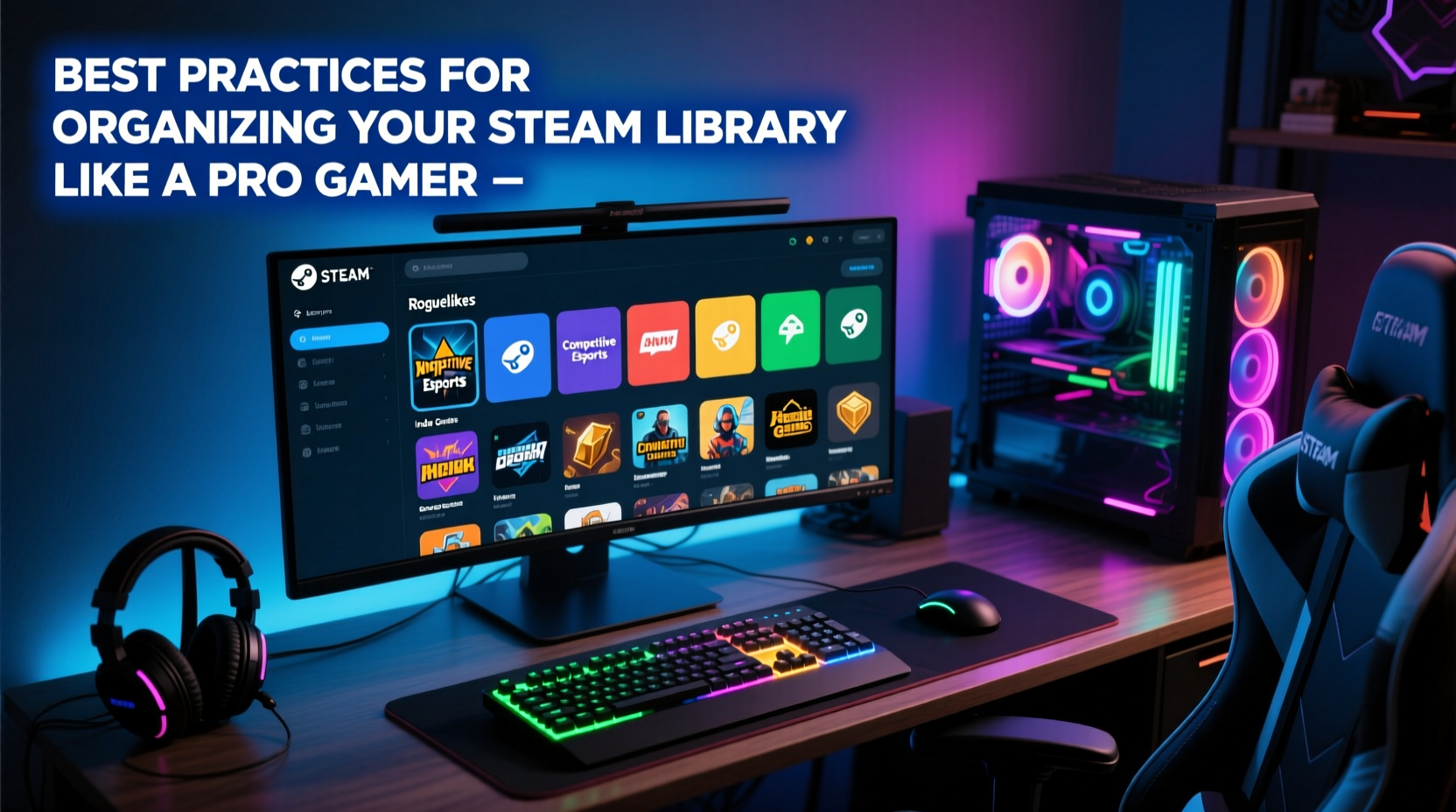
Steam’s built-in categorization system is powerful but underutilized. Most users let games pile up in the default “All Games” view, making navigation inefficient. The key to control is using categories and custom tags strategically.
You can create custom categories by right-clicking any game in your library, selecting “Set Categories,” and assigning it to one or more user-defined groups. Think beyond broad labels like “RPG” or “Shooter.” Pro gamers often use functional categories such as:
- Currently Playing – Active games you’re invested in.
- To Beat Next – Completed your main campaign? This list keeps momentum.
- Speedrun Rotation – For competitive players practicing runs.
- Co-op with Friends – Shared sessions only happen when everyone knows what’s available.
- Mods Required – Games that need external tools or mod managers.
- VR Ready – Instant access when you put on your headset.
Steam also allows tagging via third-party tools like Tag That Game!, which adds deeper metadata support. These tools let you assign multiple descriptive tags (e.g., “roguelike,” “time management,” “local multiplayer”) and search across them—ideal for large libraries.
2. Optimize Your Library View Settings
The way Steam displays your games affects how quickly you can make decisions. Default grid views work fine for small collections, but pros tweak display settings for efficiency.
Switch to List View if you have over 100 titles. It enables sorting by playtime, last launched, or category, helping you spot neglected games or prioritize unfinished ones. To enable:
- Open your Steam Library.
- Click the three horizontal lines (menu) in the top-right corner.
- Select “List” under “View Type.”
- Right-click column headers to customize visible data (playtime, achievements, size).
Add columns like “Last Played” and “Playtime” to identify dormant games worth revisiting—or uninstalling to free up space.
| View Mode | Best For | Pro Tip |
|---|---|---|
| Grid | Visual browsing, aesthetic appeal | Use high-res art mods for immersive thumbnails |
| List | Large libraries, data-driven decisions | Sort by “Playtime” descending to see favorites |
| Cover | Quick recognition, controller use | Pair with consistent cover sizes via community images |
3. Create Smart Shortcuts and Aliases
Many pro gamers maintain secondary setups—like tournament configs, modded versions, or language-specific launches. Steam shortcuts allow launching games with custom launch options without altering the original entry.
To create a shortcut:
- Right-click in your Steam library > “Add a Game” > “Add a Non-Steam Game.”
- Browse to the game’s executable (.exe).
- Name it something distinct (e.g., “Skyrim VR – Modded Start”).
- Right-click the new shortcut > Properties > Set launch options.
Common launch parameters used by experts include:
-windowed -w 1920 -h 1080– Forces resolution for multi-monitor setups.-novid -nosound– Skips intros for faster testing loops.-d3d12– Enables DirectX 12 for supported titles.-steam://rungameid/[ID]– Can be used externally to trigger Steam games via scripts.
“Top-tier players treat their Steam library like a command center. Every click should serve a purpose.” — Adrian Cho, Esports Performance Coach
Some streamers even create separate shortcuts for different phases: “Practice Mode,” “Streaming Build,” or “Achievement Hunt,” each with tailored configurations.
4. Maintain a Clean, High-Performance Library
A disorganized library often reflects underlying technical clutter. Bloatware, outdated saves, and duplicate entries slow down both navigation and performance.
Follow this monthly maintenance checklist to keep things tight:
- Review playtime stats: Uninstall games played less than 30 minutes unless keeping for completionist goals.
- Delete unused screenshots from
steamapps/common/[game]/screenshots. - Clear download cache (Settings > Downloads > Clear Download Cache).
- Verify integrity of critical game files (right-click > Properties > Local Files > Verify Integrity).
- Update categories and remove obsolete tags.
- Back up save files externally (use tools like SaveGameFolderSync).
Storage matters too. If you're running multiple SSDs or drives, assign games intelligently. Keep frequently played titles on NVMe drives, while archival games (completed story modes, old MMOs) go on SATA or external storage. Steam allows moving installations between drives via Settings > Storage.
5. Real-World Example: How a Competitive Apex Legends Player Organizes Their Setup
Jess Tran, a semi-pro Apex player and Twitch streamer, uses her Steam library to optimize training cycles. Her setup includes:
- Category: “Rotation – Ranked” – Current season meta weapons and legends.
- Category: “Rotation – Lab Testing” – New guns or builds she’s evaluating.
- Shortcut: “Apex – No Audio + HUD Scale 1.2” – Used for OBS capture testing.
- Tag: “Respawn Dev” – All Respawn-published titles grouped for quick updates.
Every Sunday, Jess reviews her playtime report. If a game hasn’t been touched in two weeks, it gets moved to a “Long-Term Break” category. If untouched after a month, it’s uninstalled—but its save file is backed up to cloud storage. This ritual ensures her primary drive stays under 75% capacity, maintaining optimal load speeds.
Her library isn’t just tidy—it’s a tactical tool. During tournaments, she hides all non-essential games using a batch script that toggles visibility via Steam’s database files (a safe method when done correctly). This minimizes distractions and reduces UI lag during rapid game switches.
6. Advanced Tips for Power Users
For those ready to go beyond basics, here are techniques used by elite organizers:
Use Third-Party Launchers and Scripts
Tools like Playnite or LaunchBox unify Steam, Epic, GOG, and standalone games into a single, customizable interface. Playnite supports themes, metadata scraping, and automated tagging—perfect for cross-platform gamers.
Automate Category Management
Steam’s categories are stored in a local file (~\\Steam\\userdata\\[ID]\\config\\shortcuts.vdf). Advanced users write Python scripts to auto-tag games based on genre, developer, or playtime thresholds. One popular script automatically moves games with over 100 hours into a “Completed & Mastered” category.
Leverage Family Sharing Without Clutter
If sharing accounts with family, avoid mixing libraries. Instead, use Steam’s Family Library Sharing to access others’ games temporarily. When borrowed games appear, sort by “Shared Library” and review them in one session to prevent long-term visual noise.
Custom Art and Themes
Install community-created artwork via Steam Workshop or sites like SteamGridDB. Consistent, high-quality banners improve visual scanning speed. Some users even color-code covers by genre (blue for sci-fi, red for horror) for instant recognition.
7. Frequently Asked Questions
Can I sync my Steam categories across multiple PCs?
Not natively. Steam doesn’t cloud-sync categories. However, third-party tools like Steam Account Switcher or manual backup/restore of the shortcuts.vdf file can replicate your setup across devices.
Why aren’t my categories showing up in Big Picture Mode?
Ensure you’ve applied categories correctly and restarted Steam. Sometimes, Big Picture Mode caches old data. Exit completely, relaunch Steam, and re-enter Big Picture to refresh the view.
How do I back up my entire library organization?
Yes. Back up the shortcuts.vdf file located in your Steam userdata folder. This file contains all your custom categories, shortcuts, and hidden statuses. Store it securely, and you can restore your entire organizational structure after a reinstall or hardware change.
Conclusion
Organizing your Steam library like a pro gamer isn’t about perfection—it’s about precision. Every label, filter, and shortcut should serve a clear purpose: reducing friction between you and your next great gaming session. The best setups evolve with your habits, adapting to new genres, hardware, and goals. What starts as simple categorization can grow into a finely tuned system that supports everything from casual weekends to competitive seasons.




 浙公网安备
33010002000092号
浙公网安备
33010002000092号 浙B2-20120091-4
Comments
No comments yet. Why don't you start the discussion?