
Black Ops 6 is one of the most anticipated entries in the Call of Duty franchise, delivering intense multiplayer action and a gripping campaign. However, even the most polished games can suffer from technical hiccups—especially at launch. Crashing issues are among the most frustrating problems players face, disrupting gameplay and undermining immersion. Whether you're encountering sudden crashes on startup, during multiplayer matches, or while progressing through the story mode, this comprehensive guide provides tested solutions to get you back into the fight.
Understanding Common Causes of Crashes
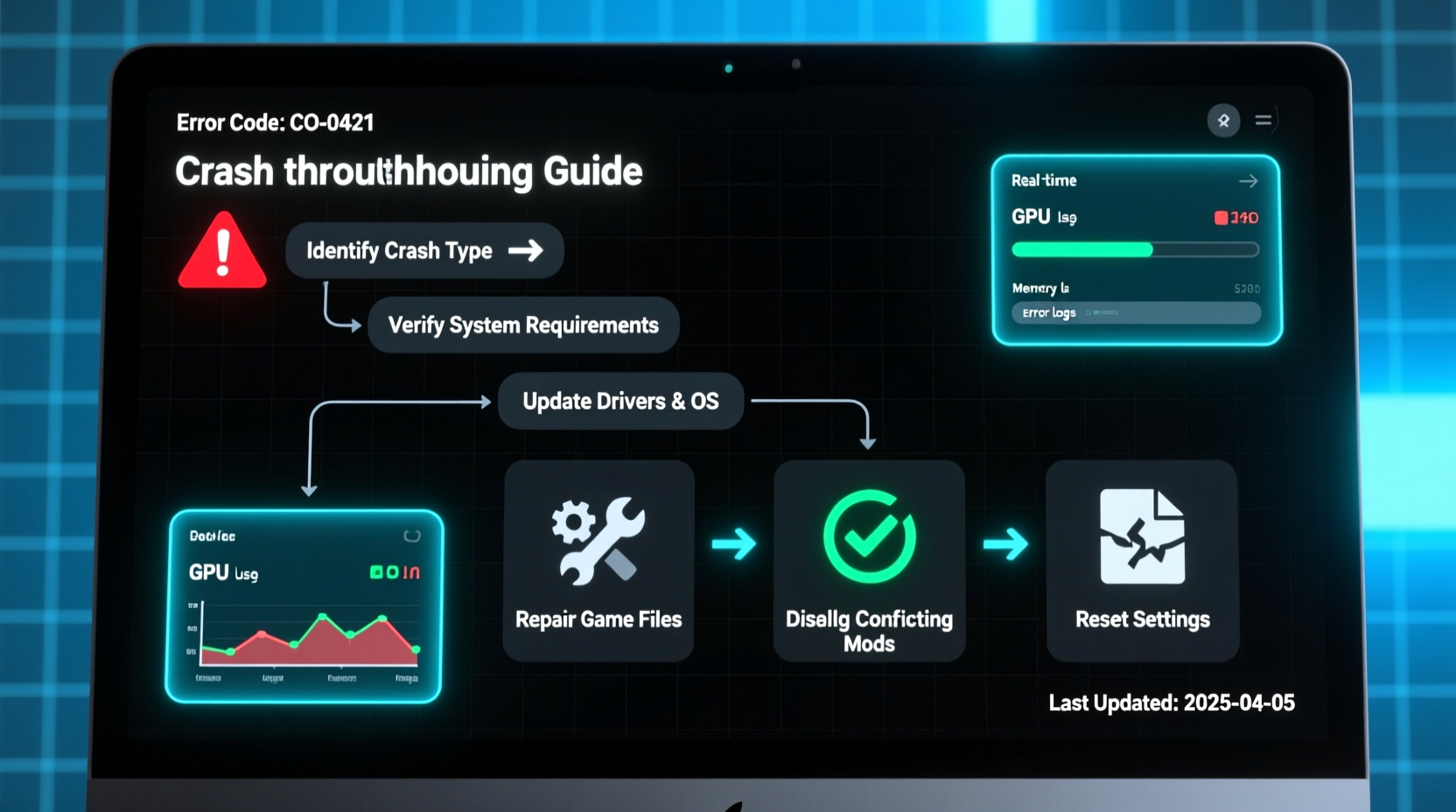
Game crashes can stem from a variety of sources, ranging from hardware limitations to software conflicts. In the case of Black Ops 6, several recurring patterns have emerged across player reports:
- Outdated graphics drivers – Failing to update GPU drivers is a leading cause of instability.
- Incompatible overlays – Applications like Discord, GeForce Experience, or Xbox Game Bar can interfere with game processes.
- Corrupted game files – Missing or damaged assets disrupt execution and lead to unexpected exits.
- Overheating hardware – Sustained high temperatures trigger automatic shutdowns as a safety measure.
- Background applications – Resource-heavy programs competing for CPU or RAM can destabilize performance.
Before diving into complex diagnostics, it’s essential to rule out simple but impactful causes. Many players resolve crashes within minutes by addressing these foundational issues.
Step-by-Step Troubleshooting Guide
Follow this structured approach to identify and eliminate the root cause of crashes. Begin with basic checks and progress to more advanced solutions if needed.
- Restart your system – A fresh boot clears temporary glitches and resets active processes.
- Update your graphics drivers – Visit NVIDIA, AMD, or Intel’s official site to download the latest version compatible with your GPU.
- Verify game files – Use your platform’s built-in repair tool (Steam, Battle.net, or Xbox App) to scan for corruption.
- Disable third-party overlays – Turn off Discord overlay, GeForce Experience, or any in-game assistants.
- Run the game as administrator – Right-click the executable and select “Run as administrator” to ensure full permissions.
- Adjust in-game graphics settings – Lower resolution, disable ray tracing, and reduce texture quality to ease GPU load.
- Update Windows – Install the latest OS patches, including DirectX and Visual C++ redistributables.
- Monitor system temperatures – Use tools like HWMonitor or MSI Afterburner to check CPU and GPU heat levels.
If crashes persist after completing these steps, proceed to deeper system-level adjustments.
Optimize Launch Settings and System Performance
Modern PC games often rely on default configurations that don’t always align with individual hardware setups. Tweaking launch options and system behavior can significantly improve stability.
Modify Steam/Battle.net Launch Options
For Steam users, adding specific launch parameters can prevent common memory and rendering errors:
-high– Launches the game with high process priority.-malloc=system– Bypasses certain memory allocators known to cause crashes.-novid– Skips the intro video, reducing initial load strain.-d3d12– Forces DirectX 12 usage (if supported by your GPU).
To apply these: Right-click Black Ops 6 in your Steam library > Properties > General > Launch Options.
Adjust Windows Power Plan
Ensure your system is set to \"High Performance\" mode:
- Open Control Panel > Hardware and Sound > Power Options.
- Select “High Performance.” If not visible, click “Show additional plans.”
- Click “Change plan settings” and set both battery and plugged-in modes to never sleep.
This prevents CPU throttling during extended gameplay sessions.
| Solution | Effectiveness | Difficulty |
|---|---|---|
| Update GPU drivers | ⭐⭐⭐⭐☆ | Easy |
| Verify game files | ⭐⭐⭐⭐⭐ | Easy |
| Disable overlays | ⭐⭐⭐★☆ | Easy |
| Add launch commands | ⭐⭐⭐★☆ | Moderate |
| Clean boot Windows | ⭐⭐★☆☆ | Moderate |
“Over 60% of reported crashes in AAA titles post-launch are resolved by updating drivers and verifying integrity of game files.” — Jason Reed, Senior Technical Analyst at GameDebug Labs
Real-World Example: Fixing Persistent Crash-on-Launch
Daniel, a PC gamer using an RTX 3070 and Ryzen 5 5600X, experienced consistent crashes every time he launched Black Ops 6. The game would load the splash screen, then freeze and close without an error message. He confirmed his internet connection was stable and reinstalled the game twice with no success.
After reviewing community forums, he checked his Event Viewer logs and found repeated references to “nvlddmkm” — a known indicator of NVIDIA driver instability. He uninstalled his current GPU drivers using Display Driver Uninstaller (DDU) in safe mode, then installed the latest Game Ready driver from NVIDIA’s website. He also disabled the Discord overlay and added -malloc=system to his Steam launch options.
The game launched successfully on the next attempt and has remained stable through multiple sessions. This case highlights how combining log analysis with targeted fixes can resolve seemingly intractable issues.
Advanced Fixes for Stubborn Crashes
When standard methods fail, consider these deeper interventions:
Perform a Clean Boot
A clean boot isolates software conflicts by starting Windows with only essential services.
- Press Win + R, type
msconfig, and press Enter. - Go to the “Services” tab, check “Hide all Microsoft services,” then click “Disable all.”
- Navigate to the “Startup” tab and open Task Manager. Disable all startup items.
- Restart your PC and launch Black Ops 6.
If the game runs without crashing, re-enable services incrementally to identify the culprit.
Reinstall Visual C++ Redistributables
Black Ops 6 depends on multiple Visual C++ libraries. Corrupted installations can cause runtime failures.
Uninstall all versions from 2015 to 2022 via Control Panel, then reinstall them from Microsoft’s official download center or use the game’s installation directory, which often includes a vcredist installer.
Clear Shader Cache
GPU shader caches can become bloated or corrupted, especially after major game updates.
- NVIDIA: Navigate to
C:\\Users\\[User]\\AppData\\Local\\NVIDIA\\DXCacheand delete all files. - AMD: Delete contents of
C:\\Users\\[User]\\AppData\\Local\\AMD\\DxCache. - Intel: Clear
C:\\Users\\[User]\\AppData\\Local\\Intel\\ShaderCache.
The game will regenerate these files on next launch, potentially resolving rendering-related crashes.
Frequently Asked Questions
Why does Black Ops 6 crash randomly during multiplayer matches?
Random crashes in multiplayer are often linked to network instability, memory leaks, or server-side sync issues. Ensure your internet connection is stable, close bandwidth-heavy apps, and verify game files. Also, monitor RAM usage—games like Black Ops 6 can consume over 12GB under heavy loads.
Does disabling fullscreen optimizations help?
Yes. Right-click the game’s .exe file > Properties > Compatibility > Check “Disable fullscreen optimizations.” This bypasses Windows’ default borderless window handling, which sometimes conflicts with modern games.
Should I reinstall the entire game if nothing else works?
If all other steps fail, a full reinstall can resolve deep-seated file corruption. Uninstall via your platform, manually delete any remaining folders in Program Files and AppData, then perform a clean install. Make sure you’re downloading on an SSD for optimal performance.
Final Recommendations and Prevention
Crashes are rarely caused by a single factor. Success comes from systematic elimination of potential issues. Once you’ve stabilized Black Ops 6, maintain performance by keeping drivers updated, monitoring system health, and avoiding unnecessary background software during gameplay.
Additionally, join the official Activision support forums or subreddit communities to stay informed about known bugs and upcoming patches. Developers often release hotfixes within days of launch based on user feedback.




 浙公网安备
33010002000092号
浙公网安备
33010002000092号 浙B2-20120091-4
Comments
No comments yet. Why don't you start the discussion?