
Bluebeam Revu is a powerful PDF markup and collaboration tool widely used in architecture, engineering, and construction industries. However, users often encounter a frustrating issue: critical document commands—such as editing, annotating, or saving—are grayed out and inaccessible. This limitation can halt productivity and create confusion, especially during time-sensitive projects. The root causes vary, but most are tied to file permissions, licensing, or software settings. Understanding why these commands are disabled—and how to restore full functionality—is essential for seamless workflow continuity.
Understanding Command Availability in Bluebeam Revu
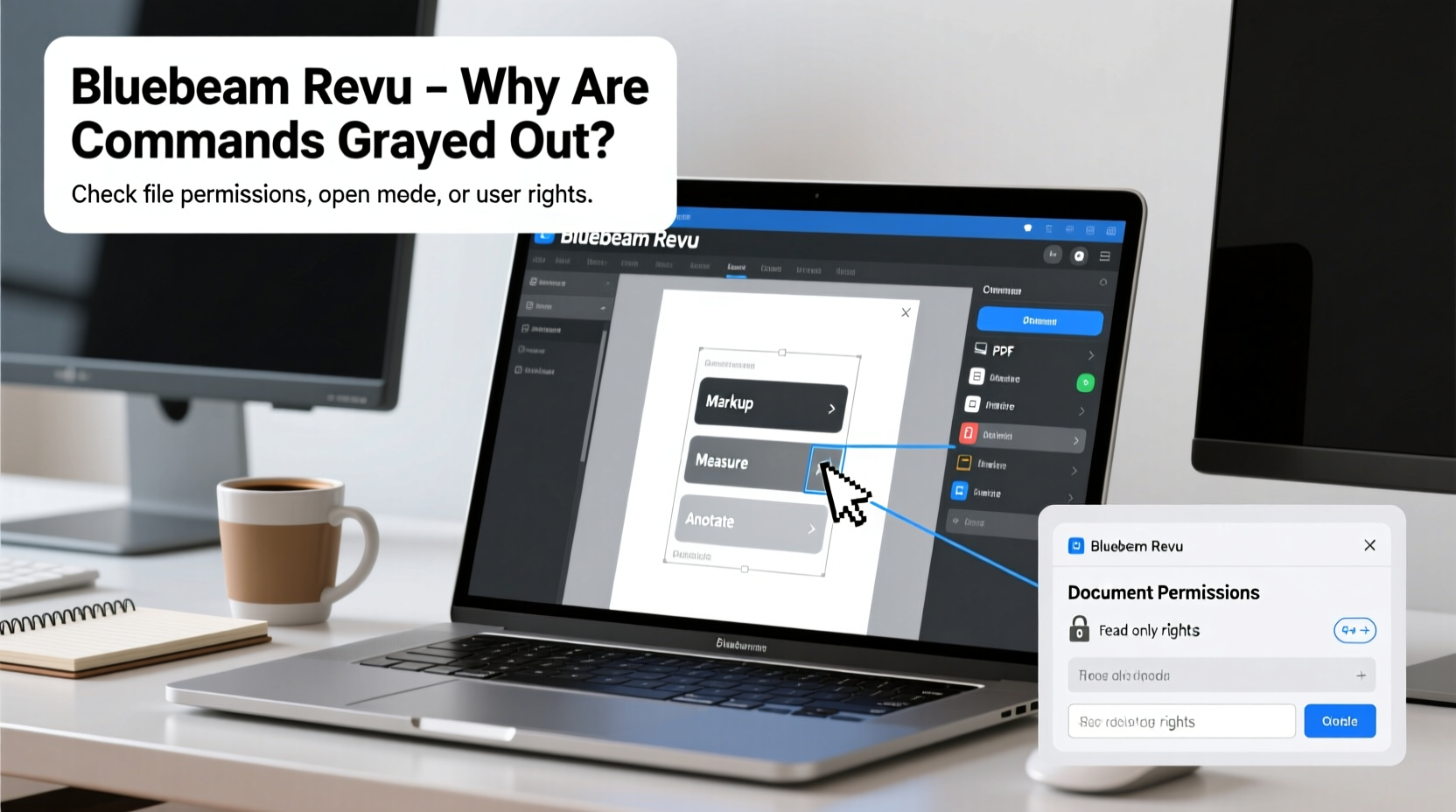
In Bluebeam Revu, the availability of document-related commands depends on multiple factors, including file status, user permissions, license type, and active tools. When certain functions appear grayed out, it typically means that the software has detected a condition preventing safe or authorized use of that feature.
Common commands affected include:
- Save / Save As
- Edit text or objects
- Add or modify annotations
- Modify page layout or insert pages
- Export or convert files
These features may be disabled even if you’ve opened the file successfully. Unlike simpler PDF viewers, Bluebeam Revu distinguishes between viewing and editing modes based on both technical and legal constraints. Recognizing the difference helps identify the correct solution path.
Primary Causes of Grayed-Out Commands
1. File-Level Security Restrictions
PDFs can be protected with password-based security that limits actions like editing, printing, or copying content. Even if you can open the file, the author may have disabled modification rights. Bluebeam respects these restrictions and disables relevant tools accordingly.
2. Read-Only File Status
The file might be marked as read-only at the system level. This occurs when the file is opened from a network drive with limited write access, stored in a protected folder, or flagged by your operating system. Bluebeam inherits this restriction and prevents edits to avoid data conflicts.
3. Licensing Limitations
Not all Bluebeam Revu editions support full editing capabilities. For example, Revu eXtreme offers advanced editing and scripting tools, while Revu Standard may restrict certain functions. If your license doesn’t cover specific features, those commands will appear grayed out regardless of the file’s properties.
4. Document in Review Mode or Marked as Final
If the PDF was saved in “Final” mode (often used to prevent accidental changes), Bluebeam treats it as a completed document. Similarly, files shared via Studio Sessions or Bluebeam Cloud may enter review-only states depending on project settings.
5. Corrupted or Non-Native PDF Structure
Some PDFs—especially those scanned from paper or exported from non-standard software—lack proper layers, text objects, or metadata. Bluebeam may not recognize them as editable, leading to disabled tools for text editing or form creation.
“Many users assume a grayed-out toolbar means software failure, but in 80% of cases, it's a permissions or licensing issue.” — David Lin, AEC Technology Consultant
Step-by-Step Guide to Restore Accessible Commands
Follow this systematic approach to diagnose and resolve command limitations in Bluebeam Revu:
- Verify File Permissions: Right-click the PDF > Properties > check if “Read-only” is checked. Uncheck it if appropriate and re-open in Bluebeam.
- Check PDF Security Settings: In Bluebeam, go to Document > Document Properties > Security. Look for restrictions under “Permissions.” If password-protected, contact the document owner for an unrestricted version.
- Confirm Your License Tier: Navigate to Help > About Revu to see your edition (Standard, CAD, eXtreme). Compare your license with Bluebeam’s feature matrix to ensure your plan supports the tools you need.
- Save a Local Copy: If working from a network or cloud location, save the file locally (e.g., Desktop) and reopen. Network latency or sync locks can temporarily disable editing.
- Remove “Final” Document Status: Go to File > Info > Protect Document > Mark as Final and disable it if active.
- Use PDF Repair Tool: If the file structure is suspect, try Document > Repair PDF to rebuild internal components and restore editability.
- Test with a New Blank PDF: Create a new file in Bluebeam and attempt the same commands. If they work, the issue is isolated to the original document.
Troubleshooting Checklist
- ☐ Is the file set to “Read-only” in Windows?
- ☐ Does the PDF have editing restrictions enabled?
- ☐ Are you using the correct Bluebeam license tier?
- ☐ Is the document marked as “Final”?
- ☐ Can you edit other PDFs in Bluebeam?
- ☐ Have you tried saving the file locally?
- ☐ Did you run “Repair PDF” on the file?
- ☐ Is your Bluebeam software up to date?
Real-World Example: Resolving a Blocked Markup Workflow
A structural engineering firm received stamped approval drawings from a client, only to find that Bluebeam Revu wouldn’t allow markup additions. Team members reported that the Takeoff and Drawing Markup tools were grayed out despite having full licenses.
After investigation, the team discovered that the client had marked the PDFs as “Final” and applied password protection to prevent modifications. Although the password wasn’t required to open the file, it enforced read-only behavior.
The solution involved requesting an unprotected version from the client. Once received, the engineers could mark up revisions, add measurements, and export updated sheets. This experience prompted the firm to establish a standard intake process for incoming PDFs, including a quick permissions audit before assigning tasks.
Do’s and Don’ts When Facing Disabled Tools
| Do’s | Don’ts |
|---|---|
| Always verify file properties before reporting software issues | Assume the problem is with Bluebeam without checking the file first |
| Save a local copy to bypass network restrictions | Attempt registry edits or force-enable tools without backup |
| Contact your Bluebeam reseller or admin for license verification | Ignore software update notifications—older versions may lack fixes |
| Use the built-in PDF Repair function for corrupted files | Distribute unverified third-party tools claiming to unlock PDFs |
Frequently Asked Questions
Why can I view the PDF but not edit it in Bluebeam Revu?
This usually indicates that the PDF has permission restrictions set by the creator. Even if no password is required to open the file, editing privileges may be disabled. You’ll need an unrestricted version from the source or must remove restrictions using a password if you have authorization.
Does Bluebeam Revu Standard support all editing tools?
No. Revu Standard lacks advanced features such as scripting, batch processing, and some measurement tools available in Revu CAD and eXtreme. If certain commands are consistently grayed out across files, verify your license tier matches your workflow needs.
Can I unlock a PDF if I don’t have the password?
Legally, only the document owner or someone with explicit permission should attempt to remove restrictions. Unauthorized unlocking violates copyright and software licensing agreements. Always seek permission before proceeding.
Conclusion
Grayed-out commands in Bluebeam Revu are rarely due to software malfunction. More often, they stem from deliberate restrictions designed to protect document integrity. By methodically checking file permissions, license levels, and document status, most issues can be resolved quickly. Proactive habits—like verifying file properties upon receipt and maintaining updated software—prevent recurring disruptions. Understanding the logic behind command availability empowers users to work efficiently and confidently within Bluebeam’s robust environment.




 浙公网安备
33010002000092号
浙公网安备
33010002000092号 浙B2-20120091-4
Comments
No comments yet. Why don't you start the discussion?