
Bluetooth speakers offer convenience, portability, and high-quality audio without the clutter of wires. But when your device refuses to connect—especially at a crucial moment—the frustration is real. Whether you're setting up for a backyard party or trying to stream a podcast during your commute, pairing issues can disrupt your rhythm. The good news? Most Bluetooth connection problems are fixable in minutes with the right approach. This guide dives into the root causes of failed pairings, provides immediate solutions, and equips you with long-term strategies to ensure seamless reconnection every time.
Why Bluetooth Pairing Fails: Common Causes
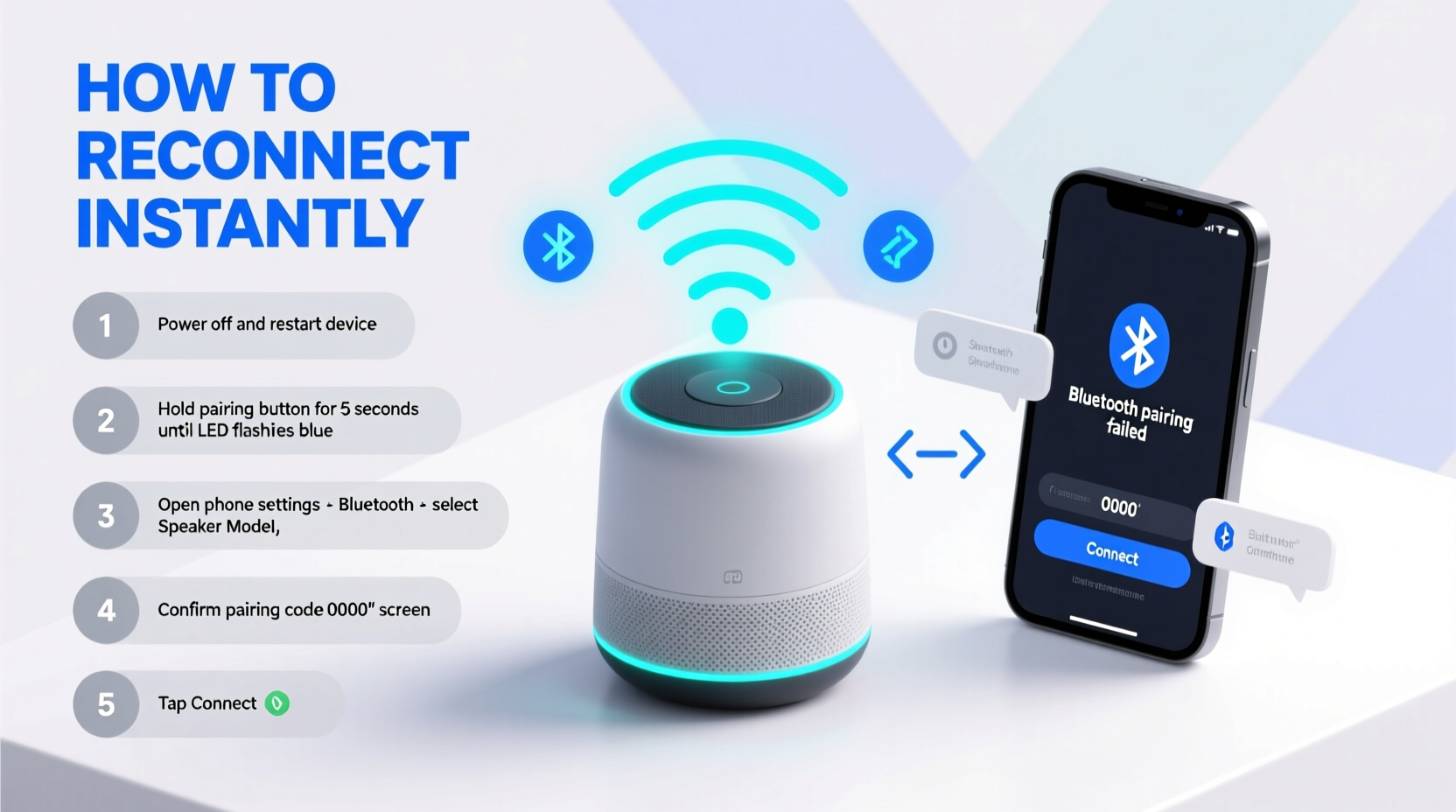
Before jumping into fixes, it helps to understand what’s going wrong. Bluetooth technology relies on short-range wireless communication between two devices. When pairing fails, it’s usually due to one or more of these factors:
- Distance or interference: Walls, appliances, and even Wi-Fi networks can weaken or block Bluetooth signals.
- Outdated firmware: Both your speaker and source device (phone, tablet, laptop) may need software updates.
- Full pairing list: Many Bluetooth speakers only store 6–8 paired devices. Once full, older connections must be cleared manually.
- Incorrect mode: The speaker might be in AUX input mode instead of Bluetooth mode.
- Low battery: A weak charge can impair wireless functionality—even if the speaker still powers on.
- Software glitches: Temporary bugs in either device’s operating system can prevent detection.
Step-by-Step Guide to Reconnect Instantly
When your speaker won’t pair, follow this structured sequence. Each step builds on the previous one, increasing your chances of success.
- Power off both devices: Turn off your Bluetooth speaker and the connecting device (smartphone, tablet, etc.). Wait 10 seconds.
- Restart both devices: Power them back on. This clears temporary memory glitches.
- Enable Bluetooth: On your phone or tablet, go to Settings > Bluetooth and ensure it’s turned on.
- Put speaker in pairing mode: Press and hold the Bluetooth button on the speaker until you hear a voice prompt or see a flashing light (varies by model).
- Search for devices: Tap “Scan” or wait for your speaker to appear in the available devices list.
- Select the speaker: Tap its name. If prompted, enter the default PIN (usually 0000 or 1234).
- Test playback: Play a sound immediately to confirm the connection is stable.
If the above doesn’t work, move to advanced troubleshooting.
Advanced Fixes for Persistent Pairing Issues
Sometimes, standard resets aren’t enough. These deeper interventions often resolve stubborn cases.
Clear the Speaker’s Device Memory
Many users overlook that Bluetooth speakers have limited memory for saved devices. Once full, new connections fail—even if the speaker appears “unpaired.” To reset the list:
- Consult your speaker’s manual for the “factory reset” or “clear pairing list” procedure.
- Typical method: Press and hold the Bluetooth and volume + buttons for 8–10 seconds until lights flash red/blue.
- After reset, the speaker will no longer recognize any past devices—allowing fresh pairing.
Forget the Device on Your Phone
Your smartphone may be holding onto corrupted connection data. Remove the speaker from your phone’s Bluetooth settings:
- Go to Settings > Bluetooth.
- Find your speaker in the list of paired devices.
- Tap the gear icon or “i” symbol next to it.
- Select “Forget This Device.”
- Re-pair as if connecting for the first time.
Check for Firmware Updates
Manufacturers release firmware updates to improve stability and compatibility. For example, JBL, Bose, and Sony regularly patch Bluetooth drivers. Use the official app (like JBL Portable, Bose Connect, or Sony Music Center) to check for updates. Never skip these—they often resolve chronic pairing bugs.
“Over 70% of recurring Bluetooth issues we see in support logs are resolved by firmware updates released within the last six months.” — Rajiv Mehta, Senior Audio Engineer at SoundSync Labs
Troubleshooting Checklist
Use this checklist whenever your speaker fails to connect. Tick each box as you complete it:
- ✅ Ensure both devices are charged (speaker & phone)
- ✅ Restart both the speaker and source device
- ✅ Confirm speaker is in Bluetooth mode (not AUX or USB)
- ✅ Move closer—stay within 3 feet with no obstacles
- ✅ Turn off other nearby Bluetooth devices temporarily
- ✅ Forget the speaker on your phone and re-pair
- ✅ Clear the speaker’s pairing history via factory reset
- ✅ Check for firmware updates using the manufacturer’s app
- ✅ Test with another phone or tablet to isolate the issue
- ✅ Avoid microwaves, routers, or cordless phones nearby
Do’s and Don’ts of Bluetooth Management
| Do | Don't |
|---|---|
| Keep devices updated with latest OS and firmware | Ignore update notifications on your speaker app |
| Store your speaker in a dry, temperature-controlled space | Leave it in direct sunlight or humid environments |
| Limit active paired devices to under 6 | Assume old connections auto-delete after years of disuse |
| Use the manufacturer’s companion app for diagnostics | Rely solely on generic Bluetooth settings |
| Pair in quiet RF environments (low Wi-Fi congestion) | Try pairing near busy routers or smart home hubs |
Real Example: How Sarah Fixed Her Speaker in Under 5 Minutes
Sarah was preparing for a small outdoor gathering when her JBL Flip 6 refused to connect to her iPhone. She’d used it just two days prior with no issues. Frustrated, she tried restarting the phone and toggling Bluetooth—no luck. Then she remembered reading about pairing limits.
She opened the JBL Portable app and noticed the speaker had eight paired devices listed—including an old tablet she hadn’t used in over a year. Using the app, she cleared all previous connections. Back in her phone’s Bluetooth menu, she put the speaker into pairing mode again. This time, it appeared instantly and connected on the first try. Music played within seconds. The root cause? A full device memory silently blocking new connections.
This scenario happens more often than people realize. Devices don’t always alert you when their pairing limit is reached. Proactive management prevents last-minute failures.
When Hardware Might Be the Issue
While most pairing problems are software-related, hardware faults do occur. Watch for these red flags:
- The speaker enters pairing mode but never appears in device lists.
- No LED indicators respond despite charging.
- It connects briefly, then drops after 10–20 seconds.
- You’ve tested across multiple devices with identical failure.
If these symptoms persist after full resets and updates, the Bluetooth module may be damaged. Contact the manufacturer for repair or replacement, especially if under warranty. Some brands like Ultimate Ears and Bose offer free diagnostics through their support portals.
Frequently Asked Questions
Why does my Bluetooth speaker keep disconnecting?
Intermittent disconnections are often caused by signal interference, low battery, or outdated firmware. Ensure your speaker has at least 30% charge and isn’t blocked by walls or metal objects. Also, disable battery-saving modes on your phone that may throttle Bluetooth performance.
Can I pair a Bluetooth speaker with two devices at once?
Some modern speakers support multipoint pairing (e.g., Sony XB43, JBL Charge 5). This allows simultaneous connection to two devices—useful if you’re sharing music control. However, not all models have this feature. Check your user manual or look for “multipoint” in the specs.
How far can a Bluetooth speaker be from my phone?
The effective range depends on the Bluetooth version. Most speakers use Bluetooth 5.0 or higher, offering up to 30 meters (about 100 feet) in open spaces. Walls, furniture, and electronic interference reduce this significantly. For reliable performance, stay within 10–15 feet.
Preventing Future Pairing Problems
Instant reconnection starts with consistent maintenance. Build these habits into your routine:
- Monthly reset: Power cycle your speaker and clear unused pairings once a month.
- Update alerts: Enable notifications in your speaker’s companion app.
- Dedicated storage: Keep the speaker in a designated spot away from moisture and heat.
- Label devices: Rename your speaker in Bluetooth settings to avoid confusion.
- Use apps: Leverage diagnostic tools in official apps to monitor connection health.
Think of your Bluetooth speaker like a smart appliance—it benefits from regular digital upkeep just like your phone or laptop.
Conclusion: Master Instant Reconnection
Bluetooth speaker pairing problems are common, but rarely permanent. With a systematic approach—starting with simple restarts and progressing to memory resets and firmware updates—most issues resolve quickly. The key is knowing where to look and avoiding assumptions. A speaker that “won’t connect” often just needs a clean slate or a software refresh.
By applying the steps outlined here, you’ll spend less time troubleshooting and more time enjoying your music. Whether you're at home, on the go, or hosting friends, instant reconnection should be the norm, not the exception.




 浙公网安备
33010002000092号
浙公网安备
33010002000092号 浙B2-20120091-4
Comments
No comments yet. Why don't you start the discussion?