
Gaming doesn’t have to be confined to one platform. With the rise of cross-platform compatibility, many PC gamers are turning to the DualSense controller from the PlayStation 5 for its ergonomic design, haptic feedback, and adaptive triggers. The good news: yes, you absolutely can use a PS5 controller on PC—and do so smoothly—with minimal setup. Whether you're playing Steam titles, indie games, or AAA releases, the DualSense offers a premium experience when properly configured. This guide walks you through every detail needed to get your PS5 controller working flawlessly on Windows, covering wired and wireless options, driver installation, troubleshooting tips, and performance optimization.
Why Use a PS5 Controller on PC?
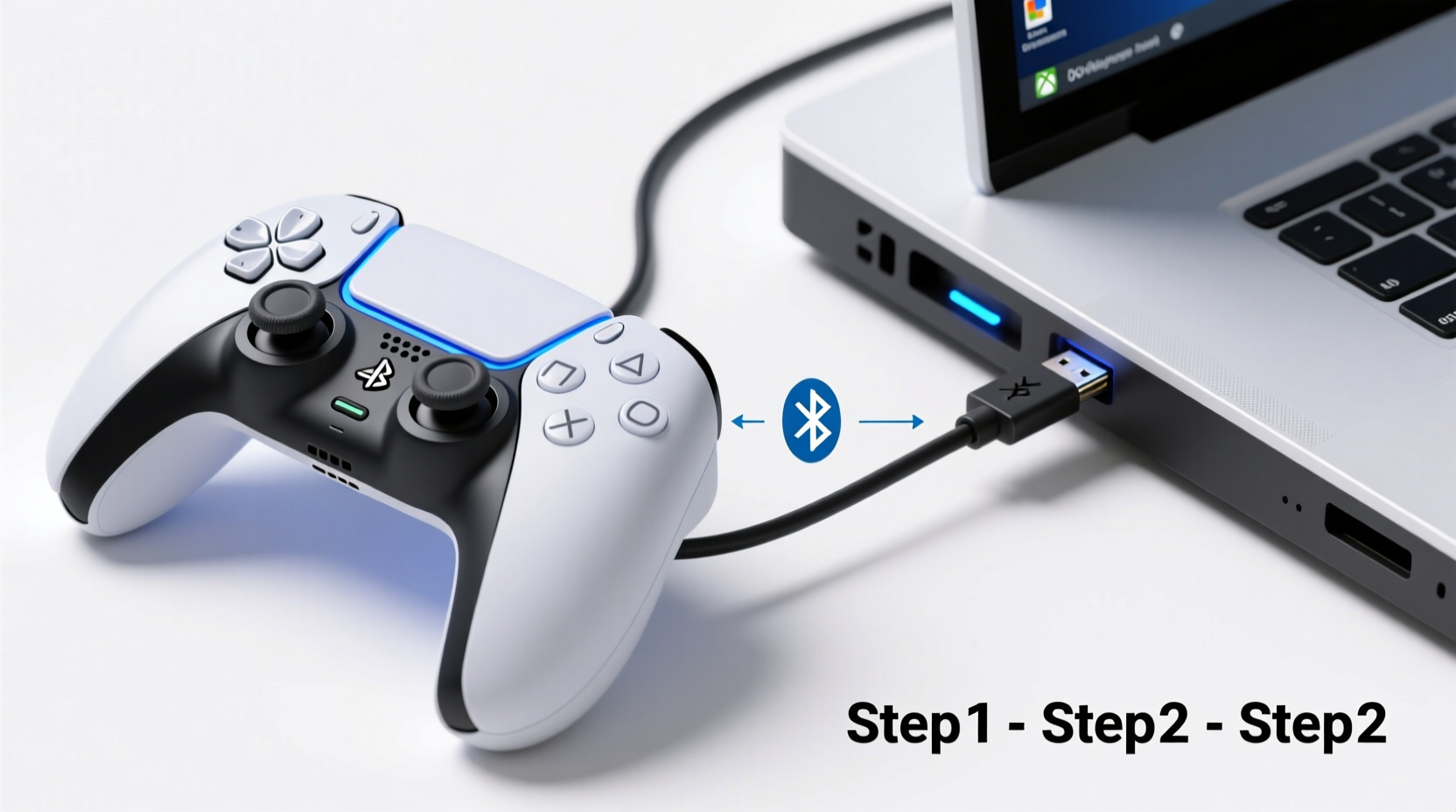
The DualSense controller isn't just built for the PS5—it’s engineered with advanced features that elevate any gaming session. Its standout innovations include:
- Haptic feedback: Replaces traditional rumble motors with precise vibrations that simulate textures, terrain, and resistance.
- Adaptive triggers: L2 and R2 offer variable tension, mimicking actions like drawing a bow or pressing a brake pedal.
- Ergonomic shape: Designed for extended comfort during long sessions.
- Integrated microphone and speaker: Enables voice chat without a headset in supported games.
- Built-in gyroscope: Allows motion controls in compatible titles.
These features make the DualSense one of the most immersive controllers available—even on PC. Unlike older console controllers, it works natively with Windows in many scenarios, but unlocking full functionality requires proper setup.
Step-by-Step Setup: Connecting Your PS5 Controller to PC
Connecting your DualSense to a Windows PC is straightforward, whether using a USB cable or Bluetooth. Below is a complete walkthrough for both methods.
Option 1: Wired Connection (Recommended for Beginners)
- Use a USB-C to USB-A cable (the same one used to charge your PS5 controller).
- Plug the USB-A end into your PC and the USB-C end into the controller.
- Press the PS button on the controller to power it on.
- Windows will automatically detect the device and install basic drivers via Windows Update.
- Open a game that supports gamepad input (e.g., Elden Ring, Rocket League) and test controls.
This method ensures zero latency and consistent connection. Most modern games recognize the DualSense as an Xbox-compatible controller thanks to DirectInput emulation built into Windows.
Option 2: Wireless Connection via Bluetooth
For a clutter-free experience, connect your DualSense wirelessly using your PC’s built-in Bluetooth.
- Ensure your PC has Bluetooth capability (most laptops do; desktops may require a USB adapter).
- Turn on your PS5 controller by connecting it via USB briefly, then disconnect once powered.
- Hold the PS button and Create button (formerly Share button) simultaneously until the light bar starts flashing white.
- On your PC, go to Settings > Devices > Bluetooth & other devices.
- Click “Add Bluetooth or other device” > “Bluetooth.”
- Select “Wireless Controller” from the list when it appears.
- Once connected, the light bar will glow steady white.
Note: Some users report intermittent disconnections over Bluetooth. If this occurs, try updating your PC’s Bluetooth drivers or re-pairing the device.
Optimizing Performance: Software and Settings
While plug-and-play functionality works for basic control, getting the most out of your DualSense requires additional software to unlock haptics, trigger effects, and audio routing.
Using DS4Windows for Full Feature Support
DS4Windows is a free, open-source tool that emulates the DualSense as an Xbox 360 or Xbox One controller while preserving advanced features.
- Download DS4Windows from the official GitHub repository (avoid third-party sites).
- Install the required dependencies: ViGEmBus (automatically prompted during setup).
- Launch DS4Windows and connect your controller via USB or Bluetooth.
- The app should auto-detect your DualSense and begin emulation.
- Customize profiles: adjust dead zones, sensitivity, LED color, and gyro controls.
- Enable “Use DInput only” if experiencing conflicts with certain games.
With DS4Windows running in the background, you’ll gain access to near-native PS5-level responsiveness—even in non-Steam games.
Steam Integration for Native Support
Steam offers built-in support for the DualSense, allowing full access to haptics, motion controls, and button remapping without third-party tools.
- Open Steam and enter Big Picture Mode or go to Settings > Controller > General Controller Settings.
- Ensure “PlayStation Configuration Support” is enabled.
- Connect your DualSense via USB or Bluetooth.
- Launch any Steam game and press the PS button to bring up the Steam Input overlay.
- Customize layouts, sensitivity curves, and gyro-to-aim functions.
Games like Death Stranding and Resident Evil Village deliver enhanced tactile feedback through Steam, making this the preferred method for Steam-centric players.
Troubleshooting Common Issues
Even with careful setup, some users encounter problems. Here are frequent issues and how to resolve them.
| Issue | Possible Cause | Solution |
|---|---|---|
| Controller not detected | Driver conflict or disabled Bluetooth | Check Device Manager; reinstall Bluetooth drivers; restart PC |
| Audio not coming through controller speaker | Default playback device not set | In Sound Settings, set “Headphones (DualSense Wireless Controller)” as default |
| Haptics not working | Lack of Steam Input or DS4Windows | Enable Steam configuration or install DS4Windows with exclusive mode |
| Latency or stuttering over Bluetooth | Interference or outdated Bluetooth stack | Move closer to PC; update drivers; consider a USB connection |
| Battery drains quickly | Background apps, mic always active | Disable microphone in OS settings when not needed |
“Modern controllers like the DualSense blur the line between platforms. When paired correctly, they perform just as well—if not better—on PC than their native systems.” — Mark Tran, Senior Hardware Analyst at GameTech Review
Mini Case Study: From Frustration to Smooth Gameplay
Jason, a PC gamer from Austin, bought a DualSense to replace his aging Xbox controller. Initially, he tried connecting it directly via Bluetooth, but found that games like Control didn’t register trigger effects and the audio output defaulted to his monitor. After reading conflicting advice online, he nearly gave up.
He followed a structured approach: first installing DS4Windows, then configuring exclusive mode to prevent input conflicts. He discovered that enabling “Activate microphone via mute button” reduced idle battery drain. Within 20 minutes, he had full haptic feedback in Returnal (via Steam), used gyro aiming in Fortnite, and routed voice chat through the controller’s built-in mic. Today, he uses only the DualSense for all his controller-based games.
His key takeaway? Proper software makes all the difference. “It wasn’t the hardware—it was knowing which tools to use,” he says.
Do’s and Don’ts of Using a PS5 Controller on PC
| Do | Don’t |
|---|---|
| Update your Windows OS regularly for better HID support | Use cheap, unshielded USB cables that cause charging issues |
| Use DS4Windows or Steam Input for full feature parity | Assume all games will support haptics out of the box |
| Keep firmware updated via PS5 (when possible) | Leave the controller connected via USB when not in use—overcharging reduces battery lifespan |
| Customize button layouts for keyboard-heavy games | Ignore driver updates for Bluetooth adapters |
Frequently Asked Questions
Can I charge my PS5 controller while using it on PC?
Yes. When connected via USB, the controller charges while functioning as an input device. However, avoid using low-quality cables, as they may provide power inconsistently or fail to transmit data.
Are adaptive triggers supported on PC?
Yes, but only in games that specifically implement them and through software like DS4Windows or Steam Input. Titles such as Death Stranding: Director’s Cut and A Plague Tale: Requiem fully utilize adaptive triggers when launched through Steam.
Does the PS5 controller work on older versions of Windows?
Windows 10 (version 1903 or later) and Windows 11 offer native support. Earlier versions like Windows 7 lack built-in drivers and require extensive patching, which is not recommended due to security risks and compatibility limitations.
Final Checklist Before You Play
- ✅ Charge your DualSense fully.
- ✅ Confirm your PC has Bluetooth (or use a compatible USB adapter).
- ✅ Install DS4Windows or enable Steam Input.
- ✅ Connect via USB first to test basic functionality.
- ✅ Pair via Bluetooth for wireless freedom.
- ✅ Set the DualSense as the default audio device if using its speaker/mic.
- ✅ Launch a game and verify all buttons, triggers, and haptics respond.
Conclusion: Unlock Seamless Cross-Platform Gaming
Using a PS5 controller on PC isn’t just possible—it’s a smart upgrade for gamers seeking precision, immersion, and comfort. With the right setup, you can enjoy every innovation Sony packed into the DualSense, from nuanced haptic feedback to responsive adaptive triggers, across hundreds of PC titles. Whether you prefer a simple wired connection or a clean wireless experience, the process is accessible and rewarding. The key lies in understanding the ecosystem: leverage Steam for integrated support, rely on DS4Windows for deeper customization, and maintain your hardware with care.




 浙公网安备
33010002000092号
浙公网安备
33010002000092号 浙B2-20120091-4
Comments
No comments yet. Why don't you start the discussion?