
Modern workflows demand flexibility, especially when screen real estate is limited. Many professionals and creatives wonder: can you use an iPad as a second monitor for a Windows PC? The answer is a resounding yes. With the right tools and setup, your iPad can function as a high-resolution, touch-enabled secondary display—extending or mirroring your Windows desktop seamlessly. This capability opens up new possibilities for multitasking, digital art, coding, and presentations.
The iPad’s Retina display, responsive touch interface, and portability make it an excellent candidate for a secondary screen. While Apple designed Sidecar to work exclusively between Macs and iPads, Windows users aren’t left out. Third-party apps and clever networking techniques bridge the gap, enabling robust cross-platform functionality. Whether you're working from a cramped desk, traveling, or simply want more screen space, turning your iPad into a wireless monitor is both practical and cost-effective.
How It Works: The Technology Behind iPad-to-PC Mirroring
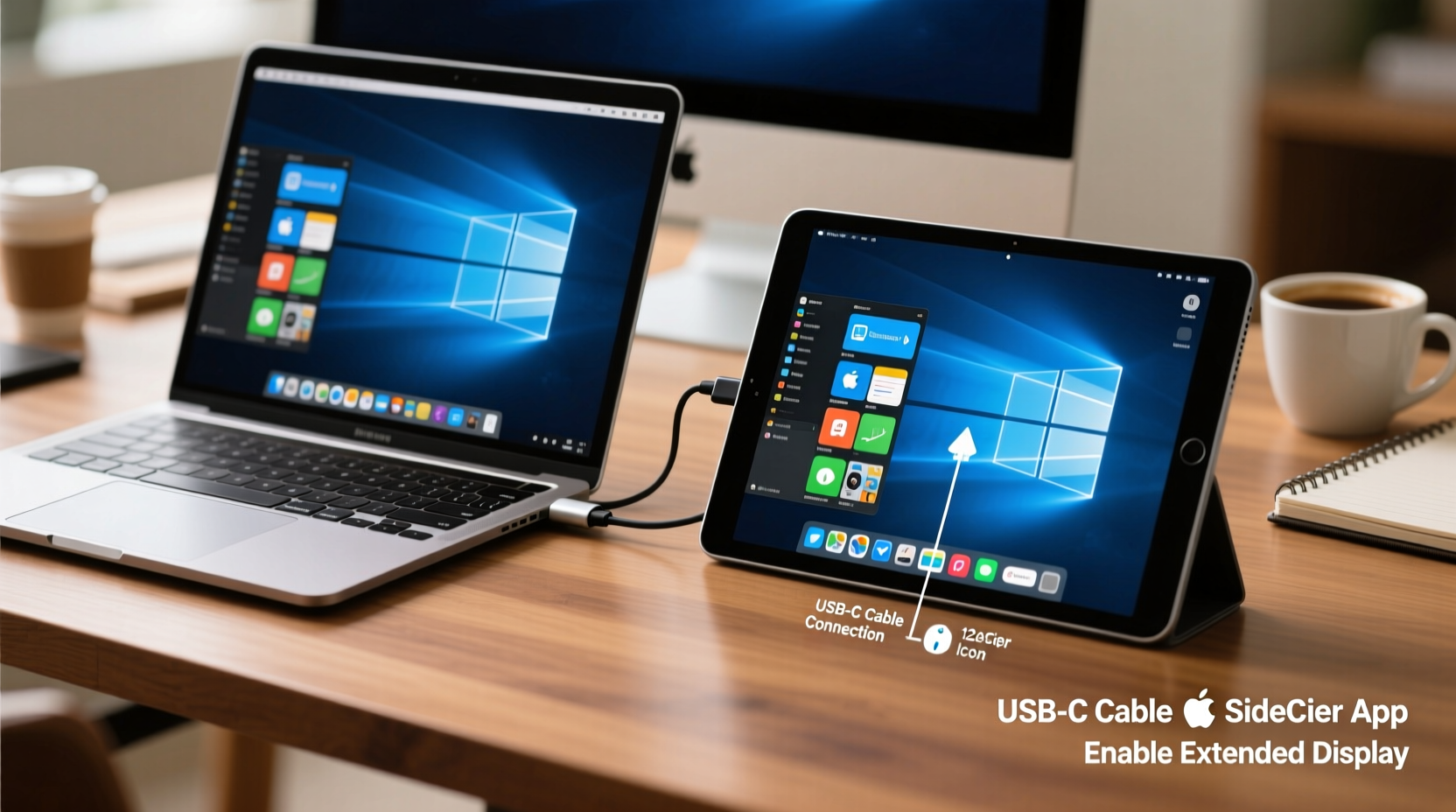
Using an iPad as a second monitor for a Windows PC relies on screen streaming technology. The PC captures its display output (either full screen or a selected portion), compresses it, and transmits it over a network—usually Wi-Fi—to an app running on the iPad. The app then decodes and renders the stream in real time, allowing touch input to be sent back to the PC as mouse or pen events.
This process introduces some latency depending on the app, network quality, and hardware capabilities. However, modern solutions have minimized lag to near-unnoticeable levels, especially on 5 GHz Wi-Fi networks. Frame rates typically range from 30 to 60 FPS, with resolutions up to 2K on supported devices.
Two primary connection methods exist: wired and wireless. A wired connection via USB offers lower latency and more stable performance, while wireless provides greater freedom of movement. Most apps support both, giving users flexibility based on their environment.
Top Apps That Enable iPad-as-Monitor Functionality
Several third-party applications make it possible to turn your iPad into a functional second monitor for Windows. Each has unique features, pricing models, and compatibility requirements. Below is a comparison of the most reliable options currently available.
| App Name | Connection Type | Touch Support | Pricing Model | Notable Features |
|---|---|---|---|---|
| Duet Display | Wi-Fi / USB | Yes (touch & Apple Pencil) | Paid ($14.99 one-time) | Low latency, pressure-sensitive stylus support, multi-touch gestures |
| Spacedesk | Wi-Fi / LAN | Limited (mouse emulation) | Free | Fully free, no install required on iPad (web-based viewer), supports multiple clients |
| Microsoft Remote Desktop | Wi-Fi | Yes (touch navigation) | Free | Secure, enterprise-grade encryption, integrates well with Windows ecosystem |
| LonelyScreen (AirParrot Receiver) | Wi-Fi | No (display only) | Free trial / Paid ($19.99) | Receives AirPlay streams, useful if using iOS screen mirroring tools |
| TwomonUSB / TwomonAIR | USB / Wi-Fi | Yes | Paid ($29.99) | High refresh rate, dual-mode operation, gesture customization |
Duet Display stands out for creative professionals due to its exceptional support for Apple Pencil and low-latency rendering—ideal for drawing or design work. Spacedesk, being completely free, is perfect for budget-conscious users who need basic extension functionality without advanced interactivity.
“Duet Display transformed my workflow. I now sketch directly on my iPad while viewing Photoshop layers on my main monitor.” — Jordan Lee, Freelance Illustrator
Step-by-Step Setup Guide
Setting up your iPad as a second monitor doesn’t require technical expertise. Follow these clear steps using Duet Display as an example—one of the most user-friendly and high-performance options.
- Download and Install Software: On your Windows PC, go to duetdisplay.com and download the Windows driver. Install it following the prompts.
- Install the iPad App: Open the App Store on your iPad and search for “Duet Display.” Download and install the free app.
- Connect Devices: Use a Lightning or USB-C cable to connect your iPad to your PC. Alternatively, ensure both devices are on the same Wi-Fi network for wireless mode.
- Launch Duet on Both Devices: Start the application on your PC. The iPad app should automatically detect the connection and display your desktop.
- Configure Display Settings: On your Windows PC, press Win + P to open Project settings. Choose “Extend” to use the iPad as a second screen.
- Adjust Resolution and Orientation: In Duet Preferences (on PC), set resolution, orientation (portrait/landscape), and touch sensitivity according to your needs.
- Begin Using Your iPad: Move windows, use touch or Apple Pencil input, and enjoy expanded workspace.
If using Spacedesk instead:
- Download the spacedesk driver for Windows from spacedesk.net.
- Install and run the driver—it runs in the background as a service.
- On the iPad, open Safari and navigate to
http://<your-pc-ip-address>:8080. - Tap “Start Now” to begin viewing your extended display.
ipconfig. Look for “IPv4 Address” under your active network connection.
Real-World Example: A Developer’s Dual-Screen Workflow
Consider Mark, a remote software developer working from a small apartment. His laptop screen is too small to comfortably view code, browser previews, and documentation simultaneously. He owns an older iPad mini that he rarely uses.
After installing Duet Display, Mark connects the iPad via USB and extends his desktop. He places his IDE (Visual Studio Code) on the main screen, uses the iPad to host his browser and terminal, and takes handwritten notes with the Apple Pencil during debugging sessions. The result? A clutter-free workspace, reduced context switching, and improved focus.
“It feels like having a portable ultrawide setup,” Mark says. “The responsiveness is impressive—even scrolling through long logs feels smooth.”
This scenario illustrates how repurposing an idle iPad enhances productivity without requiring additional hardware purchases.
Performance Considerations and Limitations
While using an iPad as a second monitor works well in practice, several limitations should be considered before adoption.
- Latency: Even the best apps introduce slight delays. Fast-paced video editing or gaming may suffer from noticeable lag.
- Battery Drain: Continuous screen streaming consumes significant power. Always keep your iPad charged or connected during extended use.
- Network Dependency: Wireless setups depend heavily on network stability. Interference or congestion can cause stuttering or disconnections.
- No Native Touch Integration: Unlike macOS Sidecar, Windows doesn’t natively recognize iPad touch input as precise pointer control. Some apps compensate better than others.
- Resolution Scaling: High-resolution iPads (like the Pro models) may downscale when mirrored, reducing sharpness unless properly configured.
To mitigate these issues, prioritize wired connections when possible, close bandwidth-heavy background apps, and adjust display scaling in Windows Settings > System > Display.
Do’s and Don’ts When Using iPad as a Second Monitor
| Do’s | Don’ts |
|---|---|
| Use a 5 GHz Wi-Fi band for wireless streaming | Use public or unstable networks for connection |
| Keep both devices updated to latest OS versions | Run multiple screen-sharing apps simultaneously |
| Charge your iPad during prolonged use | Expect pixel-perfect color accuracy for professional photo editing |
| Calibrate touch response in app settings | Use Bluetooth peripherals through the iPad—they won’t connect to the PC |
| Test different apps to find the best fit for your use case | Assume all apps support Apple Pencil pressure sensitivity |
Frequently Asked Questions
Can I use any iPad model with a Windows PC?
Most iPads released since 2013 are compatible with popular apps like Duet Display and Spacedesk, provided they run a supported version of iOS or iPadOS (typically iOS 12 or later). Older devices may experience reduced performance but can still function adequately for basic tasks.
Is there a way to use the iPad as a second monitor without Wi-Fi?
Yes. Several apps—including Duet Display and TwomonUSB—support direct USB connections. This method often delivers better performance, lower latency, and doesn’t rely on network availability. Simply connect your iPad to your PC using a compatible cable, and the app will establish a direct link.
Does using an iPad as a second monitor affect PC performance?
Yes, moderately. Screen streaming requires CPU and GPU resources to encode the video feed. On older or low-powered PCs, this may lead to minor slowdowns, particularly during graphically intensive tasks. Closing unnecessary programs and lowering streaming resolution can help reduce system load.
Maximizing Value: Tips for Long-Term Use
Once your iPad is functioning as a second monitor, consider these strategies to get the most out of the setup:
- Mount the iPad: Use a stand or magnetic mount to position the screen ergonomically, reducing neck strain.
- Assign Dedicated Workspaces: Use Windows Virtual Desktops in combination with extended display to organize projects across screens.
- Leverage Touch Gestures: Customize pinch-to-zoom, swipe navigation, and tap actions in your chosen app for faster interaction.
- Use for Specific Tasks: Reserve the iPad for activities where touch adds value—such as annotating PDFs, sketching UI mockups, or reviewing documents.
- Automate Startup: Configure the display app to launch at startup so your second screen is ready when you begin work.
Conclusion: Turn Idle Hardware Into Productive Power
Your iPad doesn’t have to sit unused on a shelf. By transforming it into a second monitor for your Windows PC, you unlock new levels of efficiency, mobility, and creative potential. Whether you choose a premium solution like Duet Display or opt for the free flexibility of Spacedesk, the technology is accessible, reliable, and increasingly polished.
The ability to extend your desktop onto a high-quality touchscreen changes how you interact with your computer—making multitasking intuitive and workflows more fluid. With minimal setup and smart optimization, this cross-platform synergy becomes a seamless part of your daily routine.




 浙公网安备
33010002000092号
浙公网安备
33010002000092号 浙B2-20120091-4
Comments
No comments yet. Why don't you start the discussion?